

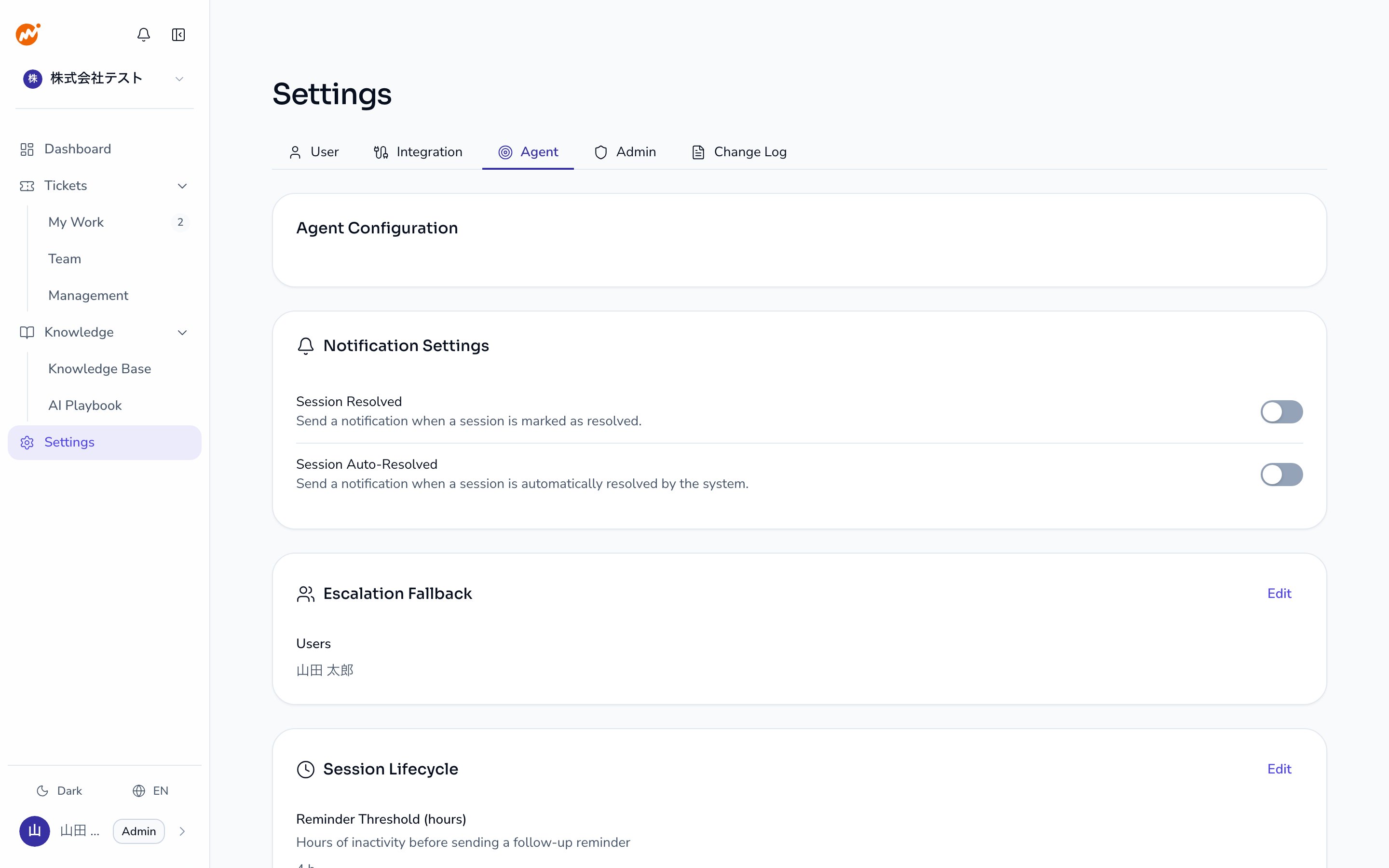
Settings
| Setting | Description | Default | Range |
|---|---|---|---|
| Reminder threshold (hours) | Sends a reminder to the requester after the specified number of hours since the last message | 4 hours | 1–168 hours |
| Auto-close threshold (hours) | Automatically closes the session after the specified number of hours since the last message | 24 hours | 1–720 hours |
| Auto-close enabled | Toggle to enable or disable the auto-close feature | On | — |
How to change settings
Start editing the session lifecycle
Click the Edit button in the upper right of the Session lifecycle section.
Update the values
Change the Reminder threshold (hours), Auto-close threshold (hours), and Auto-close enabled toggle as needed.
Session lifecycle flow
When auto-close may not be appropriate
Consider increasing the auto-close threshold or disabling auto-close in the following situations:- Inquiries frequently require multiple days to resolve
- Inquiries arrive during employee vacations or extended absences
- Your SLA (response time target) exceeds 72 hours
Disabling auto-close means unresolved sessions remain open indefinitely. Regular session reviews are recommended in this case.
Escalation settings
This tab also configures who gets notified when an escalated session has no operator assigned. Click the Edit button in the Escalation settings section and specify the Queue notifiers. Those users receive an in-app notification and a DM.Related pages
- Notifications — Enable or disable session resolved and session auto-resolved notifications
- Member management — Add operators and manage roles