

Overview
Store and view SaaS payment invoices and receipts in our service. This eliminates the need to hunt for SaaS payment information, reducing the burden on administrators. Setup is straightforward — just forward invoice and receipt emails to a designated email address.Setup
Forward invoices and receipts
Forward your SaaS invoice and receipt emails to the forwarding address shown under Settings > Email Forwarding > Forwarding Email. The forwarding email address is unique to each customer (tenant).tenant-name-string@domain

Once you configure forwarding to this address, emails will be forwarded automatically. Refer to your email system’s documentation for setup instructions.Reference: Automatically forward Gmail to another account*For Gmail, a confirmation email is sent to the forwarding address when you set up a forwarding rule, but it is automatically approved within a few minutes. No action is required on your part.
Recommended setup
To prevent invoice emails from being lost, we recommend routing through a mailbox rather than specifying the forwarding address directly in the SaaS billing settings. If you do specify it directly from the SaaS side, configure it as follows to retain messages in a mailbox as well.- Create a group address (mailing list) with a name such as billing@.
- Add both a personal email address and the forwarding email address to the mailing list.
- Set the mailing list as the email address for the SaaS payment account (contact).
View invoices and receipts
Admin permissions are required to view this section. For details, see the basic roles.
Edit or delete a service name
The system automatically matches email subjects against the SaaS database to link records to SaaS names.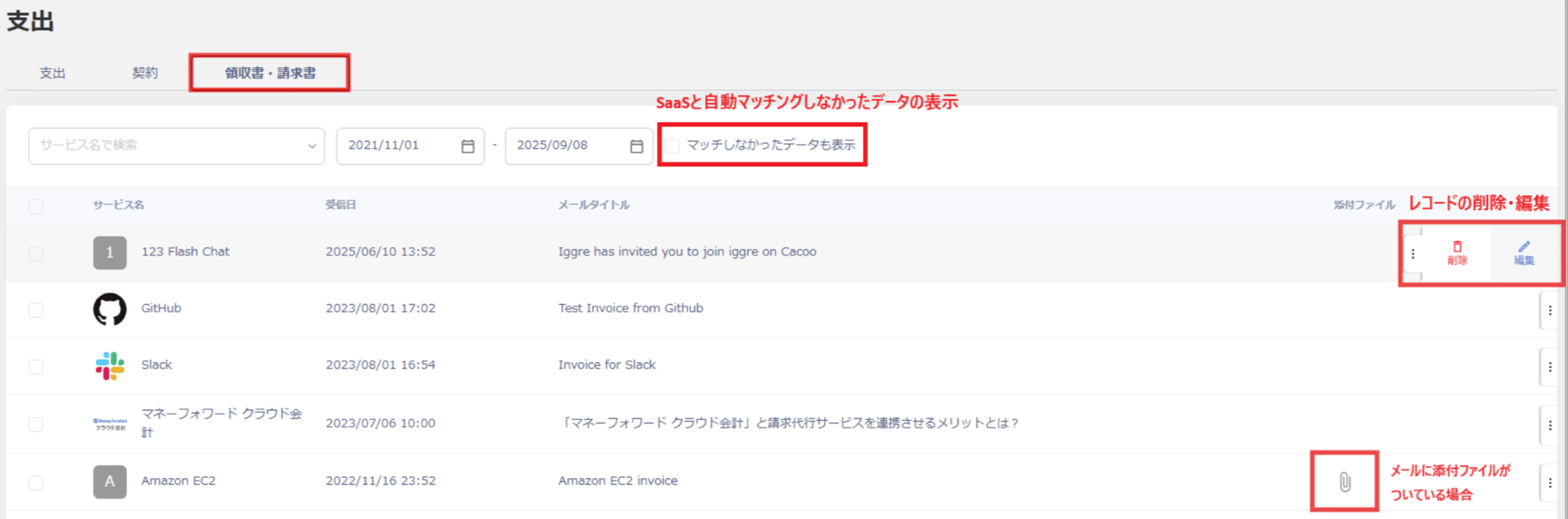
| Action | Description |
|---|---|
| Edit | Click Edit to manually link a record to a SaaS. |
| Delete | Click Delete to remove the record from the list. |
View payment details
Click a record to view the forwarded email body and any attachments. You can also download the body and attachments, and edit or delete the record.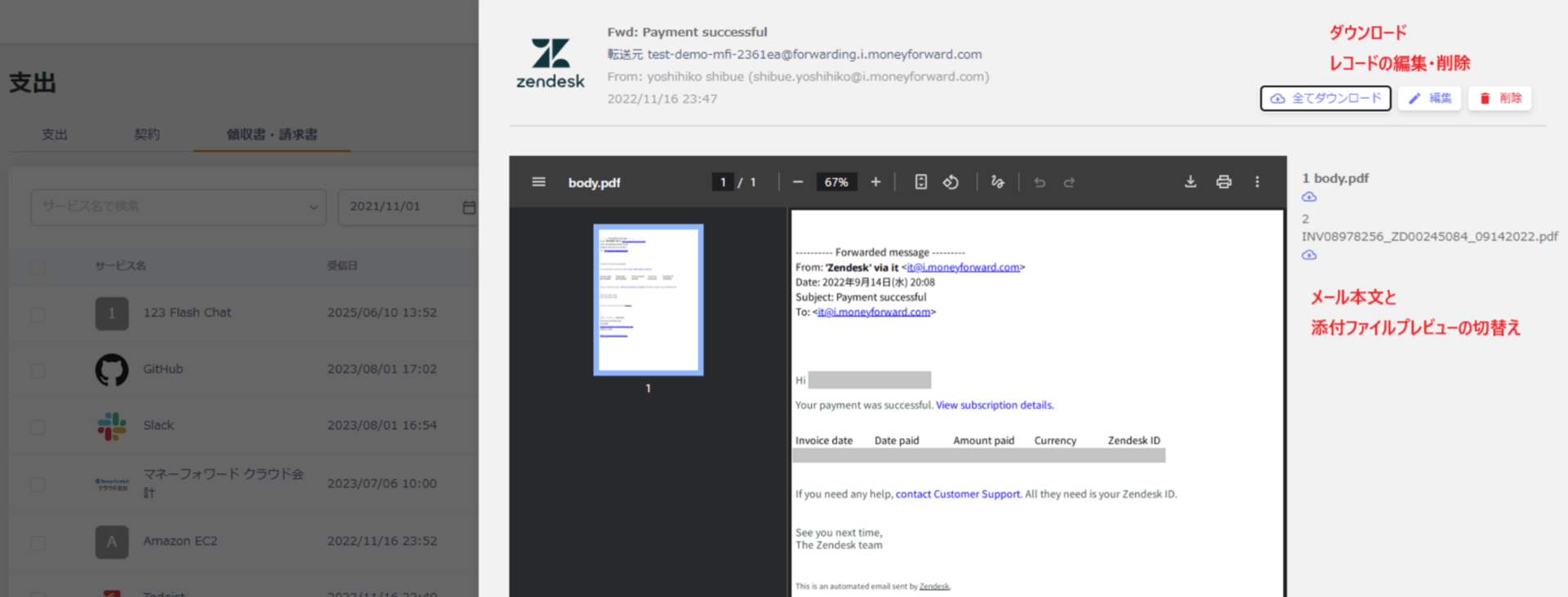
If emails do not appear
One of the following situations may apply.- The forwarded email did not match any SaaS.
- The forwarded email was not identified as an invoice or receipt.