

Overview and prerequisites
As of August 2024, the new Slack Workflow export/import feature does not work with this workflow. We have prepared these instructions so you can recreate the workflow manually. The setup takes about 10 minutes. This tool uses the following stack and permissions. You must have an account and environment that supports each of these.| Stack | Permission |
|---|---|
| Slack | Standard member permission. You must be able to build workflows in Slack Workflow Builder. |
| Google Spreadsheet | Standard member permission. After creating the file, you must have edit access to it. |
| Google Apps Script | Standard member permission. After creating the GAS project, you must have edit and execute access to it. |
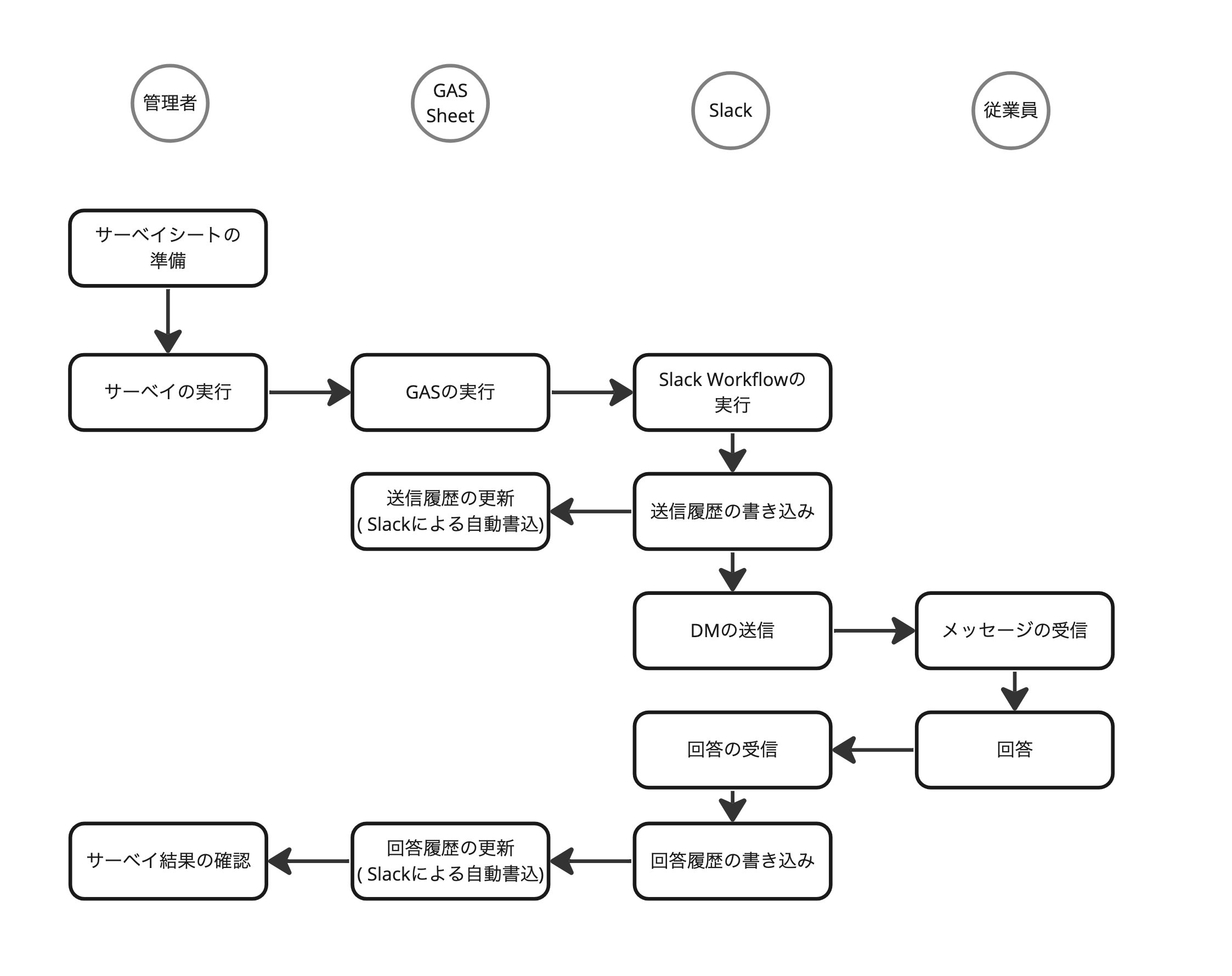
| Component | Description |
|---|---|
| Response and send history Spreadsheet | A single file that manages response history and send history across multiple surveys. Due to Slack limitations, this file must be placed in Google My Drive (not a shared drive). When the file grows large, duplicate it for long-term storage: (1) treat the duplicate as the archive, and (2) delete old data from the original file. |
| Survey Spreadsheet | A file that manages the survey content and recipients. Create a new file for each survey. This file includes the GAS send script and references the response/send history Spreadsheet. |
| Slack Workflow Builder | Sends DMs and forms to employees and records responses. Writes data to the Spreadsheet. |
Setup
Follow these steps to complete a test send.- Copy the spreadsheets Copy the following files into your organization’s environment. The response/send history sheet must be placed in Google My Drive. (It does not work in a shared drive due to platform limitations.) 🔗 Response and send history Spreadsheet 🔗 Survey Spreadsheet
- Prepare the Slack Workflow Click View Steps in the image below and follow the steps to create the Slack workflow. Once configured, you do not need to change it often.
- Initial survey configuration Open the survey file and go to the settings sheet. Enter the following values:
- The Slack Webhook URL
- The URL of the response and send history file
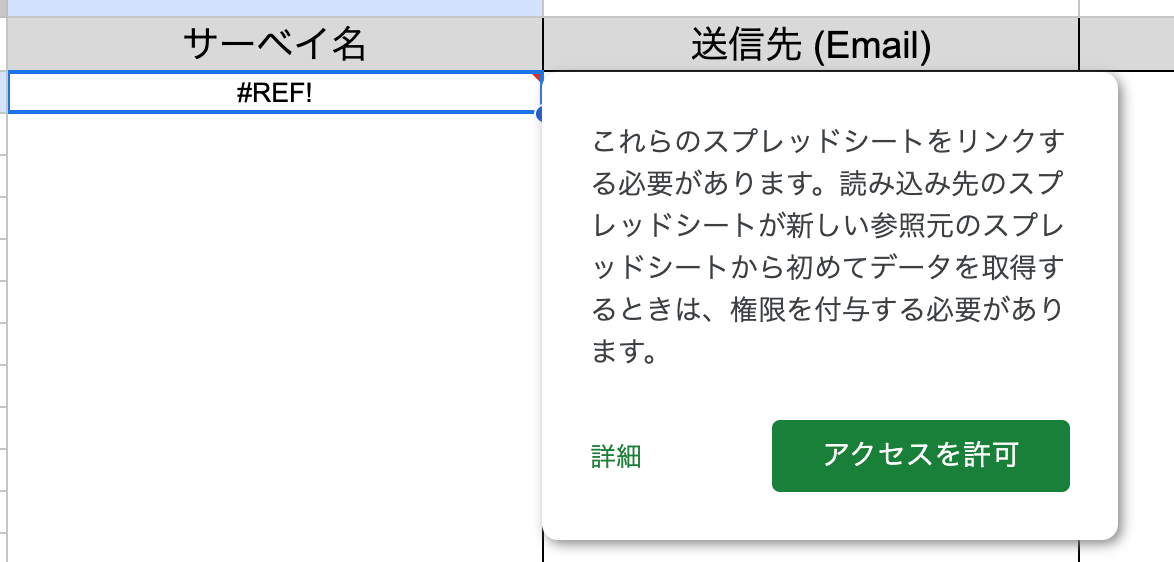
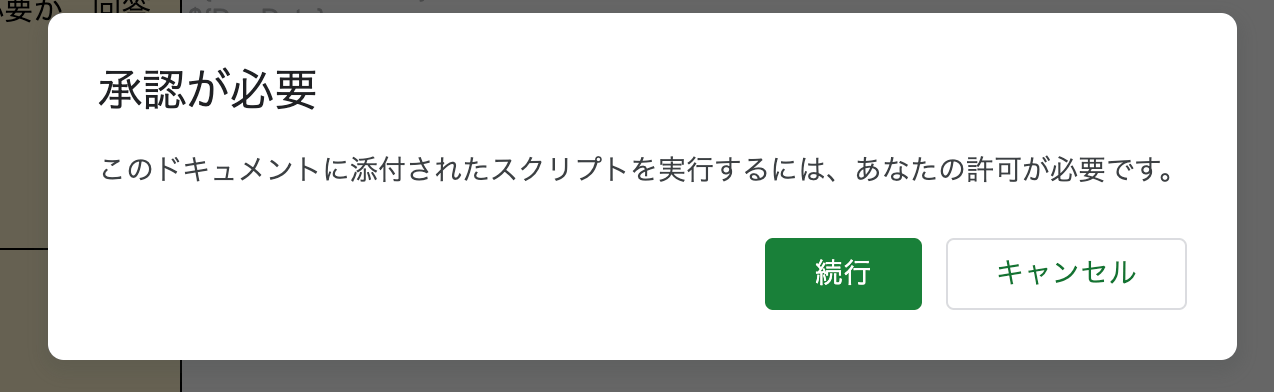
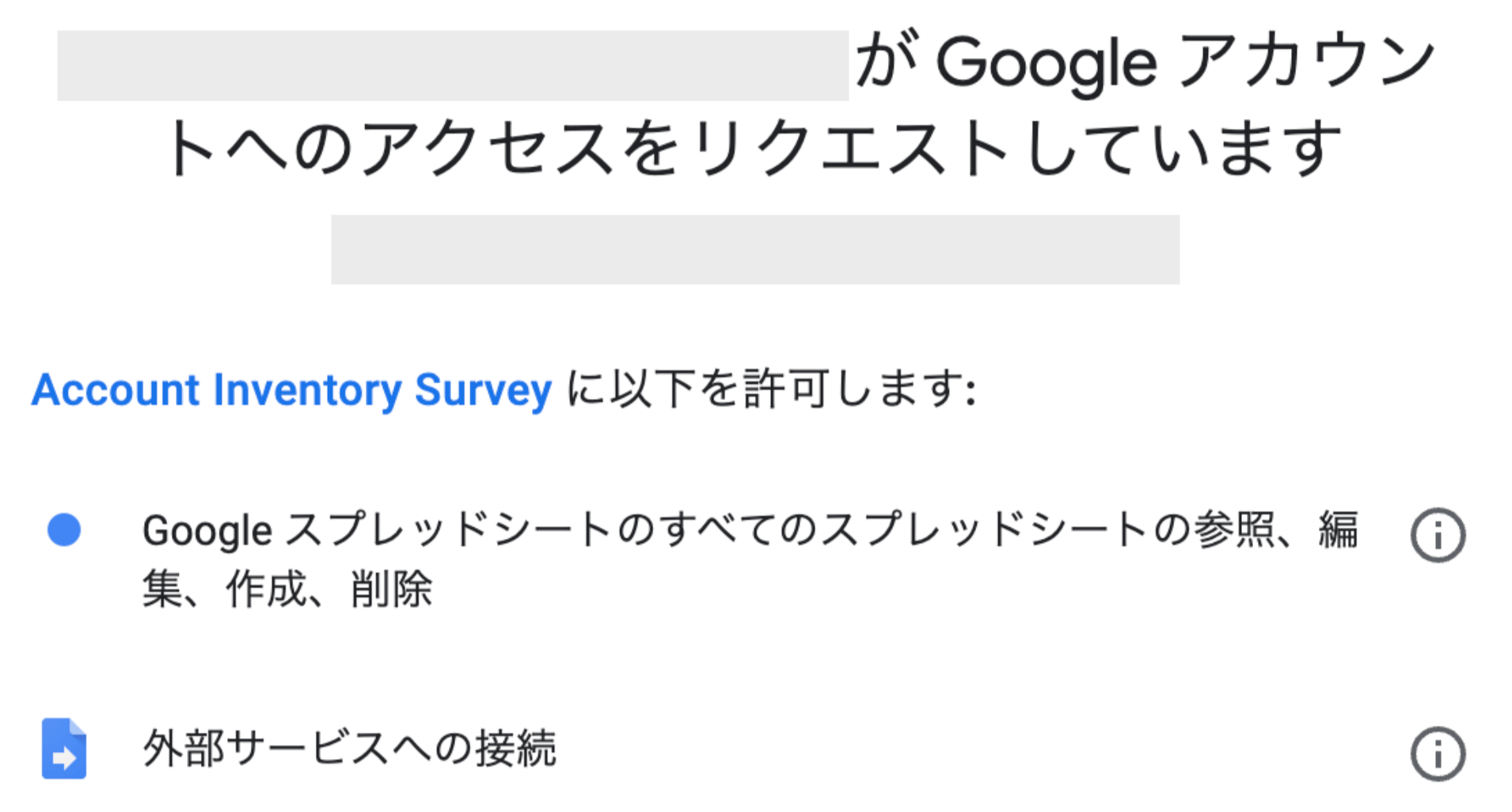
- Survey settings Update the “Survey sheet” as needed. (No changes are needed for a test.) In the “Recipients sheet”, replace the email address in the test data row with your own email address. (This email must be registered in Slack.) Add more members or update the content as needed. In the “Response history sheet”, update cell A2. If a message appears asking for file access permission, approve it. The error should disappear and the cell should show N/A. (Perform this step each time you copy the file.)
Common use cases
- SaaS account inventory
- Sending personalized messages
- Improving message content
- Using responses as audit evidence
Limitations
- Reminders or re-sending to non-respondents are not supported
- Re-submission of answers is not supported
Release notes
2023/05/10: Version 1.0.0 — Initial release 2023/05/25: Version 1.1.0- Fixed a bug in the rate limit retry logic. Sending to nearly 100 or more recipients now works reliably.
- Split the send button into two buttons. When sending to around 600 recipients, GAS hits its execution time limit, so a resume function for incomplete sends became necessary.
- Changed the send log writer from the Slack Workflow to GAS writing directly to the local file. This provides a more accurate record of send status.
- Added a log sheet to make it easier to follow the system’s processing.
- Standardized timestamps to Japan Standard Time.
- Fixed an issue where fields containing spaces in the payload could not be sent when connecting to the new Slack Workflow.