

All operations in this feature require Admin permission or the Survey Manager role. Viewing requires Member permission or the Survey Viewer role. For details, see Basic Roles.
To use the target type “Device,” you must separately enable the “Device” feature.
Screen Overview (Survey)

| No. | Item | Description |
|---|---|---|
| 1 | Dashboard | View “Total / Sending / Draft / Scheduled / Average Response Rate.” |
| 2 | Search and filter | Search surveys or filter by status or date range. |
| 3 | Create survey | Click [+] to create a new survey. |
| 4 | Survey list | Click a survey in the list to view its details. |
| 5 | More options | Click the three-dot menu [︙] to choose from “Edit / Duplicate / Export / Schedule / Complete / Delete / Cancel.” Drafts and completed surveys shown in the list can be deleted. |
Survey Detail Screen
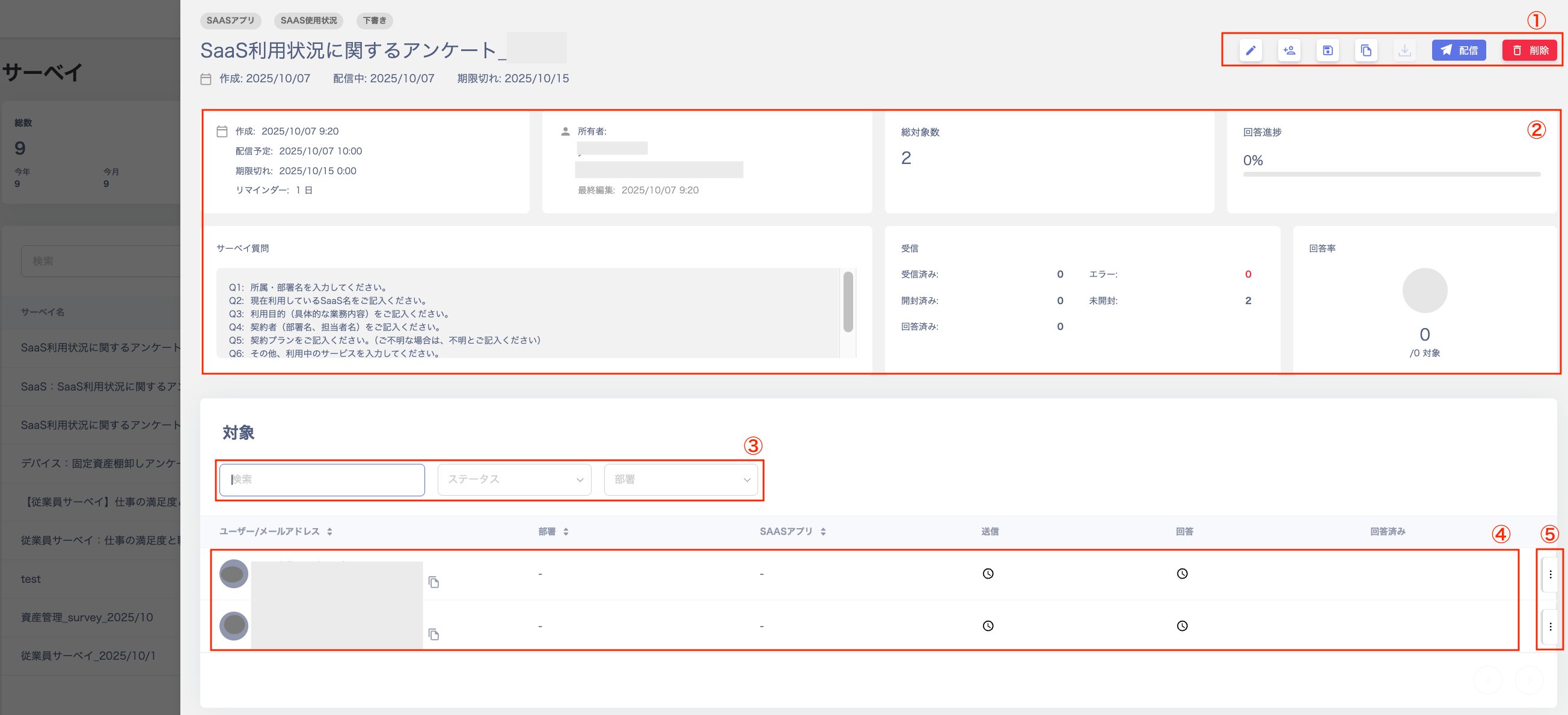
| No. | Item | Description |
|---|---|---|
| 1 | Action buttons | Buttons in the upper right — “Edit / Save as Template / Duplicate / Export / Send / Cancel / Start Now.” |
| 2 | Dashboard | View “Content / Owner / Total Targets / Response Progress / Survey Questions / Received / Response Rate.” |
| 3 | Search and filter | Search or filter by status or department. |
| 4 | Target list | View the list of targets configured in the “Target Settings” screen during survey creation. |
| 5 | More options | Click the three-dot menu [︙] to select “Resend.” |
Create New Survey Screen
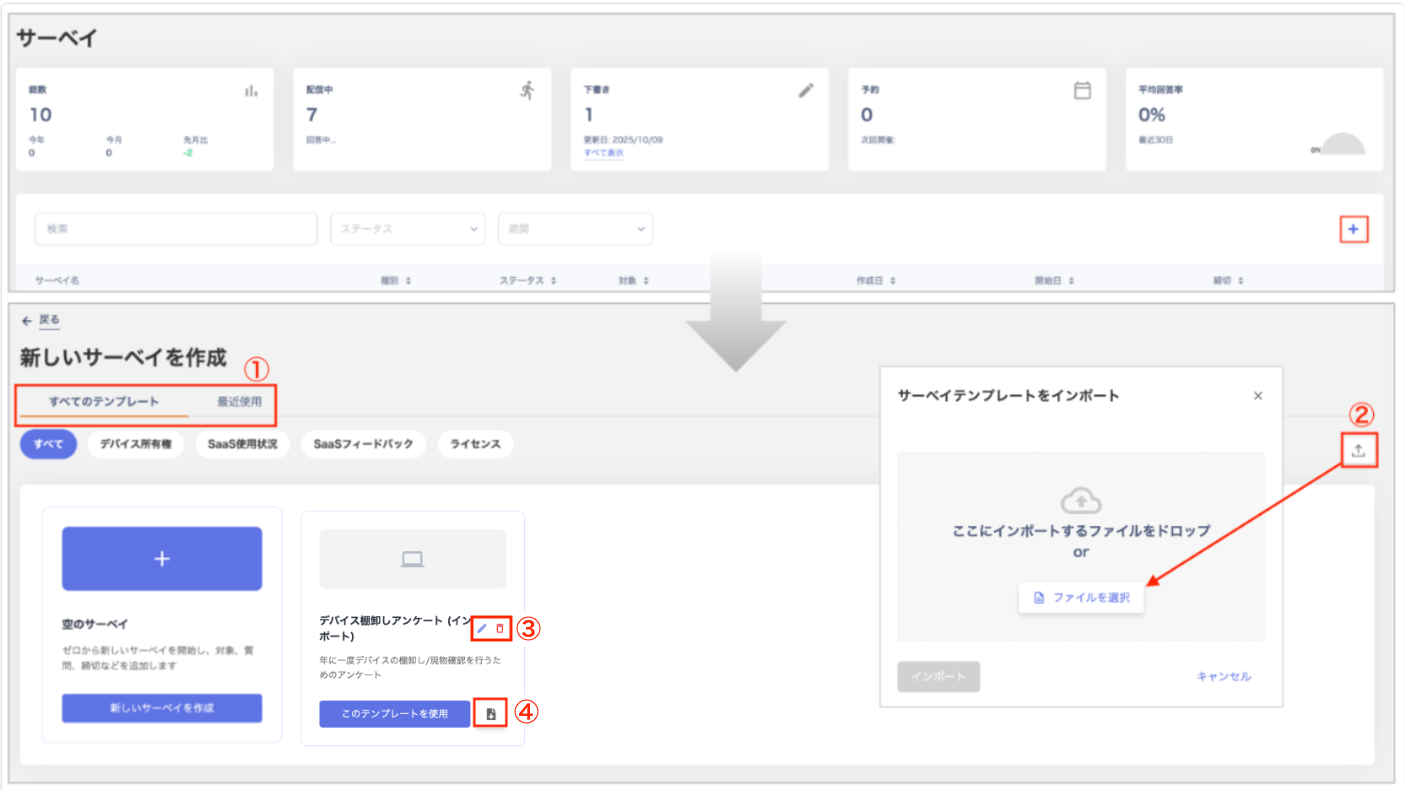
| No. | Item | Description |
|---|---|---|
| 1 | Switch templates | Toggle between “All Templates / Recently Used.” You can also filter templates by category: “All / Device Owner / SaaS Usage / SaaS Feedback / License.” |
| 2 | Import | Import a survey template from the “Import Survey Template” screen. For details, see Importing a Template. |
| 3 | Edit / Delete | Edit or delete templates you created by importing from the “Create New Survey” screen. |
| 4 | Export | Export (JSON) templates you created by importing from the “Create New Survey” screen. You can also export and save any edits you make. |