

Prerequisites

Employee master integration must be configured.

Use the Retired Filter

Check by Account

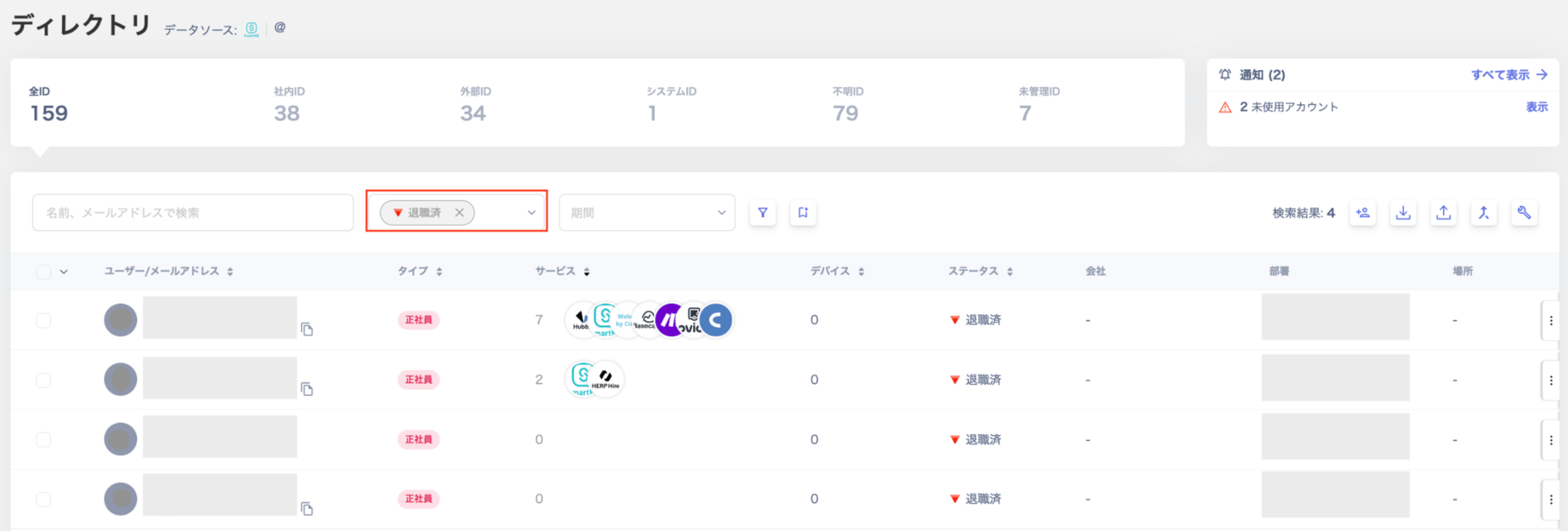
In the Directory, select “Retired” from the “Status” filter. After filtering by “Retired”, check for accounts that still show services in the “Services” column. These may have been missed during offboarding. Directory status filter showing Retired selected
Check Retired Accounts via Alert Notifications

Navigate to Services > (target service) > Notifications to review retired accounts. For details, see Alert Notification Operations Guide. Service notification screen showing retired accounts

When Accounts Remain After Deletion

Some services do not support account deletion, so accounts may remain in a deactivated state. Employees on leave may also appear with a retired flag. If something looks incorrect, contact us via chat with a description of the issue.

Next Step

From here, the work is simply repeating the integration process. Invite cloud service administrators and have them connect their services. Use the steps below to invite additional users. Invite Users How to manage retired accounts
Last modified on July 14, 2026