

All operations for this feature require Admin privileges or the Survey Manager role. Viewing requires Member privileges or the Survey Viewer role. See Basic Roles for details.
To use the target type “Device”, you must separately enable the “Device” feature add-on.
How to Check for Unused Accounts
In our service, an unused account is one whose last activity date is 45 days or more in the past. See Alerts for Services for details. Start by checking which accounts have not been used for 45 days or more. You can do this in two ways.Check from the Services Screen
On the service list screen, use the “Notification Type” filter at the top and select Unused Accounts. The list narrows to services that have matching accounts. To export the unused account list as a CSV, go to SaaS > Notifications > “Unused — accounts not used for a long time…”. Then use the Export button in the upper right.
Check from the Directory Screen
Go to Notifications (upper right) > Show All → > Warnings > Unused Accounts to view the list of affected accounts. Click an account to see the associated service. You can also export the results as a CSV using the Export button in the upper right of that screen.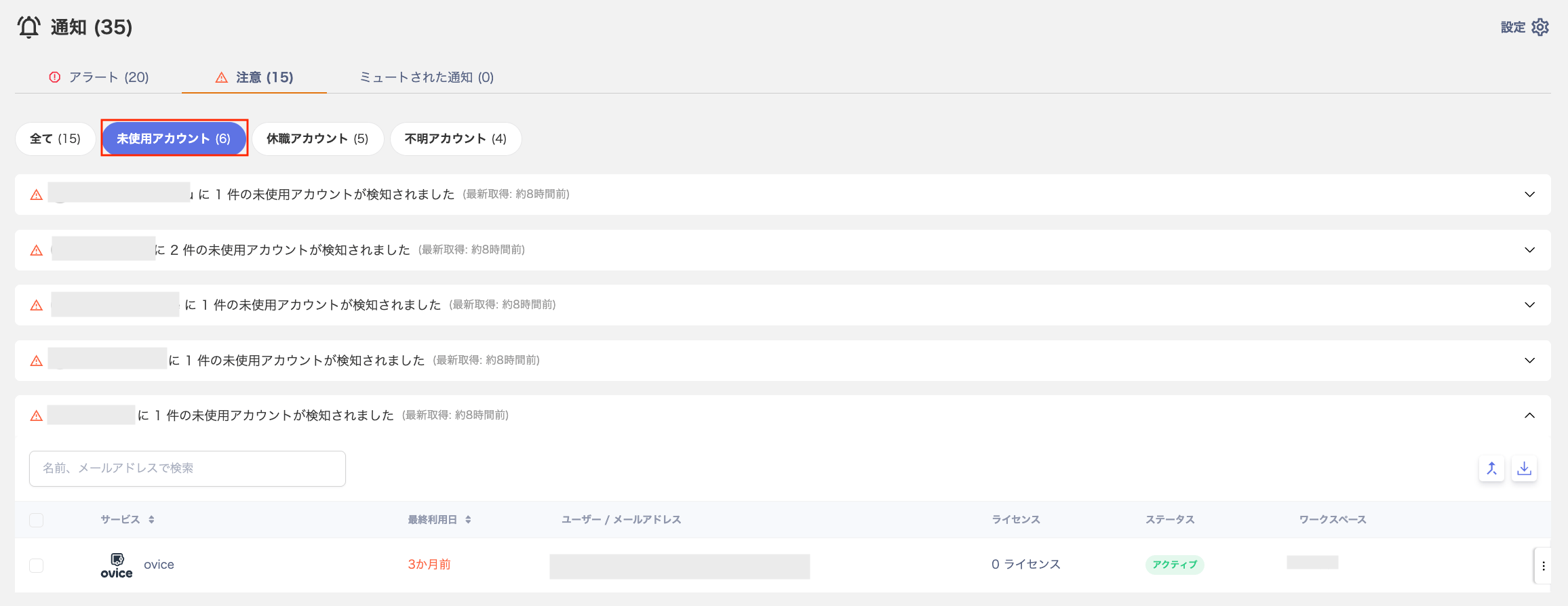
Creating a Survey and Configuring Recipients
Create a survey to ask whether the identified unused accounts are still needed.- Create a survey. Follow the steps in Create a new survey.
- In step ⑧ of Create a new survey, use the dropdown in the upper left of the “Select targets” screen. Select the target SaaS. You can configure targets per SaaS or across multiple SaaS services at once. See Create a survey with target type “SaaS app” for details.
-
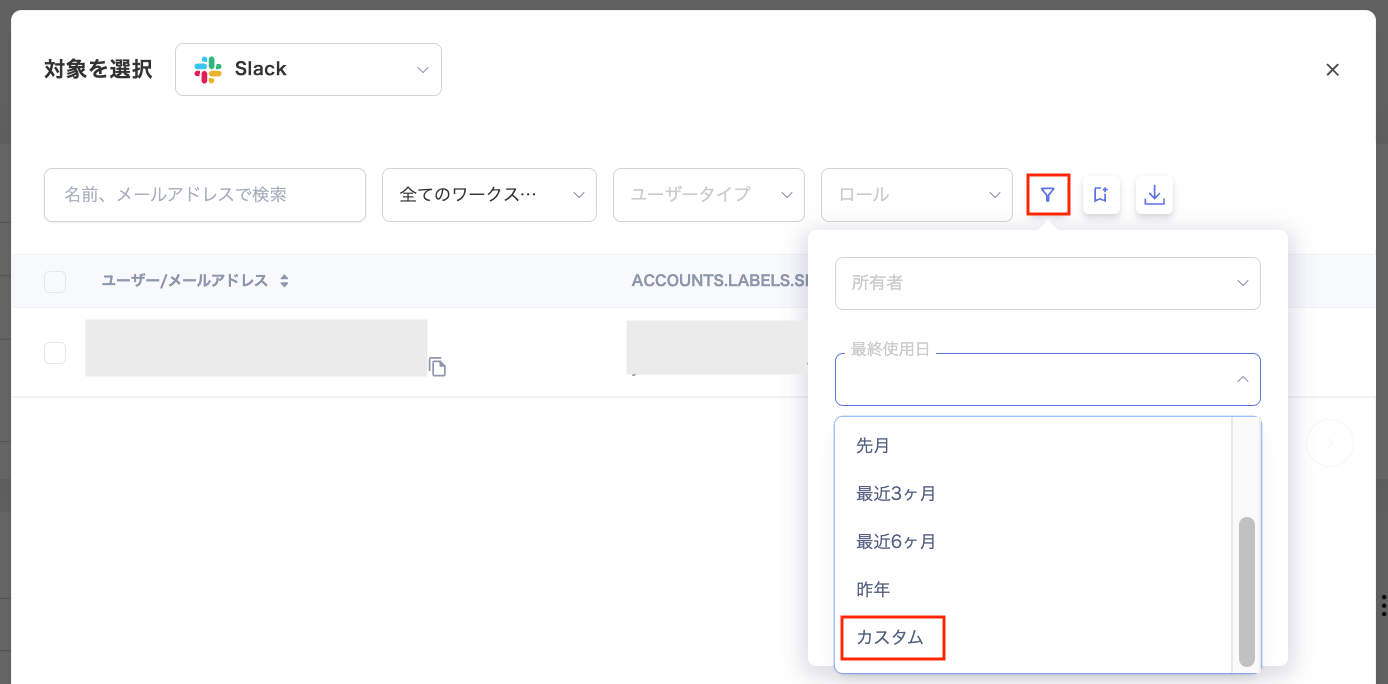
In the “Select targets” screen, use the filter at the top to choose “Custom” under “Last Used Date”. Then specify a date range in the “Custom Range” dialog.
- Continue with step ⑨ and beyond from Create a new survey.