

Screen Overview (Directory)

| No. | Item | Description |
|---|---|---|
| 1 | Filter by ID type | Filter by ID type: All IDs / Internal IDs / External IDs / System IDs / Unknown IDs / Unmanaged IDs. |
| 2 | Search by name or email | Search the Directory list by name or email address. |
| 3 | Status | Filter the Directory list by status. |
| 4 | Period | Filter the Directory list by a specified date range. |
| 5 | Other filters | Filter the Directory list by individual attributes. |
| 6 | Save search | Save your search conditions and reuse them to filter the list. |
Filter by ID Type
Select an ID type — All IDs / Internal IDs / External IDs / System IDs / Unknown IDs / Unmanaged IDs — to filter the list by that type. To clear the filter, select All IDs.
Search by Name or Email
Search the Directory list by name or email address. To clear the search, click the (×) icon on the right.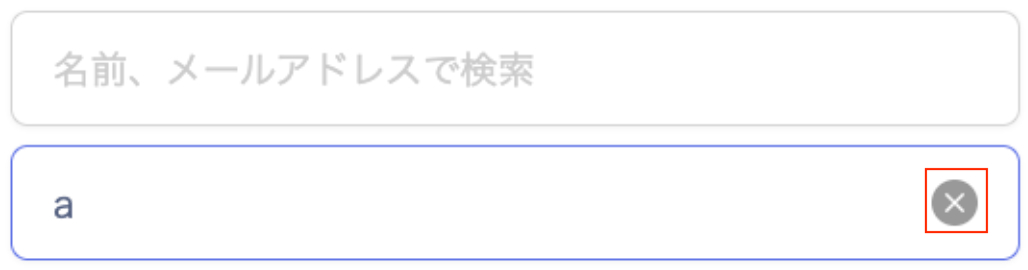
Status
Filter the Directory list by status. To clear the filter, uncheck the checkbox.Period
Filter the Directory list by a specified date range. To clear the filter, click the (×) icon on the right.
Custom
Selecting Custom opens the Custom Range screen. Set the date range and click Apply.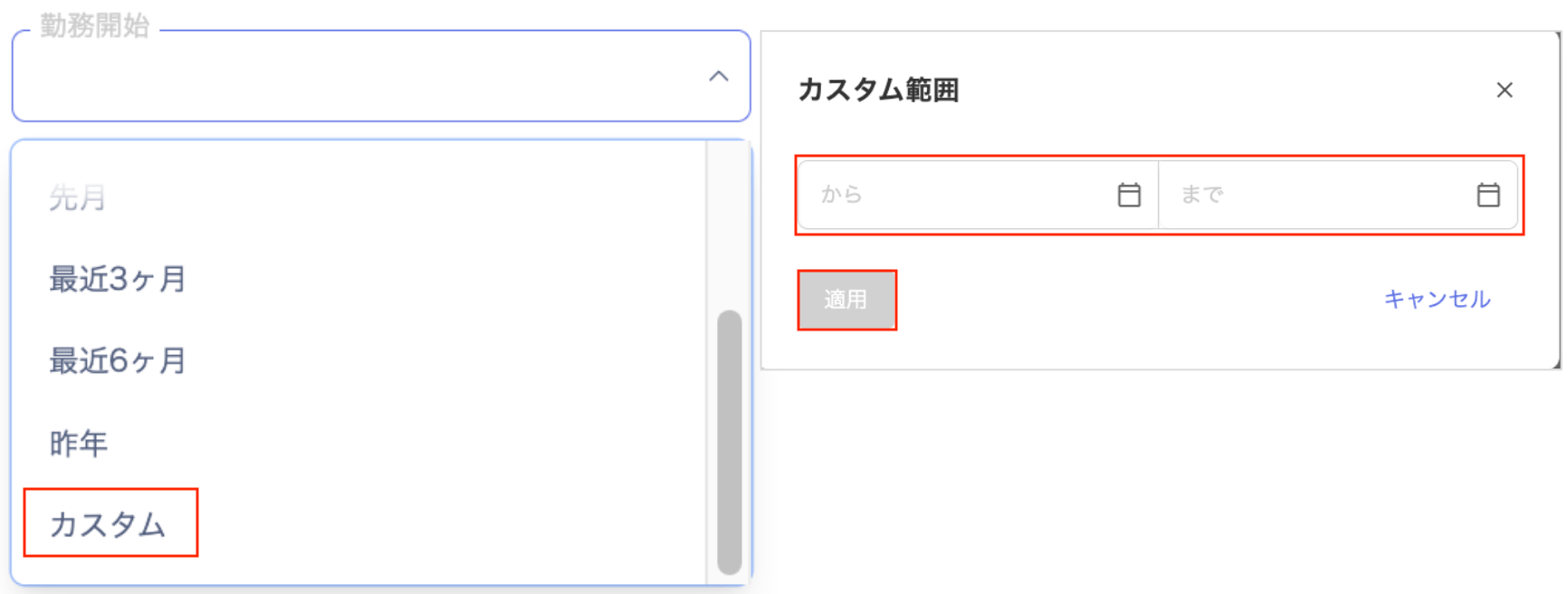
Other Filters
Filter the Directory list by individual attributes (including custom attributes). To clear a filter, click the (×) icon on the right.
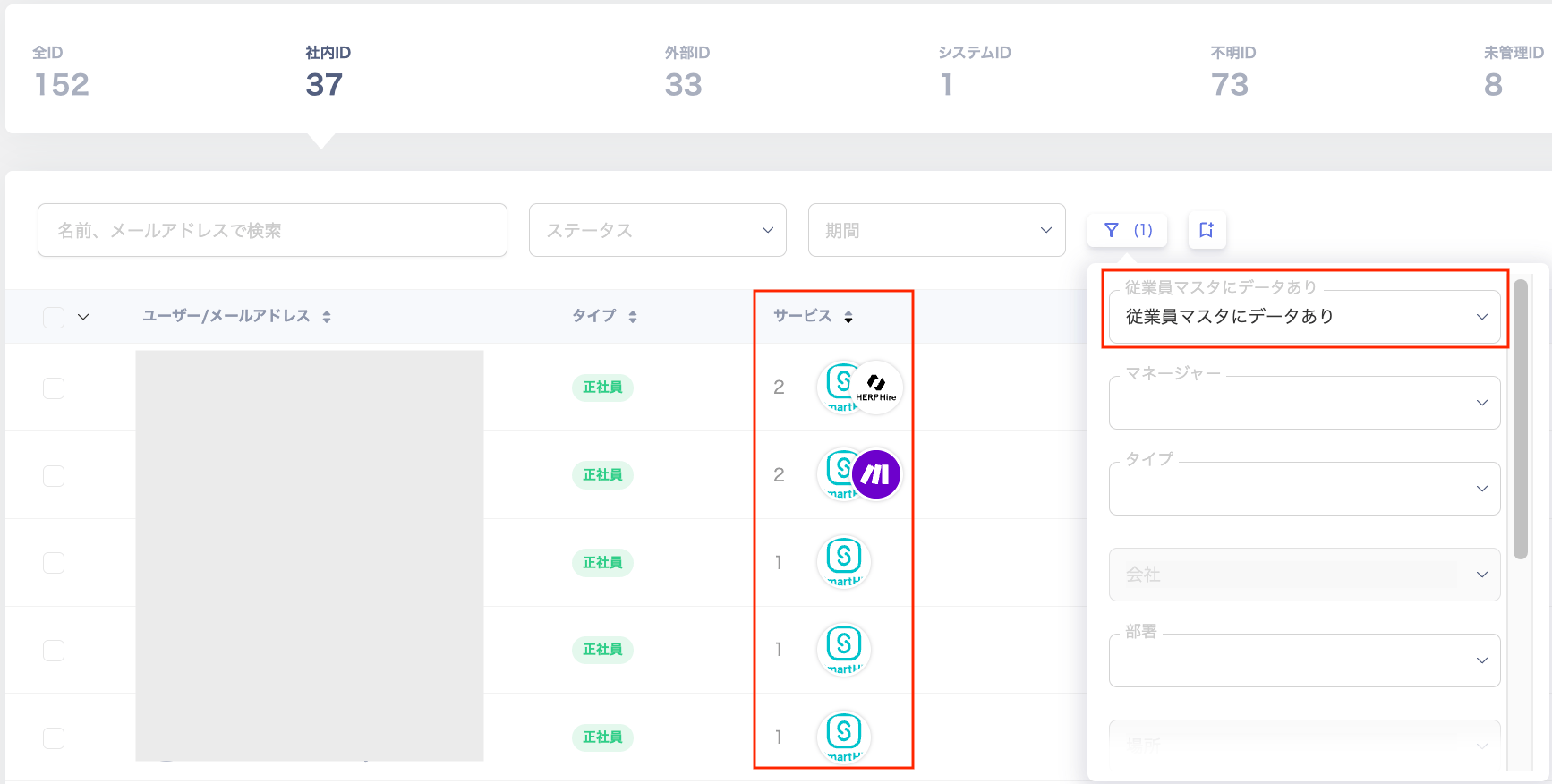
Has Data in Employee Master
Filter by Has data in Employee Master. This filter is available when an employee master is configured under Settings > Organization > Employee Master Settings.
Save Search
Save your search conditions and reuse them to filter the list. To save a search, go to Save Search > Save Current Search, enter a Search Name, and click Save Search.
Saved Searches
Saved search conditions appear in a list. You can run, reorder, view, and delete saved searches.
| No. | Item | Description |
|---|---|---|
| 1 | Reorder | Reorder saved search conditions by hovering and dragging up or down. |
| 2 | Search conditions | View the conditions of a saved search. |
| 3 | Delete | Delete a saved search condition. |
| 4 | Run search | Run a search using the saved conditions. |