

Services Screen Overview
This page explains how to read and use the Services screen.How to Read the Services Screen

| No. | Item | Description |
|---|---|---|
| 1 | Connected services list | View services, workspaces, monthly spend, and accounts. |
| 2 | Notifications | Select “Show all →” in the upper right to view “Alert / Warning / Muted notifications.” |
| 3 | Search by service name or workspace name | Filter the service list by service name or workspace name. |
| 4 | Filter by notification level | Filter the service list by “Critical / Warning.” |
| 5 | Filter by notification type | Filter the service list by “Resigned / Unused / On leave / Unknown accounts” or “Public files.” |
| 6 | Sync all | Run sync for all services in the list. |
| 7 | Connect a new service | Navigate to Integrations > Integrations screen. |
Service List

| No. | Item | Description |
|---|---|---|
| 1 | Service / Workspace | Displays the service name and workspace name. |
| 2 | Notifications | Displays critical and warning notifications. |
| 3 | Accounts | Displays the number of accounts linked to the service. Avatars appear when accounts are retrieved from the service. |
| 4 | Monthly spend | Displays the previous month’s spend. Arrows indicate whether spend increased or decreased compared to the prior month. An upper-right arrow means an increase, and a lower-right arrow means a decrease. You can also check this under Spend > Spend (search by service name). |
| 5 | Engagement score | Displays the engagement score. Access frequency is scored on a 10-point scale. The more users who access frequently, the higher the score. |
| 6 | Add account | Add an account directly from the Services screen. This option appears only for SaaS services that support provisioning. For supported services, see Connected SaaS & Feature Support List, under “Account Lifecycle” > “Provisioning (New / Additional Registration).” |
Service Details

| No. | Item | Description |
|---|---|---|
| 1 | Service site | Open the service’s website via the ↗️ link. |
| 2 | Accounts | Displays the number of accounts linked to the service. |
| 3 | Notifications | Displays critical and warning notifications. |
| 4 | Next contract | Displays the next contract date. This reflects the settings configured in the Contract tab. |
| 5 | Tabs | Switch between the “Info / Accounts / Contracts / Notifications” tabs. |
| 6 | View receipts and invoices | Click [View Receipts & Invoices] to navigate to Spend > Receipts & Invoices. |
Info (Workspace)

| No. | Item | Description |
|---|---|---|
| 1 | Workspace | Displays connected workspace names. You can register multiple workspaces. Click a workspace name to add information for that workspace. For details, see Managing Multiple Workspaces (Domains, Tenants). |
| 2 | Status | Displays the current status. |
| 3 | Settings | Click the three-dot menu [︙] to access “Delete / Rename / Reconnect / Sync / Details.” For details, see Reconnect and Sync. |
Info (Role)

| No. | Item | Description |
|---|---|---|
| 1 | Role | Displays the role. Click a row in the table to open the Accounts screen with the corresponding filter applied. This is retrieved when the SaaS supports Role under “FetchData” in Connected SaaS & Feature Support List. |
| 2 | ID type | Displays the ID type. Click a row in the table to open the Accounts screen with the corresponding filter applied. This is retrieved when the SaaS supports Role under “FetchData” in Connected SaaS & Feature Support List. |
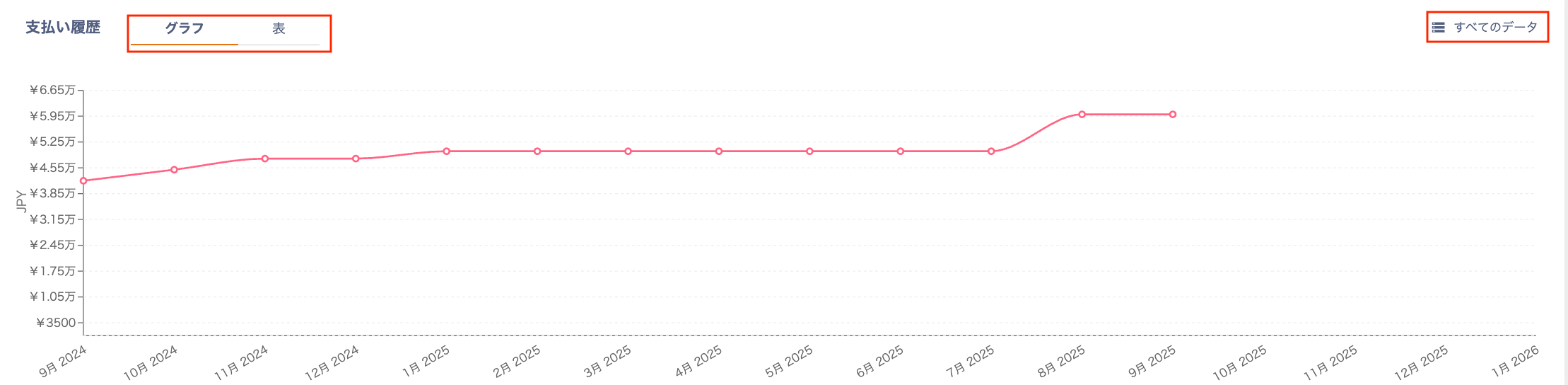
Info (Payment History)

Accounts (Service Details)

| No. | Item | Description |
|---|---|---|
| 1 | Search by name or email address | Search the account list by name or email address. |
| 2 | Filters | Filter by “User type,” “Role,” or “2FA status, suspended accounts.” |
| 3 | Save search | Save your search conditions and filter using the saved conditions. |
| 4 | Exporting service accounts | Export all service accounts, or a subset filtered by conditions. For details, see Exporting Service Accounts. |
| 5 | Merge | Manually link a retrieved service account to another account. For details, see Account Linking (Merge). |
| 6 | Owner | Click an owner’s account to navigate to the Directory screen. |
| 7 | Service ID | Displays the account information registered on the service side. |
| 8 | Last used | The service’s last-used date. To check whether Last Activity data is available, see “FetchData” > “Last Activity” in Connected SaaS & Feature Support List. |
| 9 | Settings | Click the three-dot menu [︙] to access “Delete / Merge / Add note.” Delete: you can delete an account for services that list “Delete” under “Account Lifecycle” in Connected SaaS & Feature Support List. Add note: leave an individual note for each account. |
Contracts (Service Details)

| No. | Item | Description |
|---|---|---|
| 1 | Create | Register a new contract via [+ Create]. For details, see Managing SaaS Contracts. |
| 2 | Name | Displays the registered contract name. |
| 3 | Workspace | Displays the workspace name selected at registration. |
| 4 | Next contract | Displays the next contract date and day of the week. |
| 5 | Period | Displays the registered renewal period. |
| 6 | Contract date | Displays the registered contract date. |
| 7 | Administrator | Displays the registered administrator. |
| 8 | Notes | Displays the content entered in the notes field. |
| 9 | Delete | Delete a registered contract. For details, see Deleting and Modifying Contracts. |
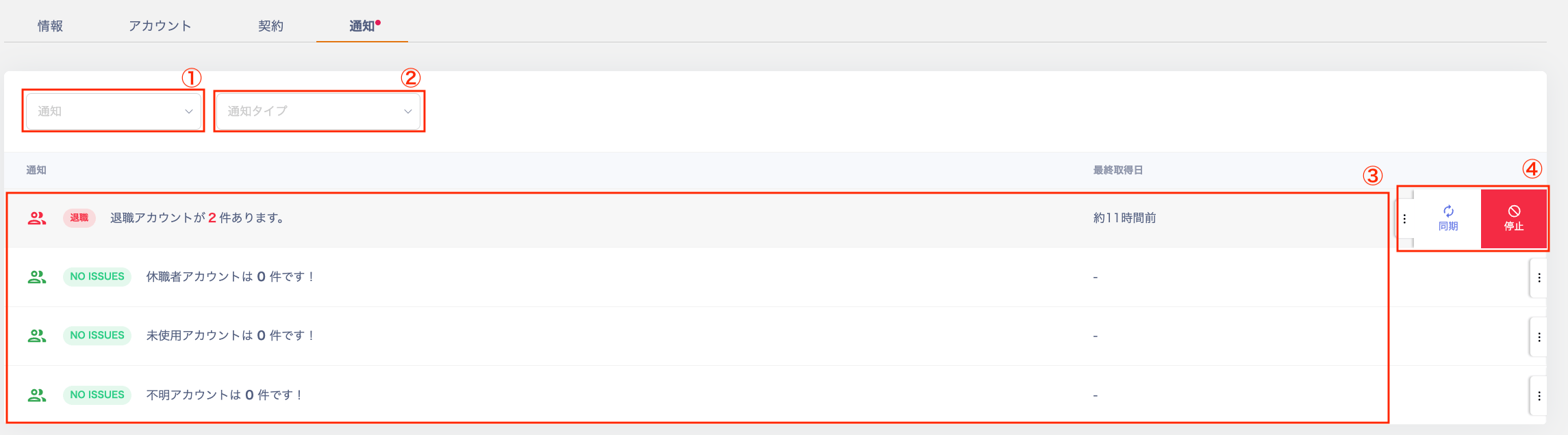
Notifications (Service Details)
| No. | Item | Description |
|---|---|---|
| 1 | Notifications | Filter by “Critical” or “Warning” notifications. |
| 2 | Notification type | Filter by “Resigned / On leave / Unused / Unknown accounts” or “Public files.” |
| 3 | Notification list | Displays notifications for “Resigned / On leave / Unused / Unknown accounts” or “Public files.” For details, see Service Alerts. |
| 4 | Settings | Click the three-dot menu [︙] to access “Sync / Stop.” Use [Sync] to retrieve the latest notifications. For [Stop], see Muting Alert Notifications. |