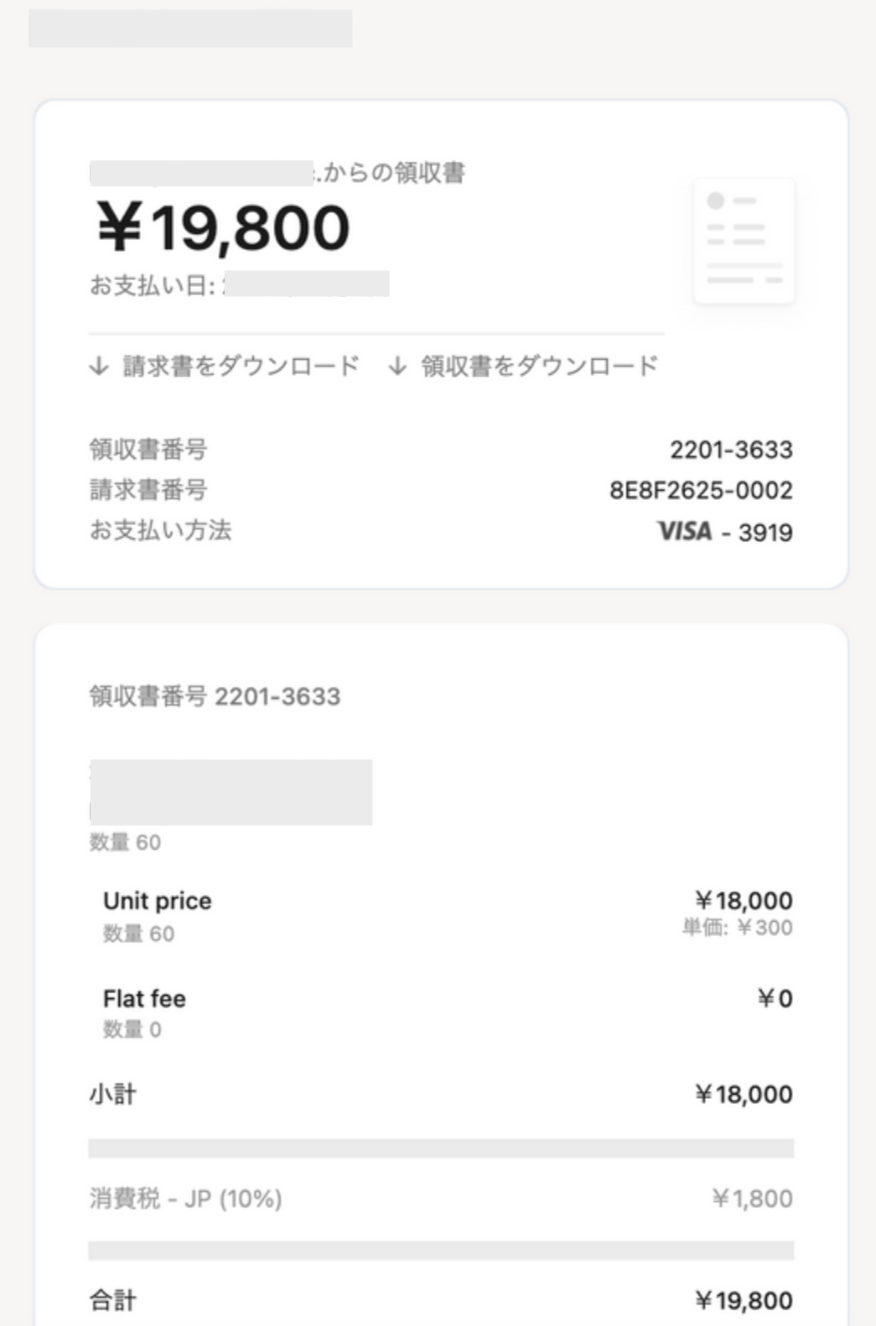
Payment management screen
-
Go to Settings > Payment > Payment Settings and click Manage.

-
The management screen shows your current subscription, payment method, billing contact, and billing history.
Note: If we issue a separate invoice on our side, it will not appear on this screen.
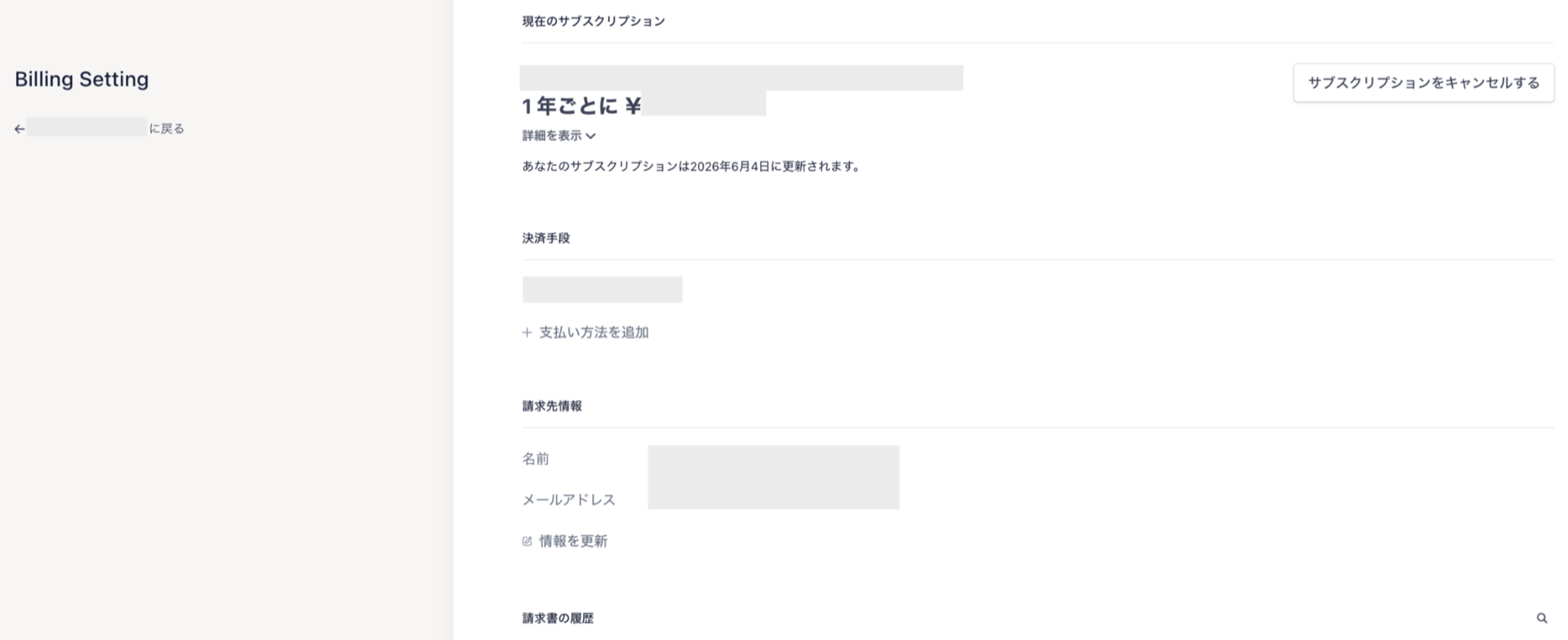
How to check your current plan
View your active plan under “Current Subscription.”
⚠️ Clicking “Cancel Subscription” will immediately disable your access to the service.
- Canceling locks your organization, stops all data collection, and logs out all users.
- Your data is not deleted.
- Use [Cancel Plan] if you want to pause billing temporarily and resume later.
- To permanently delete your data, go to Cancellation Implementation.
How to check your billing date
Go to Settings > Payment > Payment Settings > Manage > Current Subscription to view your next billing date (Next billing date: MM/DD/YYYY).

Add a payment method
Our service currently accepts credit card payments only. You can register a credit card, view your registered card details, and change the card used for billing.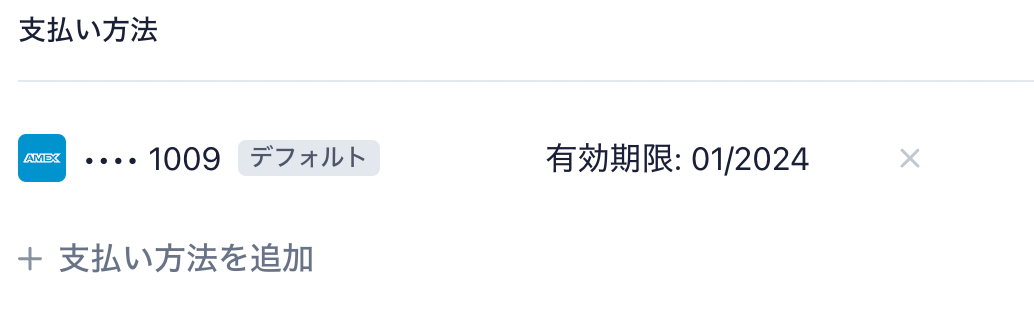
Billing contact
This is the email address that receives billing notifications. By default, it is set to the email address of the first administrator who created the organization for our service. Update it as needed.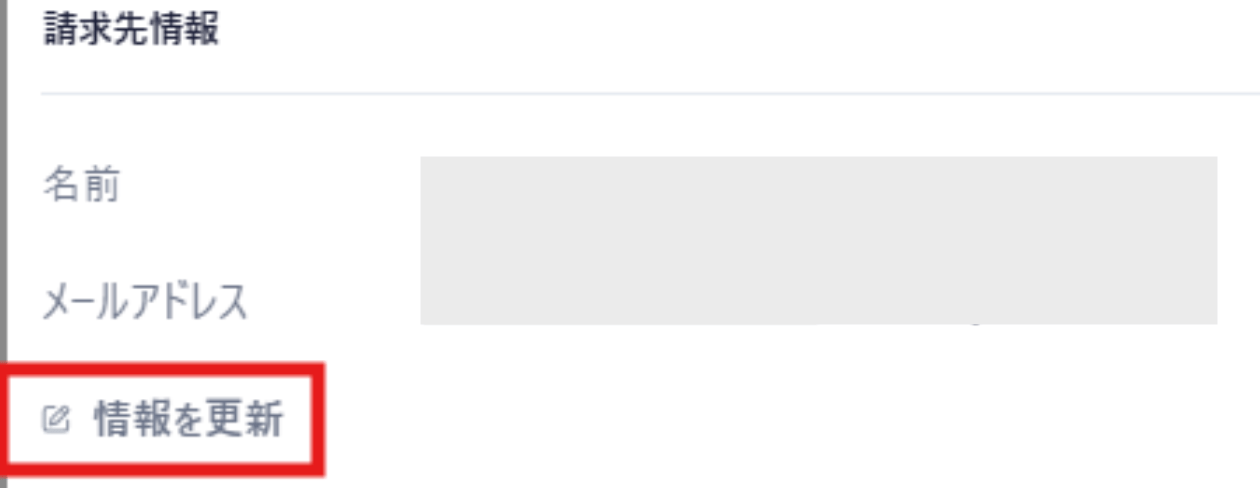
Billing history
View your billing history here. Click “Show more” to load additional records.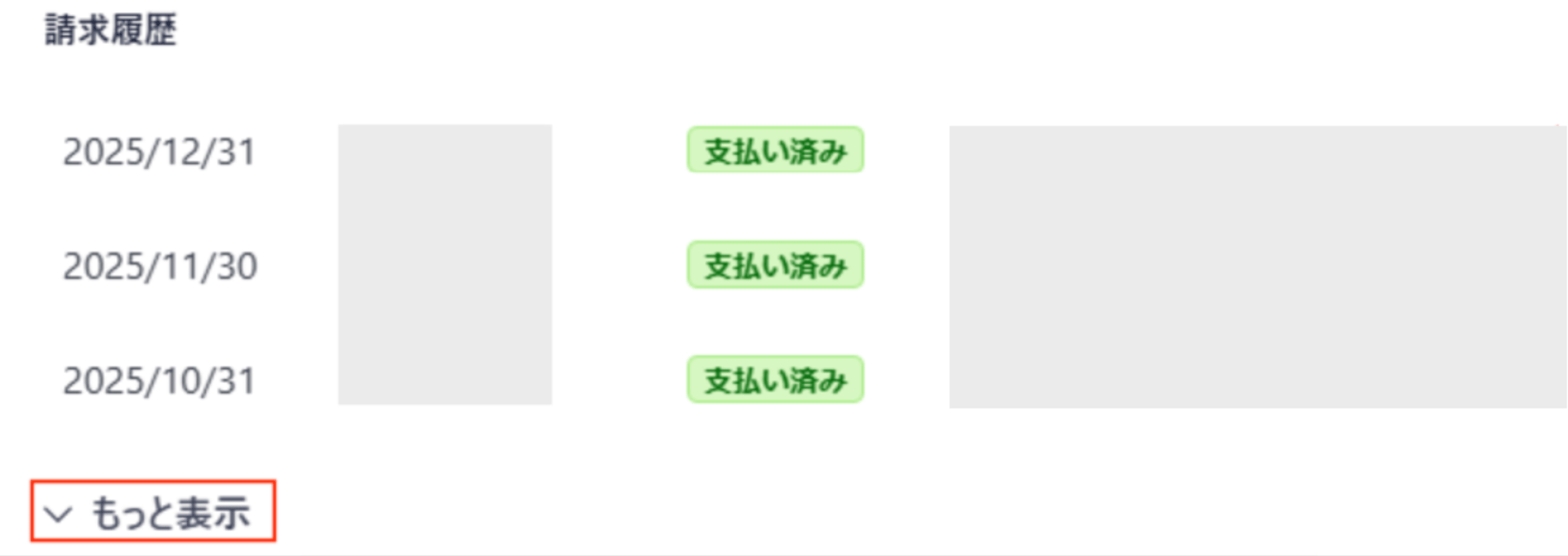
Download receipts and invoices
Click any row in your billing history to download the receipt and invoice for that charge.The invoice is not a payment request for bank transfer. It is intended for internal approval processes such as expense reports.


Qualified invoice compliance
In response to Japan’s Qualified Invoice System that launched in October 2023, our invoices now comply with the qualified invoice format. Our registration number is “T4010401134375”.
Payment notifications
Credit card statement
Your credit card statement will showST*MONEY FORWARD I INC. as the transaction description.