

Permission for this service: This feature requires Admin or Automation Manager permission.SaaS status: The target SaaS must already be connected. The connection must use administrator privileges (including API permissions) that allow account creation and deletion.
Configuration flow
After completing the prerequisites, configure the workflow in three main steps.- Pre-configure automation (mapping): Set up the mapping with the connected services.
- Create and publish the workflow: Define the workflow conditions and activate it.
- Notifications: Verify that notifications arrive via the selected method (Slack or Email).
Steps to configure employee offboarding
-
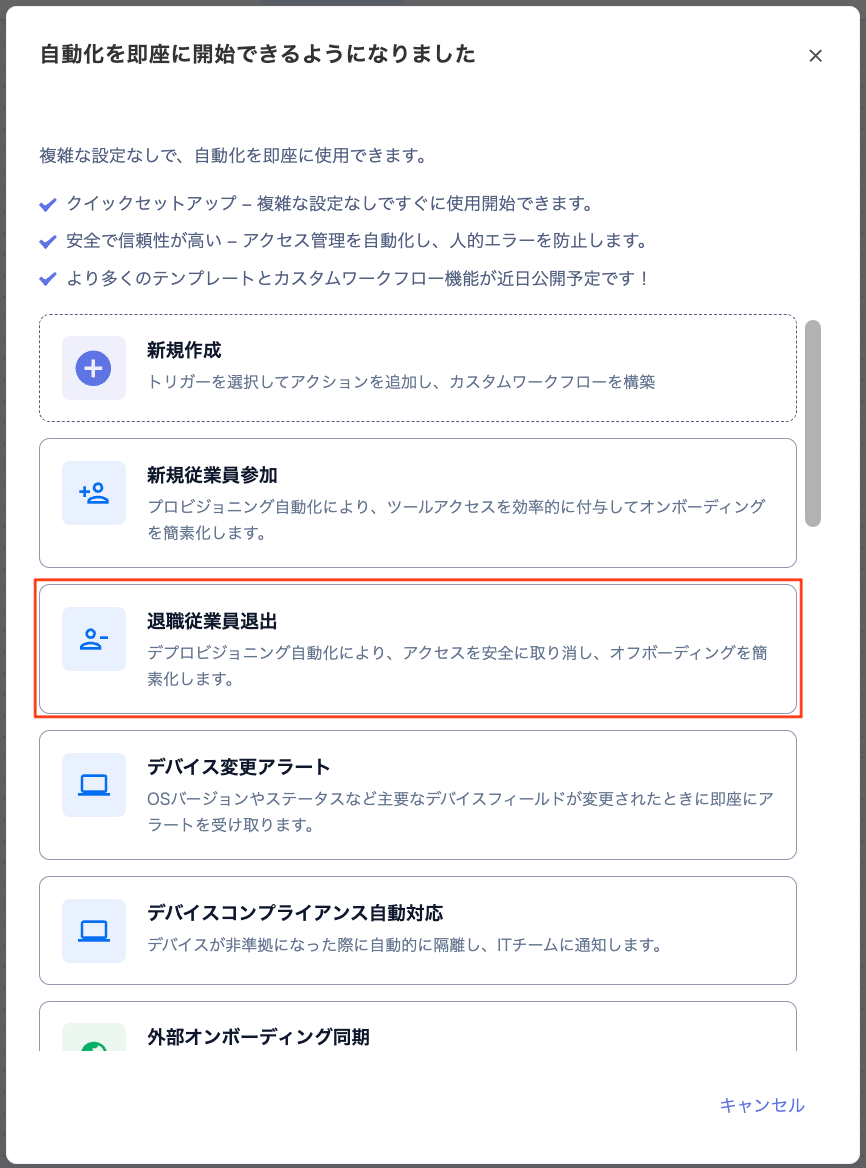
Go to Automation > [Create automation] > click “Employee offboarding.”
-
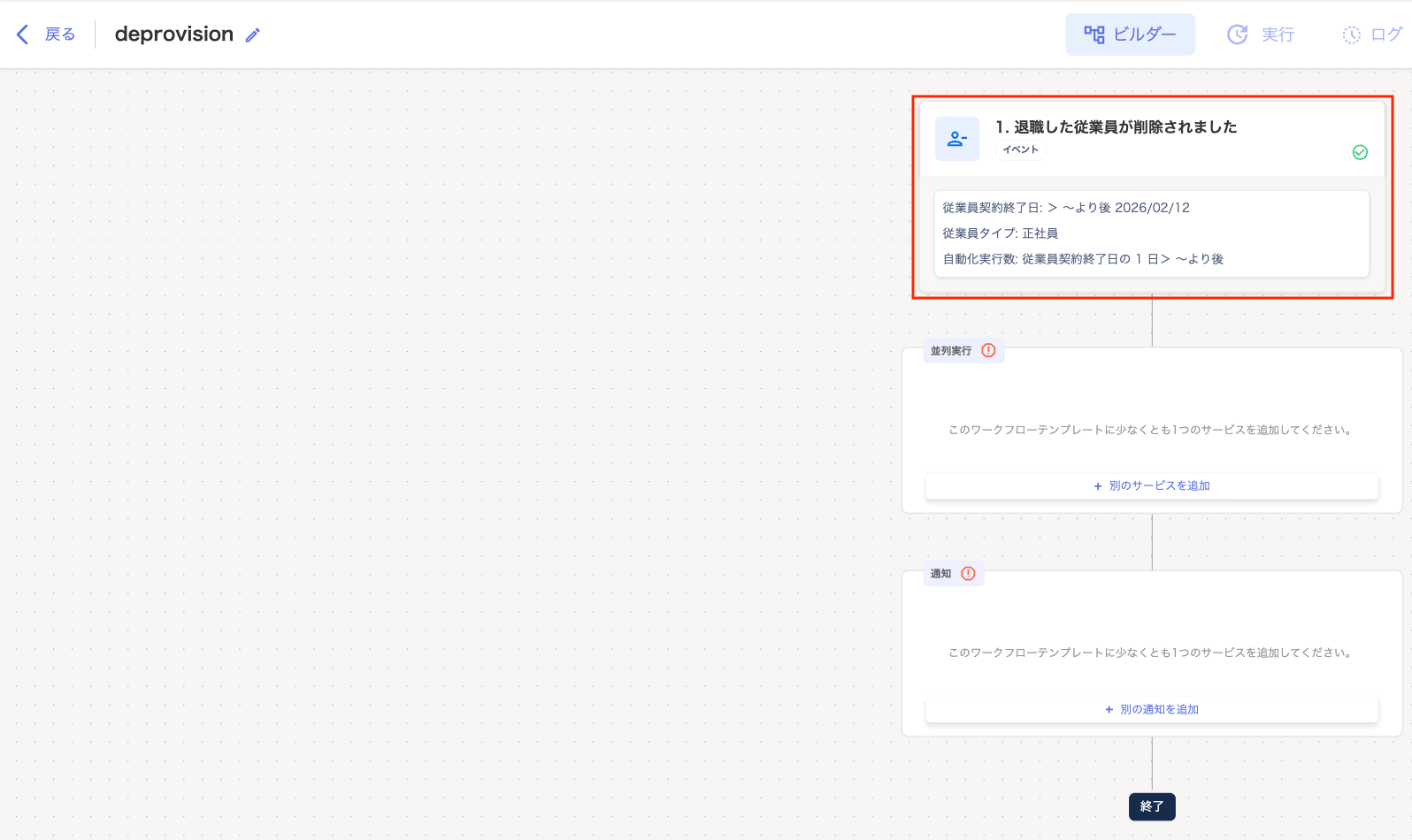
On the “deprovision” builder screen, click “1. A terminated employee was removed.”
-
Set the automation trigger condition (contract end date) and execution schedule.
Example: Target the work end date of February 1, 2026, and run indefinitely. To execute one day after the work end date (employment type: full-time employee):
Set contract end date: > After, 2026/02/01 | Employment type: Full-time | Execution schedule: > After, 1, day.
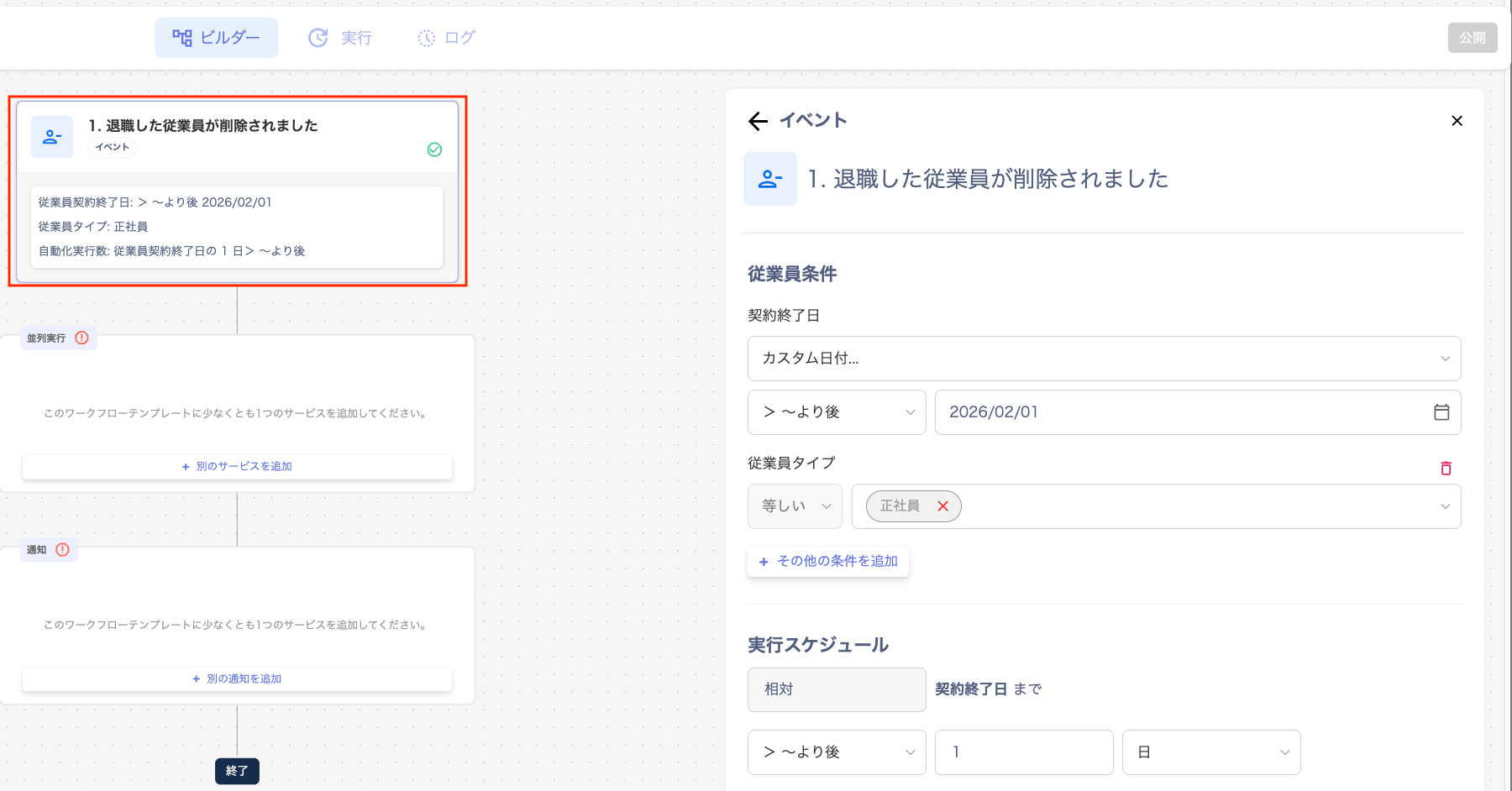
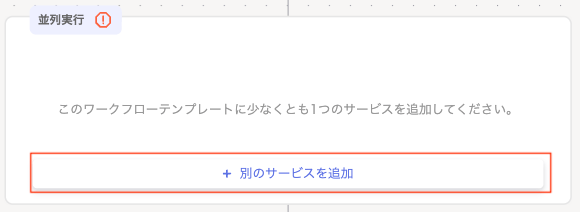
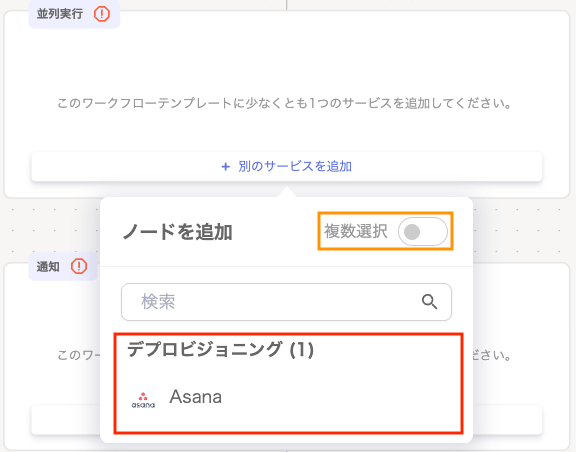
Item Description Contract end date Select [Any date / Custom date] and choose a date from the calendar. A custom date excludes the specified date itself. The dropdown options are “Within / < Before / > After.” “Within” specifies a date range. [+ Add another condition] You can add conditions for employee type / employee status / department. You can also add conditions for job title / work location / manager ID. You can also add conditions for company name / alternative email / display name / first name / last name. You can also add conditions for email address / employee number / notes / number of services / number of devices. You can also add conditions for custom fields.Execution schedule Select [1 (number)] [day/week] [> After / On (date)] from the dropdowns. This is relative to the contract end date. - Click “Parallel execution” to add the services to include in the workflow. Select enabled services from [+ Add another service].
-
Select the service displayed under “Deprovisioning (deprovision).”
To add multiple services to the workflow, turn on “Multiple selection.”
The services listed under “Deprovisioning” are those you configured during pre-setup (mapping).
-
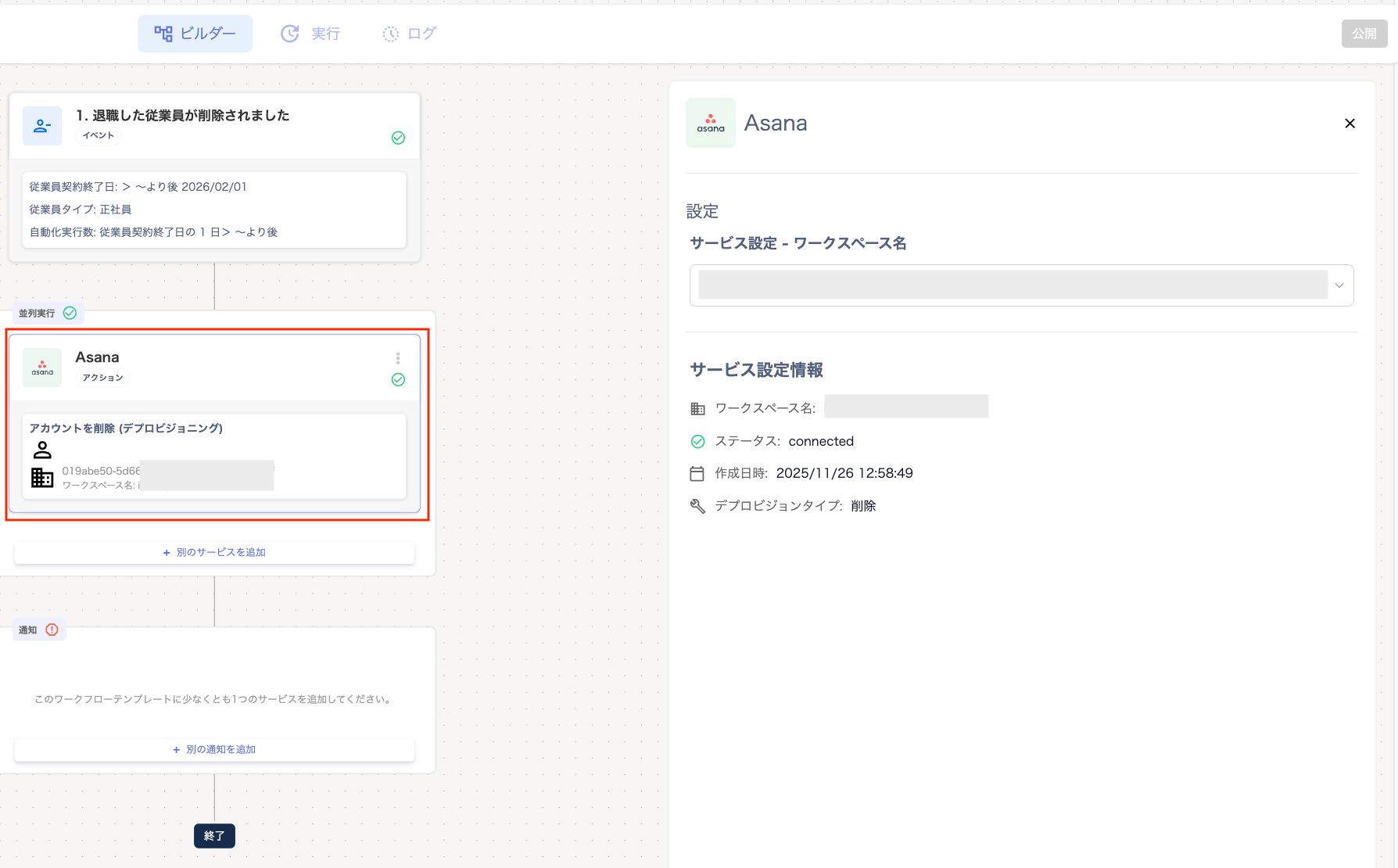
Click the service you selected on the “Parallel execution” screen to display the “Settings” panel on the right.
Select the workspace name from the “Service settings - Workspace name” dropdown.
To configure multiple services, use [+ Add another service].
-
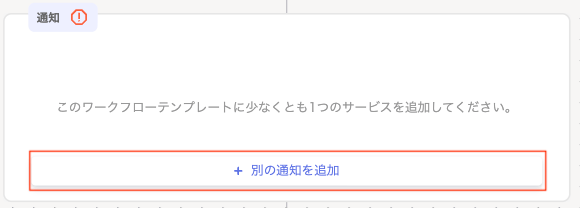
Click “Notifications.”
-
Click [+ Add another notification].
-
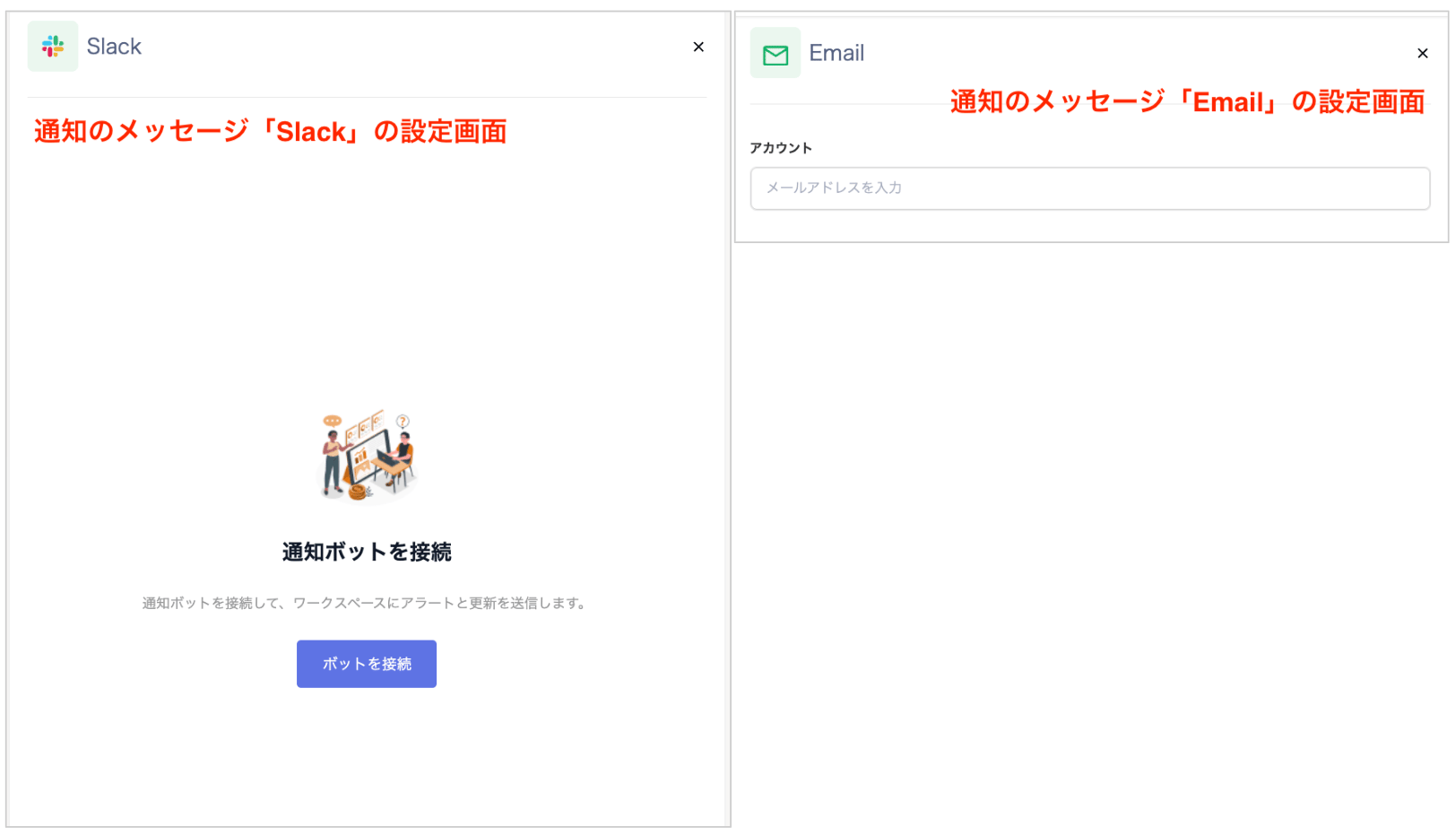
On the “Message” screen, select the notification method: “Slack / Email.”
To configure multiple notifications, turn on “Multiple selection.”
For Slack setup steps, see Slack notification setup below.

-
Click the message you selected on the “Notifications” screen to display the “Settings” panel on the right.
-
Click [+ Add another notification].
-
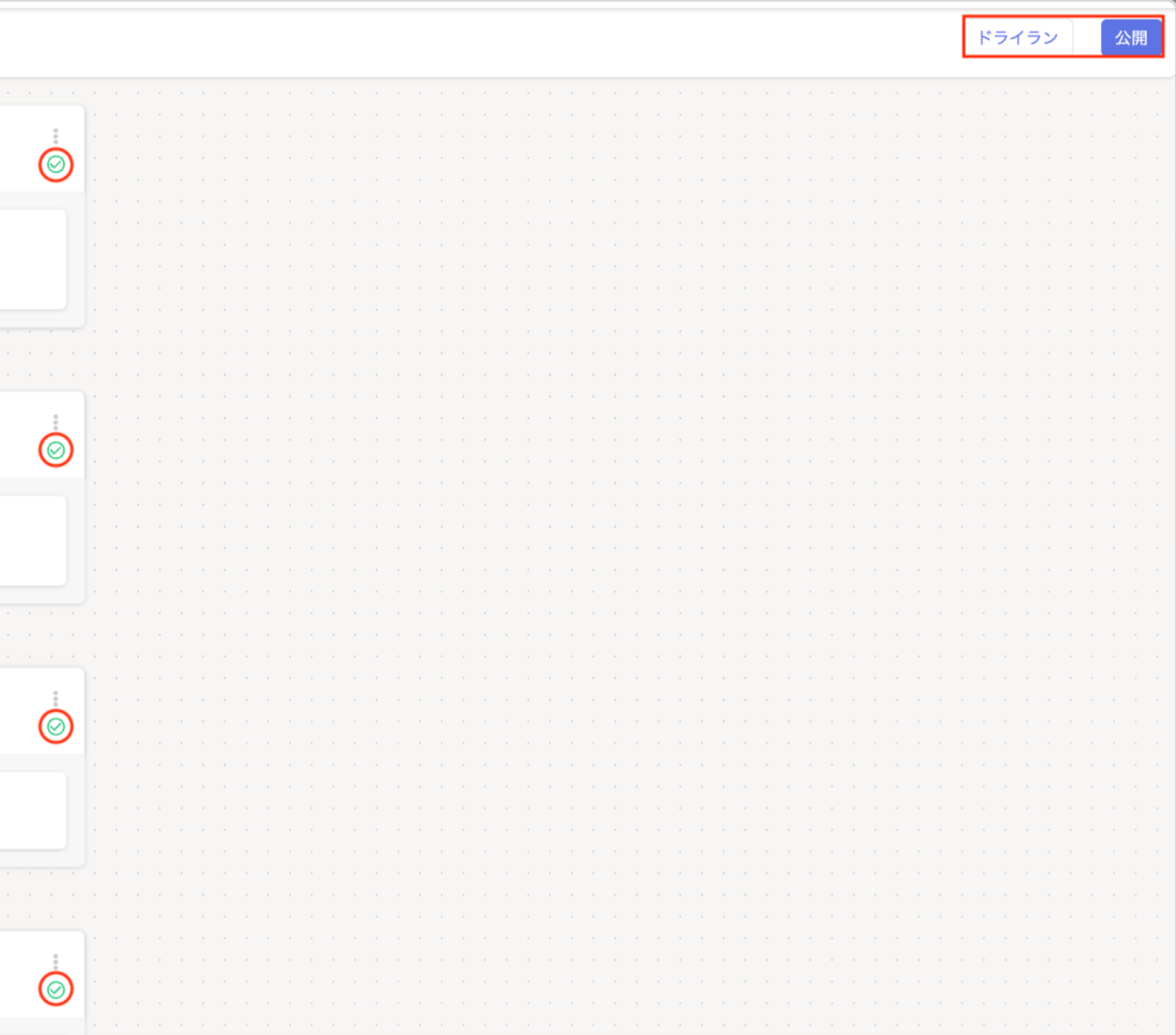
Once all checks in the builder turn green, click [Publish] or [Dry Run].
-
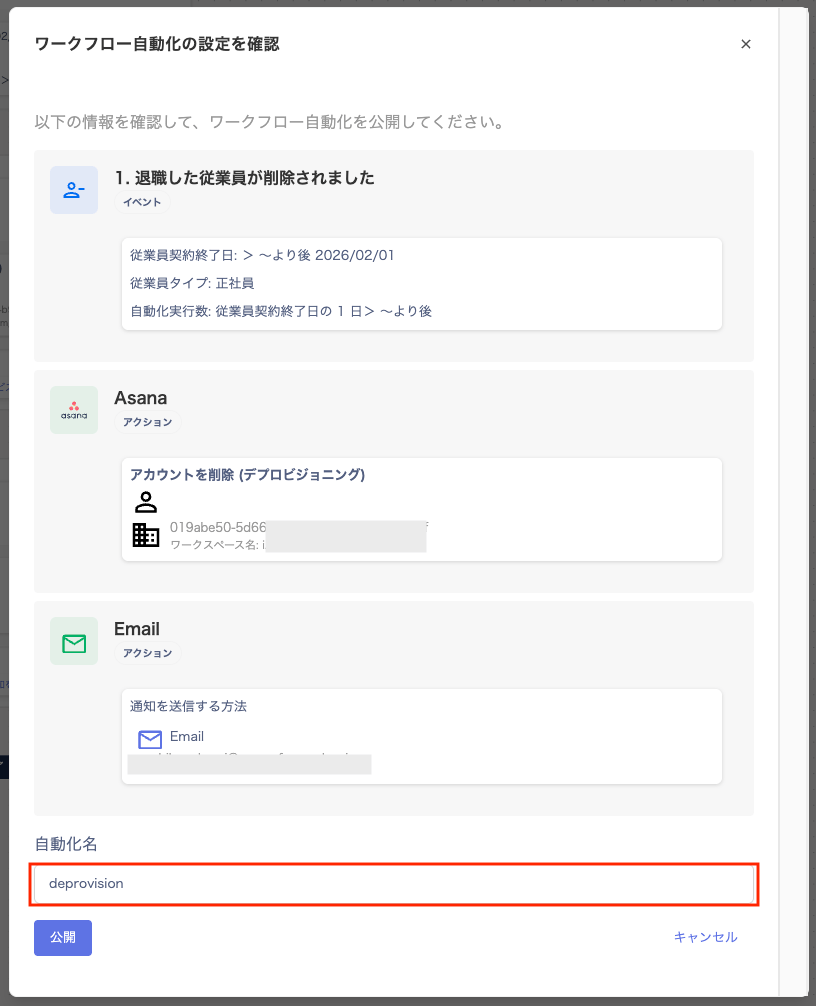
On the “Confirm workflow automation settings” screen, enter a name for the automation and click [Publish].
Note: You cannot use a name that is already registered.
-
When “Workflow has been published” appears, click [OK].

Steps to set up Slack notifications
-
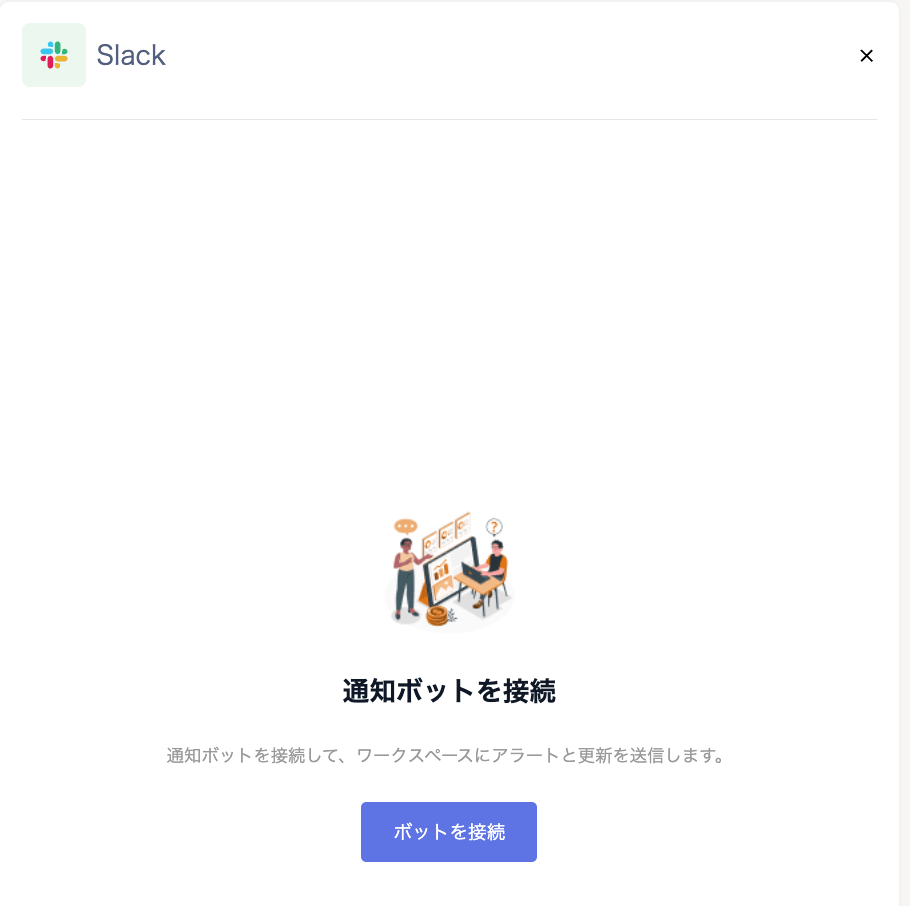
On the screen at step ⑤-(C) of the new employee onboarding setup, the “Connect notification bot” screen appears. Click [Connect bot].
-
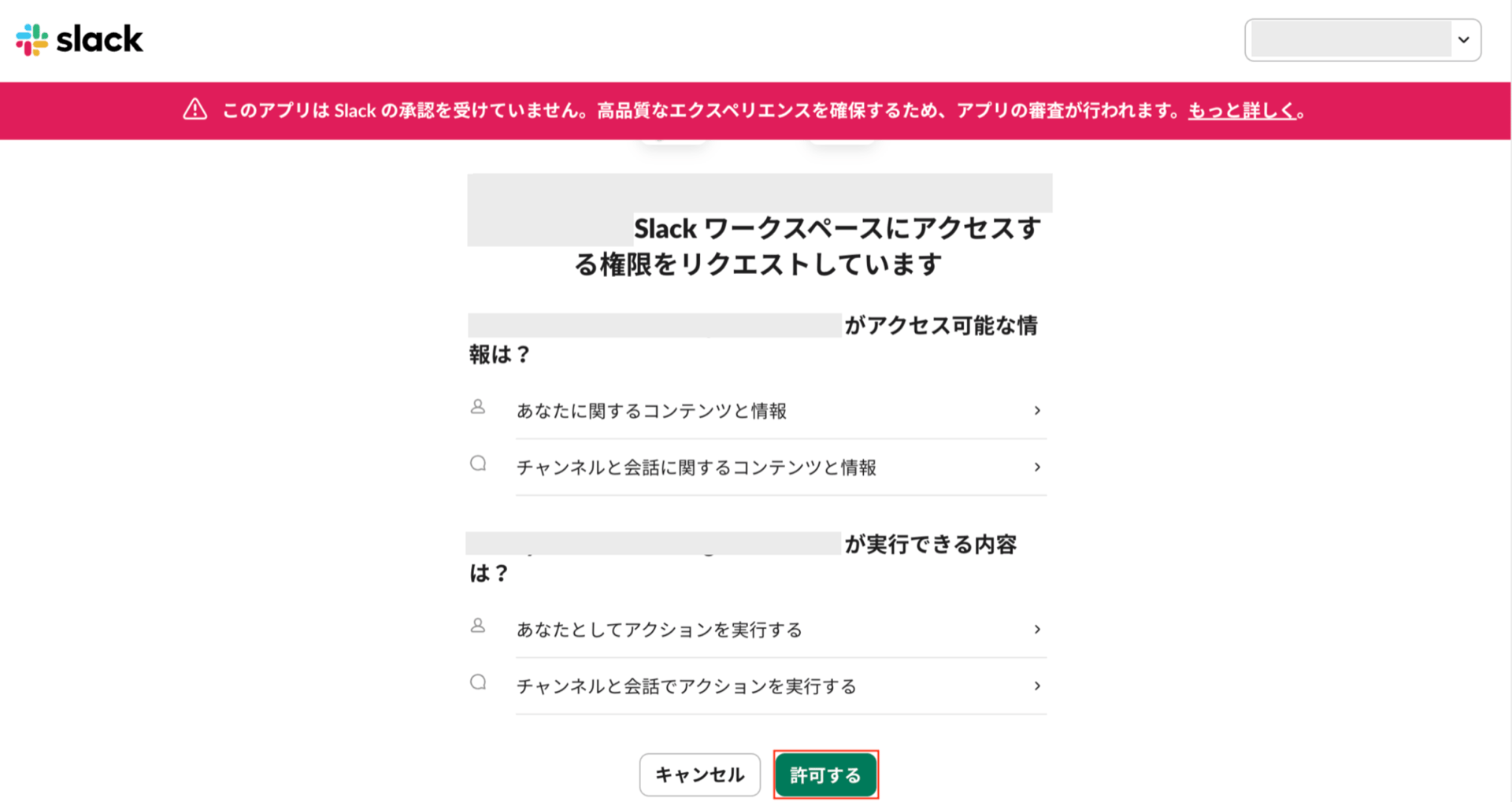
The “Requesting permission to access your Slack workspace” screen appears. Review the details and click [Allow].
-
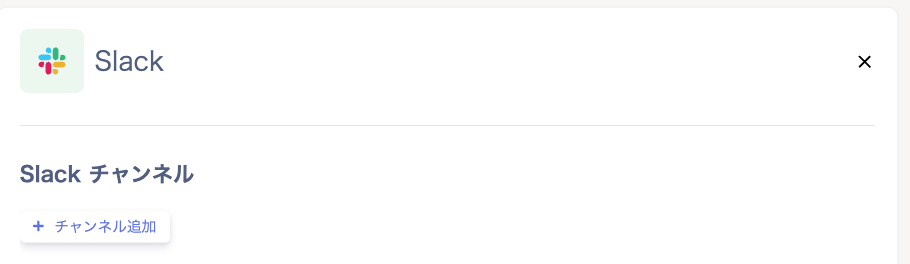
The “Notification channel” screen appears. Click [+ Add channel].
-
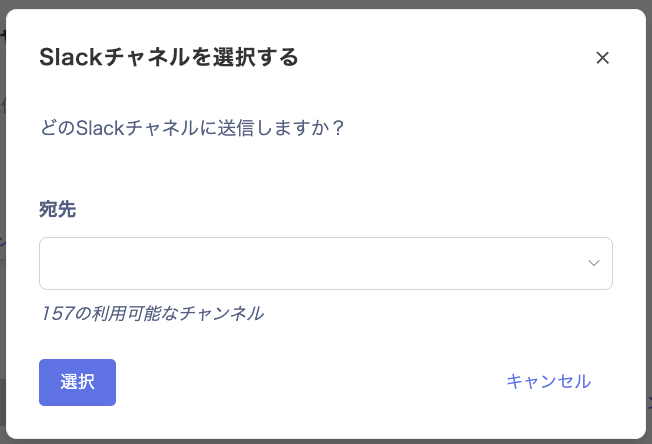
On the “Select a Slack channel” screen, specify the destination and click [Select].
-
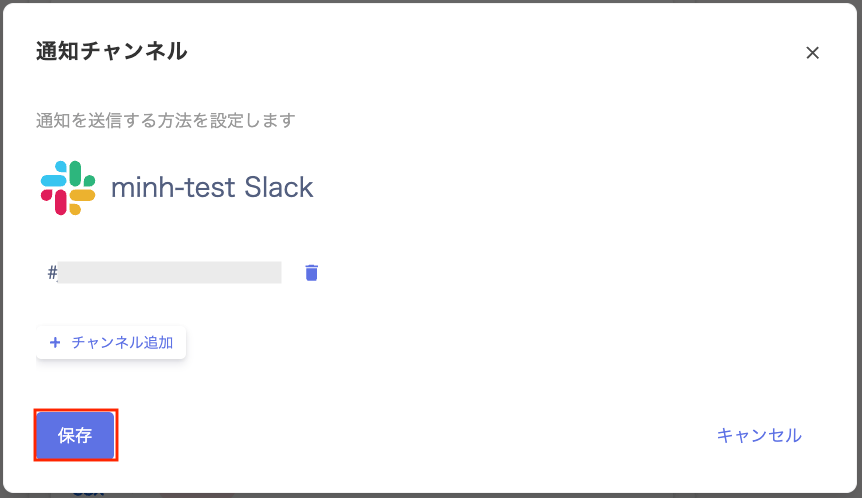
Confirm the “Notification channel” screen and click [Save].
Notification content
When setup is complete, the workflow runs on the specified date and sends notifications. For details on when workflows execute, see Workflow execution timing.Slack notifications
- First-time connection notification: A channel-add notification is sent to the specified Slack channel.

- Execution result notification: On the scheduled date, a notification is sent to the specified Slack channel.
