

Screen Description (Devices)
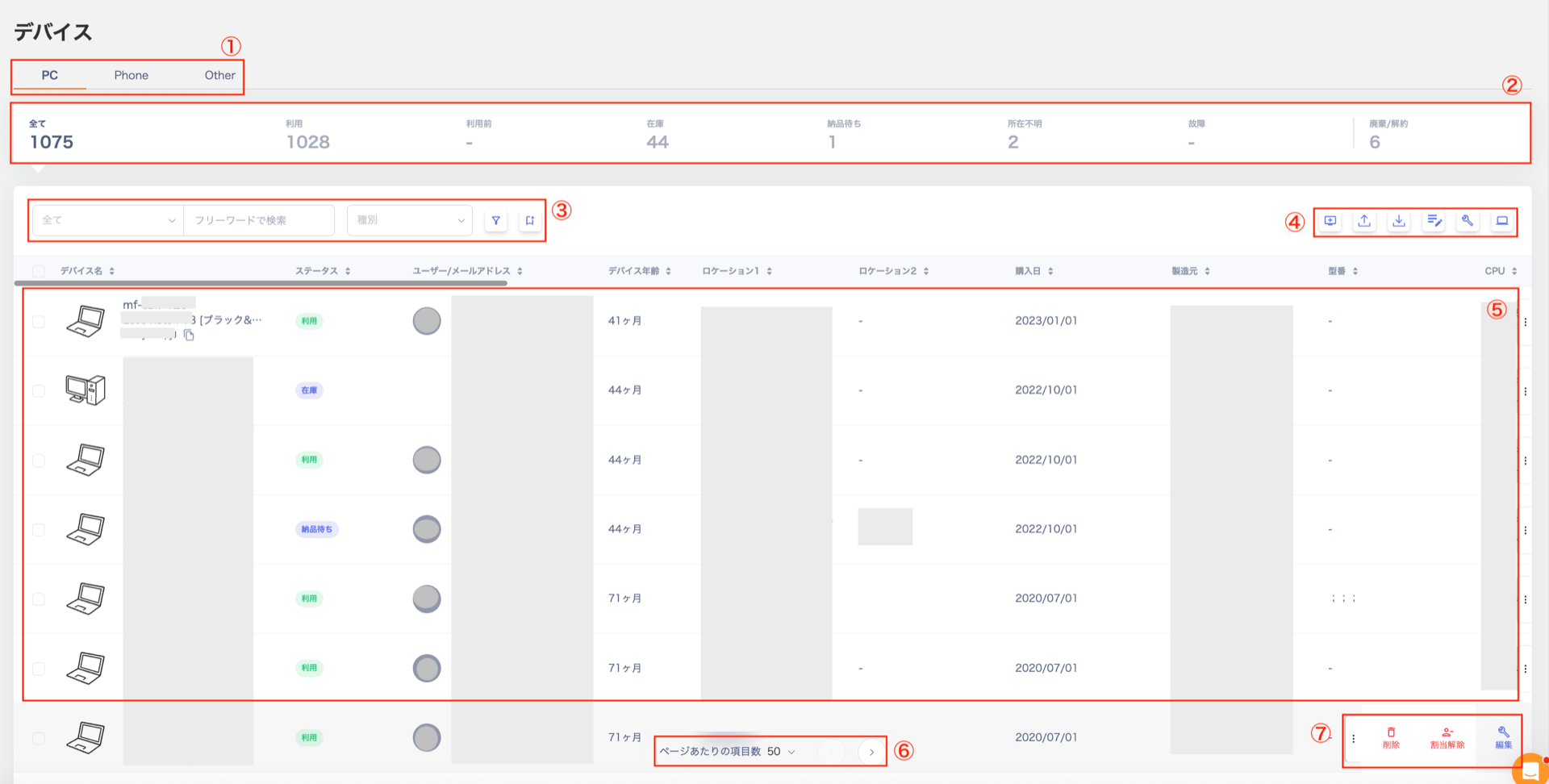
| # | Item | Description |
|---|---|---|
| 1 | Device Category | Switch the view between “PC / Phone / Other” to check owned devices. |
| 2 | Dashboard | View counts for “In use / Not yet used / In stock / Awaiting delivery / Unknown location / Broken / Disposed / Cancelled”. |
| 3 | Search and Filter | Search or filter by status and department. For details, see Identify Self-Managed IDs (Devices). |
| 4 | Action Buttons | Buttons in the upper right: “New Device / Import / Export / Asset Number Policy Settings / Settings (Edit Table) / Device Type Management”. |
| 5 | Device List | View the list of all devices. |
| 6 | Items per Page | Switch between “50 / 100” items per page. Use the buttons on the right to navigate to the next or previous page. |
| 7 | Three-dot Menu | Select “Delete / Assign / Edit” from the three-dot menu [︙]. |
Device Detail Screen (Info Tab)
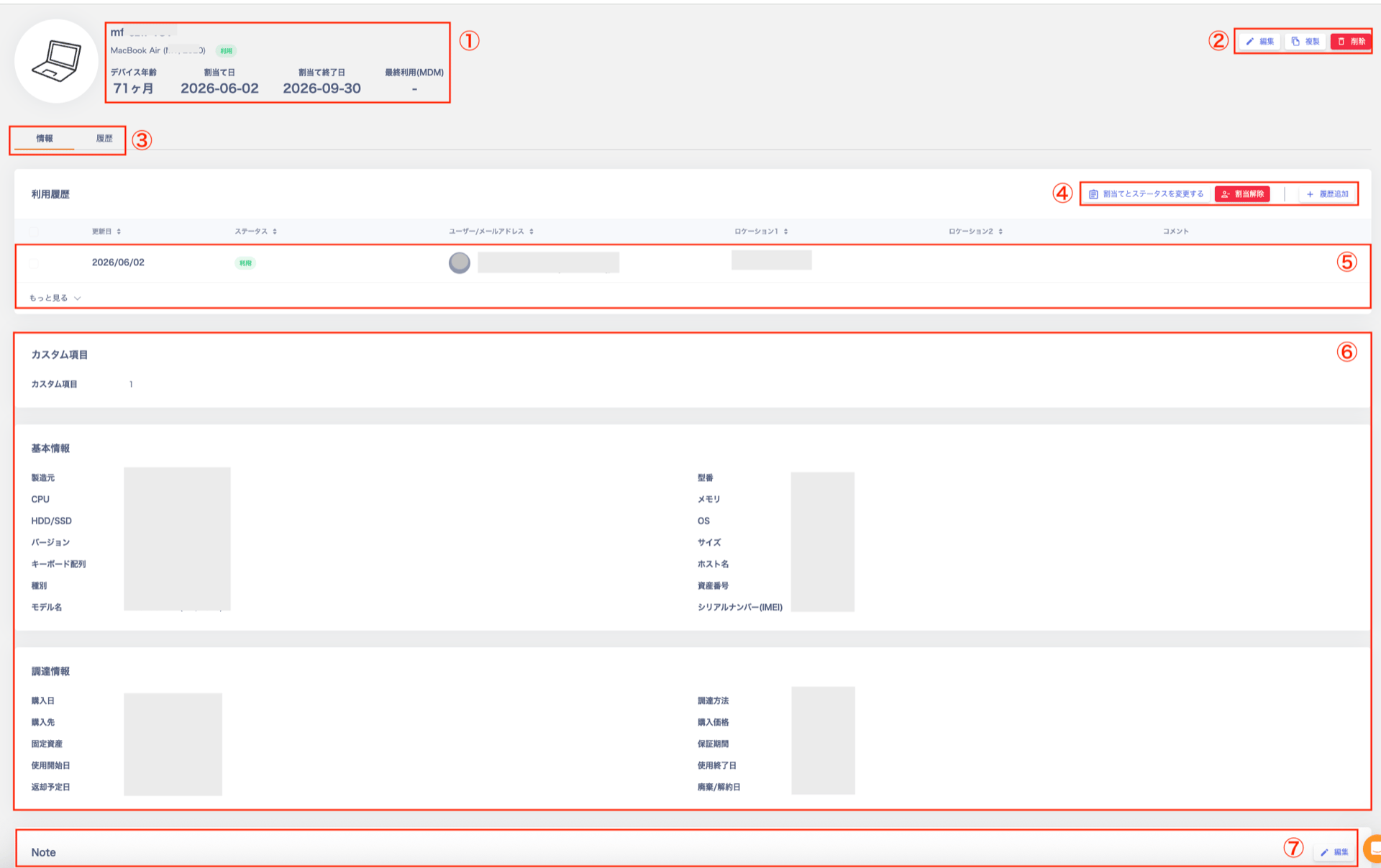
| # | Item | Description |
|---|---|---|
| 1 | Device Information | Displays “Asset Info / Device Age / Assignment Date / Assignment End Date / Last Used Date (MDM)”. For MDM-linked devices, the MDM link and icon appear. For details, see MDM Fields. |
| 2 | Action Buttons | ”Edit / Duplicate / Delete” buttons. |
| 3 | Tab Menu | Switch between the “Info” and “History” tabs. |
| 4 | Usage History Action Buttons | ”Change Assignment and Status / Unassign / Add History” buttons. |
| 5 | Usage History | Select “See More” at the bottom left to view the full history. Use the three-dot menu [︙] to “Delete / Edit” entries. Select “Collapse” to hide the history section. |
| 6 | Field List | List of device fields. View “Custom Fields / Basic Info / Procurement Info”. For details, see Custom Fields and Device Management Field List. |
| 7 | Note | Supports Markdown syntax. |
Device Detail Screen (History Tab)
The device’s “History” tab shows the operation history for the device, including the following information.
| # | Item | Description |
|---|---|---|
| 1 | Event | The type and target of the operation. Type: Device created / Field updated / Assigned to user / Unassigned / Status changed / Memo updated Target: Status / Asset number / Manufacturer / Model name / Serial number / Location 1 / Location 2 / Assignee / Memo / Custom field |
| 2 | Method | The source of the operation: Manual. |
| 3 | Created by | The name of the user who performed the operation. |
| 4 | Created at | The date and time the operation was performed. |
Device Export
On the “Device Export” screen, specify the export conditions and save the CSV file by selecting [Export].Export Conditions
Export Target: Device data, Device usage history Data Range: All data (includes all categories: “PC / Phone / Other”), or Filtered data (narrowed by specific conditions)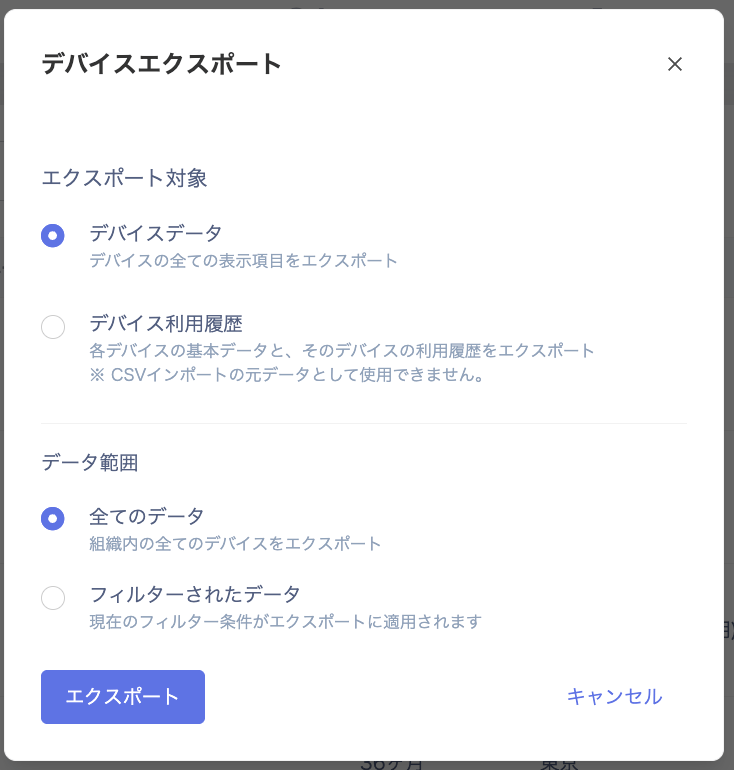
Output Preview
The following images show the CSV headers after export. (This is a preview without any custom fields configured.) Device Data
