

A Device plan (paid) is required to use the device management feature. To request a trial, contact us via Ask a Support Representative Directly in the chat.
Overview
This page explains how to register, update, and delete devices, as well as how to operate device management.- Register a device Update or delete registered device information
- Assign devices and register statuses
- Manage device usage and history
Register a Device
Register a new device. You can register devices manually, via MDM integration, or via CSV import. Enter device-specific information such as the serial number and model name, and asset information such as the purchase date and price.Register a Device Manually
-
Go to Devices and click New Device.

-
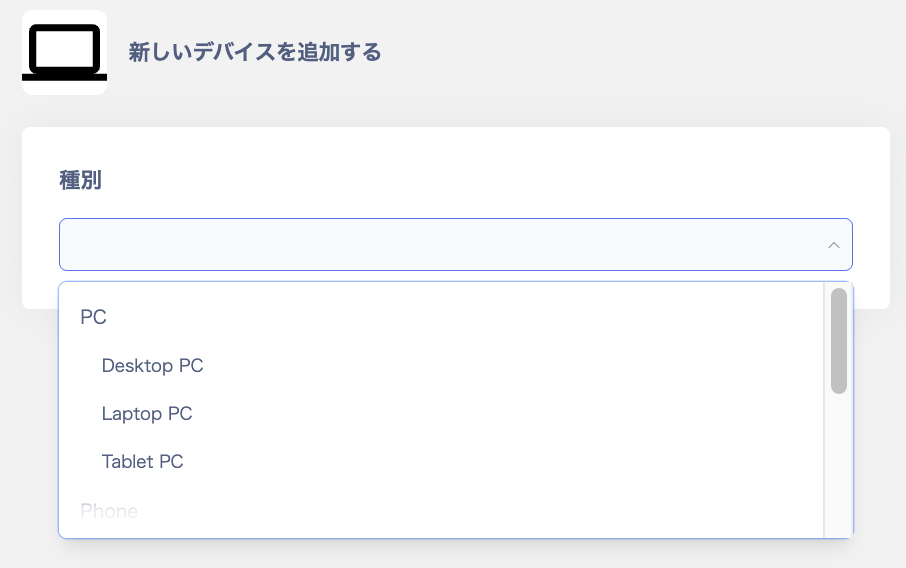
On the “Add new device” screen, select a device type. Choose from “PC (Desktop PC / Laptop PC / Tablet PC), Phone (Smart Phone), or Other (Monitor / Other / Peripheral Device / Server)”.
-
Enter the required device information and click Apply. For a list of input fields, see Device Management Field Reference. To add custom fields, see Add Custom Management Fields.
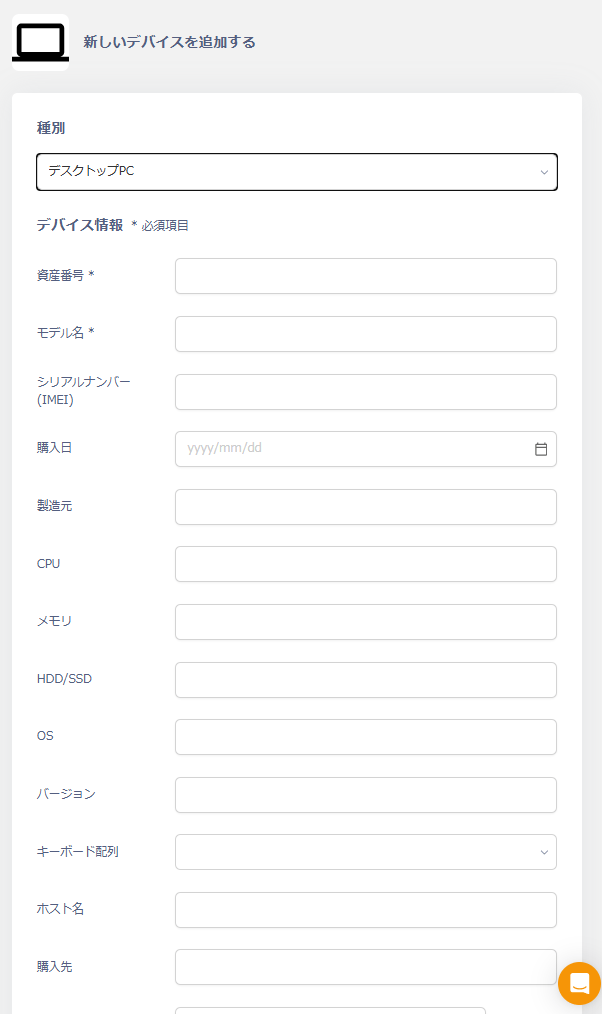
- When registration succeeds, the message “Device information has been registered” appears. The device is added under “PC”, “Phone”, or “Other” according to the selected type.
Assign Devices and Register Statuses
Assign a user to a device and register its status. For shared PCs and similar devices, assign them to a location instead.-
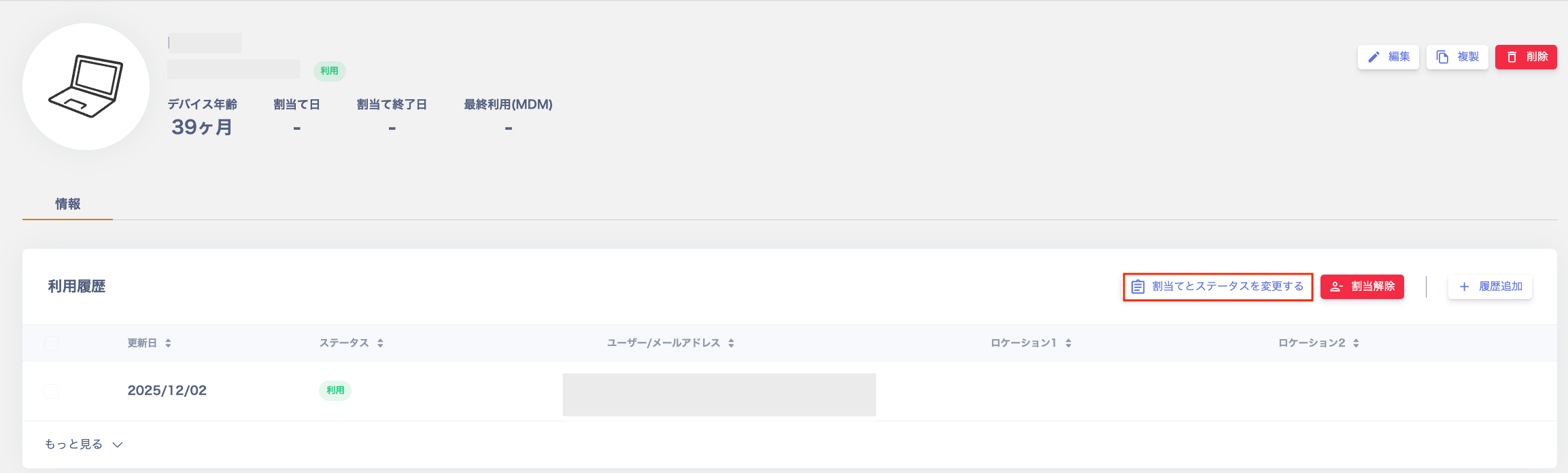
Go to Devices, select the device to assign, and click Change Assignment and Status.
-
Fill in each field on the “Change Assignment and Status” screen and click Save. When you select a status other than “In Stock” or “Disposed / Cancelled”, the fields “User / Assignment Date / Assignment End Date” appear. For fields that do not appear, see Hide Fields.
For the Before Use status, select “In Use” as the status and set a future date as the assignment date. After saving, the status changes to “Before Use”, then automatically changes to In Use on the assignment date.
Item Description Status Select from “In Use / In Stock / Awaiting Delivery / Location Unknown / Broken / Disposed & Cancelled”. User Select the user to assign. Filter by name, email address, or user type. Assignment Date / Assignment End Date Enter dates manually or select from the calendar. Location 1 / 2 Enter the location. 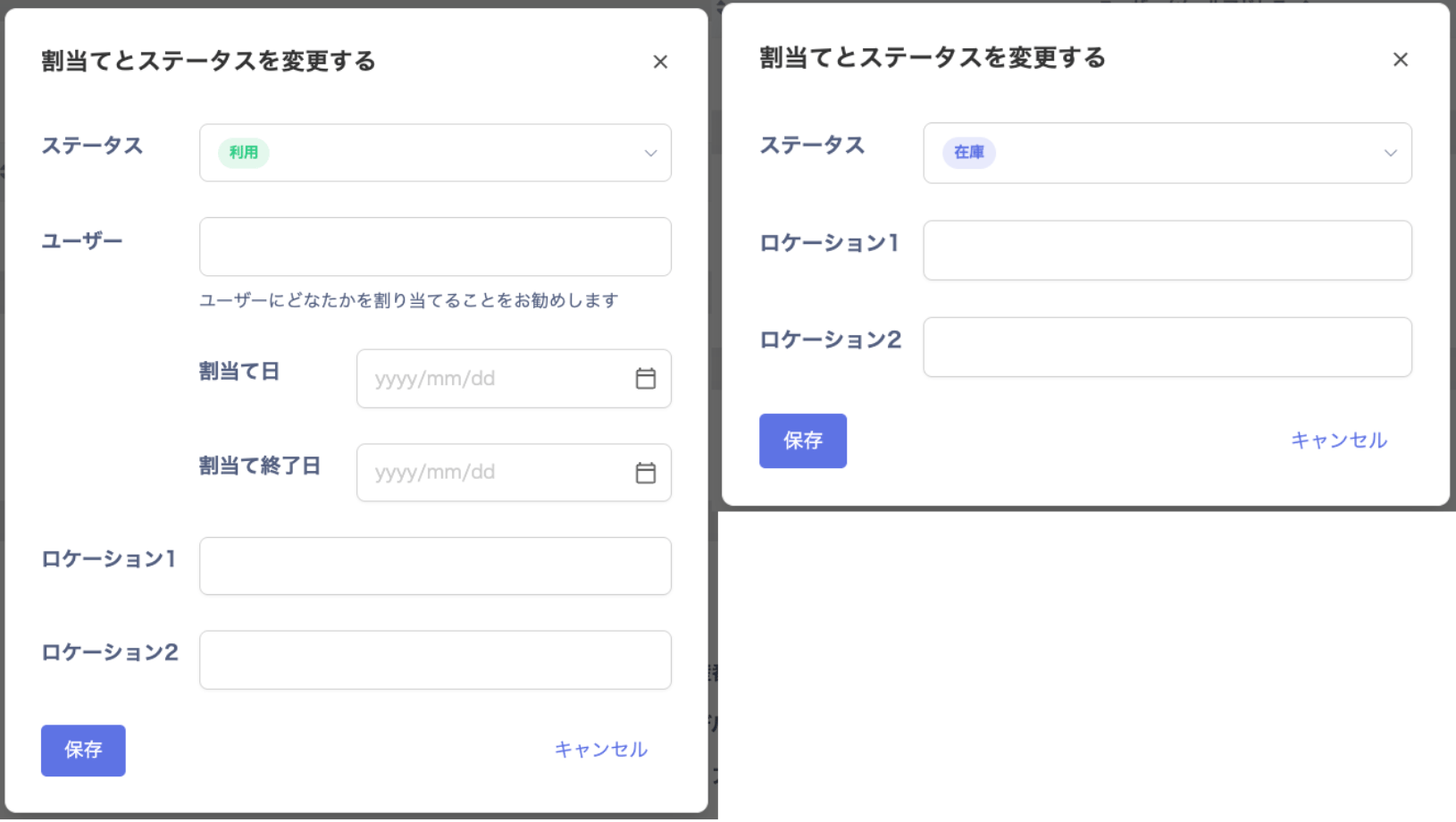
- The registered information appears under Info > Usage History.
Manage Device Usage and History
Multiple changes occur throughout a device’s lifecycle. Record usage changes as history entries. When conducting an inventory, also refer to Conduct an Inventory. Examples:- Assignment changes (device user changes due to transfers or resignations)
- Maintenance history (device repairs or replacements)
- Status changes (under repair, scheduled for disposal, etc.)
-
Go to Devices, select the target device, and click Add History.

-
Fill in each field on the “Add Usage History” screen and click Save. When you select a status other than “In Stock” or “Disposed / Cancelled”, the fields “User / Assignment Date / Assignment End Date” appear.
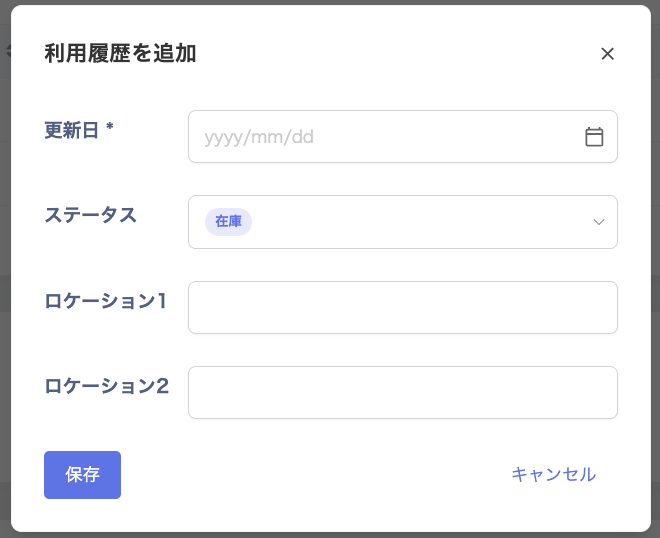
- The registered information appears under Info > Usage History.
Update or Delete Registered Device Information
This section explains how to update or delete registered device information, including bulk operations.Update Registered Device Information
-
In the device list, click the device to update, or click the three-dot menu [︙] on the right and select Edit.


-
Make changes on the “Edit Device Information” screen and click Apply. The message “Device information has been updated” appears.

Delete Registered Device Information
-
In the device list, click the device to delete, or click the three-dot menu [︙] on the right and select Delete.
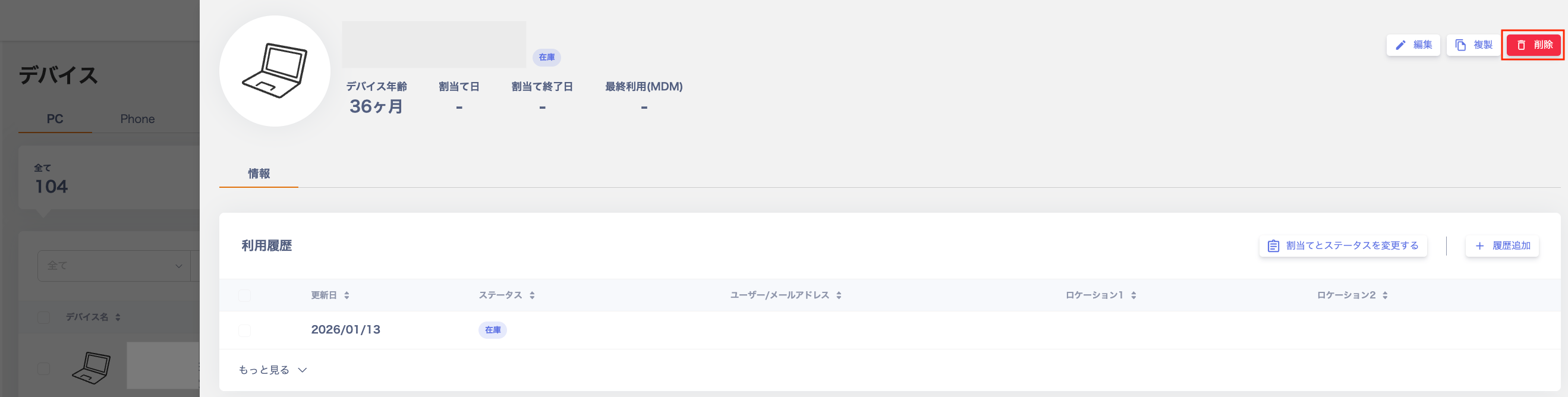

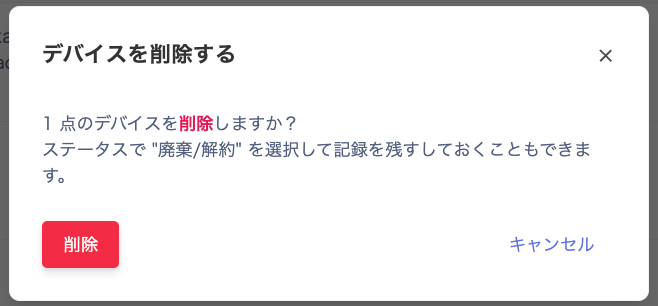
- When the “Delete Device” confirmation screen appears, click Delete. After deletion, the message “Device has been deleted” appears.
Bulk Operations (Update / Delete)
Bulk update: Review CSV import precautions, then edit and import the CSV file. Bulk delete: Check the checkbox in the upper left of the Devices screen and click Delete. Up to 50 devices can be deleted at a time.
FAQ
Q. How do I add more devices? A. Follow the steps in Register a Device to add devices. To duplicate a registered device, click Duplicate in the upper right.