Checking Service Access Status
The following methods are available to check service access logs.- Access status via Google login. If you have integrated Google Workspace, you can view access status for services accessed using Google login. See Shadow IT Detection via Google Workspace (Details) for more information.
- Access status via Microsoft 365 / Microsoft Entra ID. This requires integrating Microsoft 365 / Microsoft Entra ID using an account with an Entra ID Premium P1/P2 license. Once integrated, you can view access history for services accessed through Microsoft 365 / Microsoft Entra ID login.
- Access status via browser extension You can view access status from browsers with the extension installed. For details, see Distribute the Browser Extension to Detect Shadow IT.
Viewing the Event Log
Navigate to Integration > Event Log. You can filter by service name or email address.
| Column | Description | |
|---|---|---|
| ① | Date range | The default range is 1 month. You can view up to 1 year of logs. |
| ② | Show unmatched | Check “Show unmatched” to display event logs that have not been matched to a known service. |
| ③ | Export | You can export two types of reports. Click [Export] > select the format. · Raw data (CSV) · Monthly summary (XLSX) |
| ④ | Service name | Displays the name of the detected service. |
| ⑤ | Event name | Displays events such as Authorize and Revoke. |
| ⑥ | Date/time | Displays the detection date and time. Shown in UTC (Coordinated Universal Time). |
| ⑦ | Email / UUID | Displays the email address and *UUID of the user who accessed the service. *UUID appears when no email address is configured in the extension. For how to look up UUIDs and configure email addresses, see the links below. - For Google Chrome - For Microsoft Edge |
| ⑧ | Domain | Displays the domain detected by the extension. |
| ⑨ | Source | Displays the detection source. For details, see the Main Shadow IT Detection Methods section in 0. From Setup to Shadow IT Detection. - Google Auth (Google login) - Microsoft Auth (Microsoft 365 / Microsoft Entra ID) - Browser Extension※ Retrieving the source “Microsoft OAuth” requires an Entra ID Premium P1 or P2 license. (Reference) |
| ⑩ | Source PC | If you set an arbitrary text (such as a string identifying the PC) in the registry UserPC field, it appears in the “Source PC” column. Examples: hostname, asset number, IP address |
Exporting the Event Log
You can export two types of reports from the event log. Click [Export] in the upper right, select the format, and export. · Raw data (CSV) · Monthly summary (XLSX)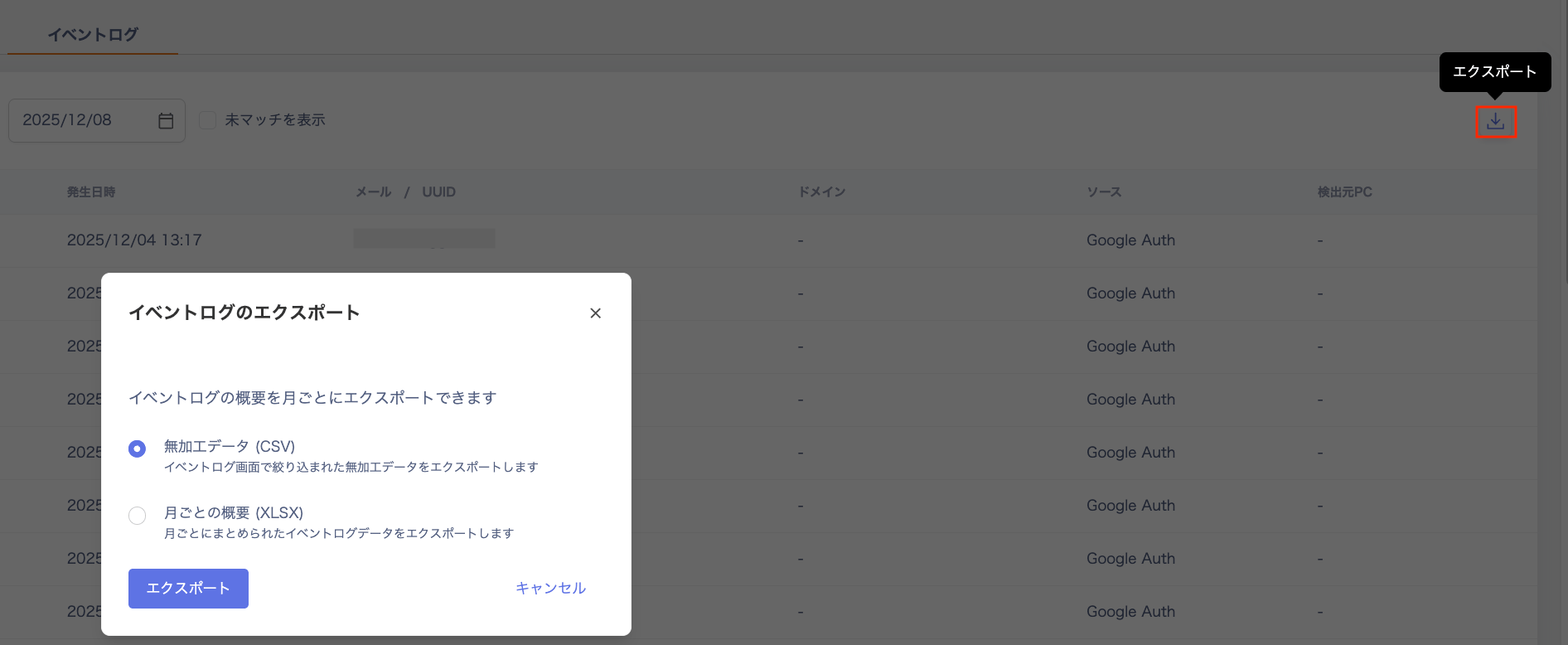
Raw Data (CSV)
Exports the filtered data on the event log page to a CSV file.| Item | Description |
|---|---|
| Output | The content filtered on screen exports as-is. |
| Maximum records | Each export supports up to 20,000 records. |
| Maximum period | You can specify up to 3 months per export. |
If the period exceeds 3 months or the data exceeds 20,000 records, use the filter to narrow the date range and export in multiple batches.
Summary Report (XLSX)
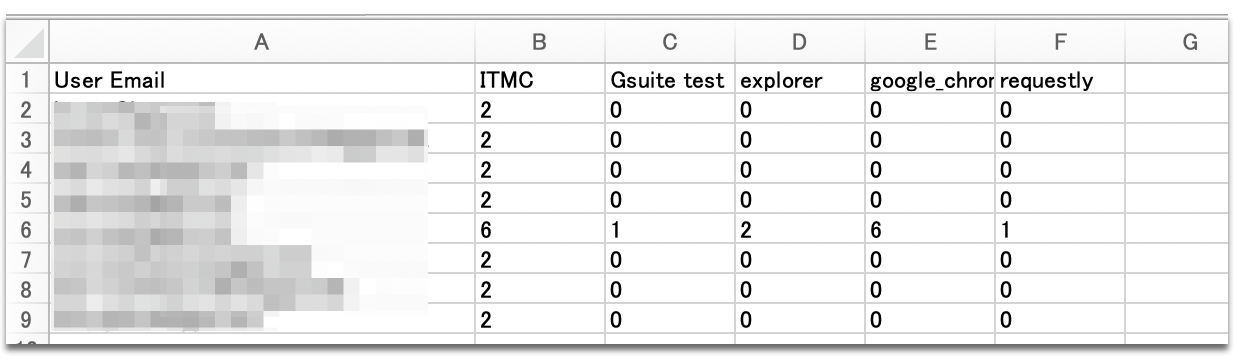
Exports a monthly aggregated report to an Excel file. You can specify a period of up to 1 year. The exported data is organized into the following two tabs by month.- service tab
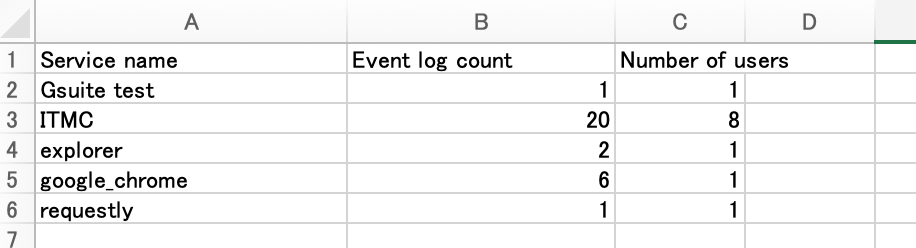
| Column | Description |
|---|---|
| Service name | The name of the service detected that month. |
| Event log count | The total number of records detected in the event log. |
| Number of users | The number of users who accessed that service. |
- service_email tab