

Authentication Errors
Check whether any of the following apply to your situation.- The issue may fall under known restrictions:
Authentication errors and unsupported integration methods - If you have configured IP address access restrictions:
IP addresses, URLs, and port numbers
Integration Status and Guidance
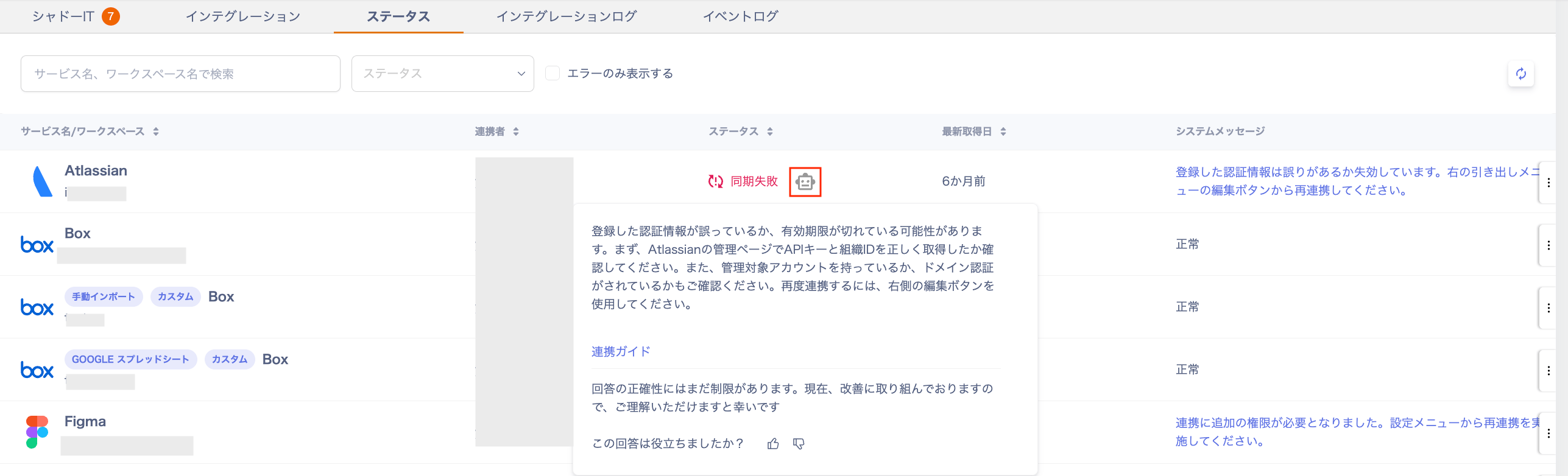
You can check the integration status under Integrations > Status.- Integration status: Shows the sync state of each SaaS (e.g., Synced, Sync Failed).
- Error resolution guidance: For services showing “Sync Failed,” click the robot icon for the cause and resolution. Follow the guidance to resolve the issue.
Running a Sync
If a connected service is temporarily unavailable, or you want to refresh the SaaS status, try re-syncing.-
Go to Integrations > Status, click the three-dot menu [︙], and select [Sync].
- Alternatively, go to Services > select a SaaS > Info > Workspace > three-dot menu [︙] > [Sync].

- Wait for the re-sync to complete. Confirm that the status updates to “Synced.”
Re-linking
If an error occurs with a connected service, or if you need to re-link with a different account, follow these steps.-
Go to Integrations > Status, click the three-dot menu [︙], and select [Edit].
- Alternatively, re-link from Services > select a service > Info > Workspace > three-dot menu [︙] > [Re-link].

-
The integration settings screen appears again. Complete the re-linking process.
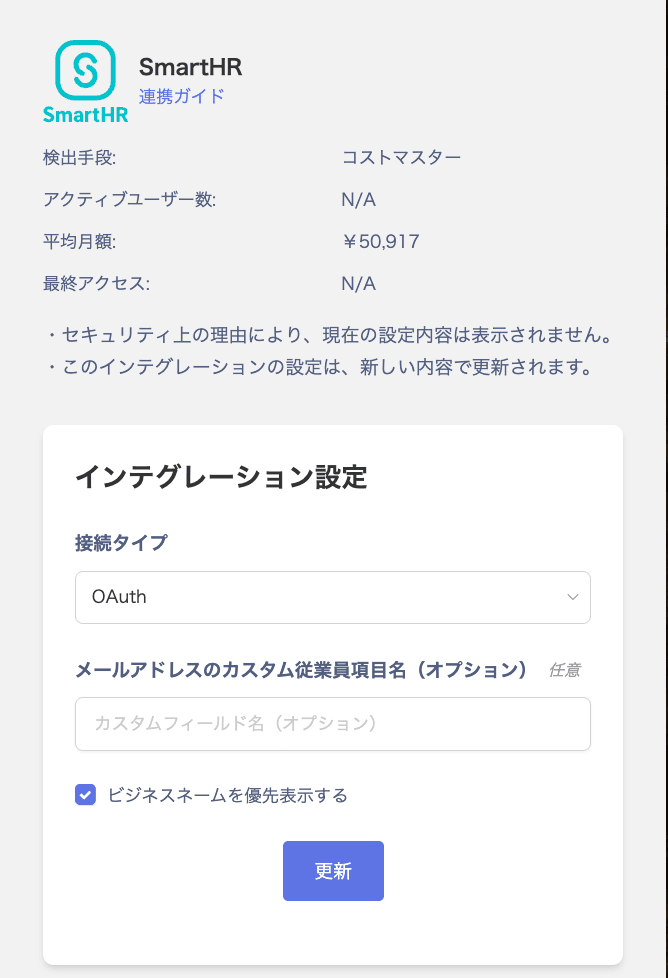
As shown in the image above, when linking via OAuth, the session already logged in to your browser is used. If the user does not have admin privileges, or if you use multiple tenants and are logged in to a different tenant, the re-linking attempt may fail because it tries to use the current session. Log out of the browser session first, then retry the steps above.
If Re-linking Fails
If the integration still fails, disconnecting it and re-linking may resolve the issue. To disconnect an integration, see Stop a connected service.Contact Support for Persistent Failures
If the integration continues to fail after re-linking, contact the support desk with the following information:- Cloud service name
- Screenshot of the screen when the error occurred
- Date and time the issue occurred