

Request from the Integrations screen
-
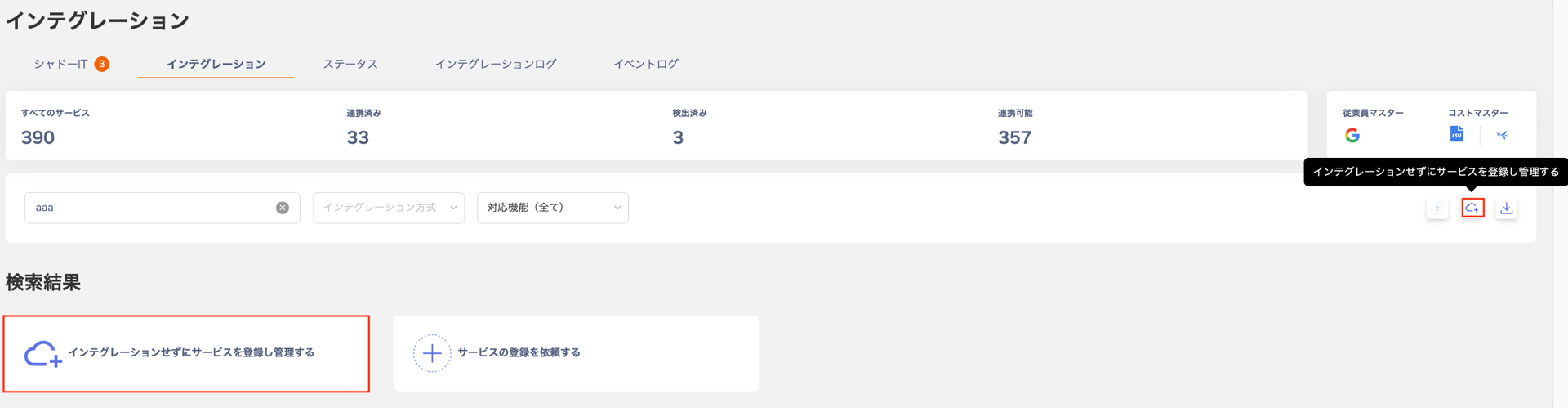
Go to Integrations > Integrations and search for the SaaS you want to connect. If the SaaS does not appear, click “Request a service registration”.
-
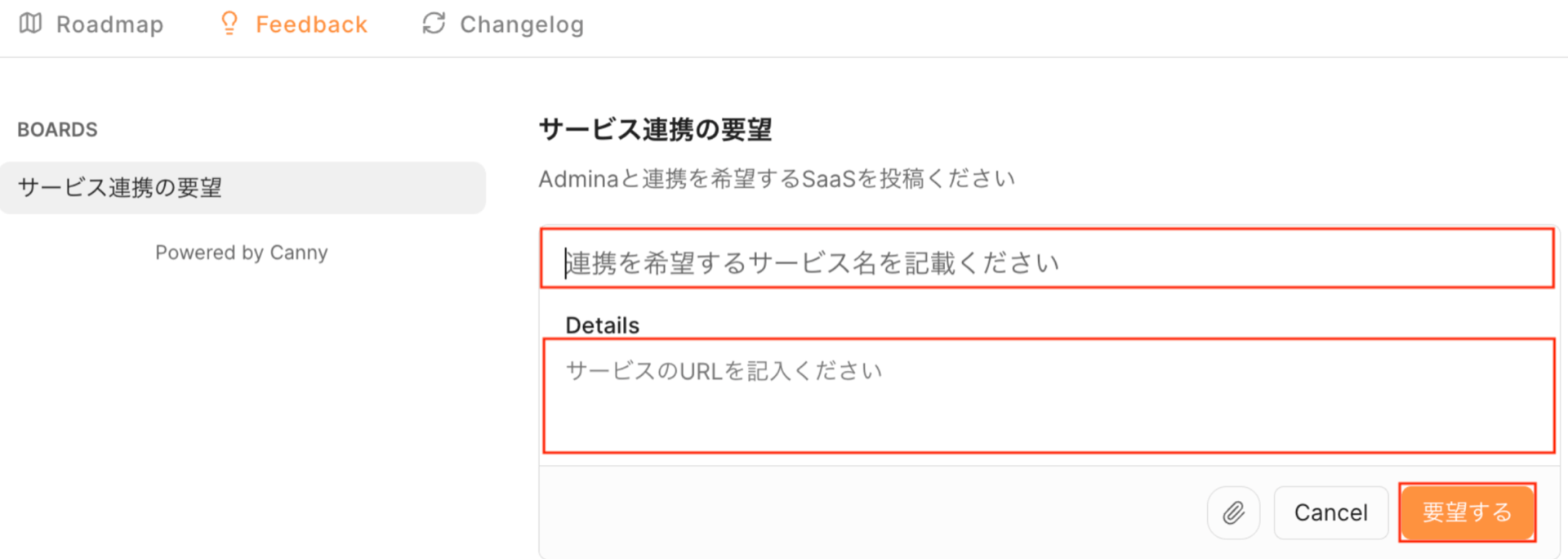
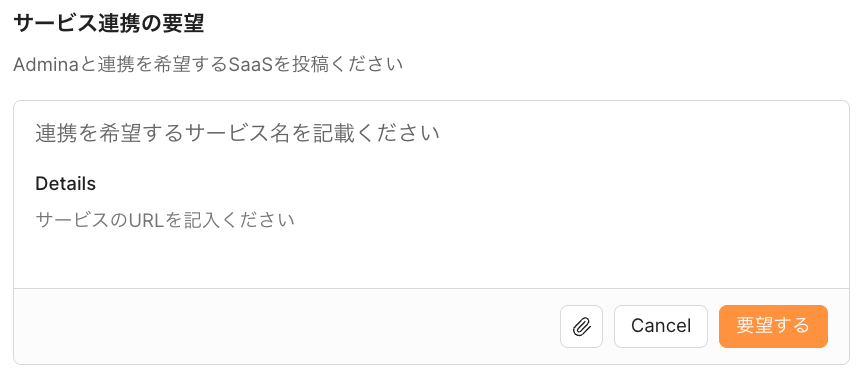
The “Service Integration Request” screen opens. Enter the name and URL of the SaaS you want to integrate, then click [Submit request].
-
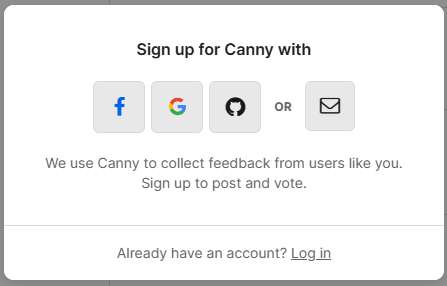
A sign-up screen appears. Register with a third-party account or your email address.
If you already have an account, click “Log in” to sign in.
- Once your request appears, the submission is complete.
Request from the Help Center chat (bottom right)
-
Click the orange box in the bottom-right corner.

-
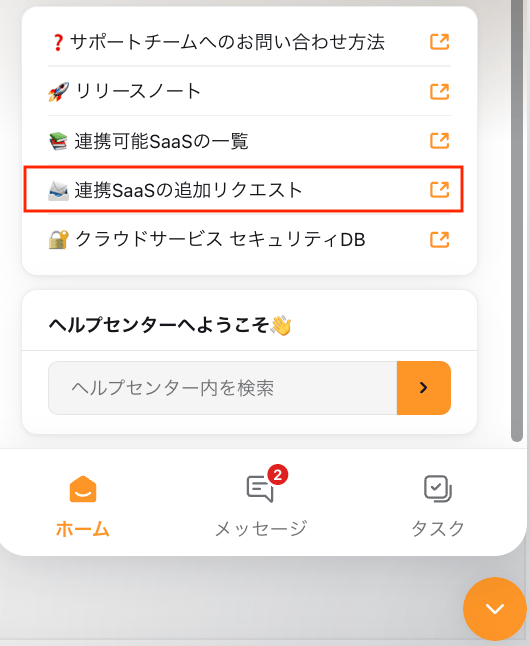
The gadget opens. Click “Add SaaS integration request”.
-
The “Service Integration Request” screen opens. Enter the name and URL of the SaaS you want to integrate, then click [Submit request].
-
A sign-up screen appears. Register with a third-party account or your email address.
If you already have an account, click “Log in” to sign in.
- Once your request appears, the submission is complete.
Vote on an existing request
On the “Service Integration Request” screen, search for a service. If a suggested post appears, click the number next to it to vote on an existing request. To receive a notification when an integration is completed, see Receive notifications (email).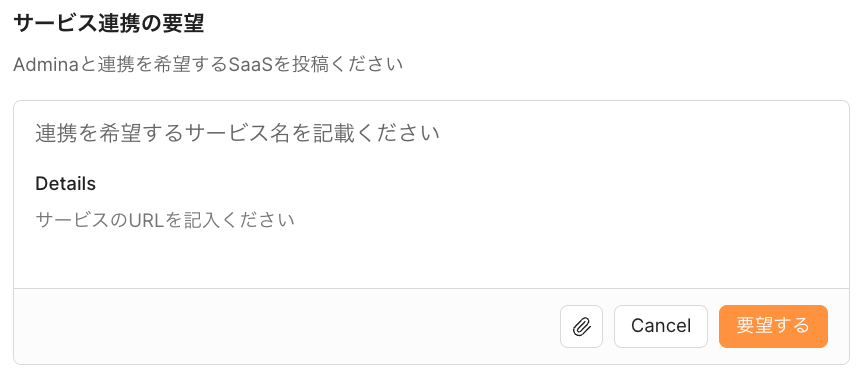
Receive notifications (email)
When an integration or feature is implemented, the status changes to “Complete” and you receive a notification by email.Notification settings
-
On the “Service Integration Request” screen, click [LOG IN] or [SIGN UP] in the top-right corner.
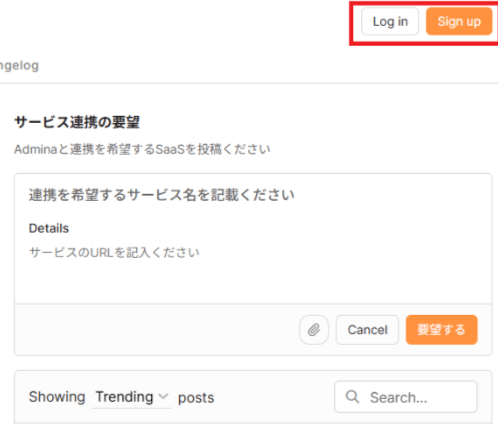
- To sign up, register with a third-party account or your email address. If you already have an account, click “Log in” to sign in.
- When a requested SaaS integration or feature is implemented, the status changes to Complete. You then receive a notification at your registered email address.