

Recommended Environment and Prerequisites
The following environment and format are recommended for CSV imports.| Item | Details |
|---|---|
| Character encoding | UTF-8 (UTF-8 BOM + CRLF) |
| File format | CSV (comma-separated values) (.csv) |
| File name | Avoid environment-dependent characters (old kanji forms, special symbols, etc.) and half-width katakana. |
Import the Directory Ledger via CSV
-
Go to Directory > Import and download the template. You can also export existing data from Export as a CSV and then import it.
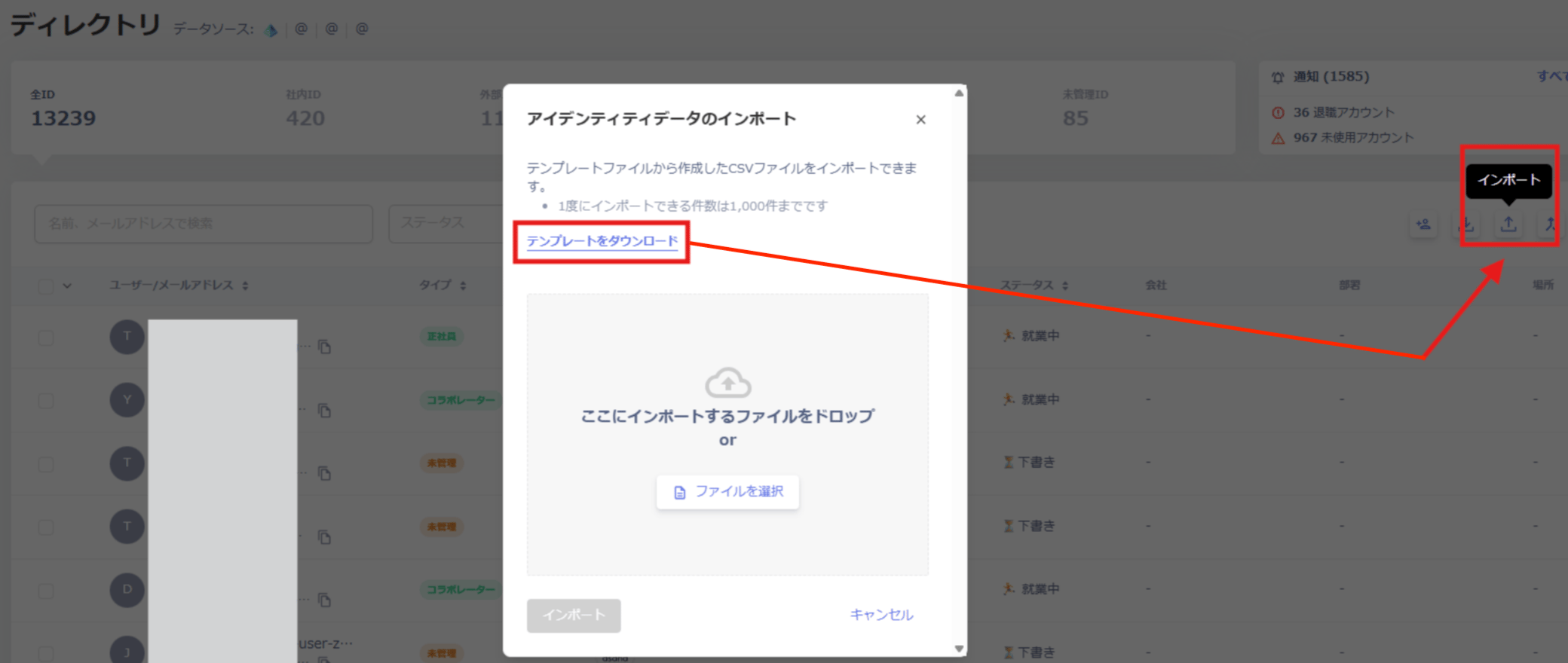
- Organize the items you want to manage according to the template.
- Import the template to finish.
Notes on CSV Import
Existing data is overwritten when you import a CSV. Review the following notes carefully before proceeding.| Item | Details |
|---|---|
| Backup | Always export a backup before overwriting data with a CSV. Data cannot be restored. |
| Overwriting existing data | The CSV data overwrites existing data. If a CSV cell is blank, the corresponding field is overwritten with a blank value. |
| Partial updates | When updating only part of the data, edit only the fields you want to change. Do not delete columns for unchanged fields — import with data present in all columns. (Deleting a column causes that field to be overwritten with a blank value.) |
| Data you do not want to change | If there is account information you do not want to change, we recommend deleting the corresponding row from the CSV. |
| Environment-dependent characters | Not supported. |
| Maximum records | You can register up to 1,000 records in a single import. |
| Daily sync | Directory information updated via CSV import may be updated by daily synchronization with SaaS. For fields that should not be updated by daily sync, set the data source in Directory Settings to this service. For details, see Directory Settings to set or change the data source. |
Bulk Edit to “ID Type: Unmanaged ID and Status: Untracked” via CSV Import
Even if you change the ID type to Unmanaged ID, the ID type and type will be updated to match the employee master the next time employee master sync runs, as long as the status remains Draft.
To prevent this, set the status to Untracked by updating employeeStatus.
- Go to Directory > Export to export the CSV data.
- Keep only the employee rows you want to change and delete all other rows.
- Update the relevant data as follows:
- employeeType:
unregistered - managementType:
unregistered - employeeStatus:
untracked
- employeeType:
- Go to Directory > Import to import the CSV data.
Registration Template
The following fields and specifications are available when registering information using the template.| Field name | Required/Optional | Input example | Input specification |
|---|---|---|---|
| ID | Optional/Required | Blank or 10-digit alphanumeric | New registration: leave blank (generated automatically) When editing: the exported value contains a 10-digit string |
| employeeID | Optional | CODE111 | Employee ID |
| employeeType | Required | full_time_employee | Type (specify the English parameter)・Executive→ board_member・Full-time employee→ full_time_employee・Contract employee→ fixed_time_employee・Temporary employee→ temporary_employee・Part-time employee→ part_time_employee・Seconded employee→ secondment_employee・Contract worker→ contract_employee・Collaborator→ collaborator・Group address→ group_address・Shared address→ shared_address・Test address→ test_address・Other→ other・Unknown→ unknown・Unmanaged (only when ID type is Unmanaged ID)→ unregistered |
| managementType | Optional | managed | ID type (export data only); specify the English parameter・Internal ID→ managed・External ID→ external・System ID→ system・Unknown ID→ unknown・Unmanaged ID→ unregistered |
| employeeStatus | Required | active | Status (specify the English parameter)・Active→ active・On leave→ on_leave・Draft→ draft・Pre-hire→ preactive・Retired→ retired・Untracked (only when ID type is Unmanaged)→ untracked・Archived (only when SaaS and devices are 0)→ archived |
| firstName | Optional | Taro | First name |
| lastName | Optional | Kimura | Last name |
| displayName | Required | Taro Kimura | Display name |
| primaryEmail | Optional | user@example.com | Primary email address |
| secondaryEmails | Optional | user+1@example.com; user+2@example.com | Secondary email addresses. Separate multiple entries with ”;“. |
| avatar | Optional | http://example.com/image.png | Avatar URL |
| jobTitle | Optional | Manager | Job title |
| companyName | Optional | Example, Inc. | Company name |
| workLocation | Optional | Tokyo | Location |
| lifecycleContractStartAt | Optional | 2022-08-09 | Employment start date (yyyy-mm-dd) |
| lifecycleContractEndAt | Optional | 2025-08-09 | Employment end date (yyyy-mm-dd) |
| lifecycleSuspensionStartAt | Optional | 2023-08-09 | Leave start date (yyyy-mm-dd) |
| lifecycleSuspensionEndAt | Optional | 2023-11-15 | Leave end date (yyyy-mm-dd) |
| departmentName | Optional | Customer Success Department | Department name |
| managerName | Optional | Jiro Yamamoto | Manager name |
| Note | Optional | Converted from intern to full-time | Notes |