

SaaS Account Deletion
The main specifications of the account deletion feature are as follows.- This feature is available for integrated services that support account deletion or deactivation. For details, see the “Account Lifecycle” column (Delete / Deactivate) in the Supported SaaS & Features List.
- Deleting a user may also delete associated content in some cases.
- OAuth integrations and API keys linked to a user are often removed upon deletion. Please re-integrate after deletion. (The same applies when deleting via the UI.)
- We are implementing the feature to preserve objects created by users (such as Miro boards and WordPress posts). This depends on changes in each cloud service’s specifications.
- For unsupported SaaS, contact us via the chat in the lower right or through the request page. We will address requests in order.
How to Delete or Deactivate
This section explains the deletion operation. You need either Admin or Service Manager permissions. There are multiple methods. Choose one of the following.Method 1: Delete or Deactivate from an Alert
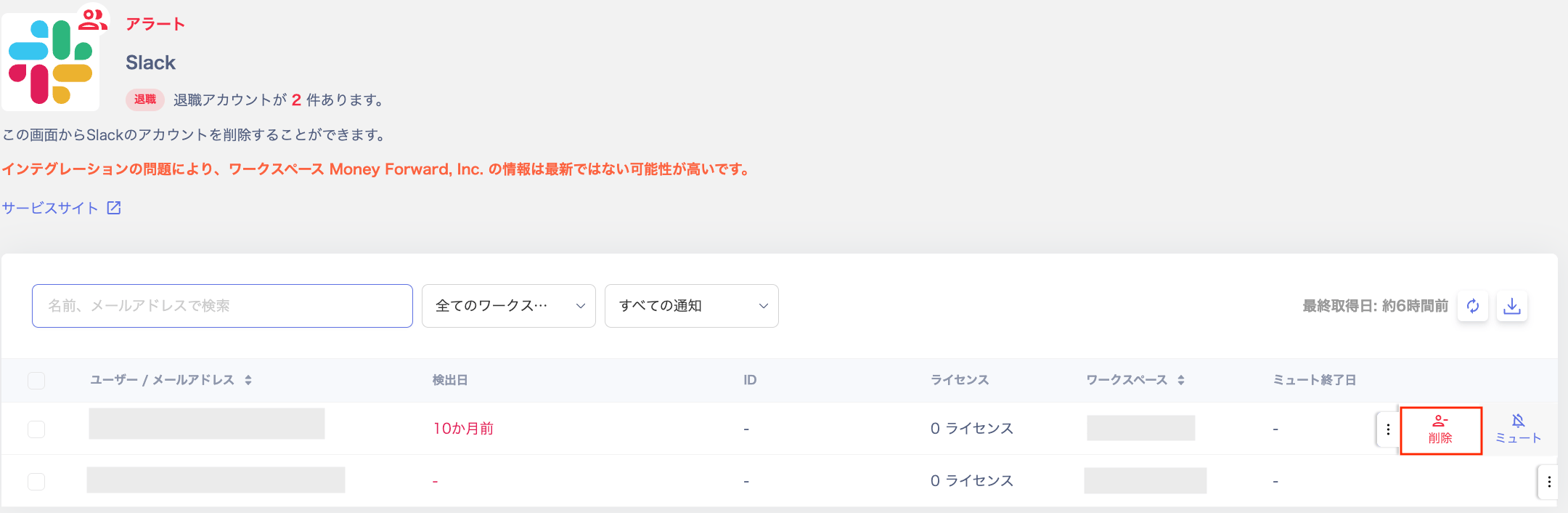
You can perform deletion from an alert notification sent to Slack. (For alert notification settings, see Slack Notification Settings.)-
Click the alert in Slack, log in, then click Delete.
-
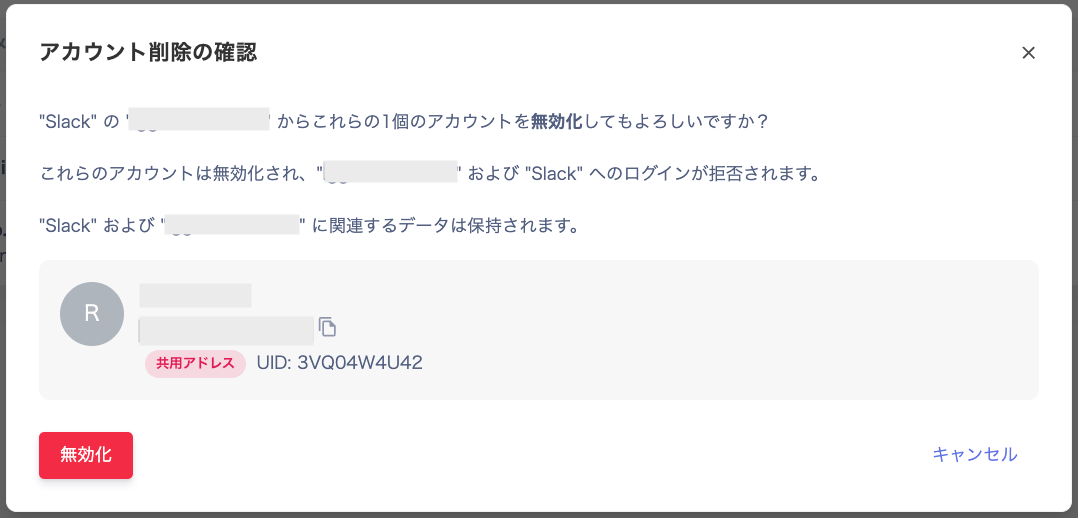
A confirmation screen for account deletion appears. Click Delete.
-
A deletion completion message appears and the account is deleted.

Method 2: Delete or Deactivate from the Account List in Service Details
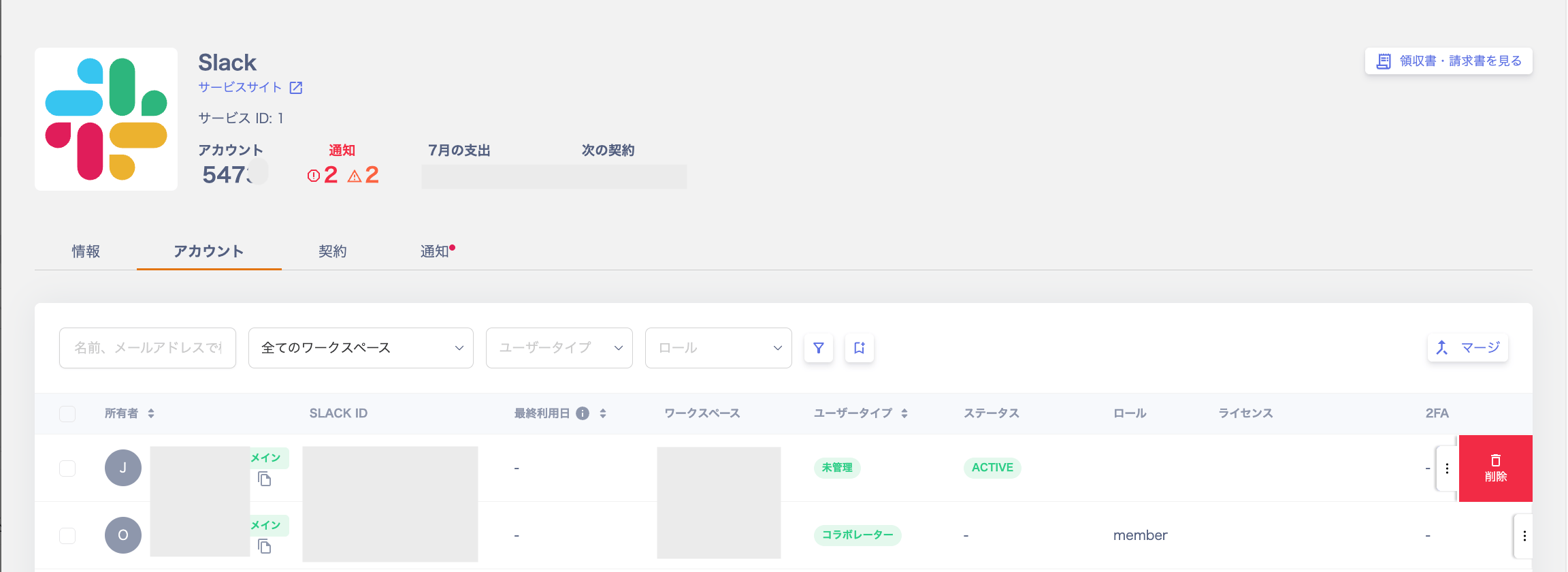
- Go to Services, select the target service, and open Accounts.
-
Click the three-dot menu on the right and click Delete.
-
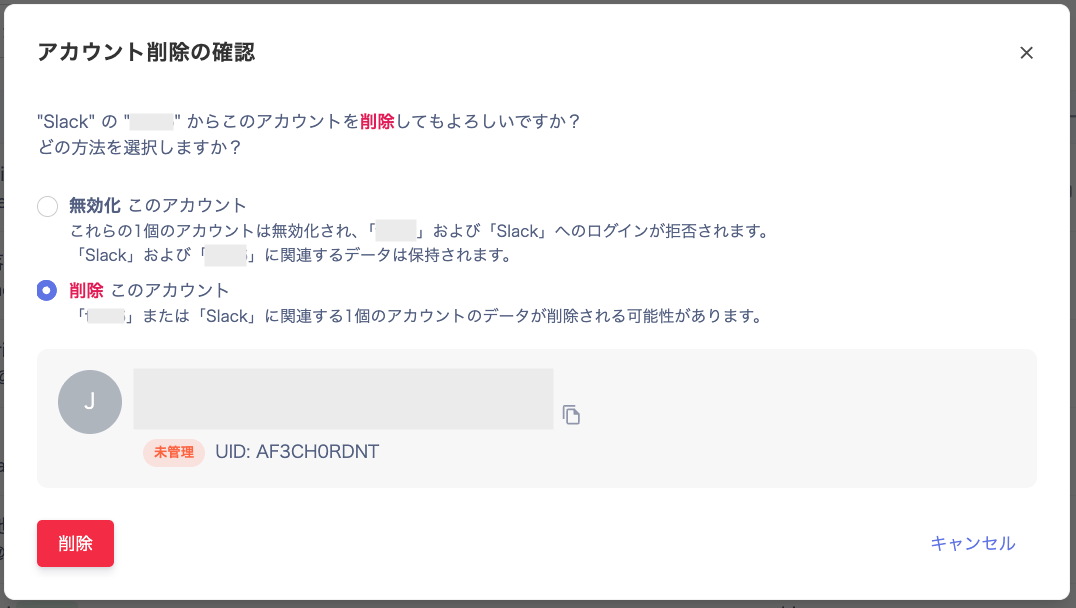
The “Confirm Account Deletion” screen appears. Review the details and click Delete.
-
A deletion completion message appears and the account is deleted.

When the Feature Is Not Supported
For services that do not support deletion, the message “Account deletion is not yet supported.” is displayed. We will add support for eligible services in order. Contact us via the request page to submit a request.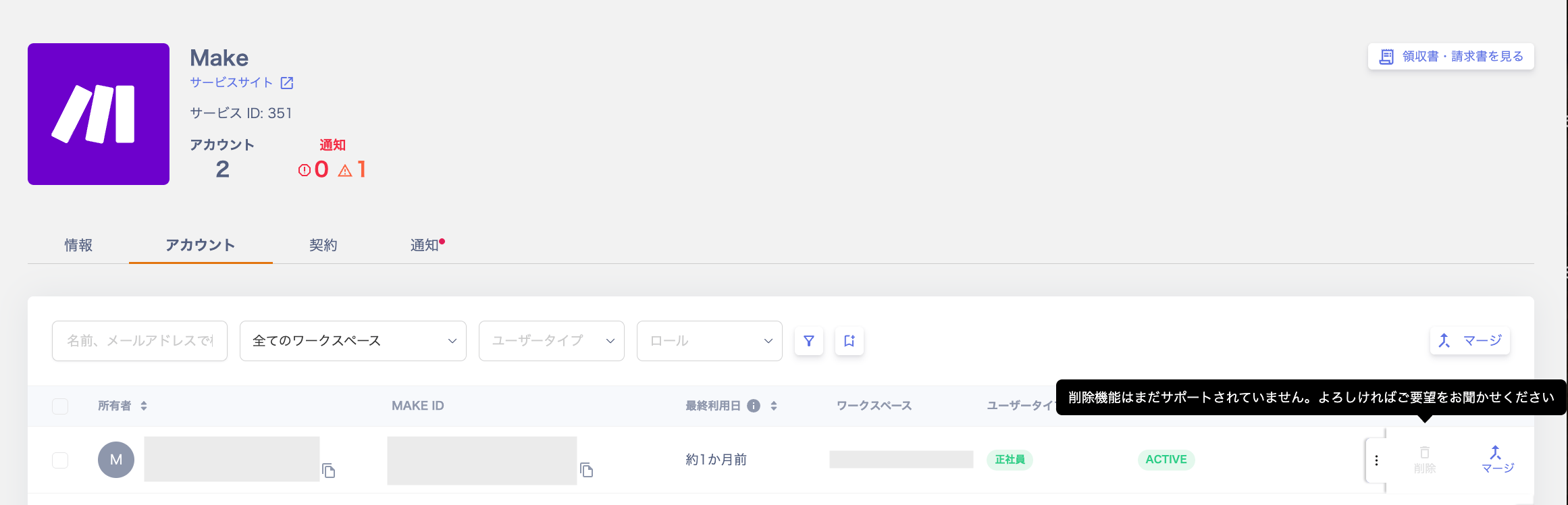
Troubleshooting Errors
This account cannot be deleted.

Cannot delete because this is the last administrator.

The registered credentials are incorrect or have expired.
