Admin permissions are required to configure this feature.
If you configure notifications under Services > Select SaaS > Contracts, you must also set up notification credentials separately.
Configure Notification Credentials
If you plan to send notifications to a Private Channel, configure the Notify Private Channel setting in advance.-
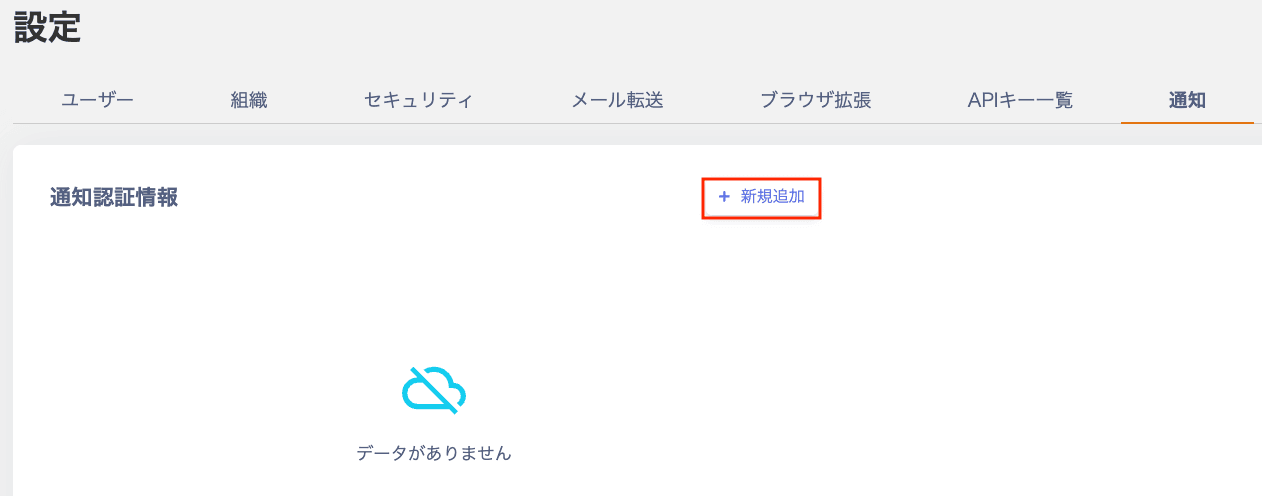
Go to Settings > Notifications > Notification Credentials and click + Add New.
-
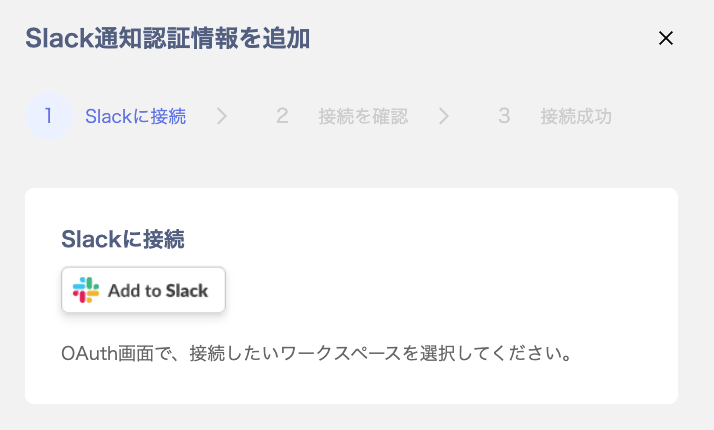
On the Add Slack Notification Credentials screen, click Add to Slack under Connect to Slack.
-
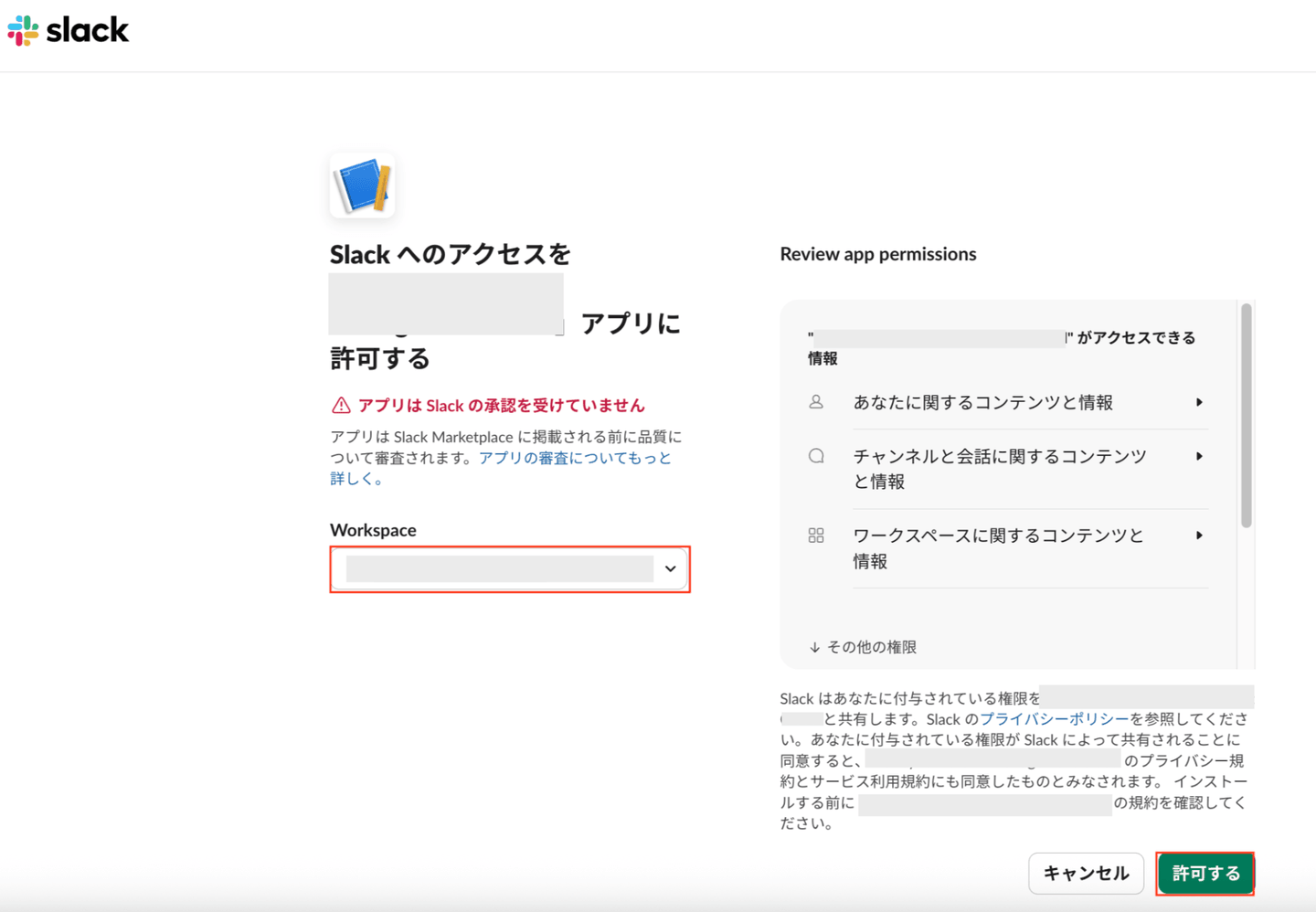
A screen appears asking you to grant MoneyForward IT Management Cloud app access to Slack. Confirm the workspace and click Allow.
-
On the Add Slack Notification Credentials screen, verify the connection and click Confirm.
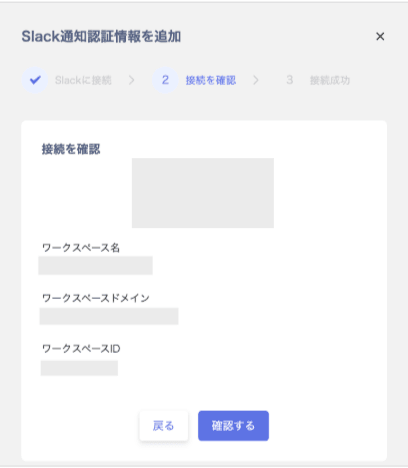
-
The screen displays Additional credentials created and Connection successful. Click Done.
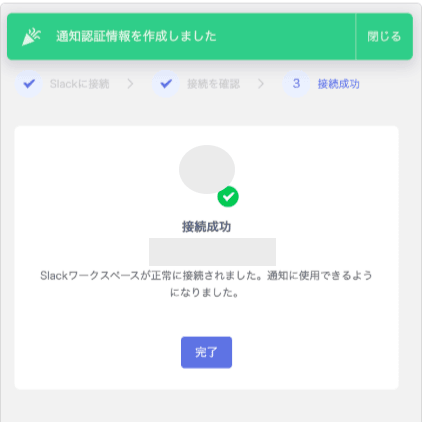
-
Your configured notification credentials appear under Notification Credentials.
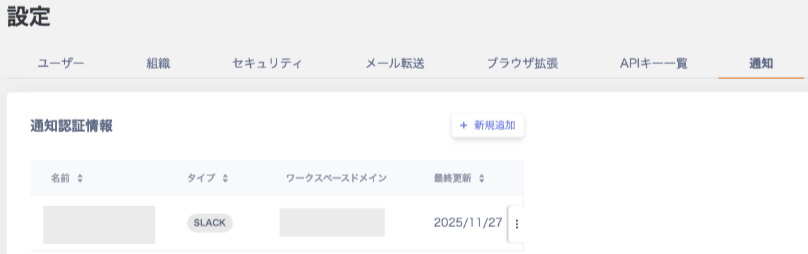
Slack Notifications
-
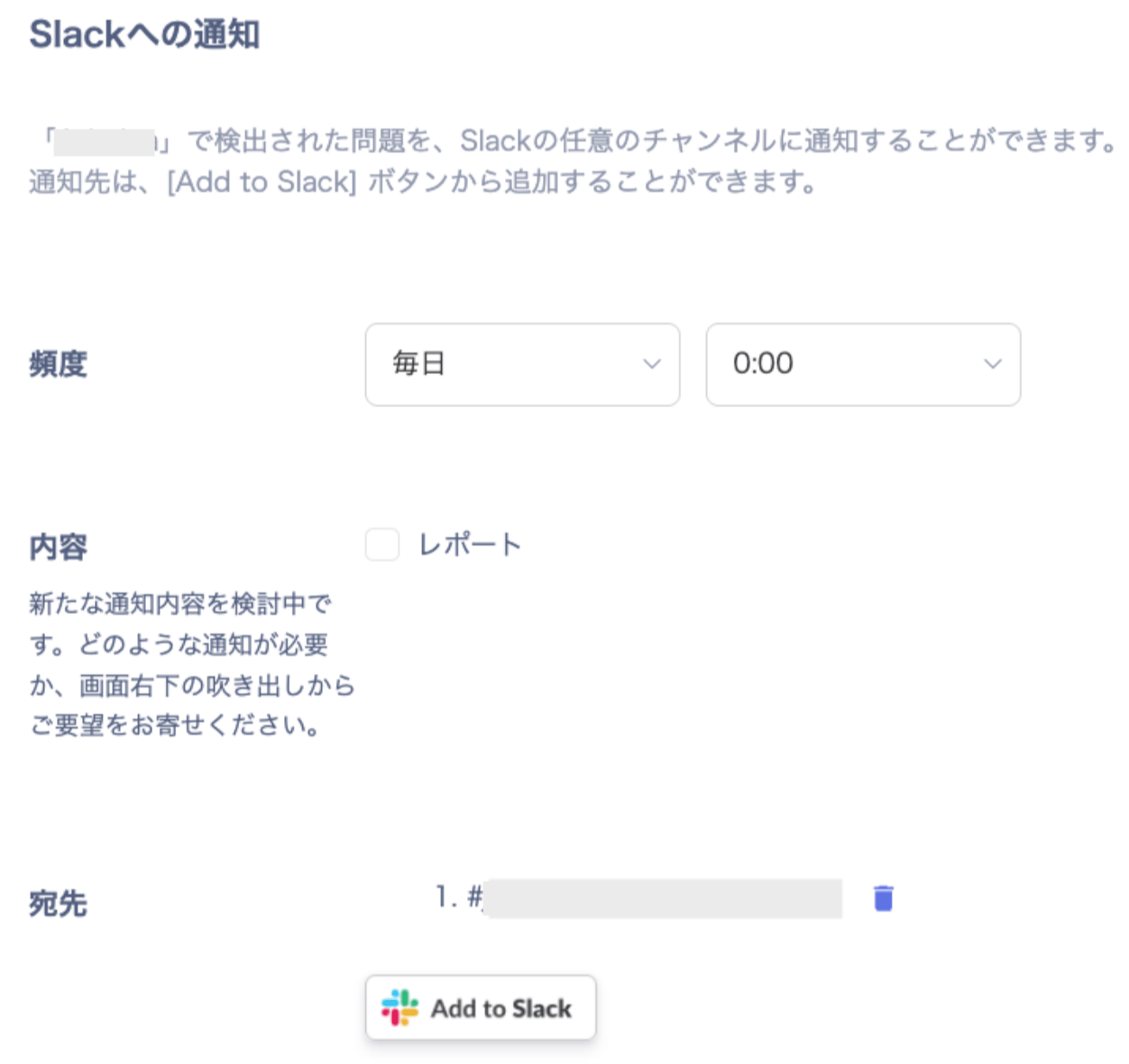
Go to Settings > Notifications > Slack Notifications. Select the frequency and content (report) to send, then click
Add to Slackin the Destination field.- Monthly and weekly notifications are sent at 10:00 AM JST.
- Daily notifications are also sent at 10:00 AM JST; time selection is not available.
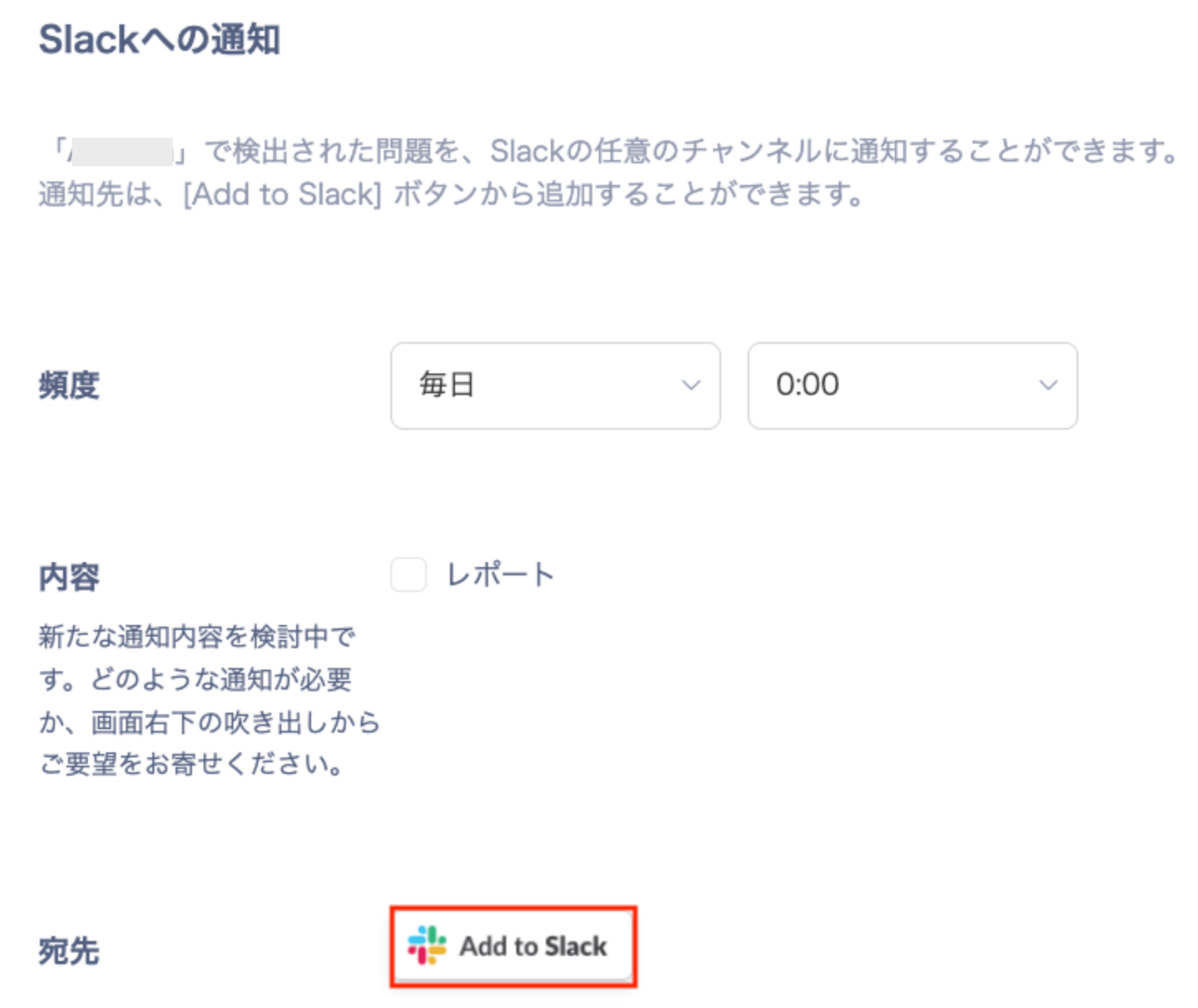
-
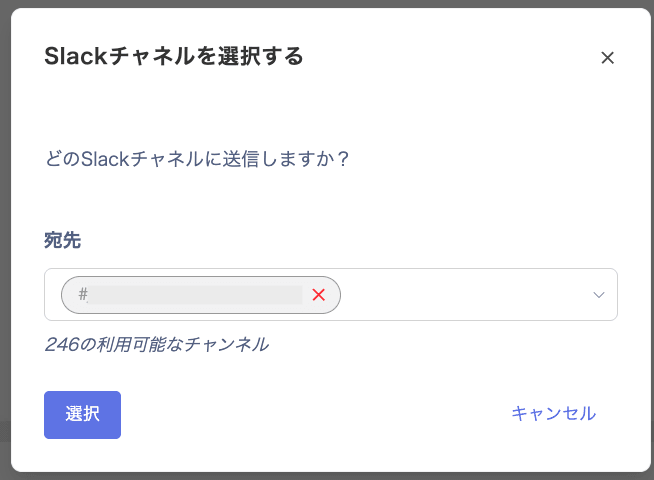
Search for the channel you want to notify, select it, and click Select. You can select multiple channels.
Note: To send notifications to a Private Channel, you must invite the app to the channel in advance.
-
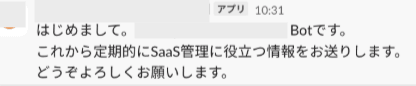
The send frequency, content, and destination channel are saved. Notifications will be sent at the scheduled time, and the bot will appear in the destination channel.

Notification Content
Reports
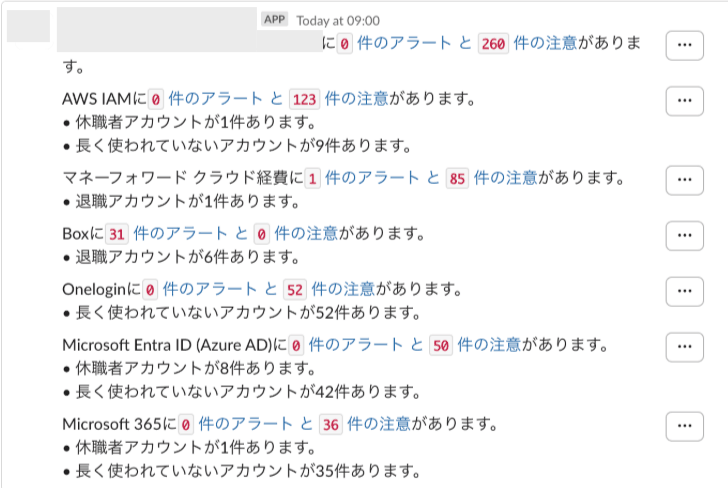
Reports are delivered to Slack. You can view a summary and per-service details in the thread. Summary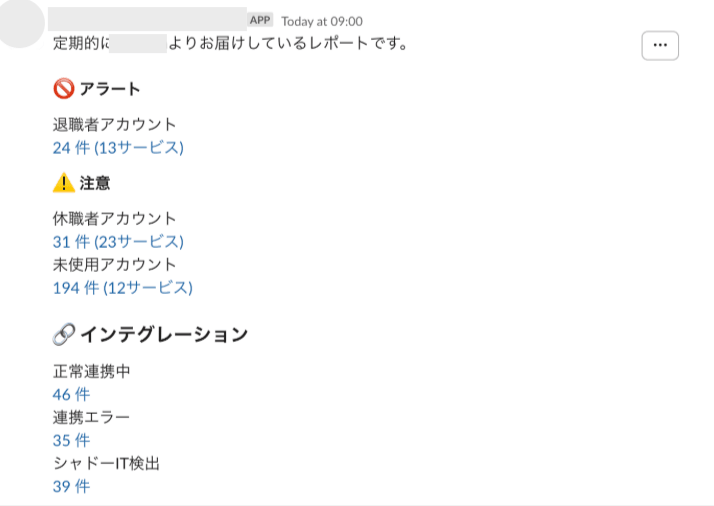
| Item | Description |
|---|---|
| Active integrations | Services that are syncing correctly. |
| Integration errors | Services with sync errors. |
| Shadow IT detected | The number of unlinked SaaS apps detected by the Shadow IT feature. Check the SaaS apps shown on the “Shadow IT” tab. If there are 10 or more, linking them will reveal additional SaaS apps. |
Notify a Private Channel
To send notifications to a Private Channel, you must invite the integration app to the Slack channel in advance.-
In the channel you want to invite the app to, click the button in the upper right (member list icon).

-
Click the Integrations tab.
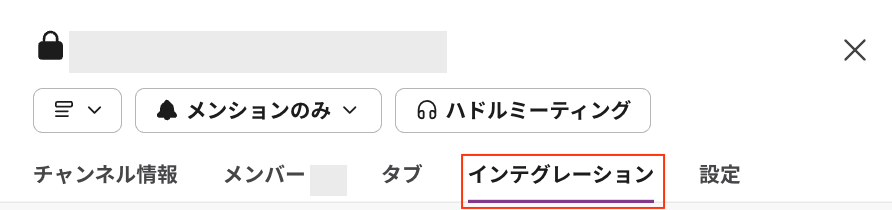
-
Click Add apps on the Apps screen.

-
On the Add apps to screen, search for Admina by Money forward and click
Add.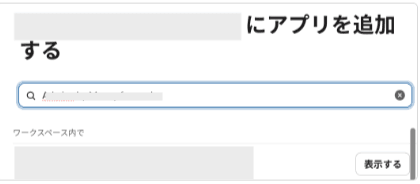
- Follow the setup steps to configure notifications. The private channel now appears as an option when selecting a destination channel.
Switch Report Language to English
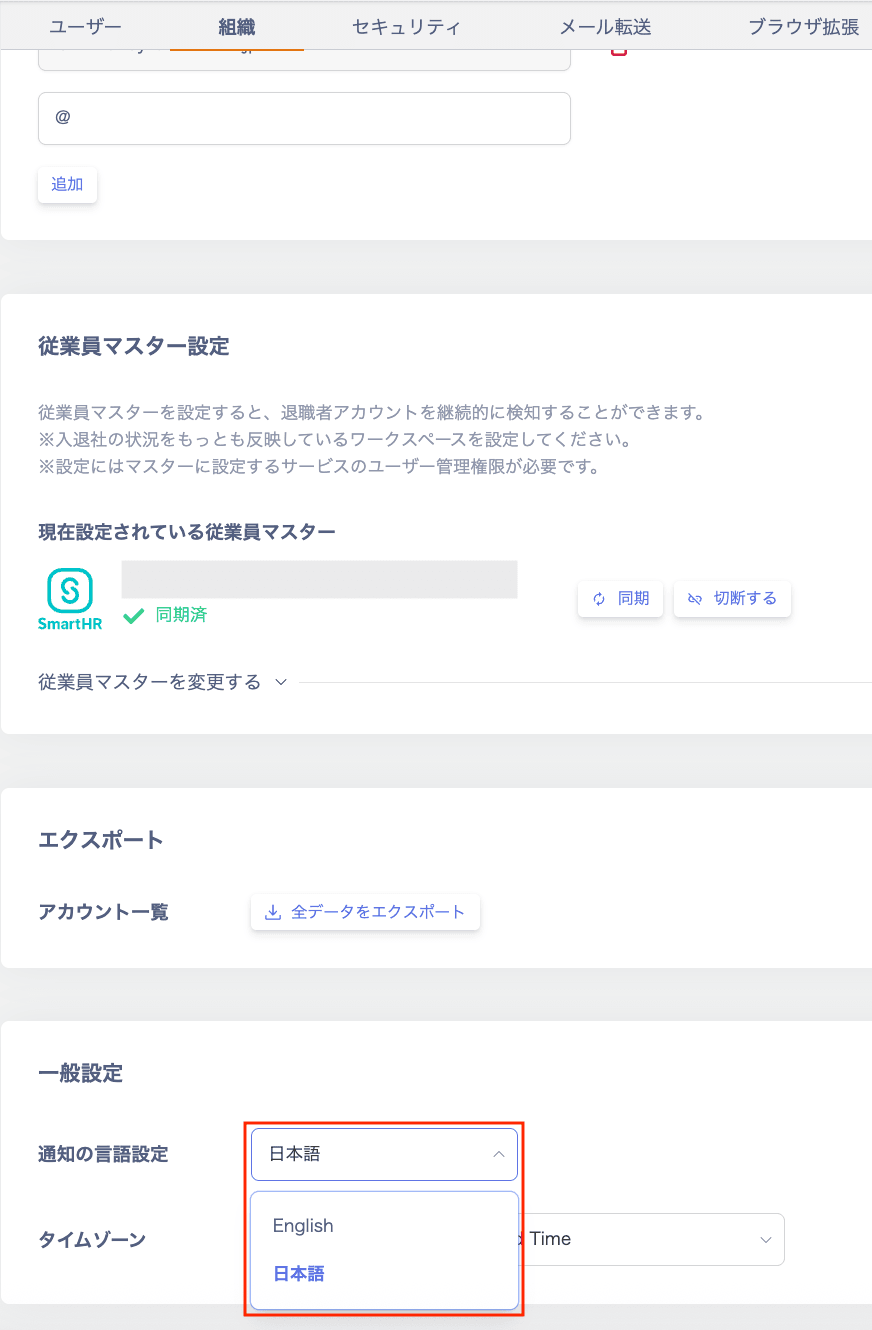
To switch report notifications to English, change the following setting. Go to Settings > Organization > General Settings and selectEnglish under Notification Language.