

Account Creation
Prepare Your MoneyForward ID
- Go to the “Register for MoneyForward ID” screen.
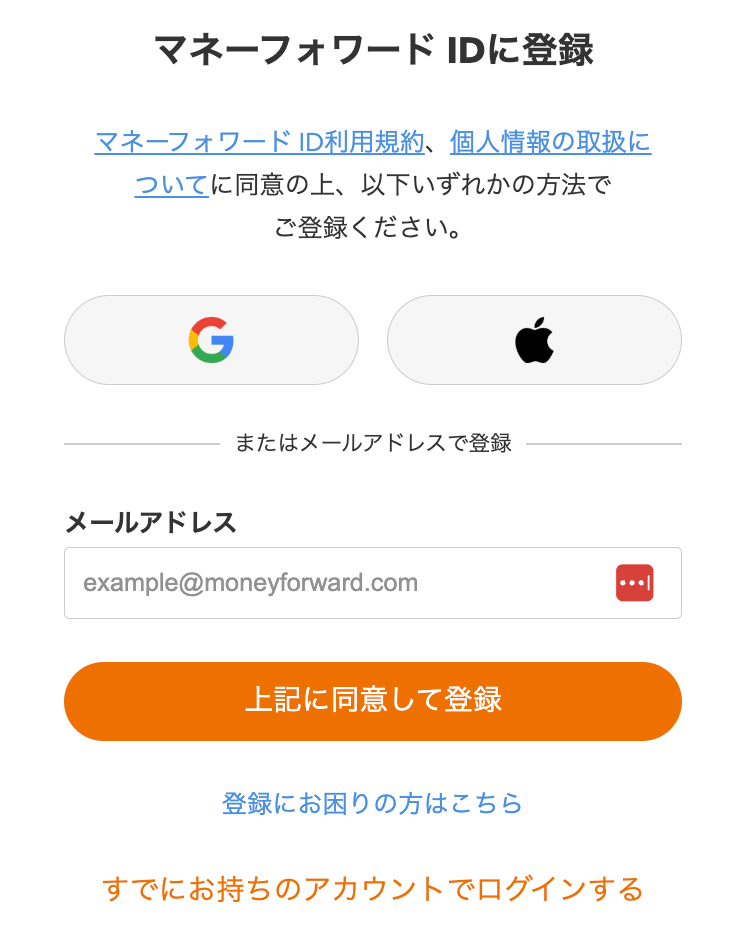
- Create a new MoneyForward ID or log in with an existing one. If you do not have a MoneyForward ID, create one using a Google account, Apple Account, or email address.

- If you already have a MoneyForward ID, click “Log in with an existing account” and sign in. If you cannot log in, click “Having trouble registering?” and check the FAQ for guidance.

Create a New Organization in This Service
-
On the “Create Organization” screen, enter your “Organization Domain” and “Organization URL”.
- Specify your primary domain. (This cannot be changed after the organization is created.)
- You can add more domains after creating the organization.
- The “Organization URL” may contain lowercase alphanumeric characters and hyphens (-). It must start with a letter and be at least two characters long.
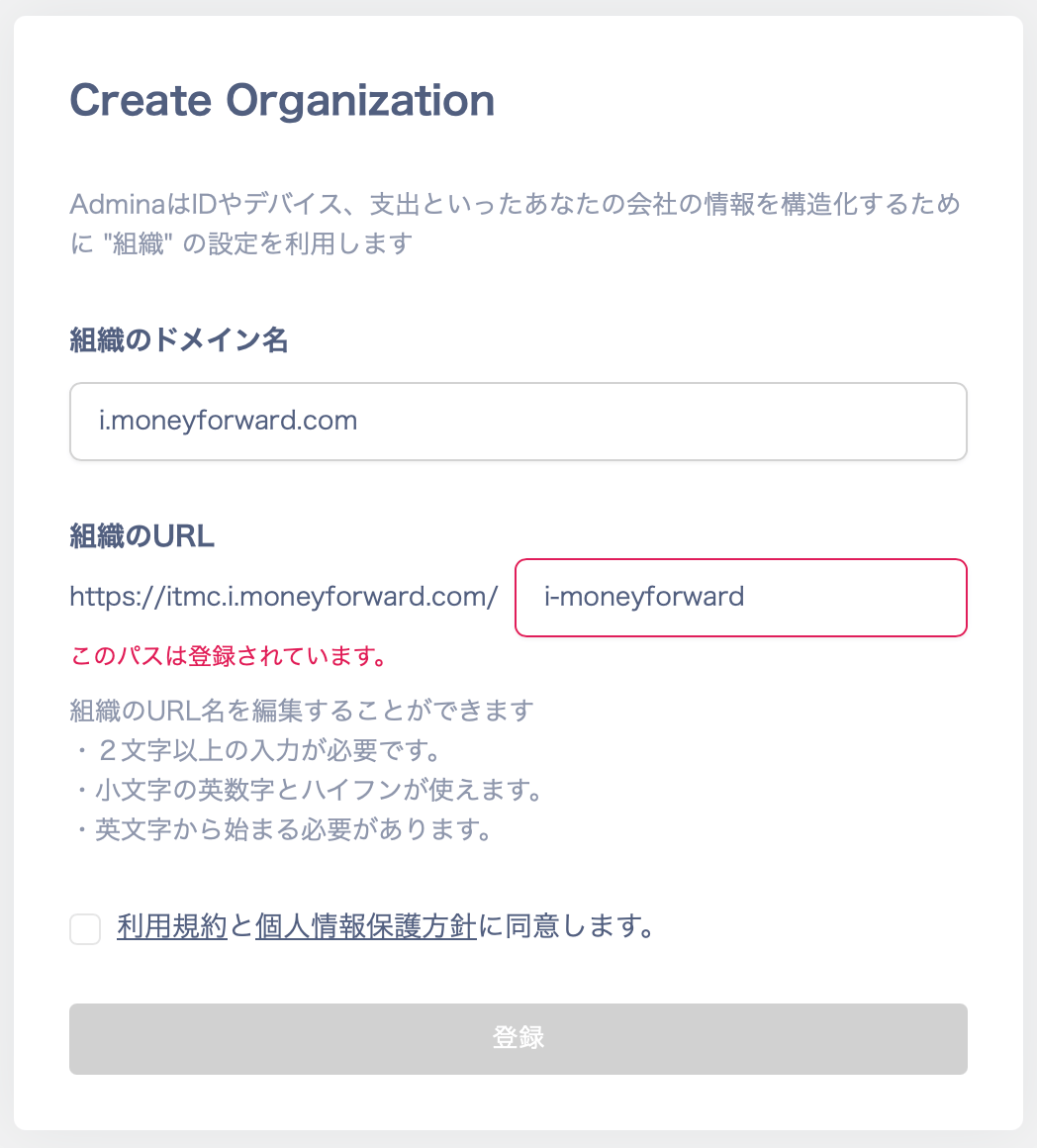
- Agree to the Terms of Service and Privacy Policy, then click Register.
- When the top page appears, your organization has been created successfully. Bookmark the URL for easy access.