You can export file lists (including Google Drive) directly from the UI. Refer to this guide only when you want to export using the API.
API
We provide a public API so you can use the retrieved data however you like. For details on the available API endpoints, see the API documentation. You can also access it from Settings > API Keys > “API Documentation”.
API for File Export
Get files for a service in an organization is the API endpoint for exporting file data. GET https://api.itmc.i.moneyforward.com/api/v1/organizations/`{organizationId}`/services/`{serviceId}`/files This returns a list of files for the specifiedServiceID.
organizationId is the ID assigned to each individual tenant.
Preparing Your Execution Environment
- Web API execution environment Prepare an environment to call the Web API. Options include Python and CLI (curl). This guide uses the following Chrome extension: Talend API Tester - Free Edition
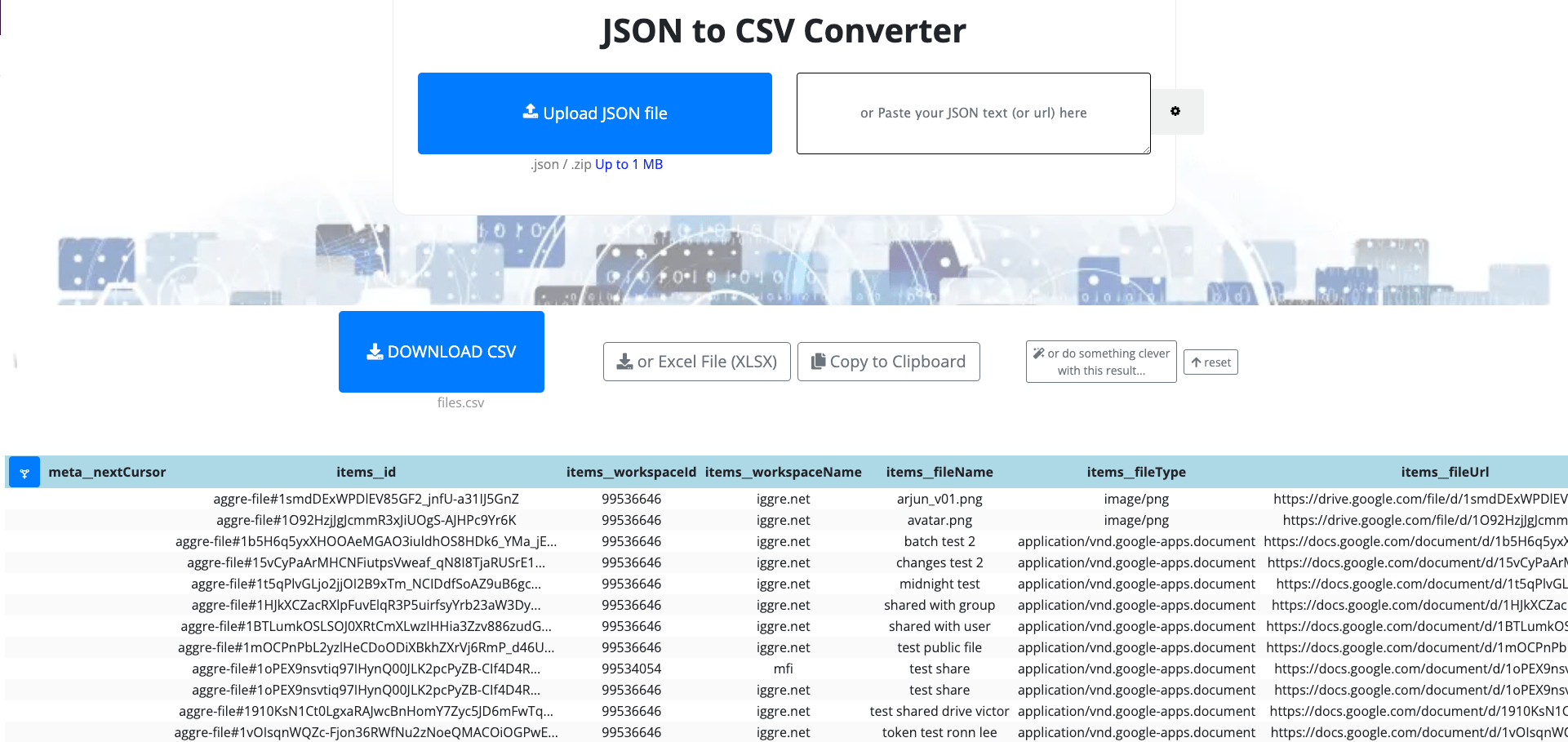
- File conversion tool Convert the JSON output from the API to CSV or Excel format. A service like the following works well: JSON to CSV Converter
Steps (Exporting the Google Drive Public File List)
Finding Your OrganizationID
The Organization ID shown under Settings > API Keys is your OrganizationID. Copy it for later use.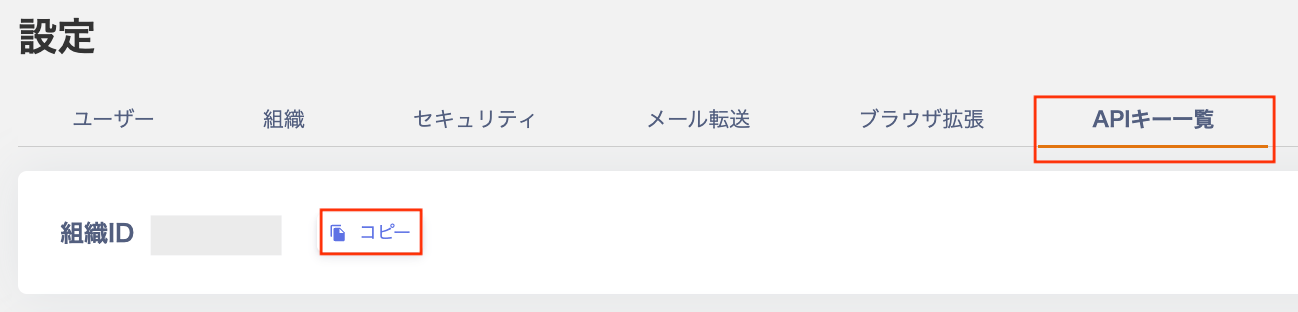
Generating an API Key
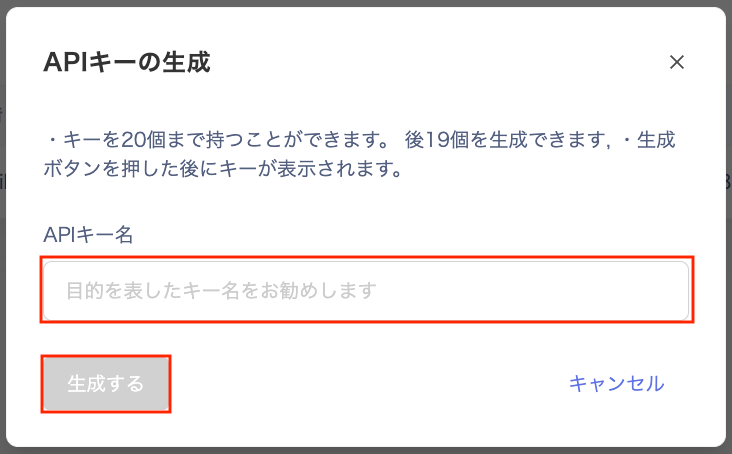
- Go to Settings > API Keys and click Generate API Key.
-
On the “Generate API Key” screen, enter a name for the key and click Generate.
-
Your API key will be issued. Copy and save it.
Note: This key is required to call the API. It is displayed only once, so save it before closing the dialog.

Finding the Service ID
Find the ServiceID for the service whose file data you want to retrieve. Click on the relevant service and check the URL to see its ServiceID.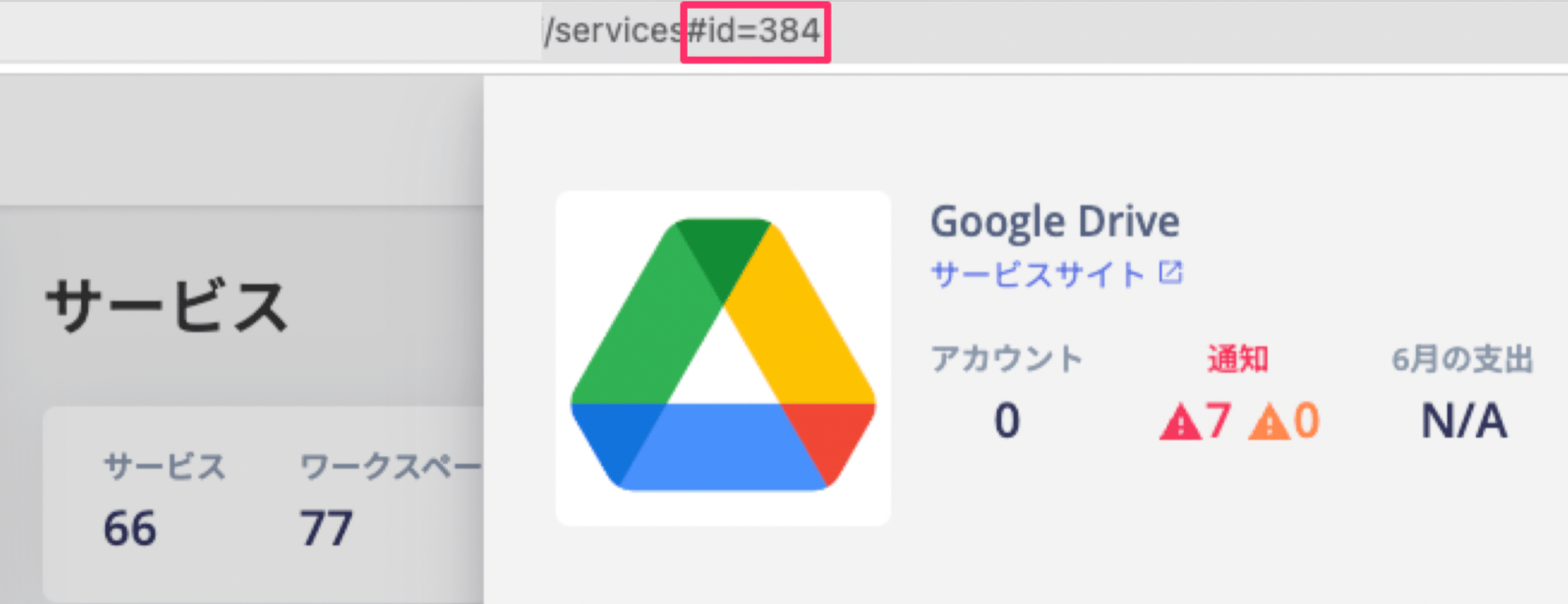
384.
Running the API
Start your Web API execution environment and call the API.Example using the curl command
Example using the curl command

Setting Authentication Credentials
Set the authentication credentials to access the service as follows:Authorization:Bearer <API key>
Specifying Query Parameters
You can filter the output by specifying query parameters. For example, you can limit results to files owned by admins or files shared publicly. The available query parameters are listed below.Query parameters to output 10 public files
Query parameters to output 10 public files
| Parameter | Description |
|---|---|
| keyword | Filter by a keyword in the file name. |
| workspaceId | Filter by workspace ID to retrieve files from a specific workspace. |
| sharingStatus | Filter by sharing status."public": Files shared with everyone"shared": Files shared externally |
| limit | Set the number of results. Maximum is 200. Defaults to 50 if not specified. Example: limit=50 |
| sortBy | Sort results by the specified field. Available sort fields:"fileName": File name"source": Source SaaS"sharingStatus": Sharing status"creationDate": File creation date"workspaceId": Workspace ID"workspaceName": Workspace name |
| FileType | Filter by type."file": Retrieve files only"folder": Retrieve folders only |
| owners | Filter by file owner (email address). |
| sortOrder | Set the sort direction."DESC": Descending"ASC": Ascending |
Checking the Results
When the API call succeeds, results appear in the Body section.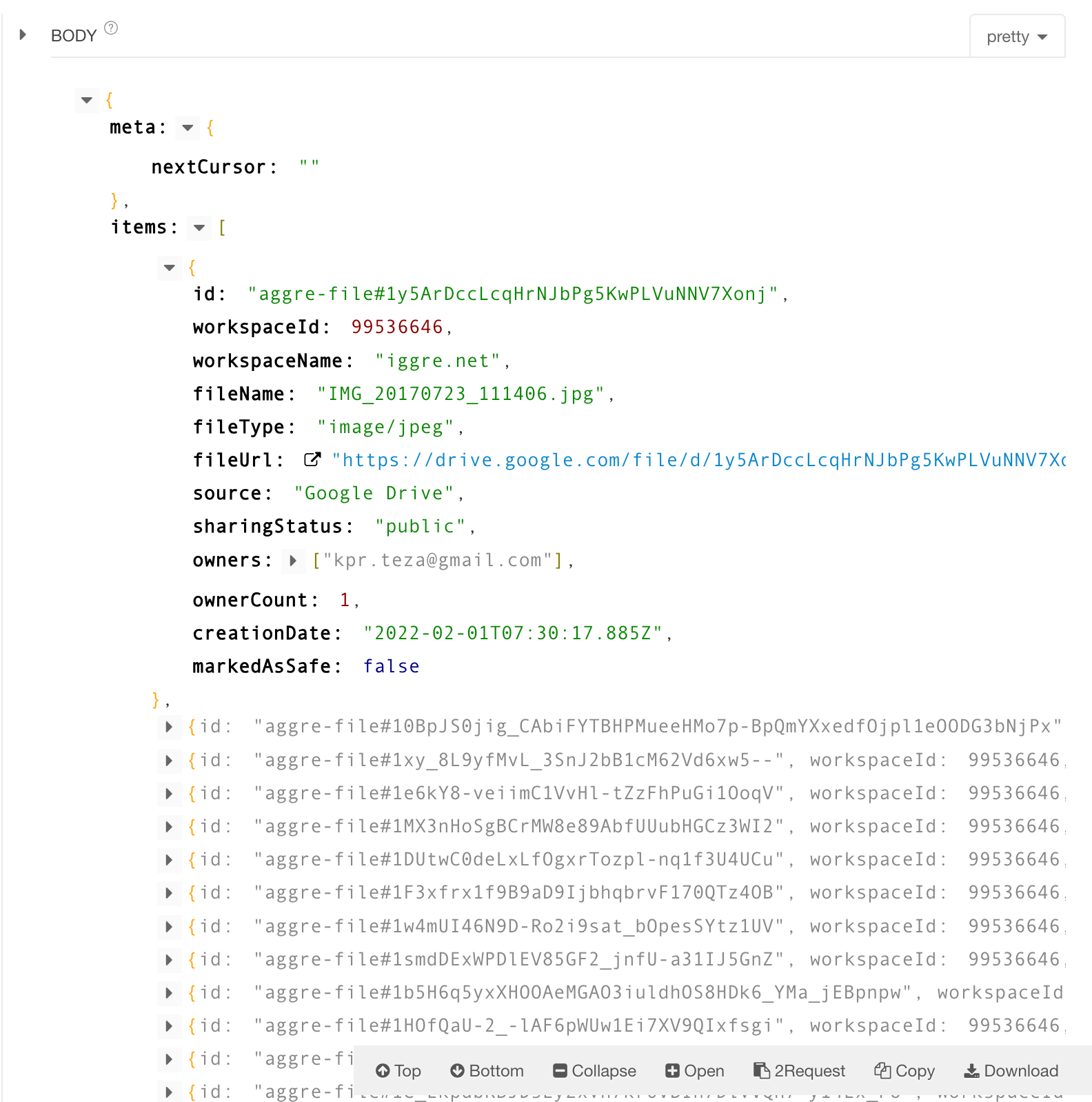
- Meta > nextCursor
When more than 200 results are returned, use this cursor to retrieve items 201 and beyond. Pass the
nextCursorvalue as a query parameter to retrieve the next page of results. - Item: Details for each individual file.
Exporting JSON and Converting to CSV
Download the results to save them as a JSON file. Then convert the downloaded JSON file to CSV format. Visit a service such as JSON to CSV Converter, upload the JSON file, and download the resulting CSV.