

Supported Features
Account Deletion Account Deactivation Account ProvisioningFor information on retrieving accounts, please refer to About retrieving accounts for Atlassian services.
Prerequisites
How to Log In to Trello
Go to the Trello login page and log in using your preferred login method or enter your email address and password.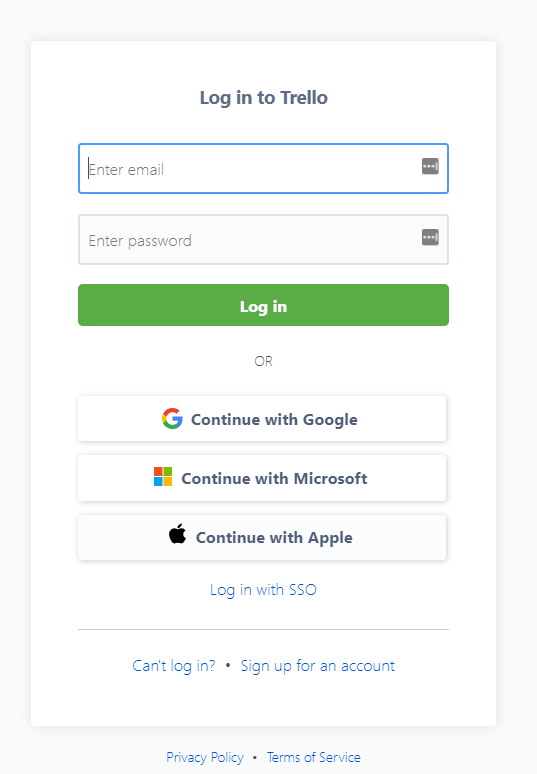
How to Obtain the Workspace Key
After logging in to Trello, click on the workspace you want to. Connect from Workspaces in the upper right corner of the screen. Part of the URL of the Workspaces page is your workspace key. Save it for later.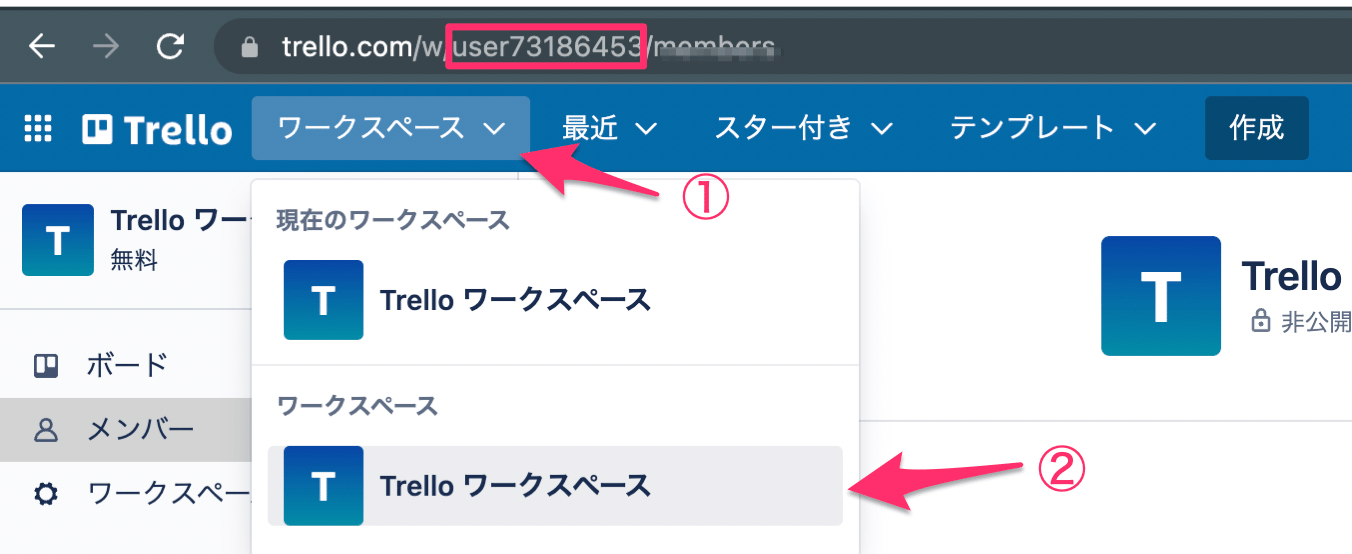
Integration Setup
- In the MoneyForward Admina integration screen, search for Trello.
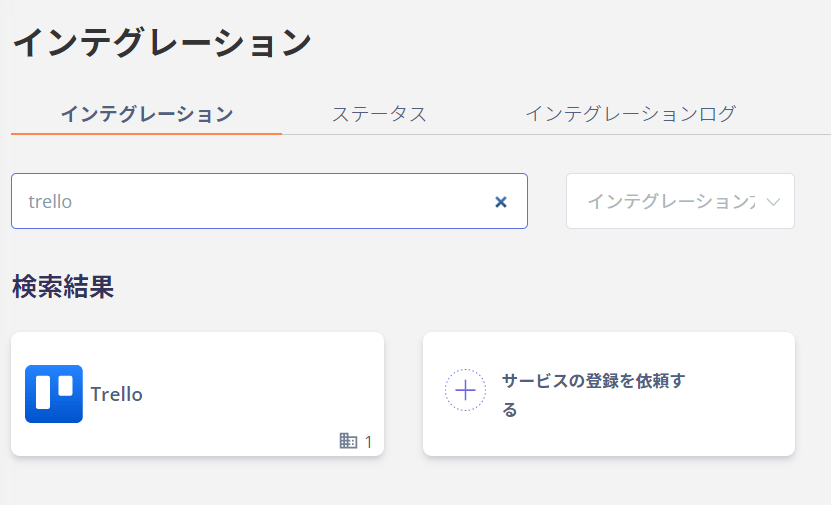
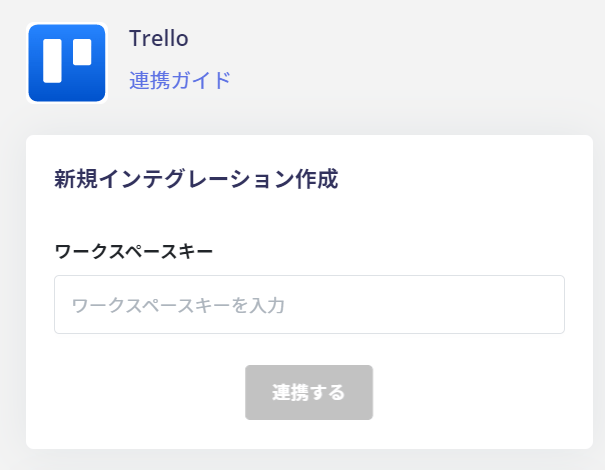
- Enter the workspace key obtained in the previous step and click Connect.
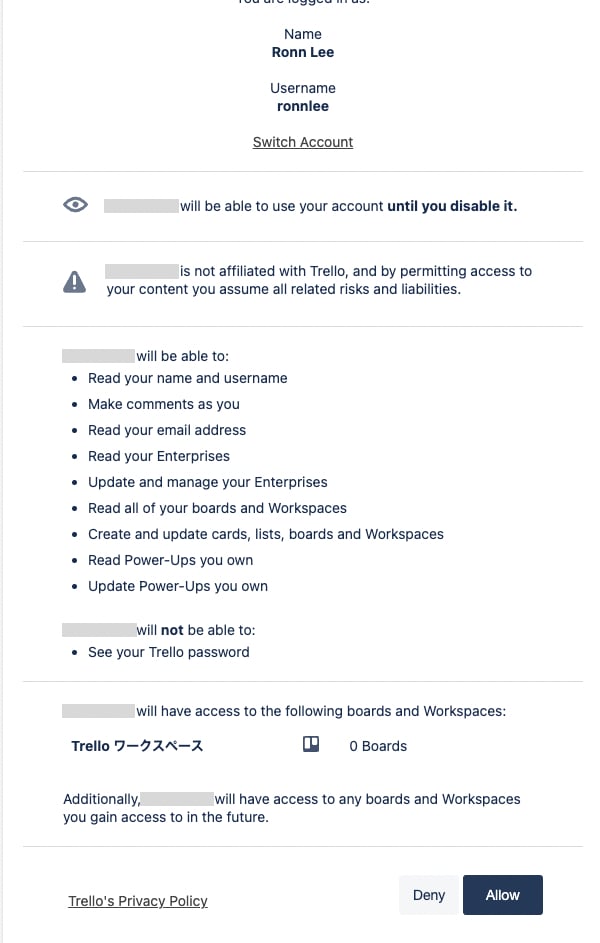
- Log in to Trello with your administrator account. An authorization screen will appear. Click [Allow].
- Once the integration with Trello is successful, the registered user information will be displayed in the account list.