

Supported Features
Account Deletion Account Deactivation Account CreationPrerequisites
How to Log In to Freshservice
Go to the Freshservice login page, enter your Freshservice domain name, and log in.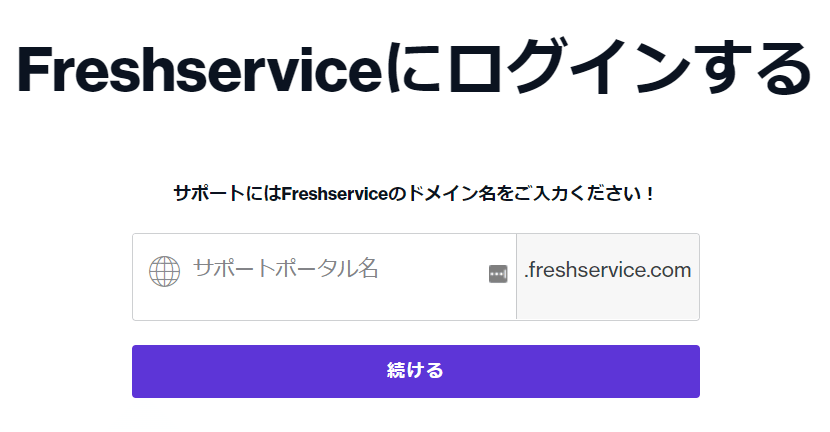
How to Obtain the Workspace Key
After logging in to Freshservice, click your profile picture in the upper right corner and navigate to the Profile Settings page.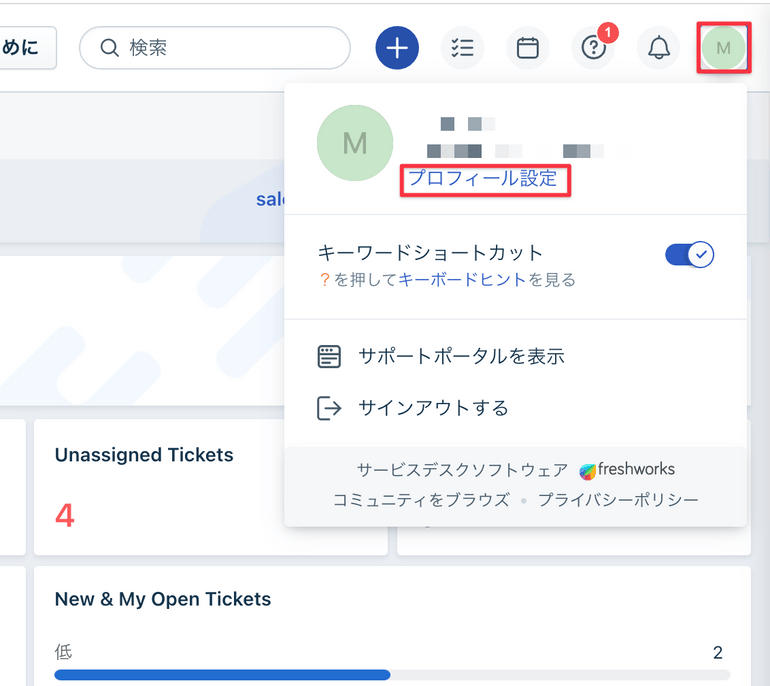
https://{workspace-key}.freshservice.com/profiles/.../edit

How to Obtain the Access Key
The API key is displayed on the right side of the Profile Settings page. The API key serves as your access key. Save it for later.
Integration Setup
Search for Freshservice in the MoneyForward Admina integration screen.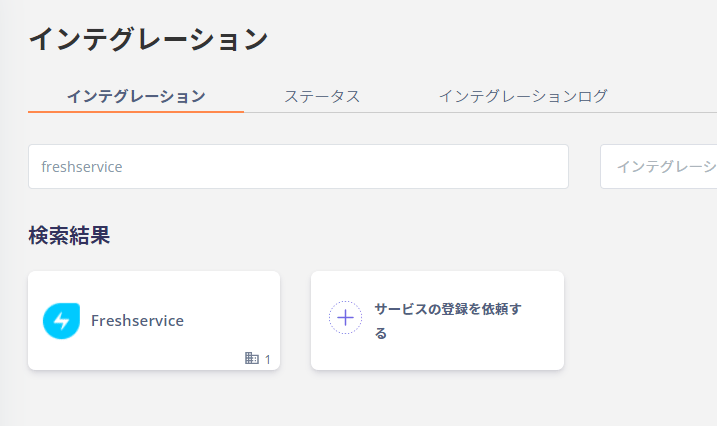

If the issue persists, please contact us via chat.