How to Log In to MAJOR FLOW
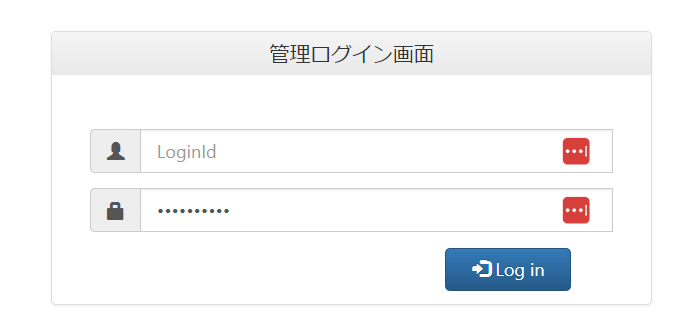
Go to the MAJOR FLOW admin login page and enter your username and password to log in.An administrator account is required for integration.External authentication accounts such as Google or SSO cannot be used for integration. For details, see [Restrictions] Integration Failure Due to External Authentication Accounts such as Google or SSO.
How to Obtain the Base URL
After logging in to the MAJOR FLOW admin page, the URL of the admin menu screen is the Base URL. Copy and save it.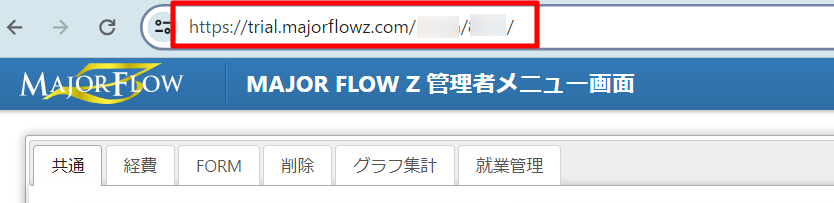
How to Obtain the License
To retrieve the license (products in use) in MoneyForward Admina, configure the following settings in MAJOR FLOW before connecting. From the MAJOR FLOW admin menu, navigate to Settings > System Parameters > Master Function System Settings, and set the Output Setting for “Services Used” to1.

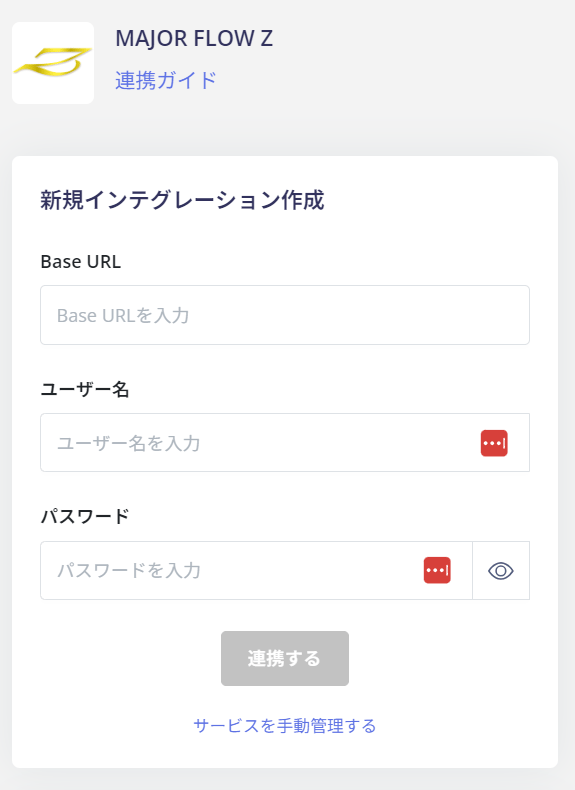
Integration Setup
On the MoneyForward Admina integrations screen, search for MAJOR FLOW.