

Supported Features
Account Provisioning Account DeletionIntegration requires an API key (Admin Key) issued from Anthropic’s Claude Console (the developer platform).※ The API key for integration cannot be obtained from the settings menu of Claude.ai (Team Plan / Enterprise Plan). (No API is provided for retrieving accounts on the Claude Team Plan or similar plans.)
Prerequisites
How to Log In
Go to the Claude Console login page, enter your email address, authentication code, etc., and log in.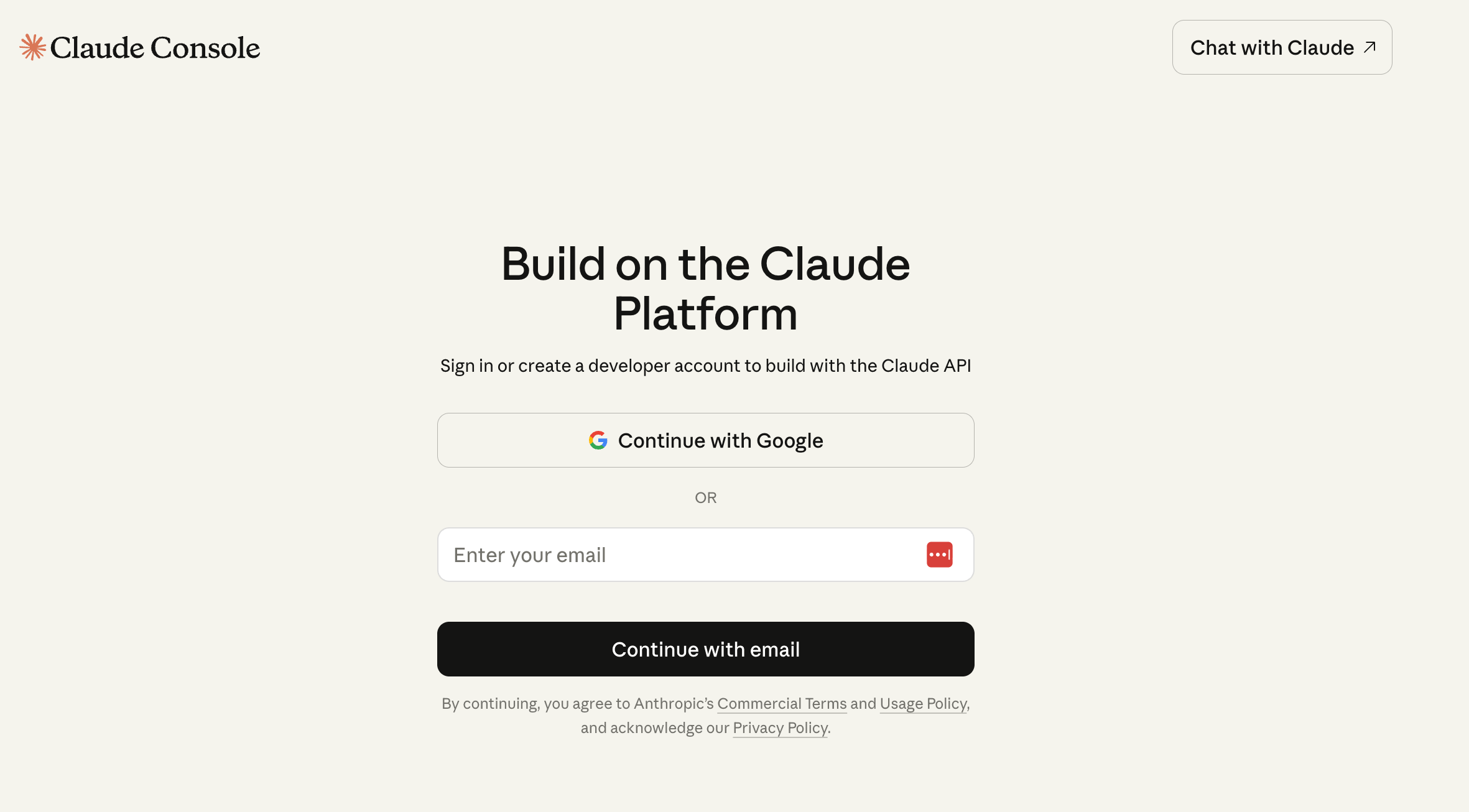
How to Obtain the API Key
- Log in to Anthropic’s Claude Console and click Settings > Admin keys.
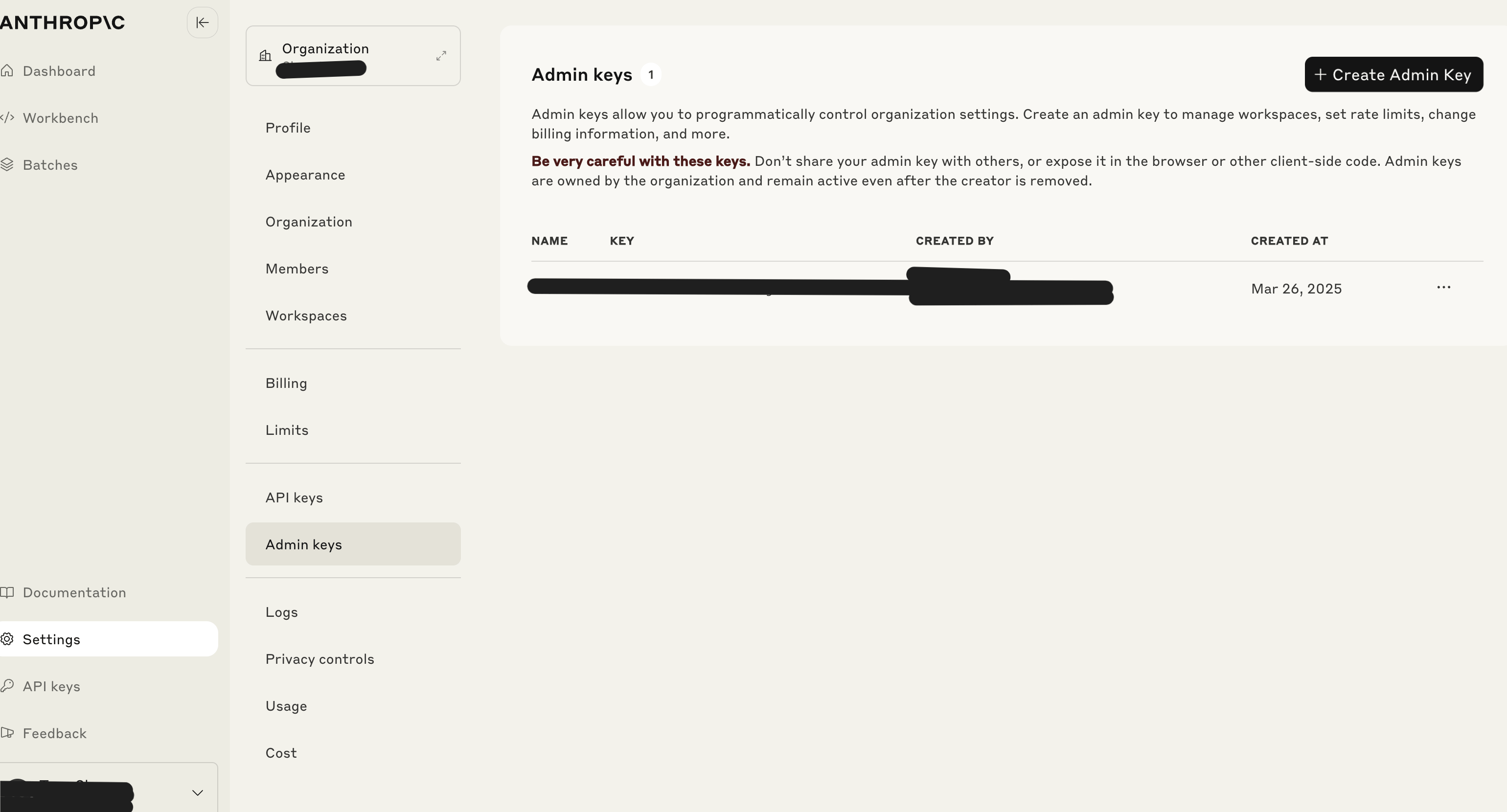
- The KEY will be displayed — copy it. This is your API key.
Integration Setup
- In Admina’s Integrations screen, search for “Claude”.
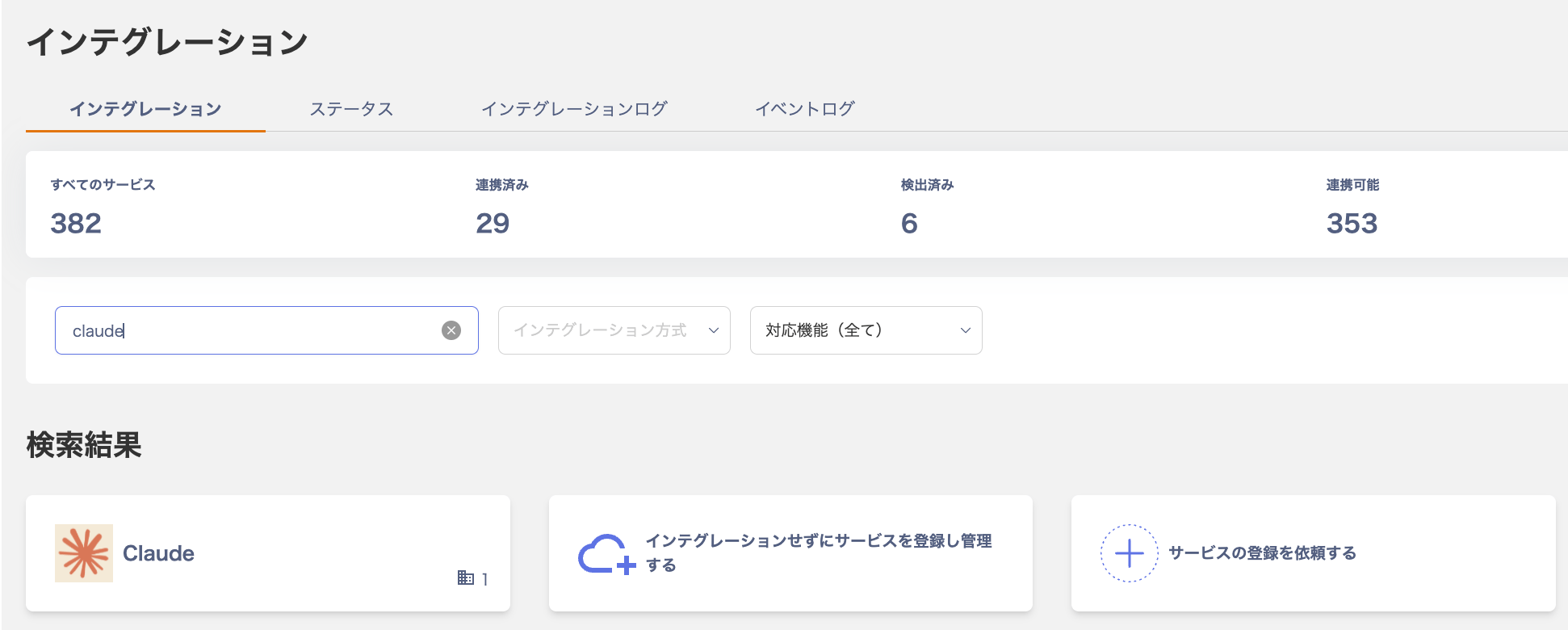
- Enter the workspace name and the API key obtained in the previous step, then click Connect.

- Once the Claude integration succeeds, Claude Console user information will appear in the account list.
FAQ
Q. I don’t see an API key issuance menu in the admin panel.
A. You may be viewing the Claude.ai admin panel. Please check the Claude Console login page.Q. What information can be retrieved by integrating with Admina?
A. Account information registered in Anthropic Console will be retrieved and can be managed in Admina. Please also refer to Workspaces (external site).Q. If I cannot obtain an API key from Claude Console, is there a way to manage Claude.ai accounts?
A. Please consider manually integrating SaaS with Admina (custom app). 0. Managing SaaS Accounts on the Service ScreenQ. When integrating with Claude, I see “Workspace not found.” How do I resolve this?
A. Your Claude (Anthropic) organization may have only the “Default Workspace,” with no custom workspace created. In that case, the Claude integration may show “Workspace not found.” During integration, Admina retrieves the workspace list through Anthropic’s admin API. Due to a limitation on Anthropic’s side, the default workspace does not appear in that API list. Check your Claude (Anthropic) organization’s workspaces using the steps below. Steps to check- In Claude Console > Settings > Workspaces, check whether any workspace other than the default one is listed.
- If a workspace exists, check that it has not been archived.
- If no workspace exists, create one and try the integration again.
- Check that the admin key you are using starts with
sk-ant-admin. A different key type may cause an “Invalid credentials” error.