Supported Features
Account Deletion ProvisioningAn administrator account is required for integration.
Advance Preparation
How to login to kintone
Click “Log in” at the upper right corner of the kintone homepage, enter your subdomain, and click Sign-in. Next, enter your email address and password to login. If you have any questions about kintone login, please refer to the kintone help site: Problems with Logging In.
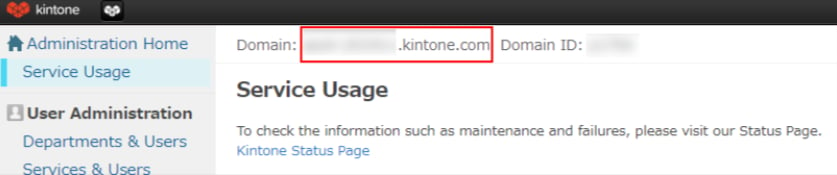
How to get Workspace key
After logging into Kintone, access Kintone Common Management from the ⚙ setting icon.
{workspace key} .kintone.com
Integration Setup
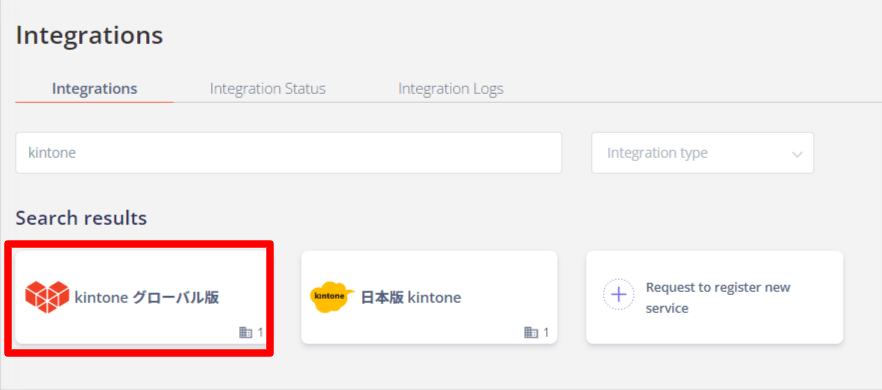
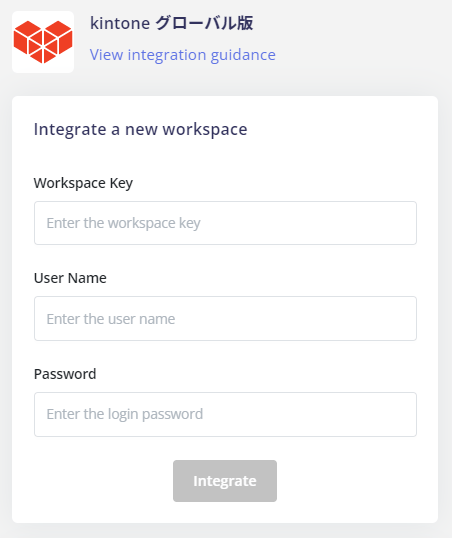
Search for and click on the kintone global version on the integration screen.