

Supported Features
Account Deactivation Account ProvisioningAdministrator privileges are required for integration. Plans other than Professional Edition, Enterprise Edition, Unlimited Edition, and Performance Edition cannot be integrated.
Integration Setup
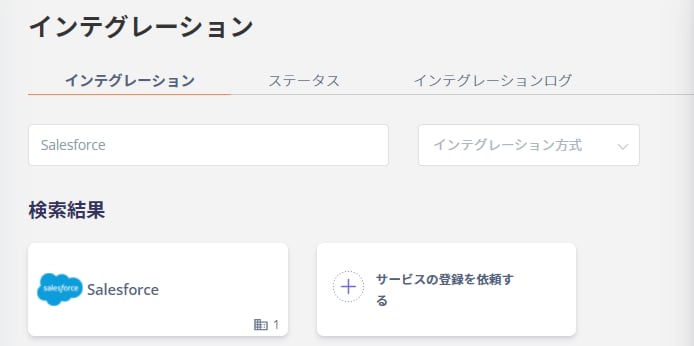
- In the MoneyForward Admina integrations screen, search for Salesforce.
- Enter any name (such as your company name) in the Workspace Name field and click Connect.
If you are connecting with “My Domain,” enter your “My Domain” in the optional Base URI field.Base URI:
https://mydomain(your My Domain).my.salesforce.com※ Lightning format is not supported, so be sure to use the format above.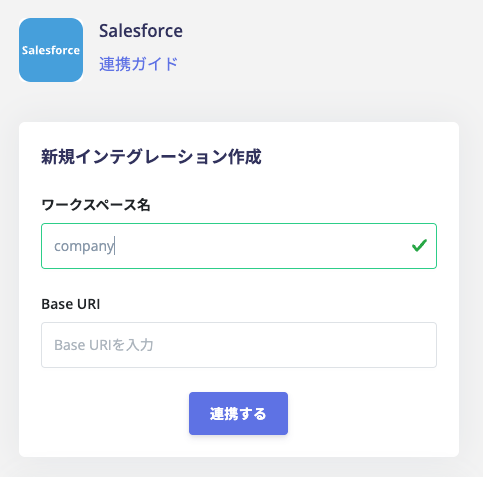
- You will be redirected to the Salesforce login page. Enter your Salesforce login email address and password.
If you do not have credentials in Salesforce (e.g., using SAML for SSO), you can skip authentication by first logging in to Salesforce and then entering your “My Domain” as the Base URI.

- An authorization screen will appear as shown below. Click Allow.

- When the Salesforce integration succeeds, registered user information will appear in the account list.