Supported Features
Account Deactivation Account ProvisioningPrerequisites
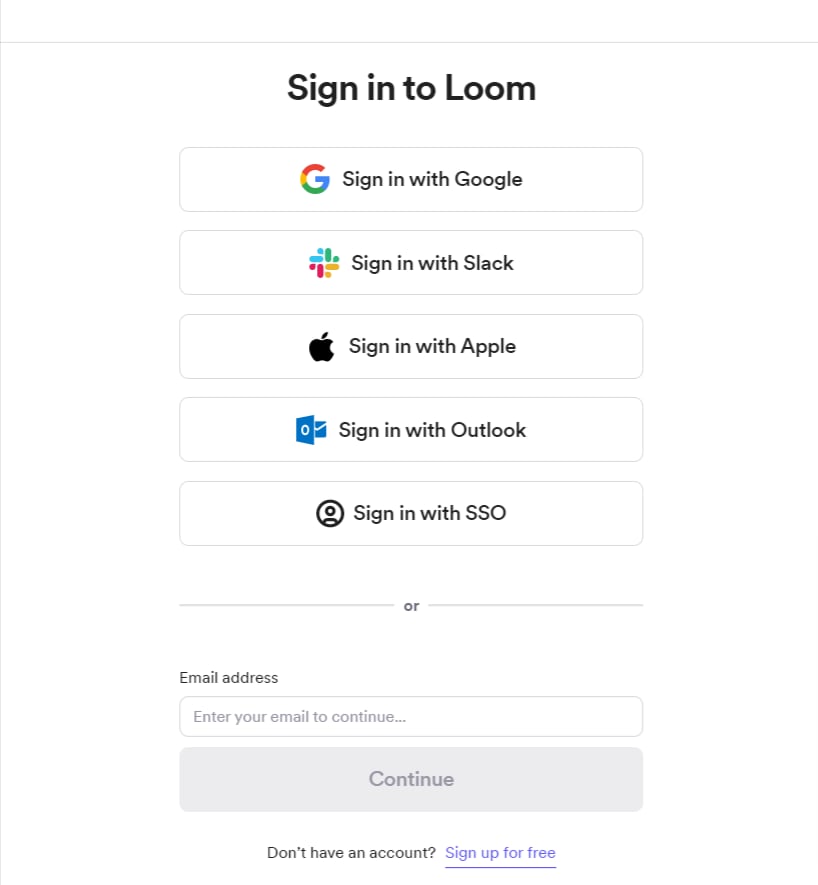
How to log in to Loom
Go to the Loom login page and sign in using your email address and password, or select your preferred login method.Google, SSO, and other external authentication accounts cannot be used for this integration. For details, see [Restrictions] Integration failure with Google authentication, SSO, and other external authentication accounts.

How to obtain your workspace key
After logging in to Loom, select the workspace you want to connect from the left menu to display the following screen. The workspace name shown below the icon is the workspace key — save it for later.
Integration Setup
Search for Loom on the MoneyForward Admina integration screen.