Supported Features
Account Deletion Account CreationPrerequisites
How to Log in to MicroCMS
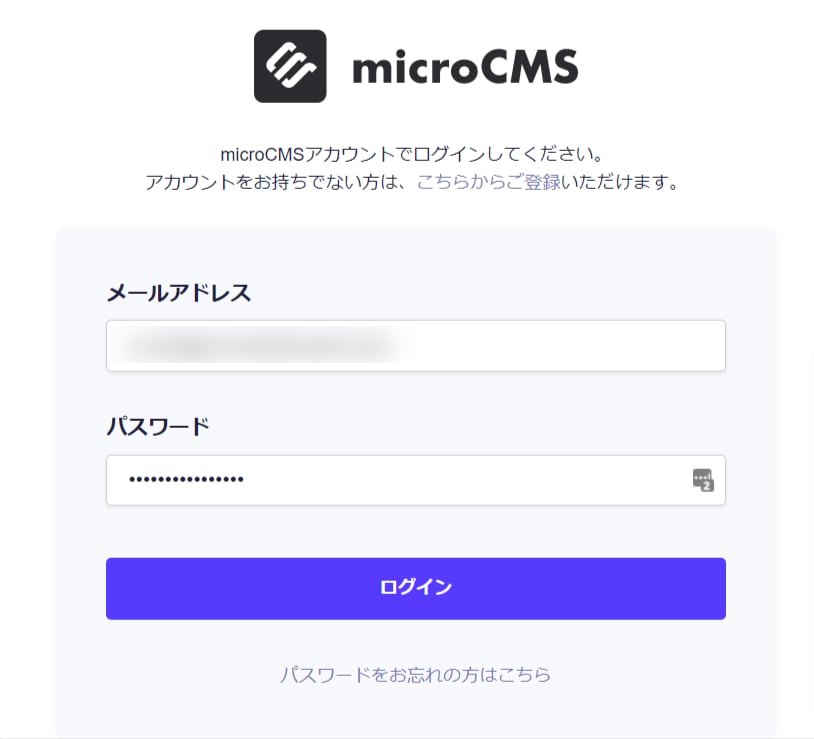
Go to the MicroCMS login page and enter your email address and password to log in.External authentication accounts such as Google or SSO cannot be used for this integration. For details, see [Restrictions] Integration failure due to Google authentication or SSO external accounts.
How to Find Your Workspace Key
After logging in to MicroCMS, open the menu from the icon in the upper left. The string displayed below the service name at the top of the menu is the workspace key. Save it.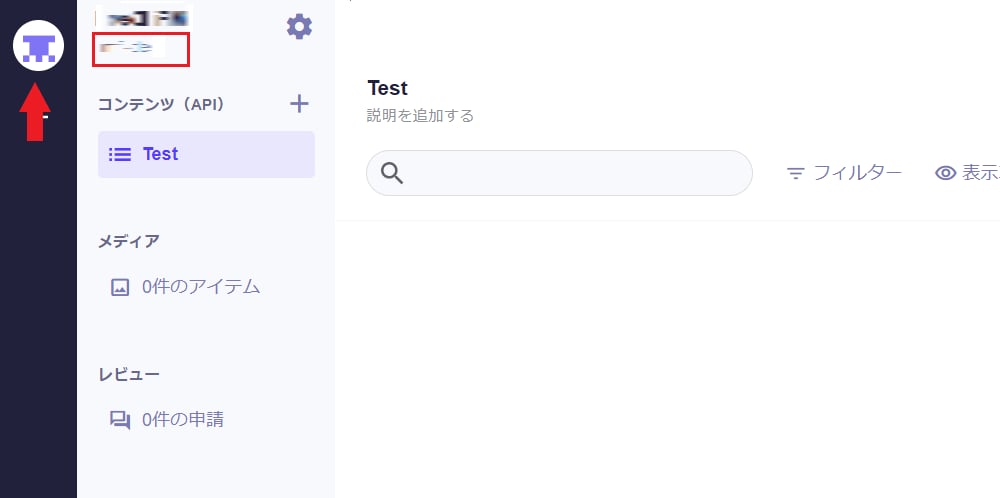
Integration Setup
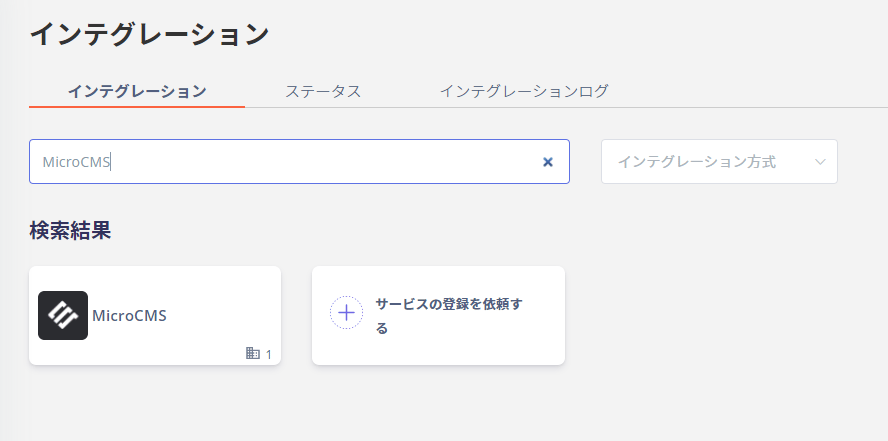
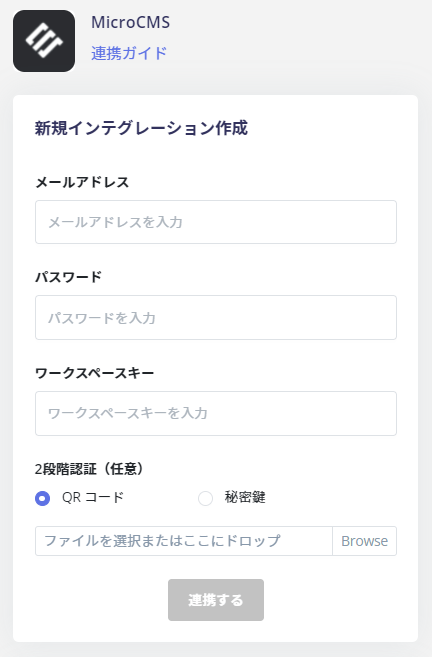
In the MoneyForward Admina integrations screen, search for MicroCMS.