

Supported Features
Device AggregationGlobal administrator privileges are required for this integration.
Account information is not synchronized. To use this integration, the device management feature is required. For MDM integration, please refer to 4-0. Integrate MDM-compatible SaaS with the Admina device ledger.
Integration Setup (Admina)
- In Admina, go to Integrations > Integrations and search for Microsoft Intune.
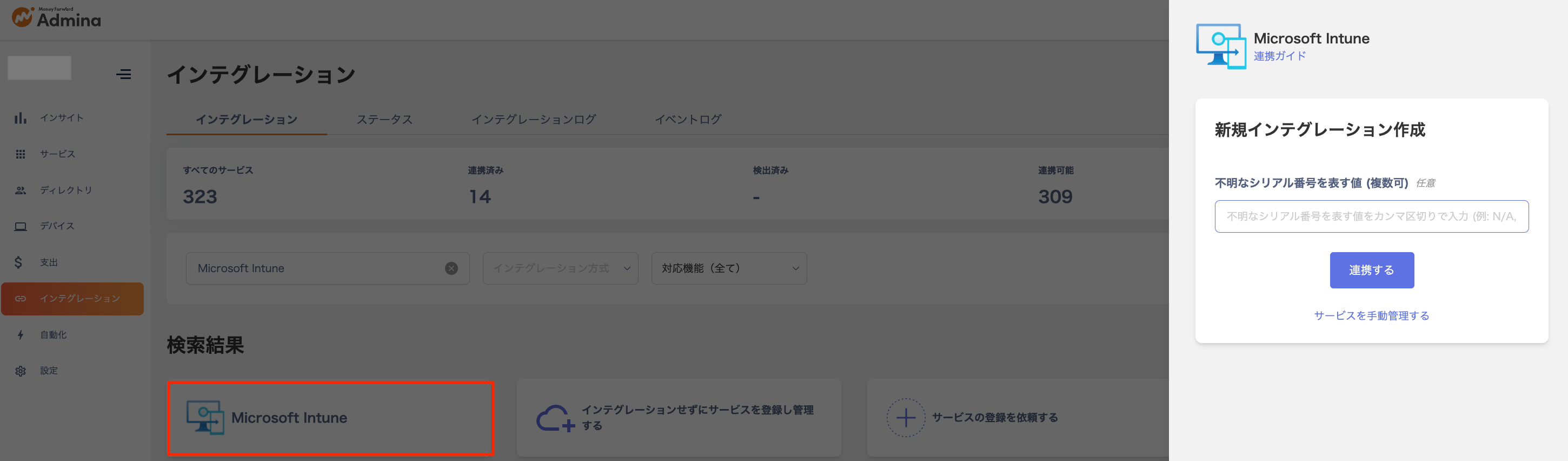
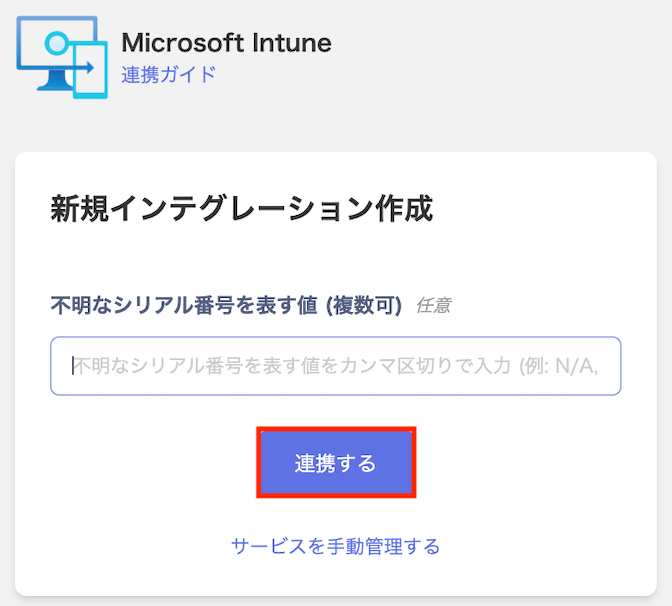
- Optionally enter values for “Values representing unknown serial numbers (multiple allowed)”, then click [Connect].
- If there are values representing unknown serial numbers such as “0”, enter them in the optional field.
- Note: If serial numbers are duplicated, only the most recent one will be used.
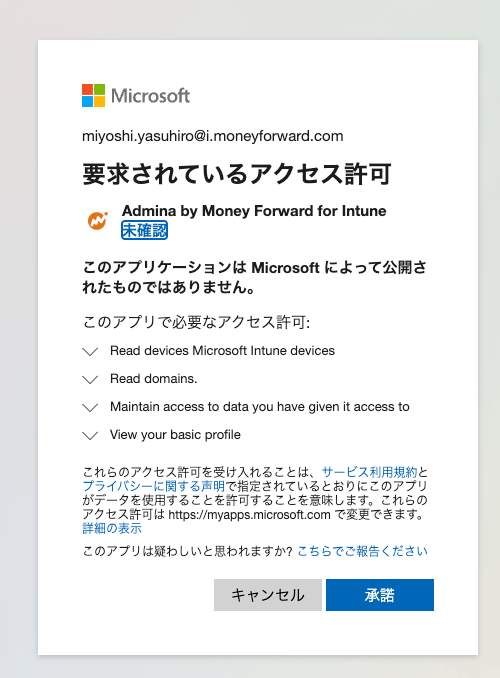
- Sign in with a global administrator account, then click Accept for the requested permissions.
- Once the integration is complete, Microsoft Intune devices will be synchronized to the Devices menu.
- If the process does not complete successfully, go to the Status tab on the integration screen, click Edit, and try connecting again.
- If the issue persists, please contact us via chat.
MDM Integration
If you are using the device management feature, you can synchronize devices with Microsoft Intune.Synchronized Fields
| Admina Field | Sync Pattern | Intune Management Field | Notes |
|---|---|---|---|
| Hostname | (1) MDM-based | Device name | |
| Serial Number (IMEI) | (1) MDM-based | Serial number | Merge key |
| Phone number | (1) MDM-based | Phone number | |
| Manufacturer | (1) MDM-based | Device manufacturer | |
| Model number | (1) MDM-based | Device model | |
| Model name | (1) MDM-based | Device manufacturer / Device model | Generates a unique model name as (manufacturer_model number) |
| Last used | (1) MDM-based | Last check-in time | |
| Asset number | (2) Admina-based | Intune device ID | Generates a unique asset number as <mdmname>_<hostname>. A prefix is added if duplicated. *This field is Admina-based but does not support bulk CSV changes (can only be changed via UI). |
| OS | (1) MDM-based | Operating system | |
| Version | (1) MDM-based | Operating system version | |
| HDD/SSD | (1) MDM-based | Total storage capacity | |
| Memory | (1) MDM-based | Total physical memory | |
| CPU | (1) MDM-based | Processor architecture | |
| Email address | (2) Admina-based | Primary user | |
| Status | (2) Admina-based | — | Set to “In Use” if a primary user is registered on the MDM side; otherwise set to “In Stock”. |
| Type | (2) Admina-based | By platform | Windows/Linux/macOS/ChromeOS → PC (Laptop); iOS/iPadOS/Android → Phone. |
| Compliance | (1) MDM-based | Compliance status | |
| Keyboard layout | Not available | Not available | (This is a sync field from Intune but cannot be retrieved. If data is already registered, it will be overwritten with a blank value — please be aware.) |
| Managed | (3) MDM field | Managed: MDM enabled |