Supported Features
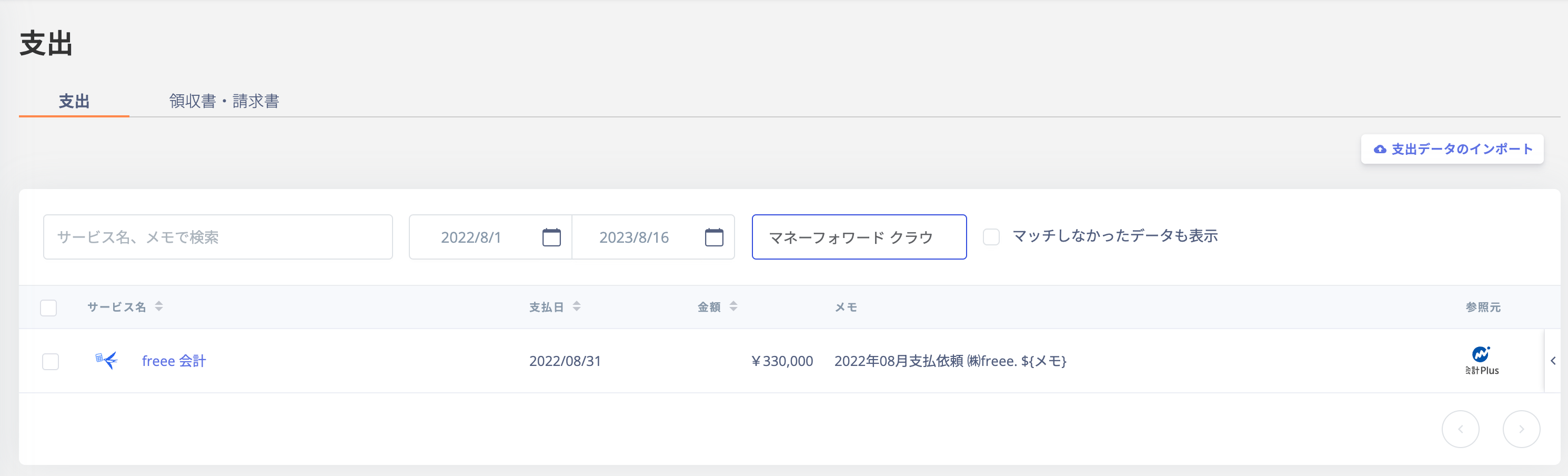
Cost AggregationThis page describes the integration procedure for retrieving SaaS expenditure data from MoneyForward Cloud Accounting Plus. For instructions on integrating account data, see MoneyForward Cloud Accounting Plus.
- Account items belonging to manufacturing costs/manufacturing expenses and profit-and-loss statement selling.
- General and administrative expenses. Or account items specified by the user via account code or sub-account code.
- Approved journal entries
- Rows in the journal ledger where the debit side contains the target account item name
Prerequisites
How to Log in to MoneyForward Cloud Accounting Plus
Go to the MoneyForward Cloud Accounting Plus login page and enter your email address and password to log in.
Granting App Integration Permissions
Log in to the App Portal as a system administrator. Grant the user performing the integration App Integration permissions forBusiness Information and Cloud Accounting Plus.

Integration Setup
In the MoneyForward Admina integrations screen, search for MoneyForward Cloud Accounting Plus. Click MoneyForward Cloud Accounting Plus (Cost Data).If you are integrating account data, select the icon without “(Cost Data)”. For account data integration instructions, see MoneyForward Cloud Accounting Plus.

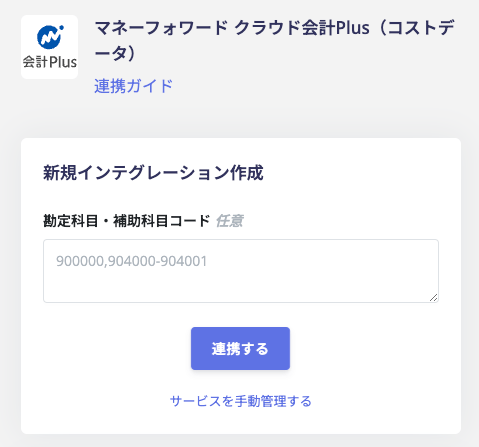
You can enter
account code or sub-account code separated by commas to retrieve data limited to specific account items or sub-account items.Example: A123, A123-99- A123: account code
- A123-99: account code is A123, 99 is the sub-account code for A123.