Supported Features

Account Deletion Account Creation
An account with administrator privileges is required for integration.

Prerequisites

How to Log In to Money Forward Cloud Kintai Plus (formerly AKASHI)

Go to the Money Forward Cloud Kintai Plus login page and log in with your company ID, email address, and password. Money Forward Cloud Kintai Plus login screen

How to Obtain the Access Key

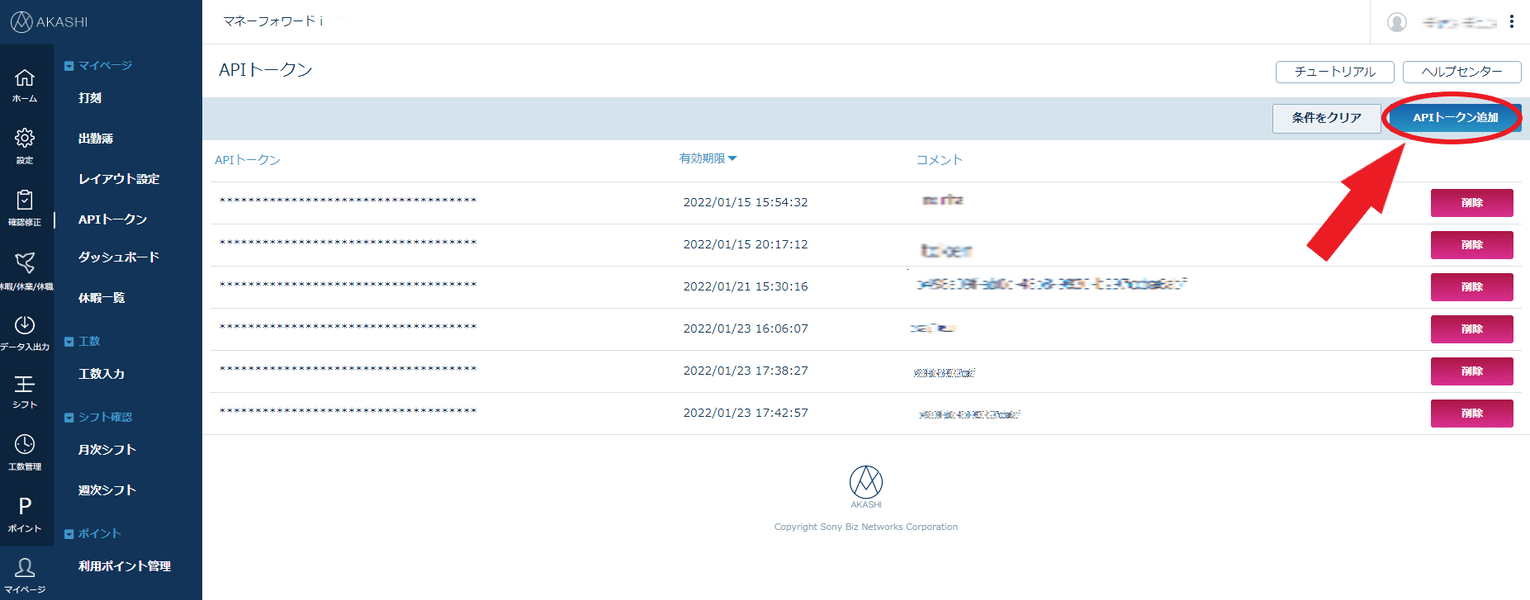
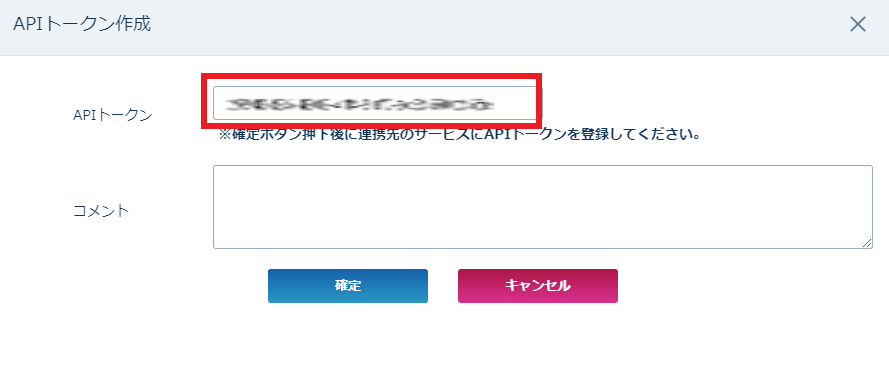
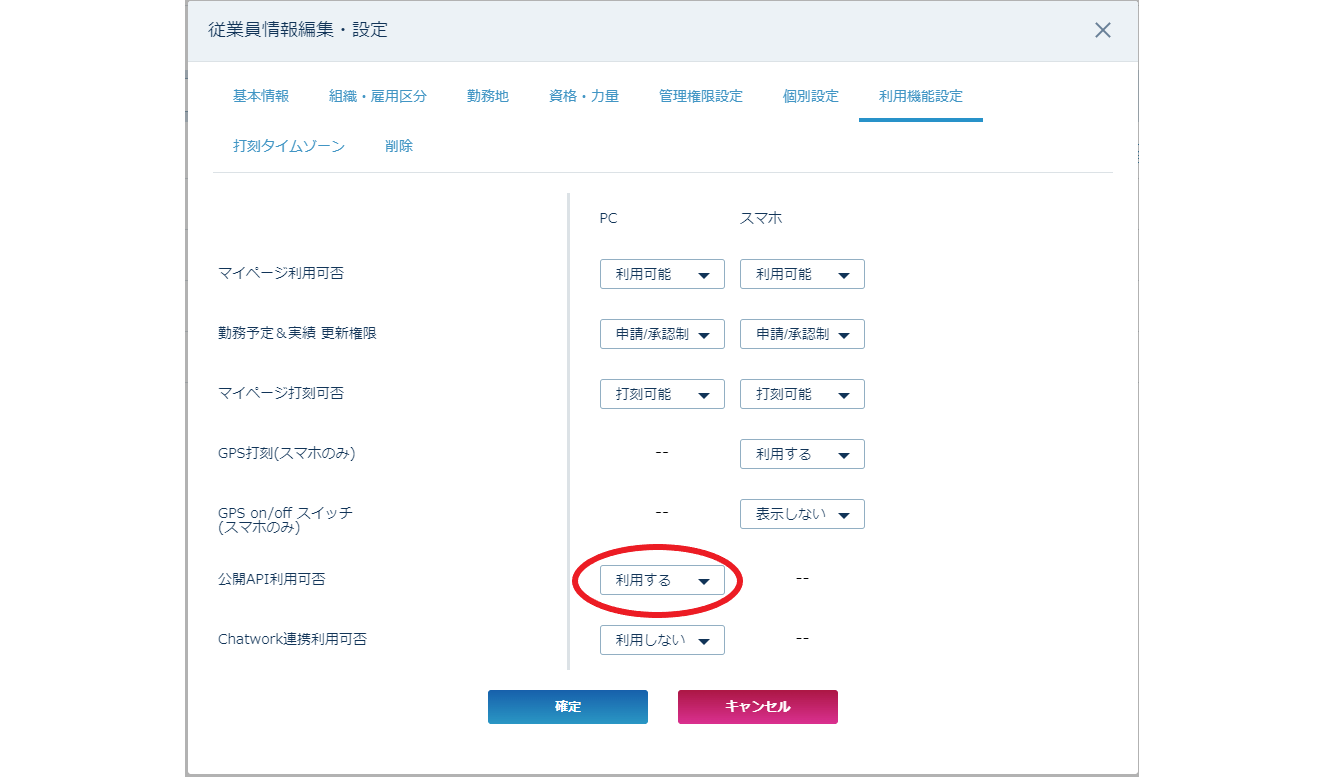
After logging in to Money Forward Cloud Kintai Plus (formerly AKASHI), navigate to Settings > Employees > Employee Settings. Click the Edit button for the account (company administrator) you want to allow API token issuance. Employee settings screen showing the Edit button for the target account Click the Feature Settings tab, select Public API Usage: Enabled, then click Confirm. Setting Public API Usage to Enabled on the Feature Settings tab Go to My Page > API Token and click Add API Token — a popup for creating a token will appear. The Add API Token button on the My Page API Token screen The API token will be displayed — save it. This is your access key. The issued API token displayed on screen
Money Forward Cloud Kintai Plus (formerly AKASHI) Public API SpecificationThe access token has a validity period of 1 month and 1 day.We use a token renewal API to automatically extend it.Because the validity period is short, if the token cannot be updated within the valid period due to an error, you can resume the integration by re-issuing the token.

Integration Setup

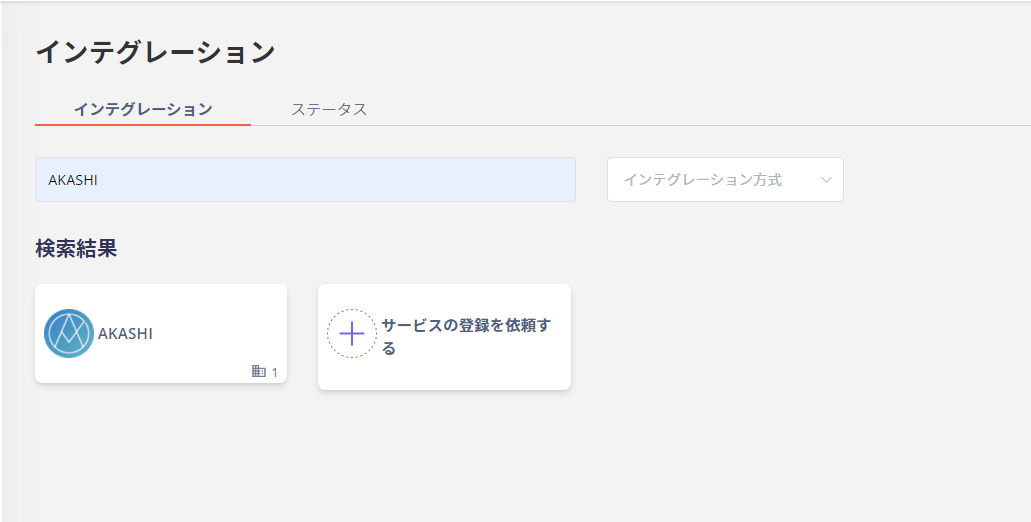
On the integrations screen, search for AKASHI (Money Forward Cloud Kintai Plus). Searching for AKASHI on the integrations screen For the workspace key, enter your Money Forward Cloud Kintai Plus (formerly AKASHI) login company ID. Enter the access key obtained in the previous step, then click Connect. Entering the workspace key and access key on the integration settings screen Once the integration with Money Forward Cloud Kintai Plus (formerly AKASHI) is successful, registered user information will appear in the account list. If the process does not complete successfully, go to the status tab on the integrations screen, click Edit, and try connecting again. If the issue persists, please contact us via chat.
Manual Account Matching for SaaS Without Email Retrieval

This service is a SaaS where email addresses cannot be retrieved, so the user type will be determined as “Unknown.” If needed, manually link (deduplicate/merge) accounts with other accounts. For details on the settings, please refer to the following. Manually link (deduplicate/merge) a SaaS account to another account
Last modified on July 6, 2026