

Supported Features

Account Provisioning Account Deletion
This integration feature is available on the Enterprise Plan only.

Prerequisites

How to Log In to DeployGate

Go to the DeployGate login page, enter your login credentials (email address and password), and log in. DeployGate login page

How to Obtain the Workspace Key

After logging in to DeployGate, click the user icon in the upper right > Organization to access the Enterprise Admin Console. Accessing the Enterprise Admin Console Part of the URL of the group page you want to integrate is the workspace key. Save it. https://deploygate.com/enterprises/{workspace-key} Checking the workspace key

How to Obtain the Access Key (Enterprise API Key)

To obtain the Enterprise API key, first open Settings in the upper right corner of the Enterprise admin screen. Opening the settings screen Click the Reveal link next to API Key at the bottom of the settings screen to display the Enterprise API key. This is your access key — save it. Displaying the API Key Reference: Using the Enterprise API Key

Integration Setup

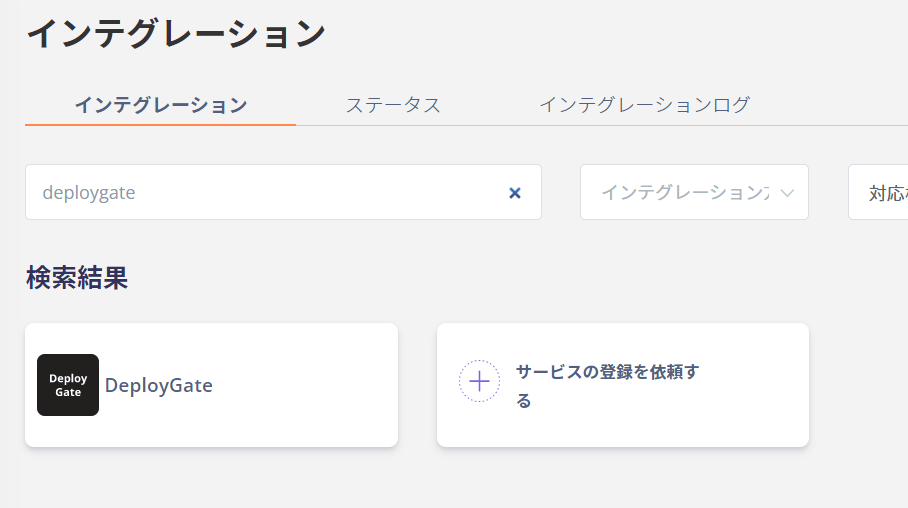
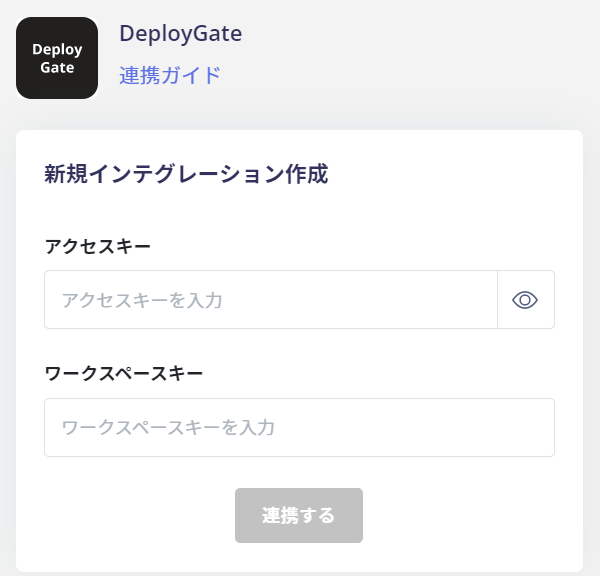
In the MoneyForward Admina integration screen, search for DeployGate. Searching for DeployGate in the integration screen Enter the access key and workspace key obtained in the previous steps, then click Connect. Entering the access key and workspace key Once the DeployGate integration is successful, registered user information will appear in the account list. If the setup does not complete successfully, go to the Status tab on the integration screen, click Edit, and try connecting again. If the issue persists, please contact us via chat. For an overview of the DeployGate integration, visit the integration page.
Last modified on June 18, 2026