Supported Features
Account Deletion Account CreationPrerequisites
How to Log In to Create!Webflow
Go to the Create!Webflow login page and enter your email address and password to log in.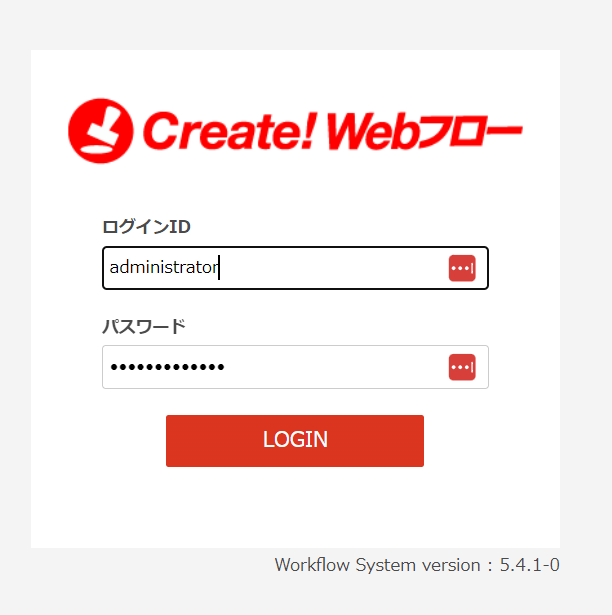
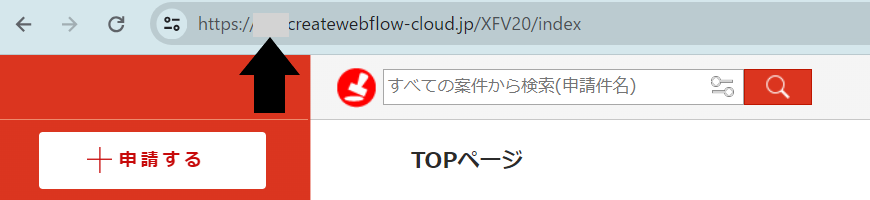
How to Obtain the Workspace Key
Part of the URL after logging in to Create!Webflow serves as the workspace key — copy and save it. https://workspace-key.createwebflow-cloud.jp/
How to Obtain the API Key
Navigate to Administration > System Settings > Options to find the API Token under REST API. This is your API key — copy and save it. Next, click Save at the bottom of the screen. *The API key can also be confirmed after saving.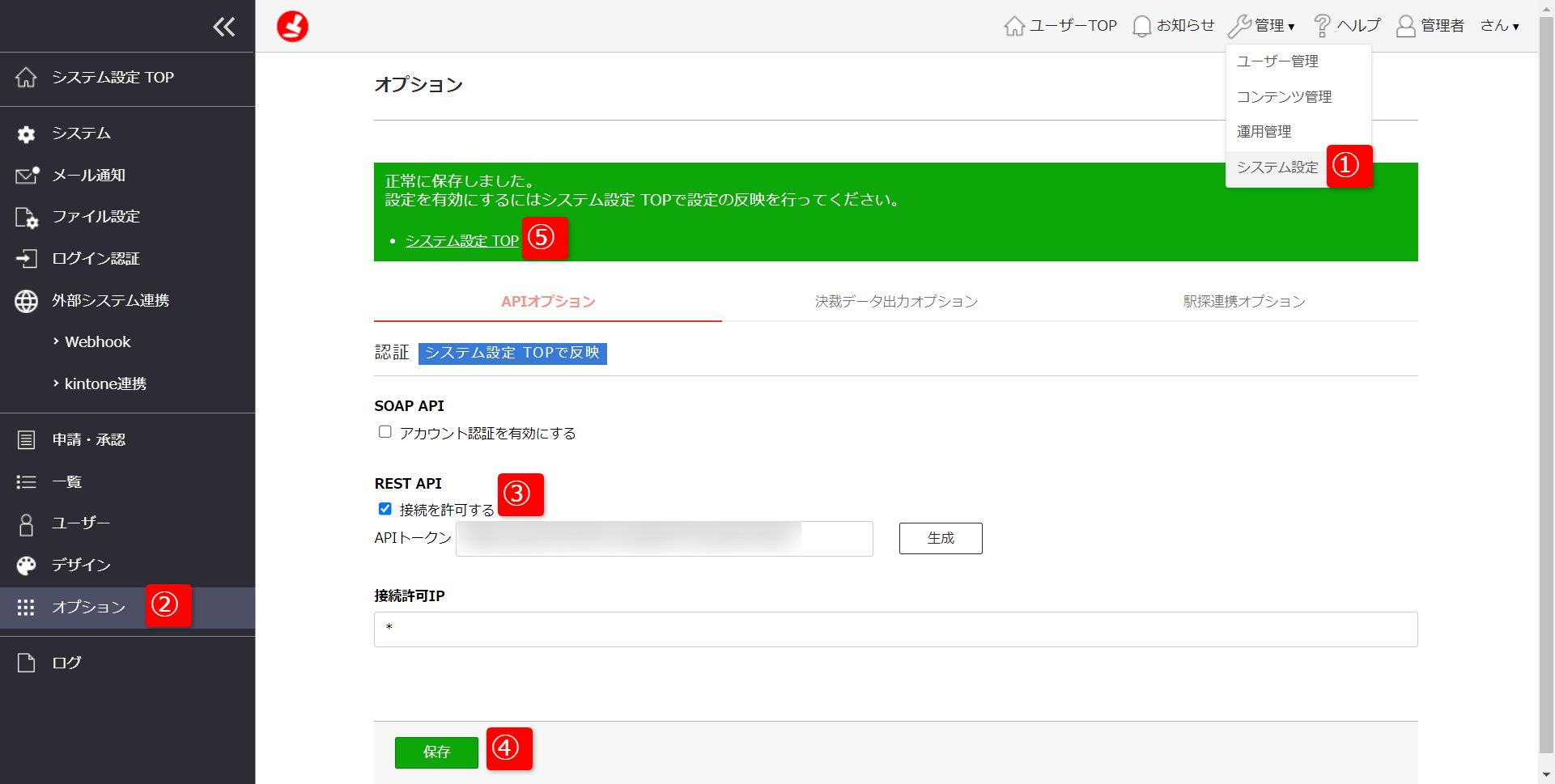

Integration Setup
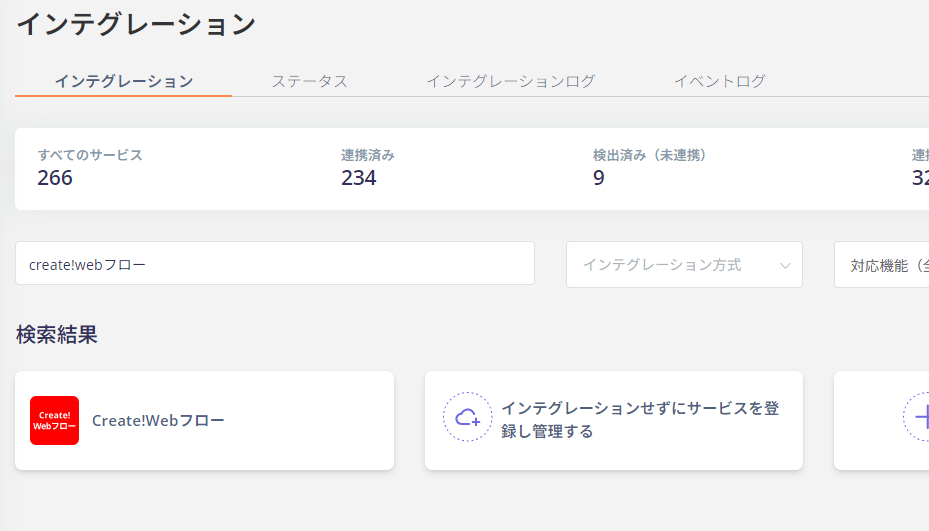
In the MoneyForward Admina integration screen, search for Create!Webflow.