Integration requires the use of the admin API, which requires a Pro or Enterprise plan. Please check the Dialpad pricing plans.

Prerequisites

How to Log In to Dialpad

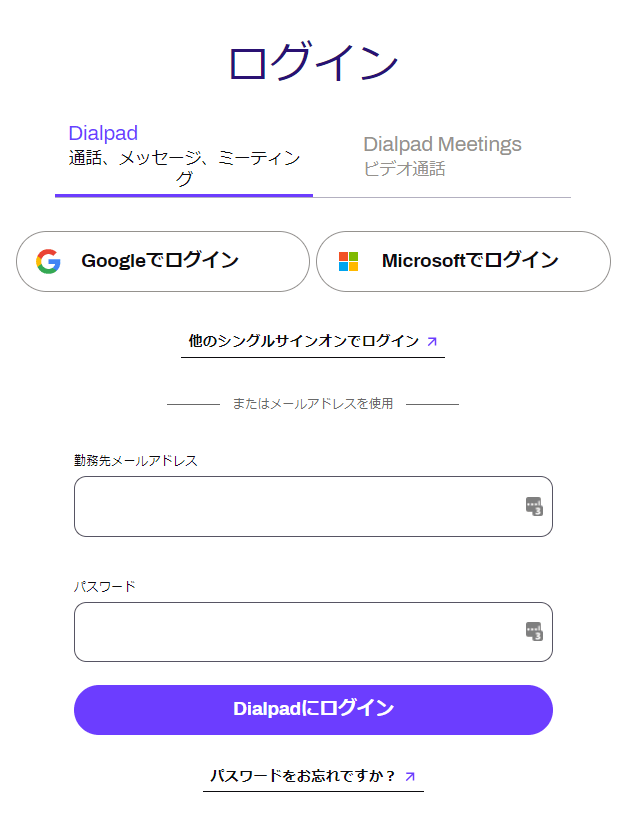
Go to the Dialpad login page and log in using your preferred login method or email address and password. Dialpad login screen
How to Obtain the Access Key

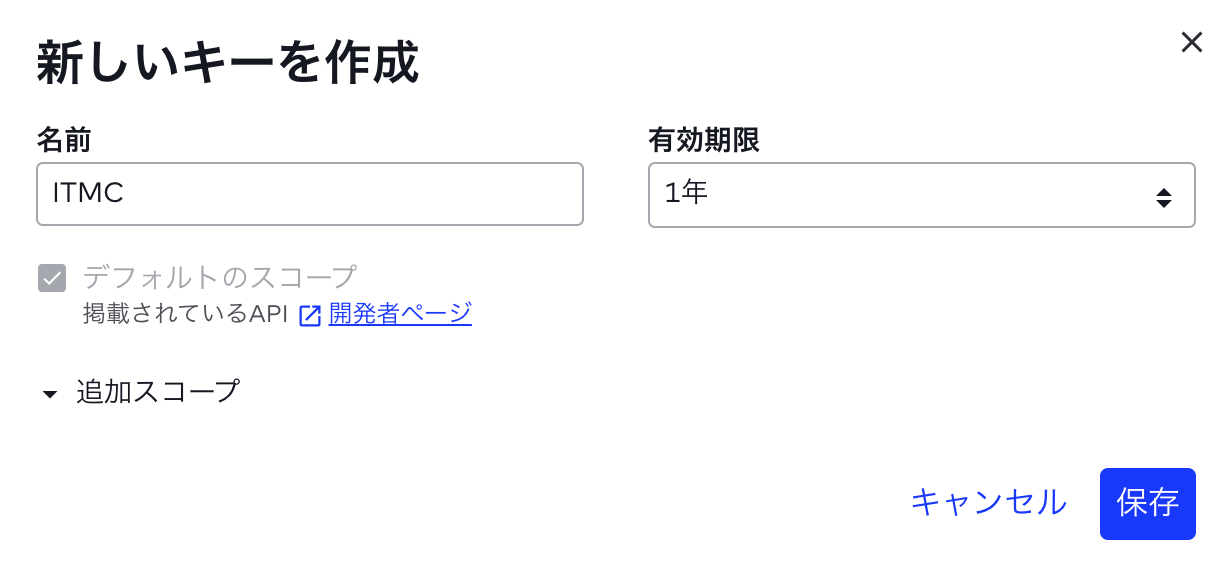
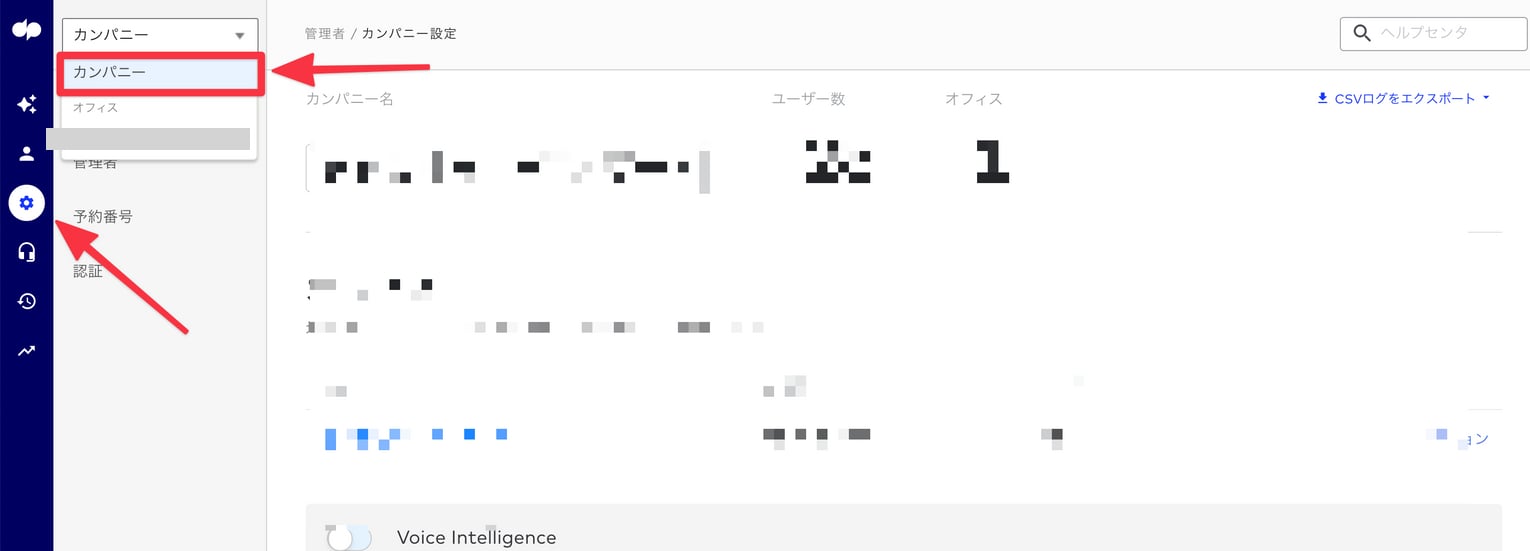
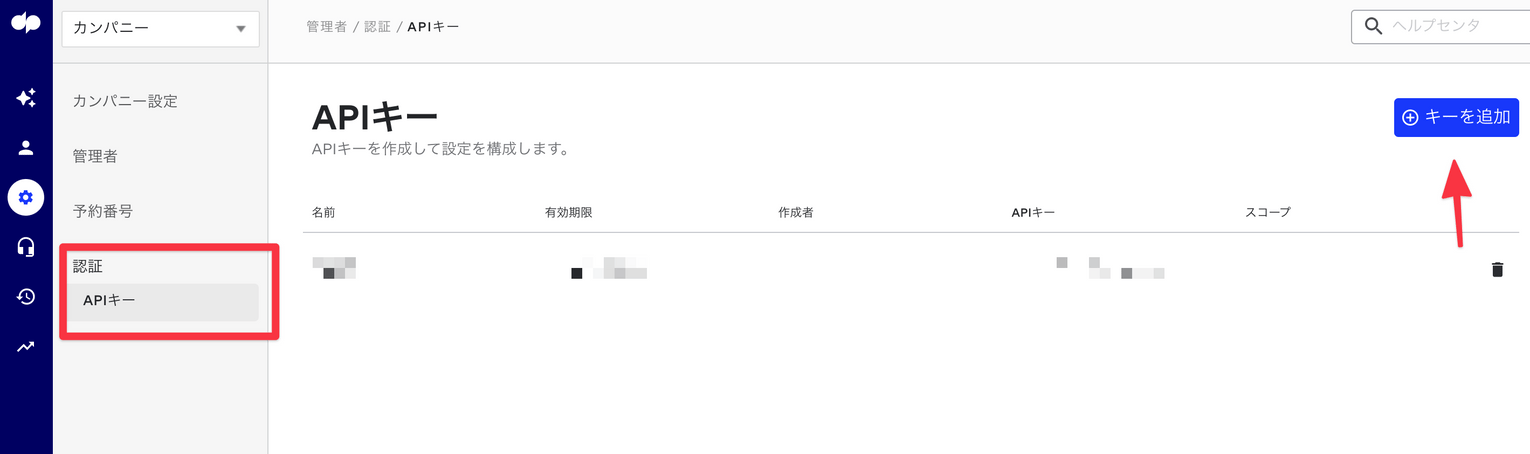
After logging in to Dialpad, navigate to Settings > Company. Navigate to Company from Settings Select Authentication > API Keys and click Add Key. Add API Key Create an API key. Enter any name (such as your company name) and click Save. No additional scopes are required. Create API key A new API key will be created. The API key is your access key — save it.
Once you close the screen, you will no longer be able to view the API key, so be sure to save it.
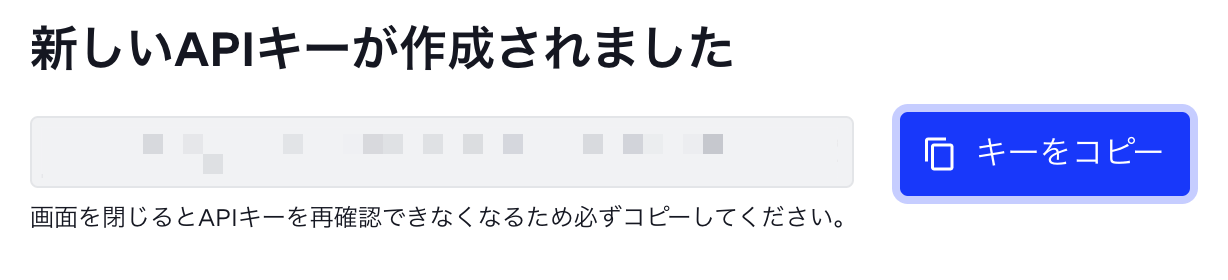
Save API key

Integration Setup

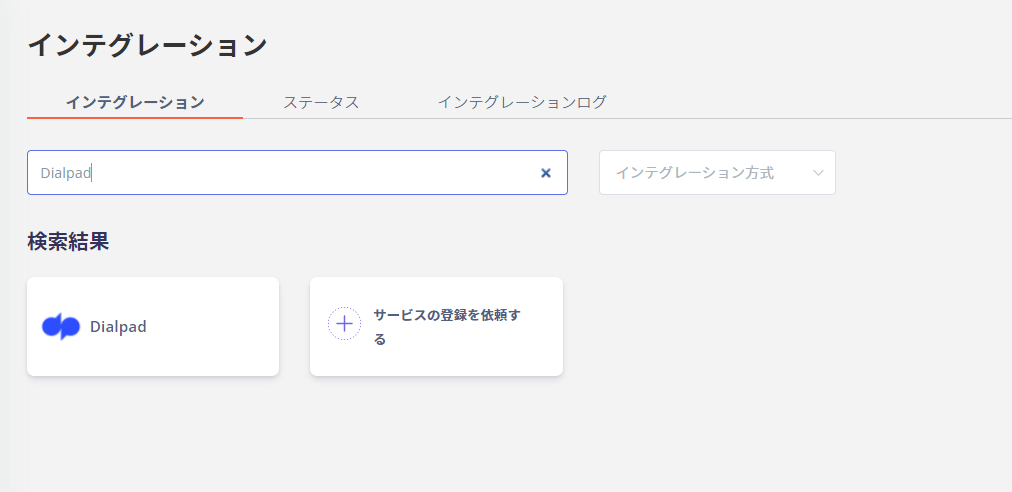
In the MoneyForward Admina integrations screen, search for Dialpad and click Connect. Search in Admina Enter the access key obtained in the previous step and click Connect. Enter access key Once the integration with Dialpad is successful, the registered user information will appear in the account list. If it does not complete successfully. Click Edit from the Status tab on the integrations screen and try connecting again. If the issue persists, please contact us via chat. For an overview of the Dialpad integration, see the integration page.
Last modified on June 26, 2026