Supported Features
Employee Master Sync Account Deactivation Account Deletion Account CreationPrerequisites
An administrator account is required for the integration.
Plans that can retrieve LastActivity are Microsoft 365 Business Premium, Microsoft 365 E3, and Microsoft 365 E5.
Plans that can retrieve LastActivity are Microsoft 365 Business Premium, Microsoft 365 E3, and Microsoft 365 E5.
Integration Setup
- In the MoneyForward Admina integration screen, search for Microsoft 365.

- Select one of the following from the dropdown menu and click Connect.

- Read and Write (Recommended): Supports account deactivation for deprovisioning service accounts in Admina and account creation via provisioning.
- Read Only: Allows read-only access to accounts.

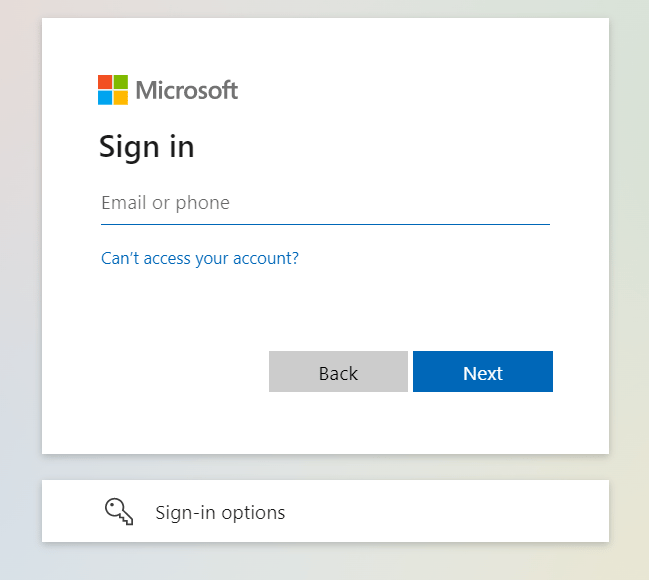
- You will be redirected to the Microsoft login screen. Enter your administrator email address and password to sign in.
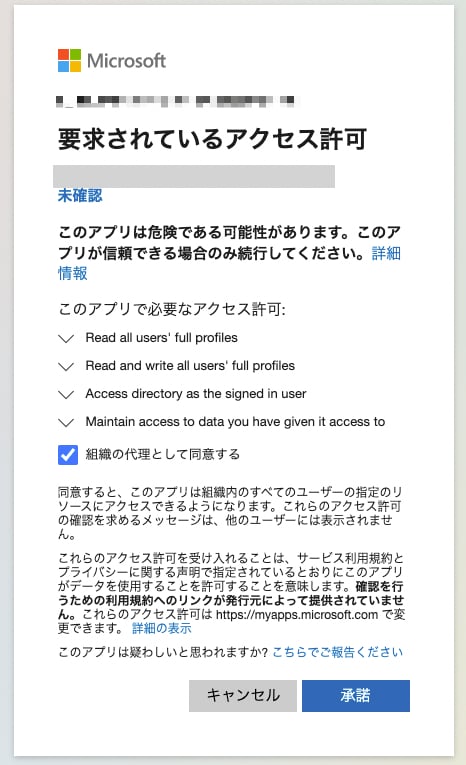
- The following permission confirmation screen will appear. Review the content and click Accept.