Supported Features
Account Deletion Account Deactivation Account CreationPrerequisites
How to Log In to Brabio!
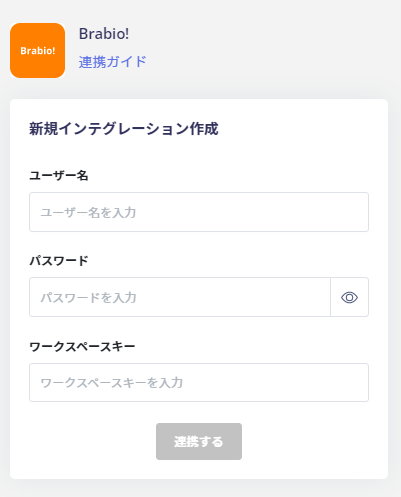
Go to the Brabio! login page and enter your login name and password to log in.External authentication accounts such as Google or SSO cannot be used for the integration.

How to Obtain Your Workspace Key
After logging in to Brabio!, part of the URL is your workspace key. Save it for later. If you have multiple groups, switch to the group you want to integrate using the group switcher in the upper right corner to update the dashboard. https://brabioproject.appspot.com/group/{workspace-key} /

Integration Setup
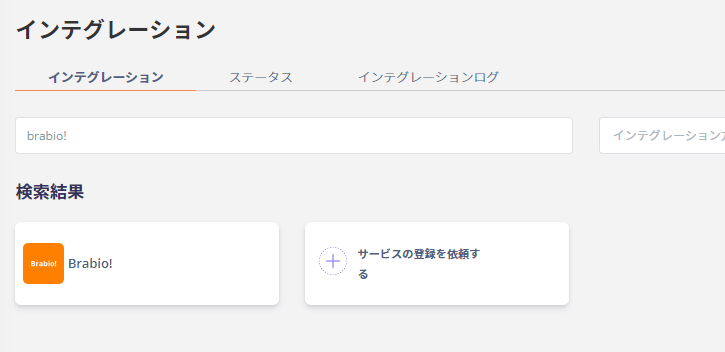
In the MoneyForward Admina integrations screen, search for Brabio!.