Supported Features
This service supports only basic account information retrieval and aggregation.
Prerequisites
There is no cost to purchase the app.
Applying for the App
Purchase the Money Forward IT Management Cloud app from the Smaregi AppMarket.
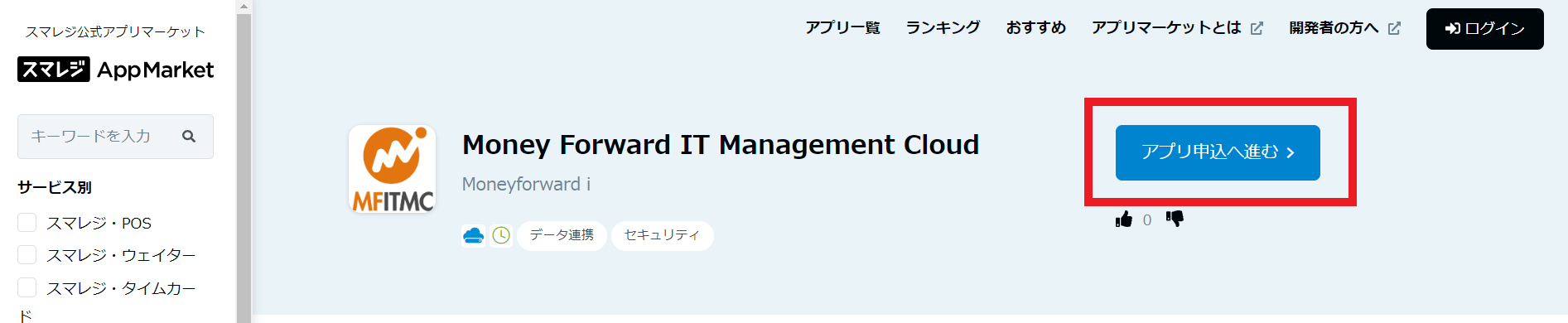
Go to the app page at the URL below and click Proceed to app application.
https://apps.smaregi.jp/apps/820
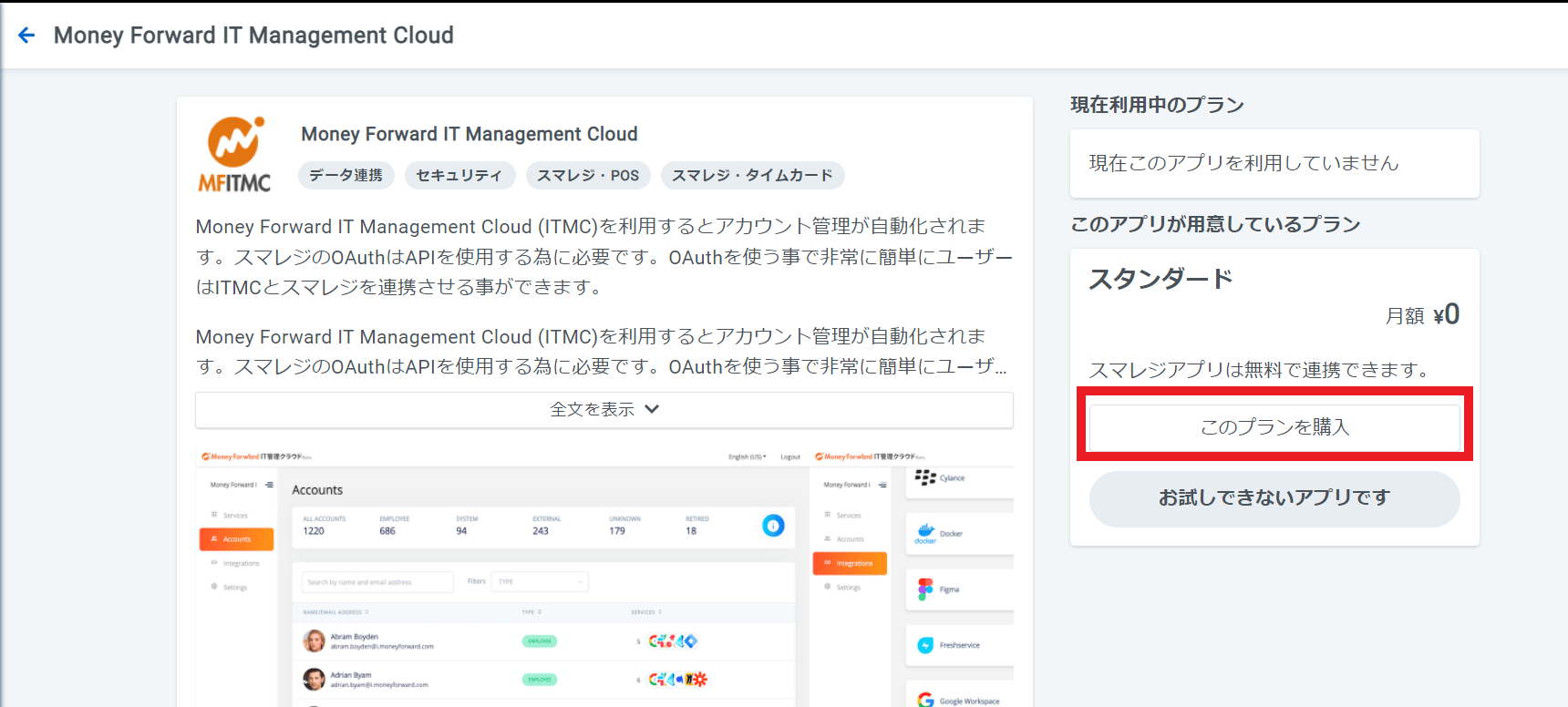
 Click Purchase plan.
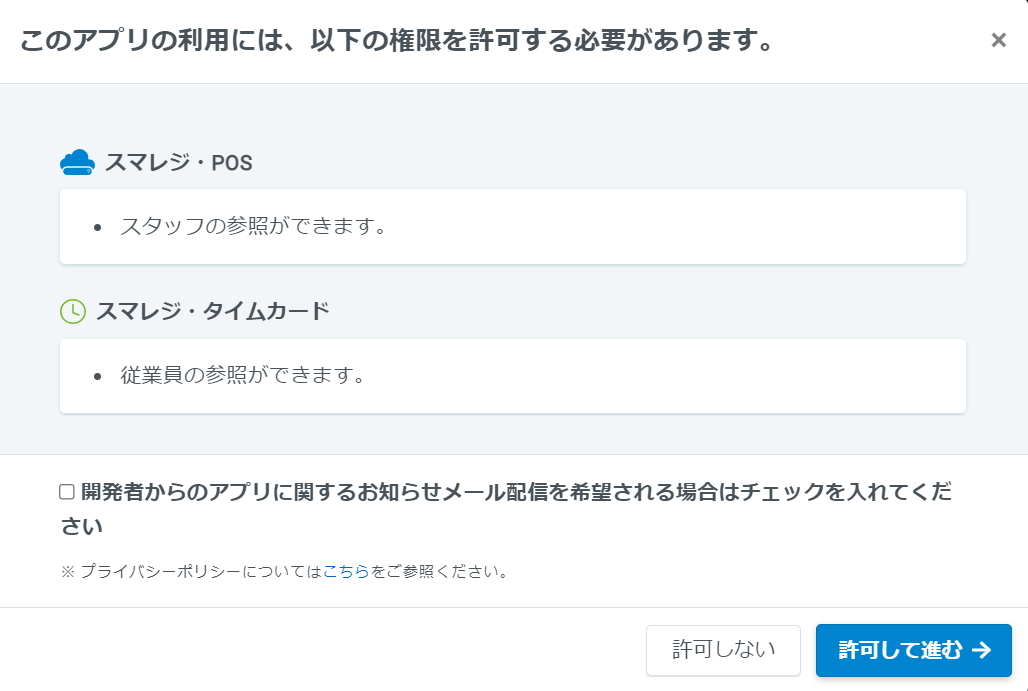
 A screen like the one below will appear — click Allow and proceed. Once the purchase is complete, the purchased app will appear under “Apps in use” on your My Page.
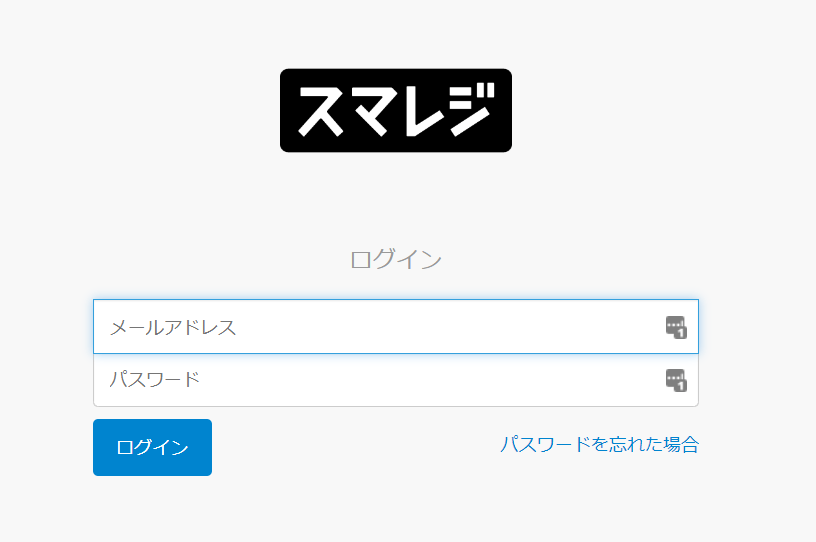
How to Log In to Smaregi
Go to the Smaregi login page, enter your email address and password, and log in.
Finding Your Workspace Key
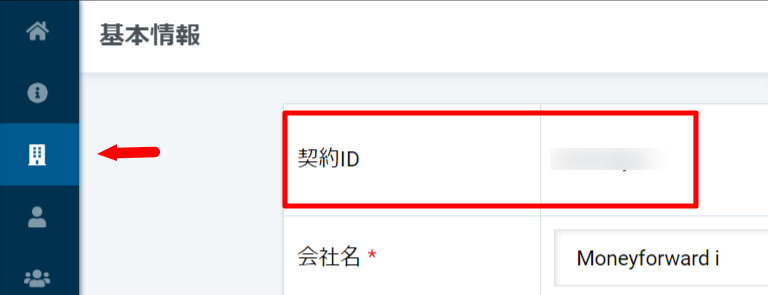
After logging in to Smaregi, select the building icon (third from the top) in the left menu bar and go to Basic Information.
The contract ID is your workspace key — copy it.
Integration Setup
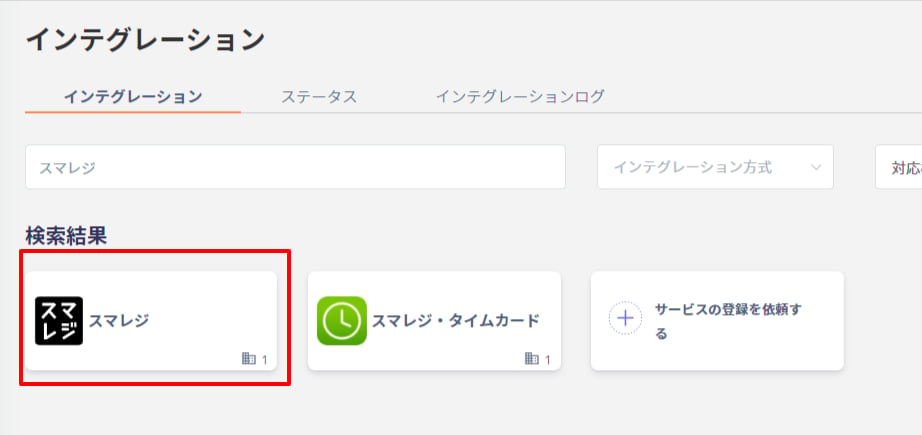
Search for Smaregi on the MoneyForward Admina integrations page.
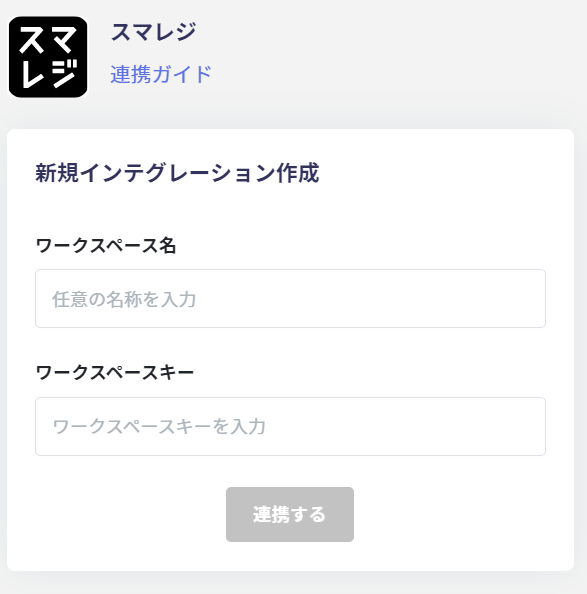
 Enter any name for the workspace name (e.g., your company name) and the workspace key confirmed in the previous step, then click Connect.
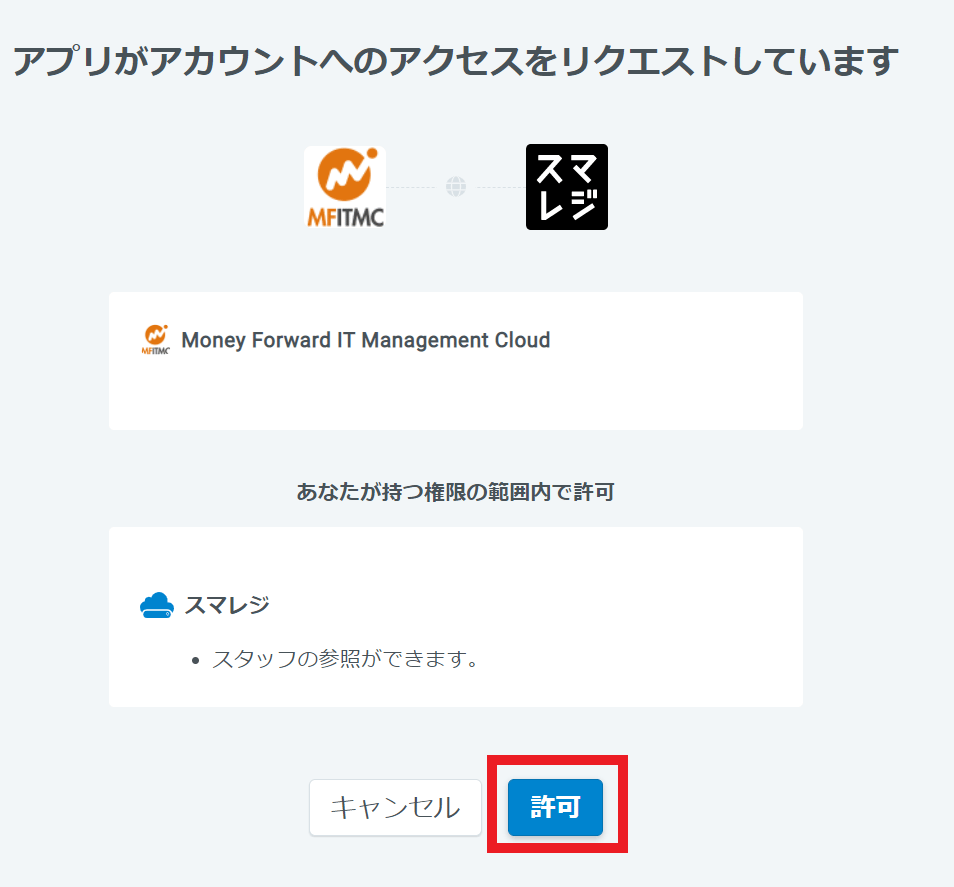
 A permission screen like the one below will appear — click Allow.
 Once the integration with Smaregi is successful, registered user information will appear in the account list.
If the integration did not complete successfully, click Edit from the Status tab on the integrations page and try connecting again.
If the issue persists, please contact us via chat.
For an overview of the Smaregi integration, visit the integration page.
Once the integration with Smaregi is successful, registered user information will appear in the account list.
If the integration did not complete successfully, click Edit from the Status tab on the integrations page and try connecting again.
If the issue persists, please contact us via chat.
For an overview of the Smaregi integration, visit the integration page.
