Supported Features
Account Provisioning Account DeletionPrerequisites
How to Log In
Go to the Autify login page, enter your email address and password, and click Log in.
How to Confirm the Workspace Key
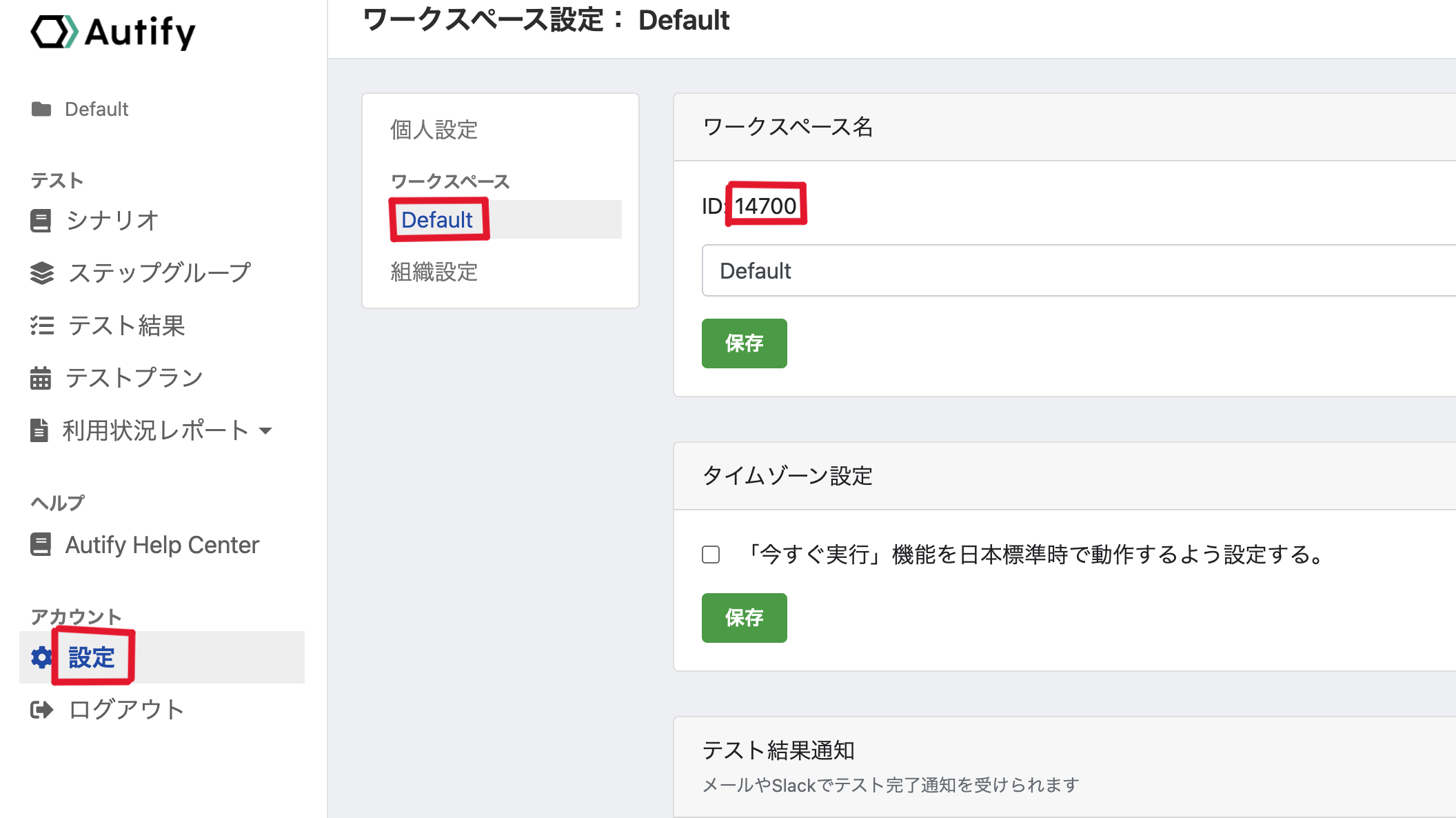
After logging in to Autify, navigate to Settings > Workspace. The ID displayed (in the example,14700) is the workspace key.
Integration Setup
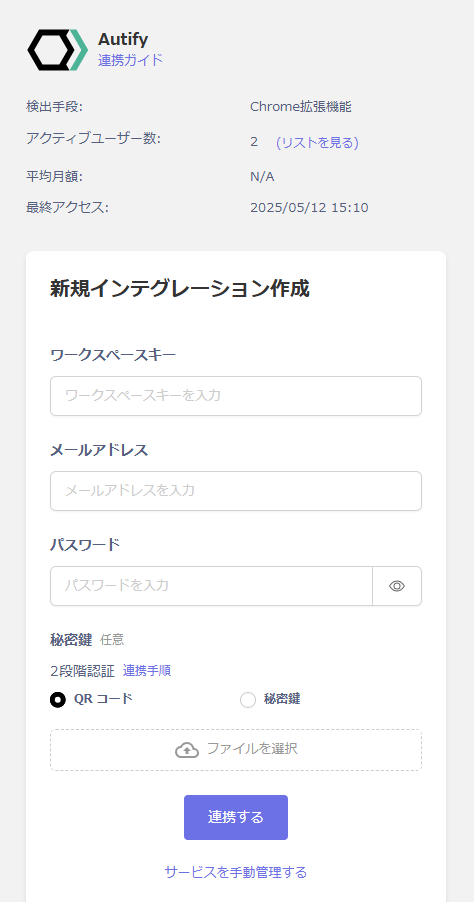
On the MoneyForward Admina integrations screen, search for Autify. Enter the workspace key obtained in the previous step, along with your Autify login email address and password, then click Connect.Enter the secret key if you have 2FA enabled. For instructions on how to enter it, see the following link.Integration Setup with 2FA (Two-Factor Authentication) Enabled