Supported Features
Account Provisioning Account DeactivationAn administrator account is required to set up the integration.
Prerequisites
How to Log In to Jobcan
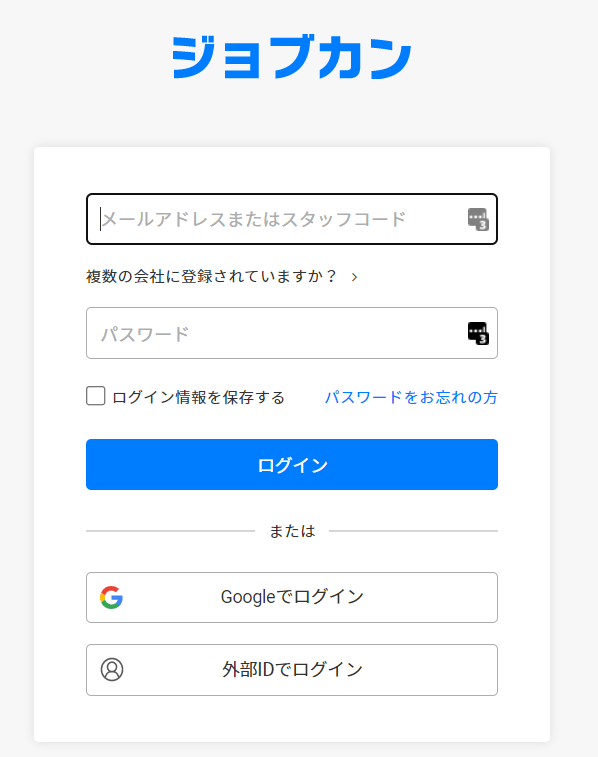
Go to the Jobcan login page, enter your login credentials or email address and password, and log in.External authentication accounts such as Google or SSO cannot be used for integration. For details, see [Restriction] Integration Failures Due to External Authentication Accounts Such as Google or SSO.
How to Obtain the Workspace Key
After logging in to Jobcan Recruitment Management, switch to Jobcan from the menu tab in the upper right. Then go to Account Information from the left menu. The Company ID displayed in the company information is the workspace key — save it.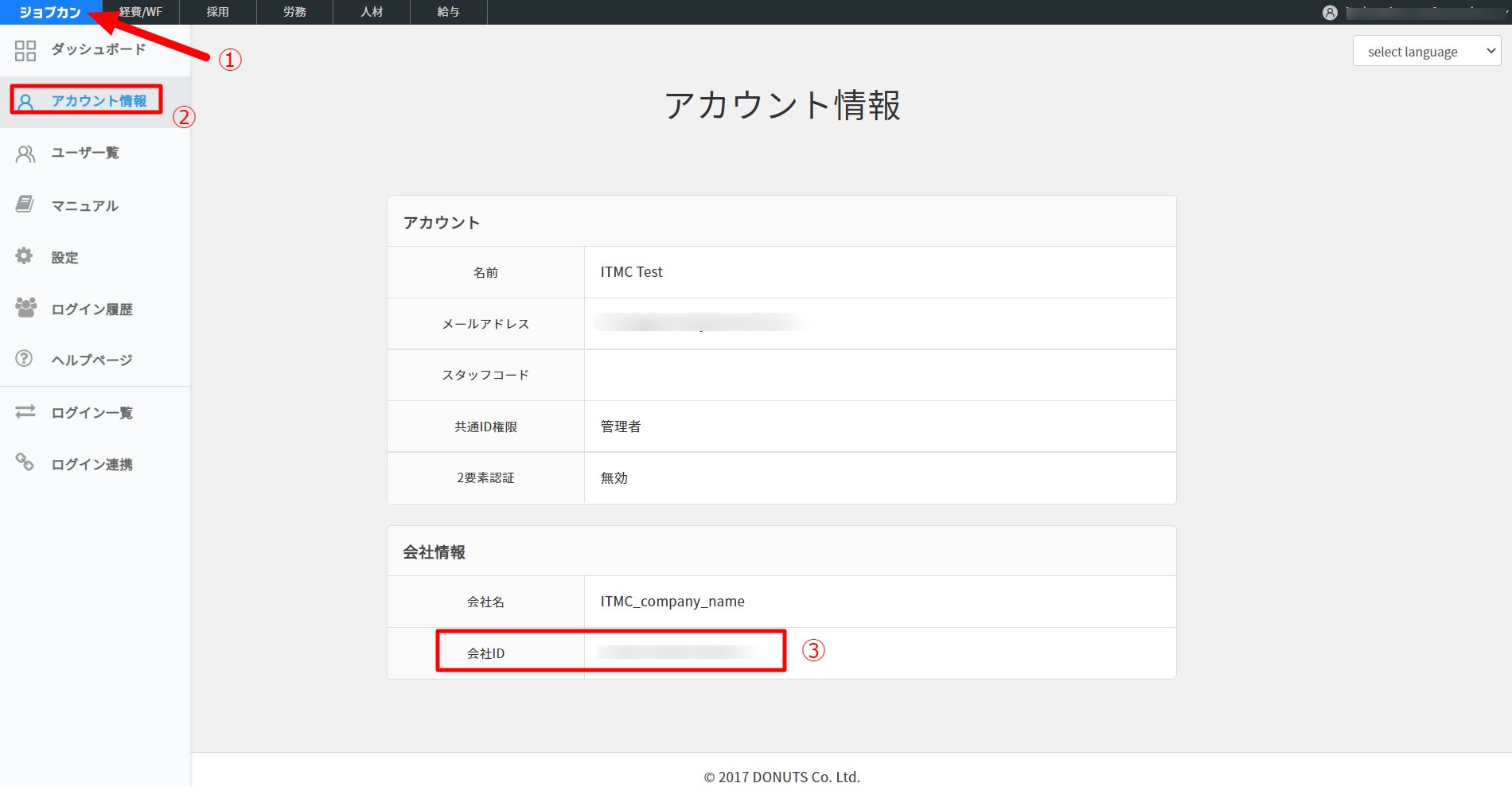
Integration Setup
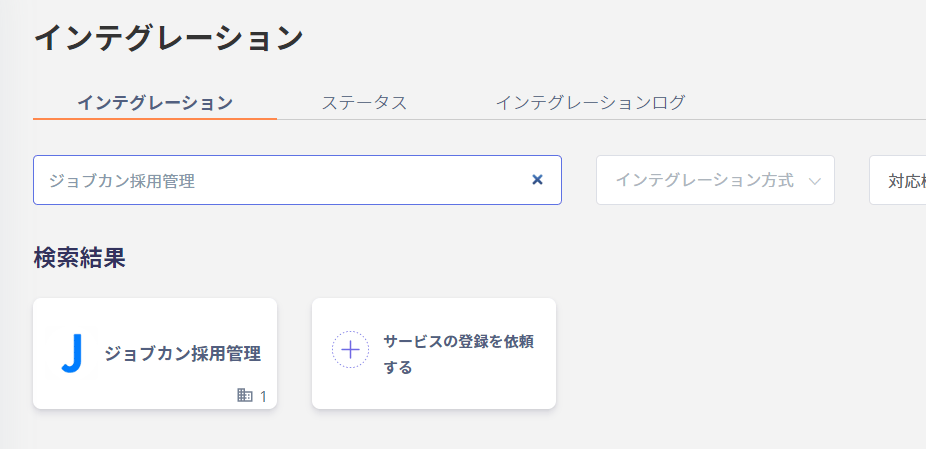
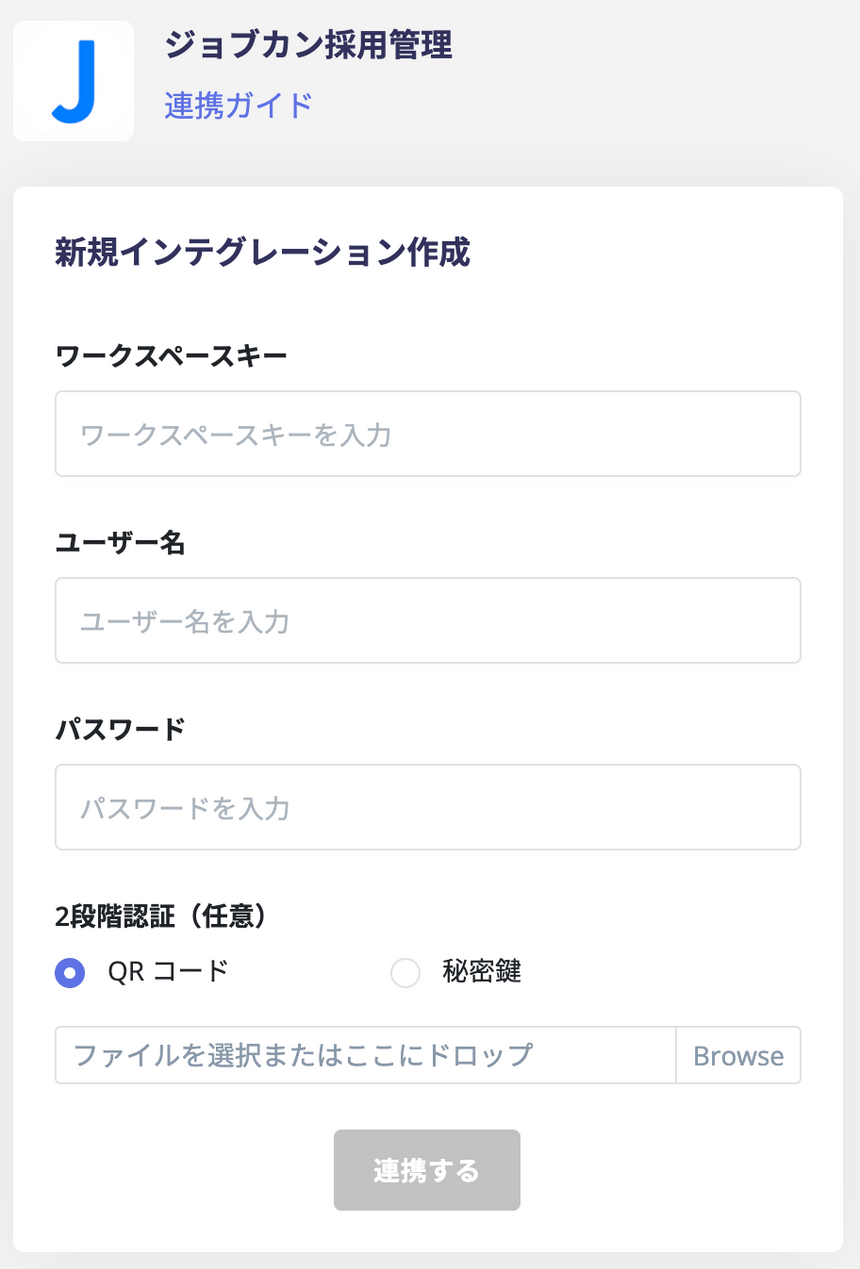
In the MoneyForward Admina integration screen, search for Jobcan Recruitment Management.