

Supported Features
Device AggregationFollowing Kandji’s rebranding to “Iru” and domain consolidation in October 2025, we are currently confirming the status of support in our service.
If you have already completed integration: No impact has been confirmed at this time, so you may continue using the integration as-is.
If you are considering a new integration: Integration with the new specifications is now available.
Prerequisites (Iru)
How to Log In
Go to the Iru login page and enter your Iru URL to log in.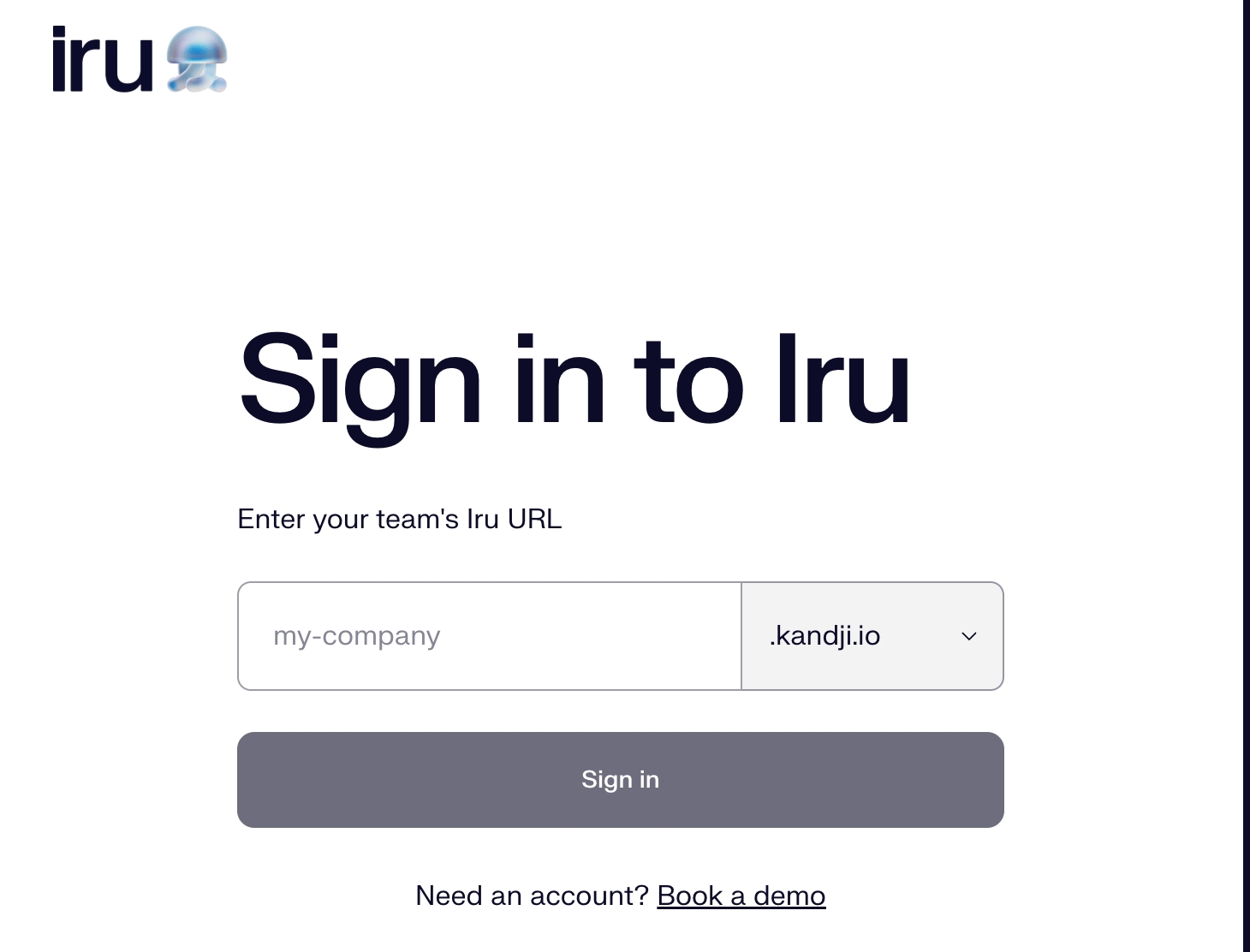
How to Find Your Base URL
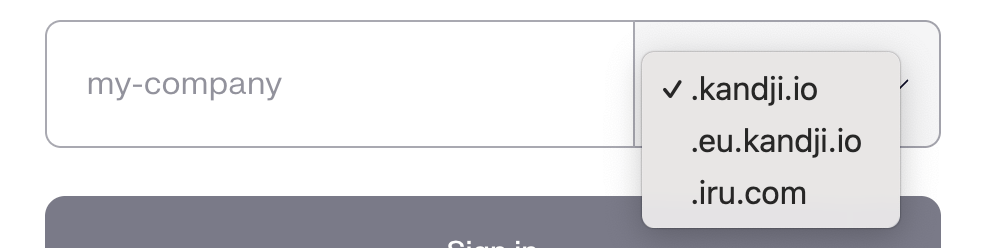
The Base URL is the dedicated login URL for your environment. Example:https://{your-subdomain}.{iru-domain}
Supported domains: kandji.io, eu.kandji.io, iru.com
Example: https://admina.iru.com / https://admina.kandji.io
How to Obtain Your API Key
- From the side menu, go to Settings > Access.
- Navigate to API Token and add a new token.
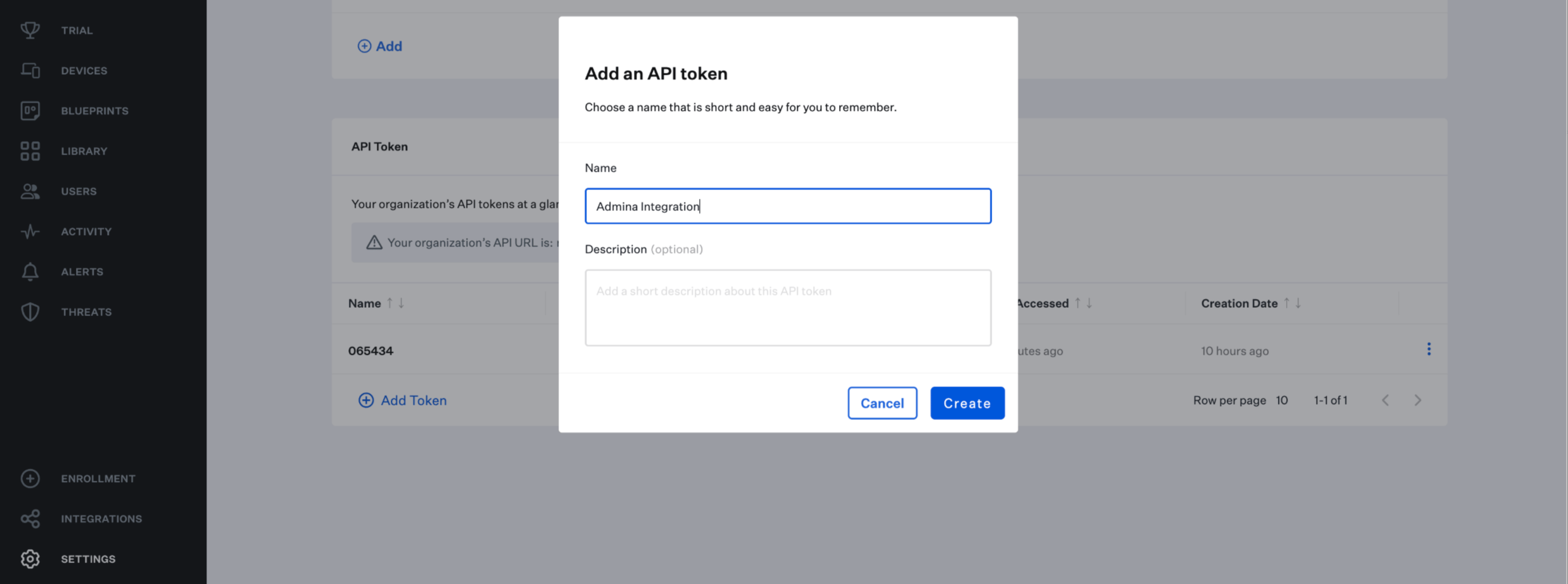
- Copy and save the generated API key.
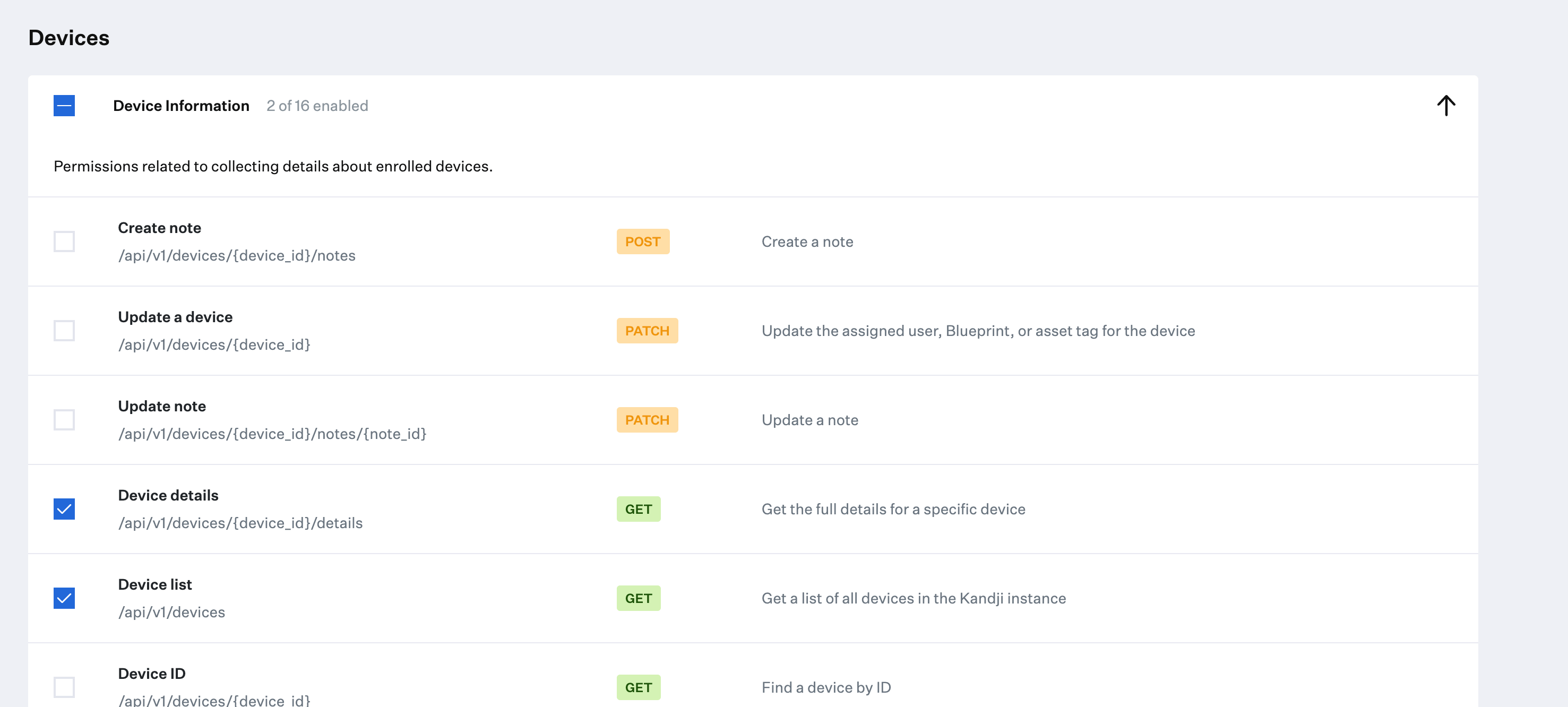
Device Permissions
Select the following permissions for Device:Devices > Device detailsDevices > Device list
Integration Setup (Admina)
- In Admina, go to Integration > Integrations and search for Iru.
- Enter a workspace name of your choice, along with the workspace key and API key obtained in the previous steps, then click Connect.
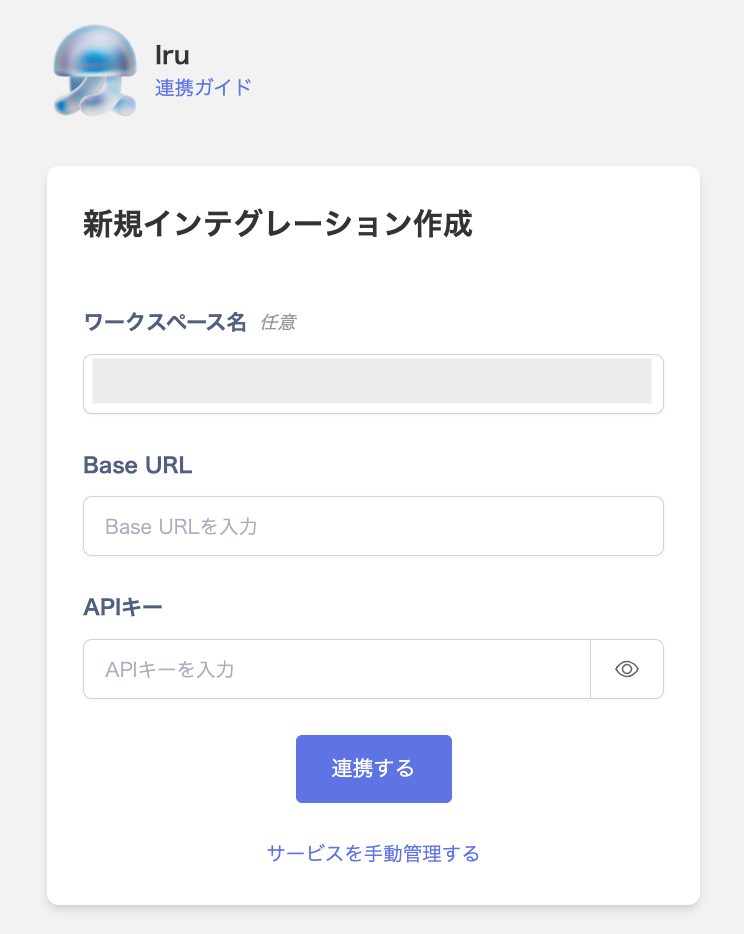
- If the process does not complete successfully, click Edit from the Status tab on the integration screen and try connecting again. If the issue persists, please describe the details and contact us via chat.
Due to API limitations, Iru retrieves devices only and does not retrieve accounts.
MDM Integration
If you use the device management feature, you can sync Jamf devices with Iru. For details, see Link MDM-compatible SaaS with the Admina Device Ledger.Sync Fields
| Admina Field | Sync Pattern | Iru Side (computer) | Iru Side (phone) | Notes |
|---|---|---|---|---|
| Serial Number (IMEI) | (1) MDM-based | Device serial number | Device serial number | This is the merge key |
| OS | (1) MDM-based | Determined from model name | Determined from model name | |
| Version | (1) MDM-based | Display OS version | Display OS version | |
| Last Sync Date | (1) MDM-based | Last check-in | Last check-in | When MDM integration starts without a pre-existing custom field, this field is automatically created. |
| Memory | (1) MDM-based | Hardware overview > Memory | Hardware overview > Memory | |
| HDD/SSD | (1) MDM-based | Volume > Capacity | Volume > Capacity | |
| CPU | (1) MDM-based | Hardware overview > Processor name | Hardware overview > Processor name | |
| Model Name | (1) MDM-based | Hardware > Model | Hardware > Model | |
| Model Number | (1) MDM-based | Hardware overview > Model name | Hardware overview > Model name | |
| Phone Number | (1) MDM-based | - | Cellular > Subscription | |
| Hostname | (2) Admina-based | Device name | Device name | |
| User | (2) Admina-based | Device user (Email) | Device user (Email) | |
| Status | (2) Admina-based | Determined from device user and status | Determined from device user and status | If an email address is registered on the Kandji side, set to “In Use”; otherwise set to “In Stock”. |
| Managed | (3) MDM field | Managed: MDM enabled | Managed: MDM enabled |