Supported Features
Account Deletion Account ProvisioningIntegration requires an account with administrator privileges (Site Administrator Creator or Site Administrator Explorer).Integration with on-premises environments is not supported.
Prerequisites
How to Log In to Tableau
Go to the Tableau login page and sign in with your email address and password.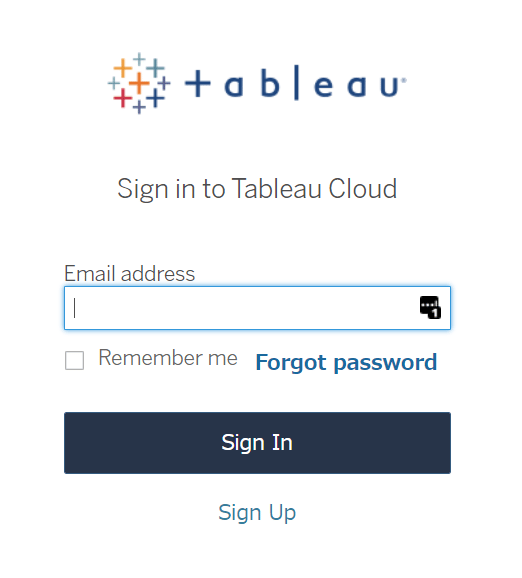
How to Obtain the Workspace Key and Base URI
After logging in to Tableau, part of the URL serves as the Workspace Key and Base URI. Save these values.Base URI (including http://) /#/site/ **{Workspace Key}** /home

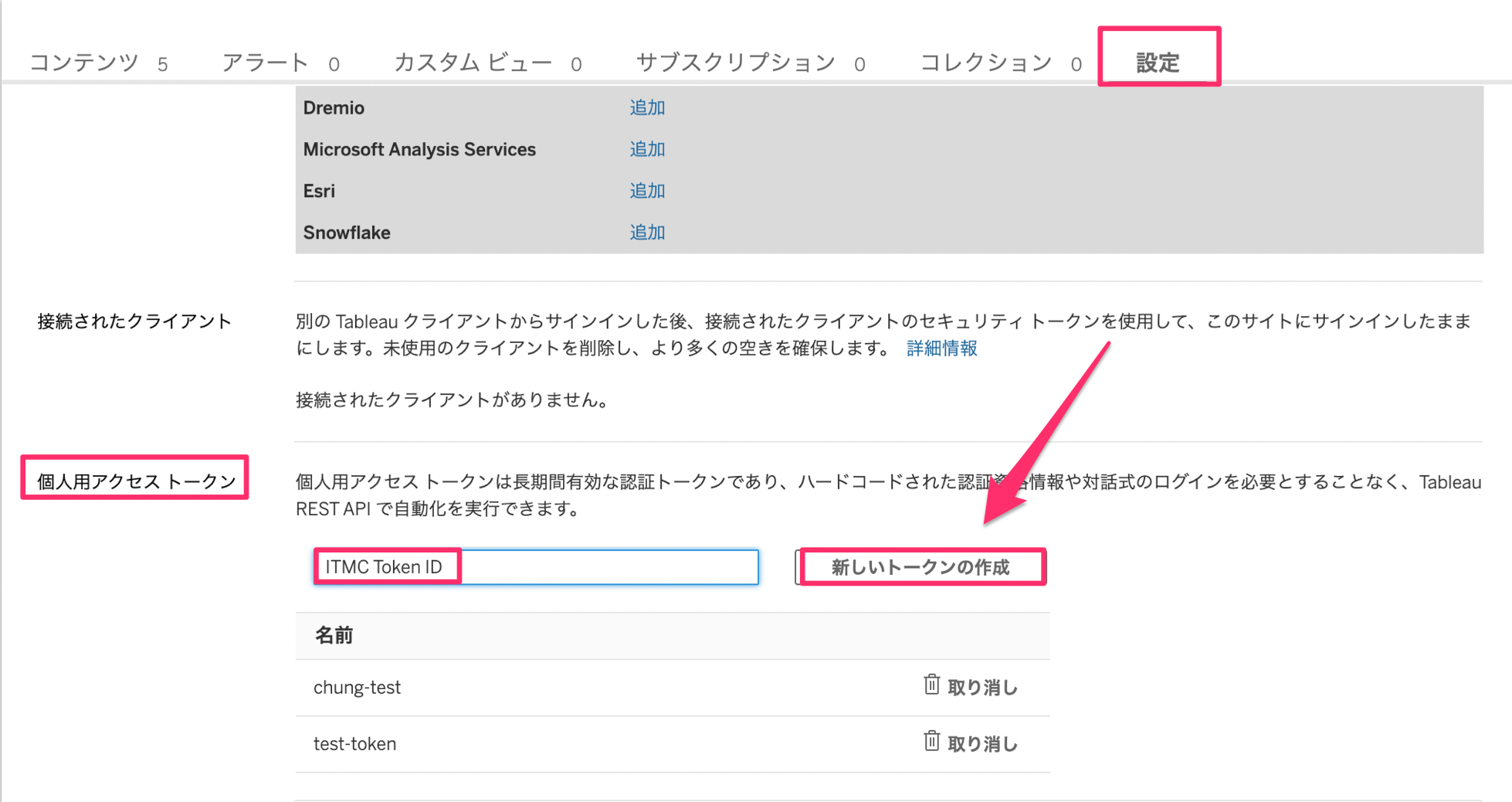
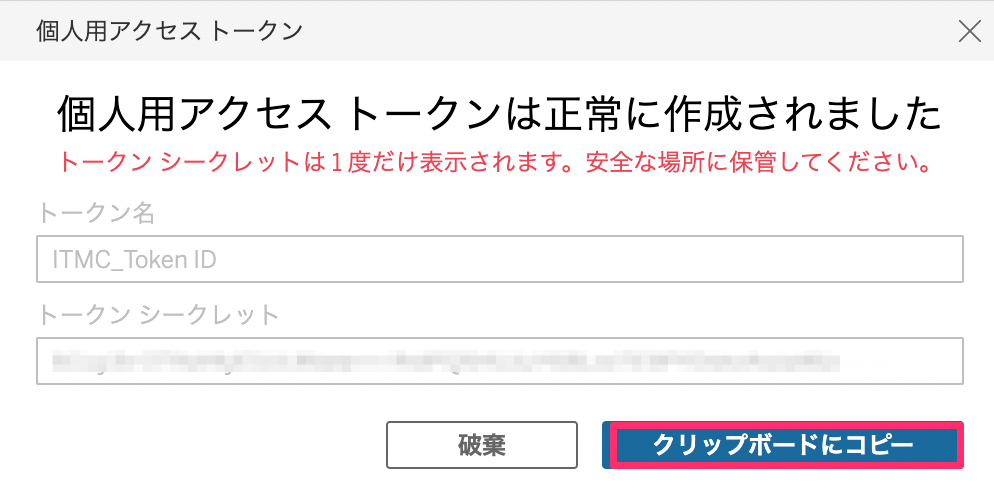
How to Obtain the Token ID and Token Secret
After logging in to Tableau, click your account icon in the upper right and select “My Account Settings.”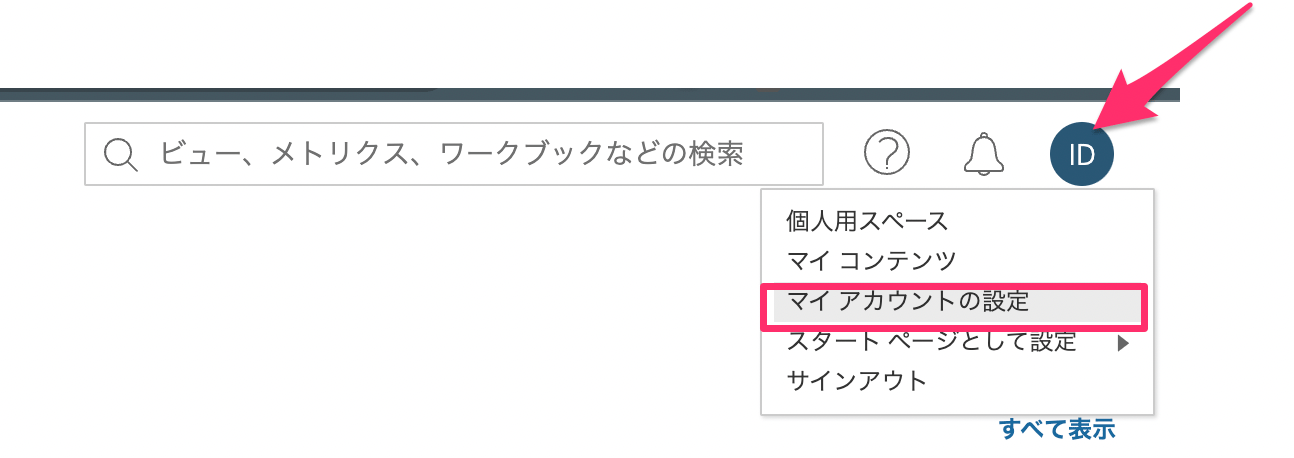
Integration Setup
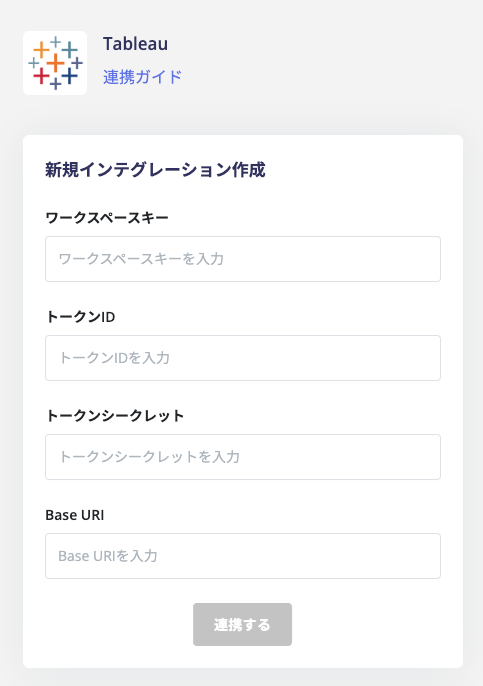
In the MoneyForward Admina integration screen, search for Tableau.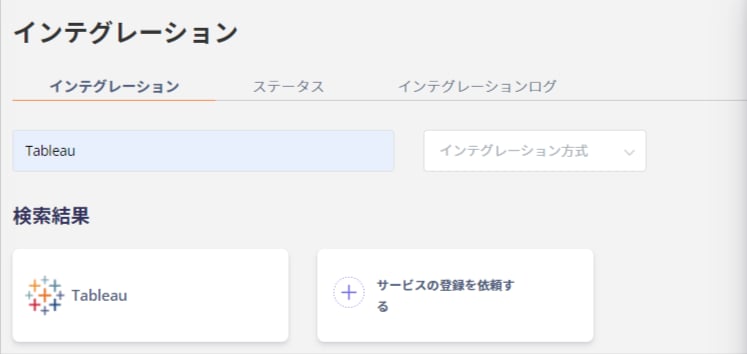
- Workspace Key: The Workspace Key obtained earlier
- Token ID: The Token ID obtained in the previous step
- Token Secret: The Token Secret obtained in the previous step
- Base URI: The Base URI obtained earlier