

Supported Features
Account Deletion Account Deactivation Account Creation- Administrator account and developer privileges are required for LINE WORKS integration.
- The procedure has been updated following the API upgrade to version 2.0. Customers who previously connected via API 1.0 should reconnect using this procedure.
- For details on API usage, please also refer to the LINE WORKS official documentation. The steps for using LINE WORKS API 2.0 are as follows:
- In the LINE WORKS Admin Console, go to Security > Administrator Permissions to grant Developers permission to the app developer (reference).
- If you are unable to use the API even after granting permissions, please contact LINE WORKS.
Prerequisites
How to Log in to LINE WORKS Developers
Go to the LINE WORKS Developers login page, enter your ID and password, and log in.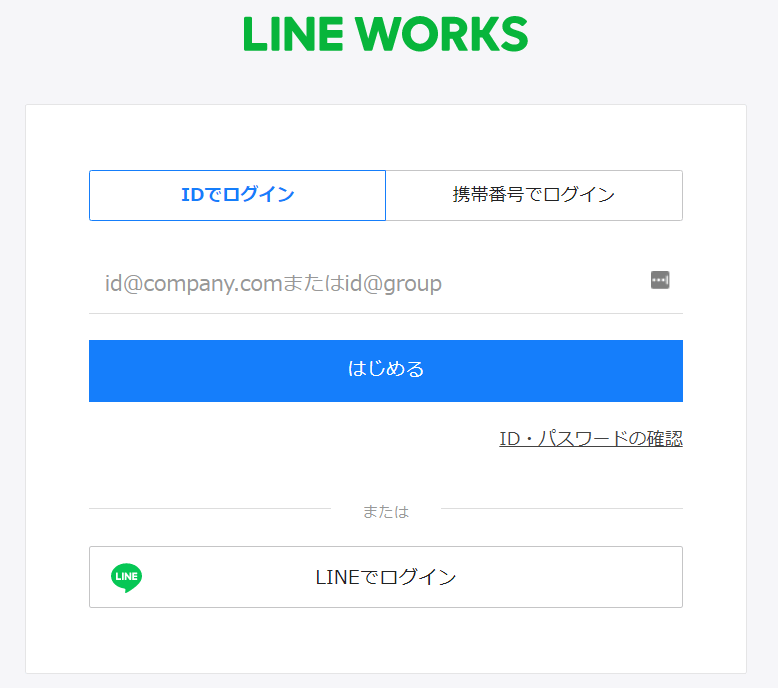
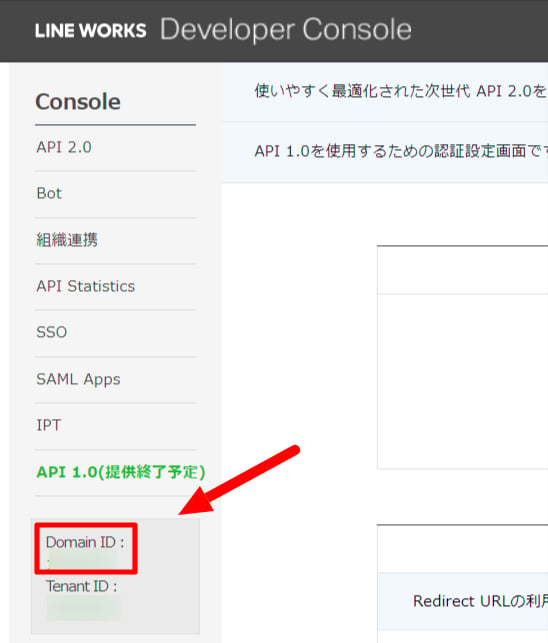
How to Obtain the Workspace Key
After logging in to LINE WORKS Developers, click Developer Console in the upper right corner.
Adding an OAuth App
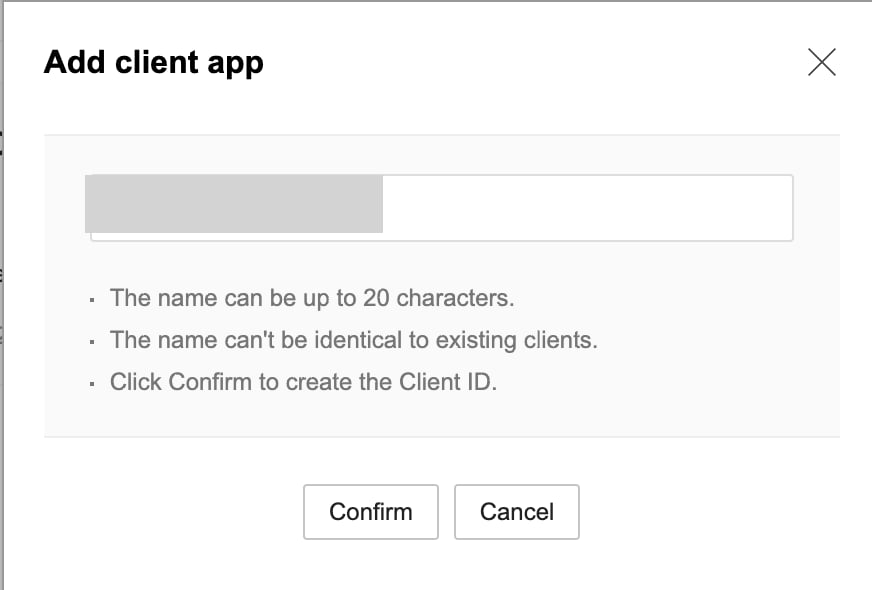
Click API2.0 > Add client app in the Developer Console.
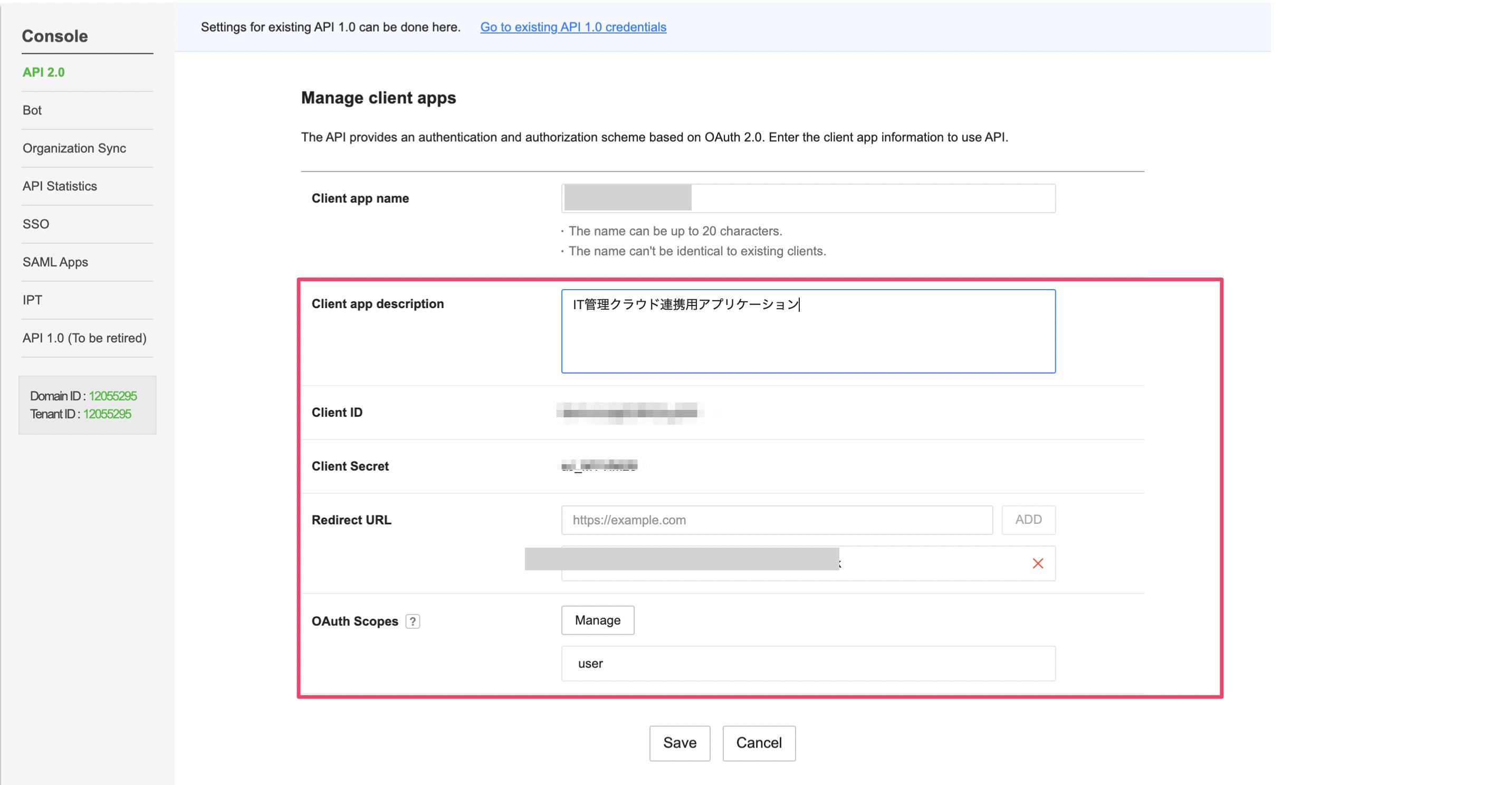
- Client app description: Any text for description purposes.
- Redirect URL: Enter
https://itmc.i.moneyforward.com/oauth/callbackand click Add. (Be sure to click Add, or the URL will not be saved.) - OAuth Scopes: Click the Manage button and select
user.
Depending on your plan (e.g., Free plan), the
user scope may not be available. In that case, please refer to the Read Only integration procedure described below.Obtaining the Client ID and Client Secret
Copy and save the Client ID and Client Secret for the application you created.
Integration Setup
Search for LINE WORKS on the MoneyForward Admina integration screen.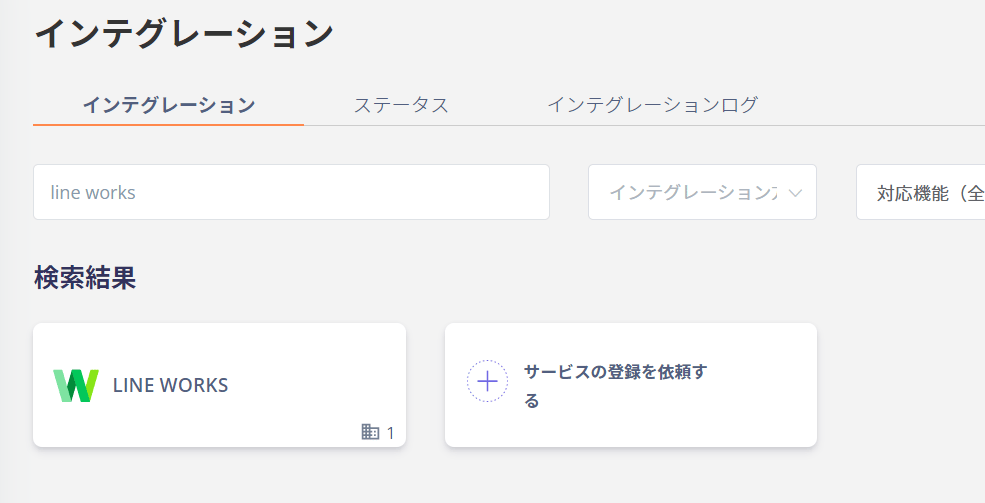
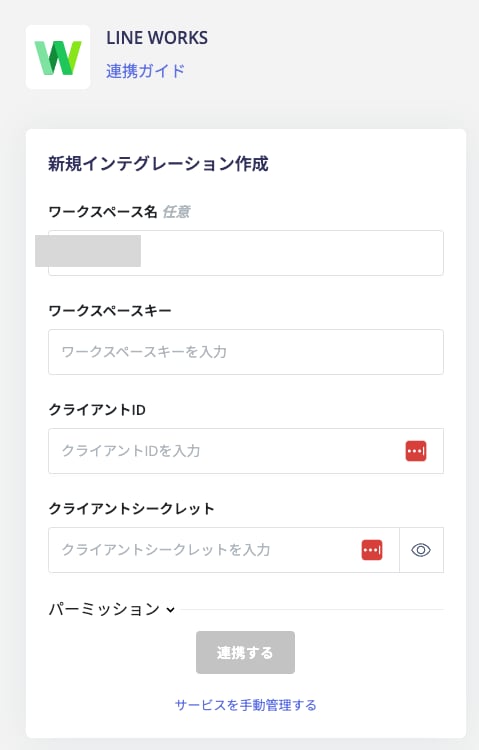
- Workspace Name: Any name (e.g., company name)
- Workspace Key: The Domain ID obtained in the previous steps
- Client ID: The Client ID obtained in the previous steps
- Client Secret: The Client Secret obtained in the previous steps
Read Only Integration Procedure
If you are on the Free plan and theuser scope is not available, or if you do not want to grant write or delete permissions to the OAuth app, you can use Read Only integration.
OAuth Scope Settings
Set the OAuth Scopes to the following instead ofuser:
user.email.readuser.profile.readuser.read
Read Only permissions cannot be used with scopes other than those listed above (e.g.,
user).
Integration Setup for Read Only
SelectRead Only for the permission setting and click Connect.

With Read Only integration, account creation and deletion from Admina are not available.