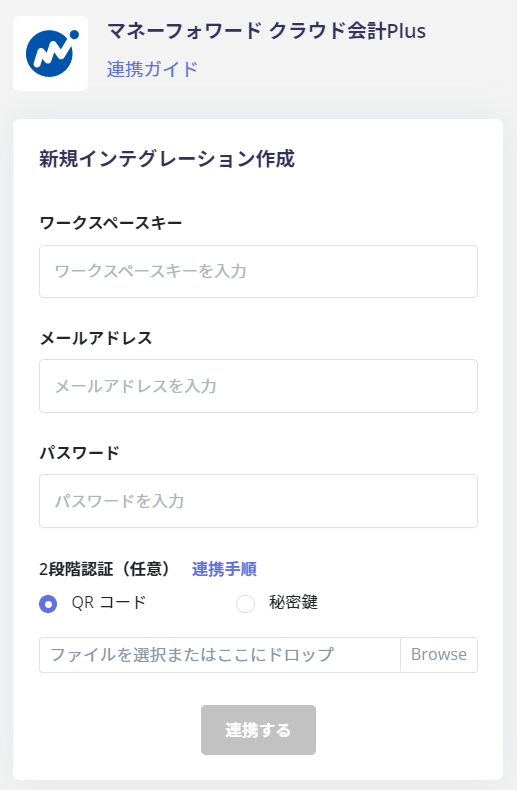
Supported Features
Account Deletion Account ProvisioningThis page covers the account integration steps. For expenditure (cost) data integration, see MoneyForward Cloud Accounting Plus (Cost Data).
Prerequisites
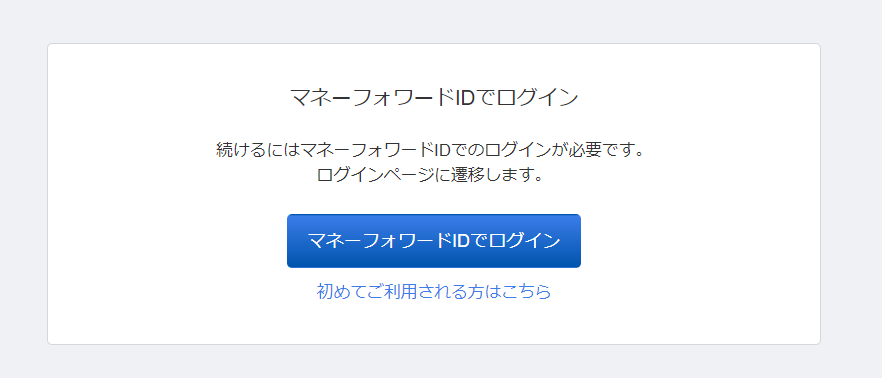
How to Log In to MoneyForward Cloud Accounting Plus
Go to the MoneyForward Cloud Accounting Plus login page and enter your email address and password to log in.Two-factor authentication must be configured for integration. For details, see Setting up two-factor authentication when connecting MoneyForward Cloud services.Integration using external authentication accounts such as Google or SSO is not supported. For details, see [Restrictions] Integration failure with Google authentication or SSO external authentication accounts.
How to Obtain the Workspace Key
After logging in to MoneyForward Cloud Accounting Plus, click your profile name in the upper right. The business number displayed is your workspace key — save it for later.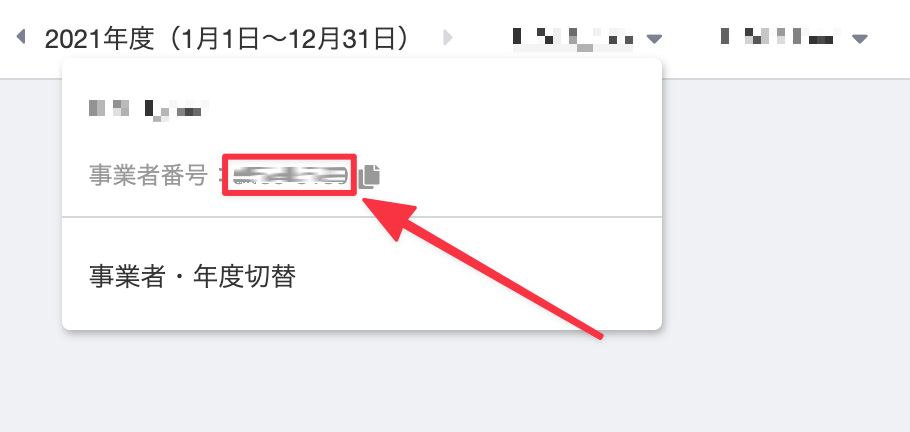
Integration Setup
In the MoneyForward Admina integrations screen, search for MoneyForward Cloud Accounting Plus.