Supported Features
Employee Master Sync Account Deactivation Account Deletion Account ProvisioningThis setup requires Super Admin privileges in Google Workspace.
Integration Setup
- In Admina, go to Integrations > Integrations, search for Google Workspace, and select it.

- Click Sign in with Google.
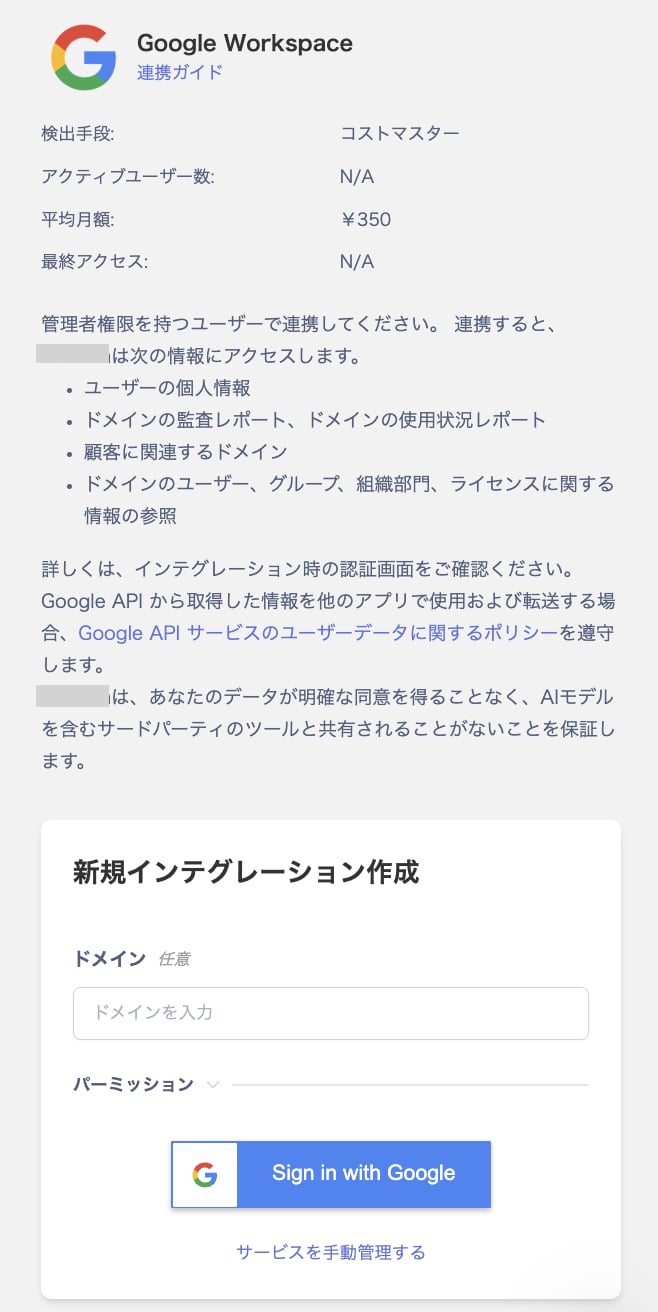
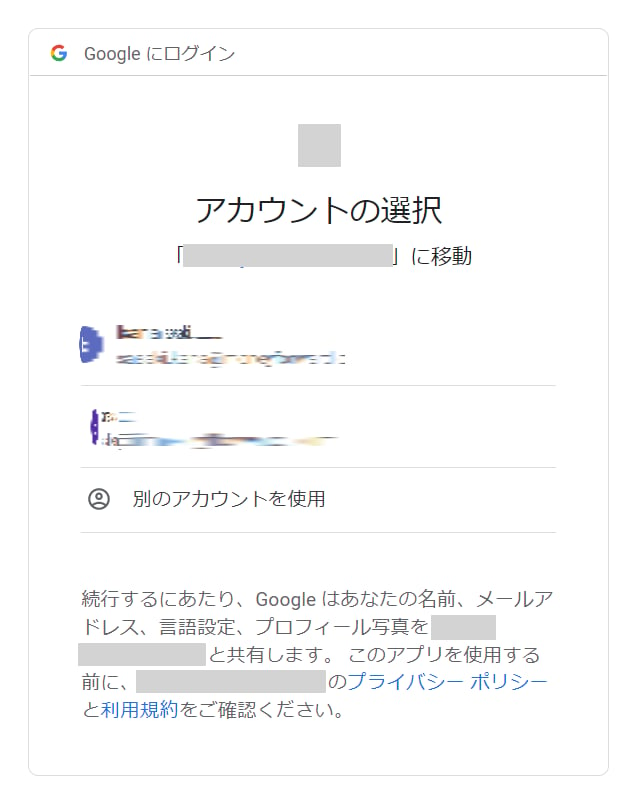
- You will be redirected to the Google login page. Log in with your Super Admin account.
- A screen titled “Google is requesting access to your account” will appear. Check all items and click Continue.

- When the integration succeeds, registered user information will appear in the account list.
If an Error Appears
Try the following:- Error displayed during Google OAuth integration [Error with Google OAuth integration]
- “This app isn’t verified” error from Google [“This app isn’t verified by Google” error]
If you have not yet configured the Employee Master, please follow the setup steps in Employee Master Integration.
If You Are Using Archived User Licenses
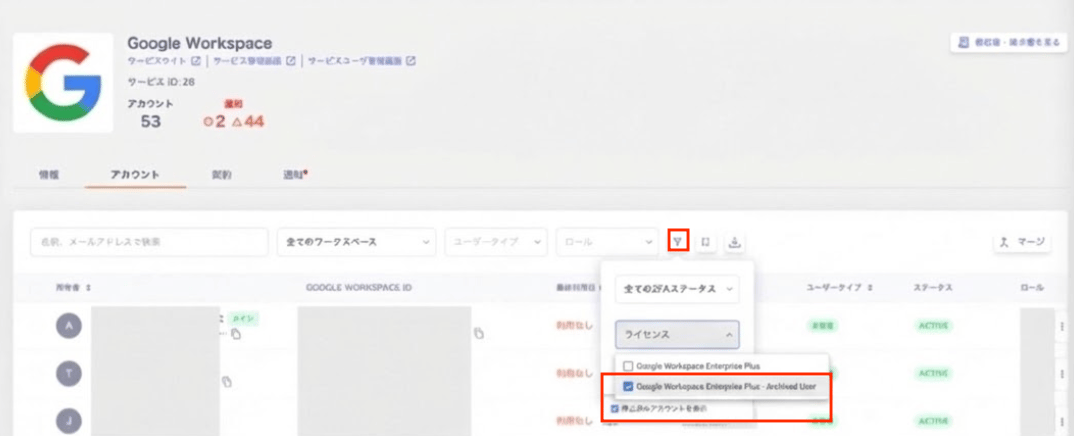
Google Workspace Archived Users can be viewed under Services > Google Workspace. For more information on archived user licenses, refer to Add archived user licenses (external site). Notifications: Archived users are not notified via alerts. Accounts: The status is “ARCHIVED.” Filtering by “License” shows “Google Workspace(edition) - Archived User.” Select the license and check “Show suspended accounts” to view the relevant accounts.