Supported Features
Account Deactivation File Aggregation File Permission Management Account CreationIntegration Setup
- In Admina’s Integration > Integrations, search for “Box”.

- Enter a workspace name of your choice (e.g., company name) and click Connect.
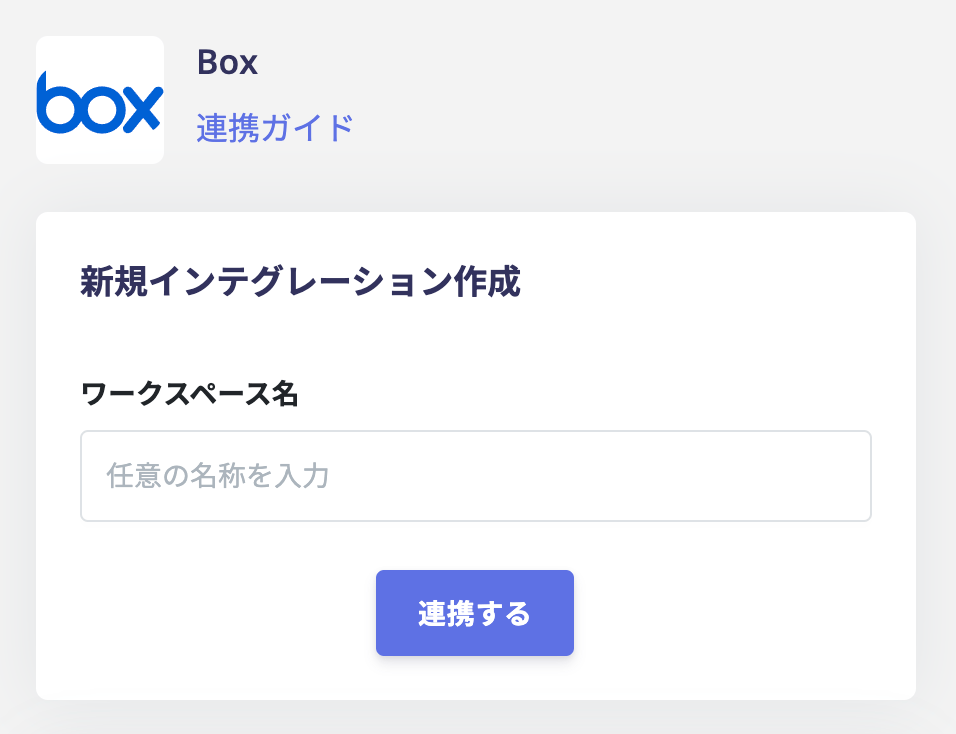
- You will be redirected to the Box login page. Enter your email address and password and log in.

- The following screen will appear. Click Grant access to Box.

- Once the integration with Box is successful, the registered user information will appear in the account list.
Application Permission Settings
Depending on your organization, the following screen may appear and the integration may fail. In this case, please allow the Admina integration application from the screen below. Go to Box > Admin console > App > Custom App Manager and add the following Client ID, then reconnect.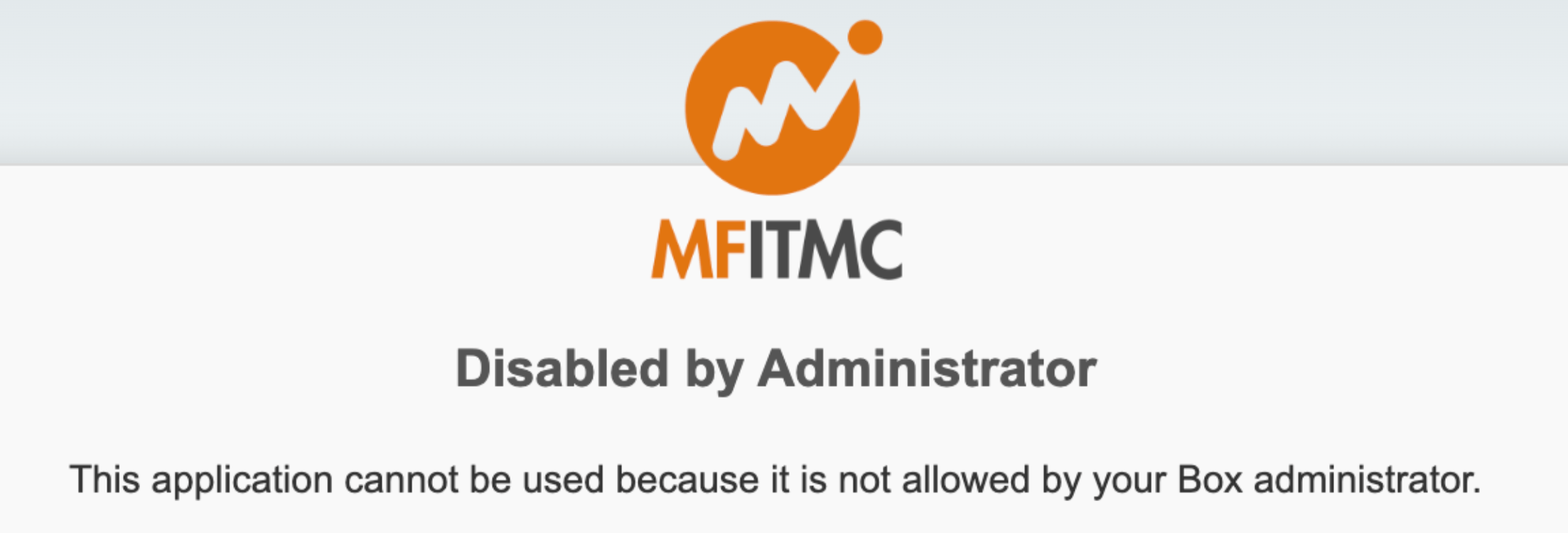
Public File Feature
By integrating with Box, Admina can retrieve information about externally shared files in Box. (About the external shared content management feature) This feature notifies you when files are publicly shared. For details, see the detection conditions.The Admin role in Admina is required to access this feature.
Stopping Sharing Settings
You can change (stop) file sharing settings from Admina. This allows you to immediately stop sharing high-risk files.- Click the right end of the file whose settings you want to change, then click [Share].
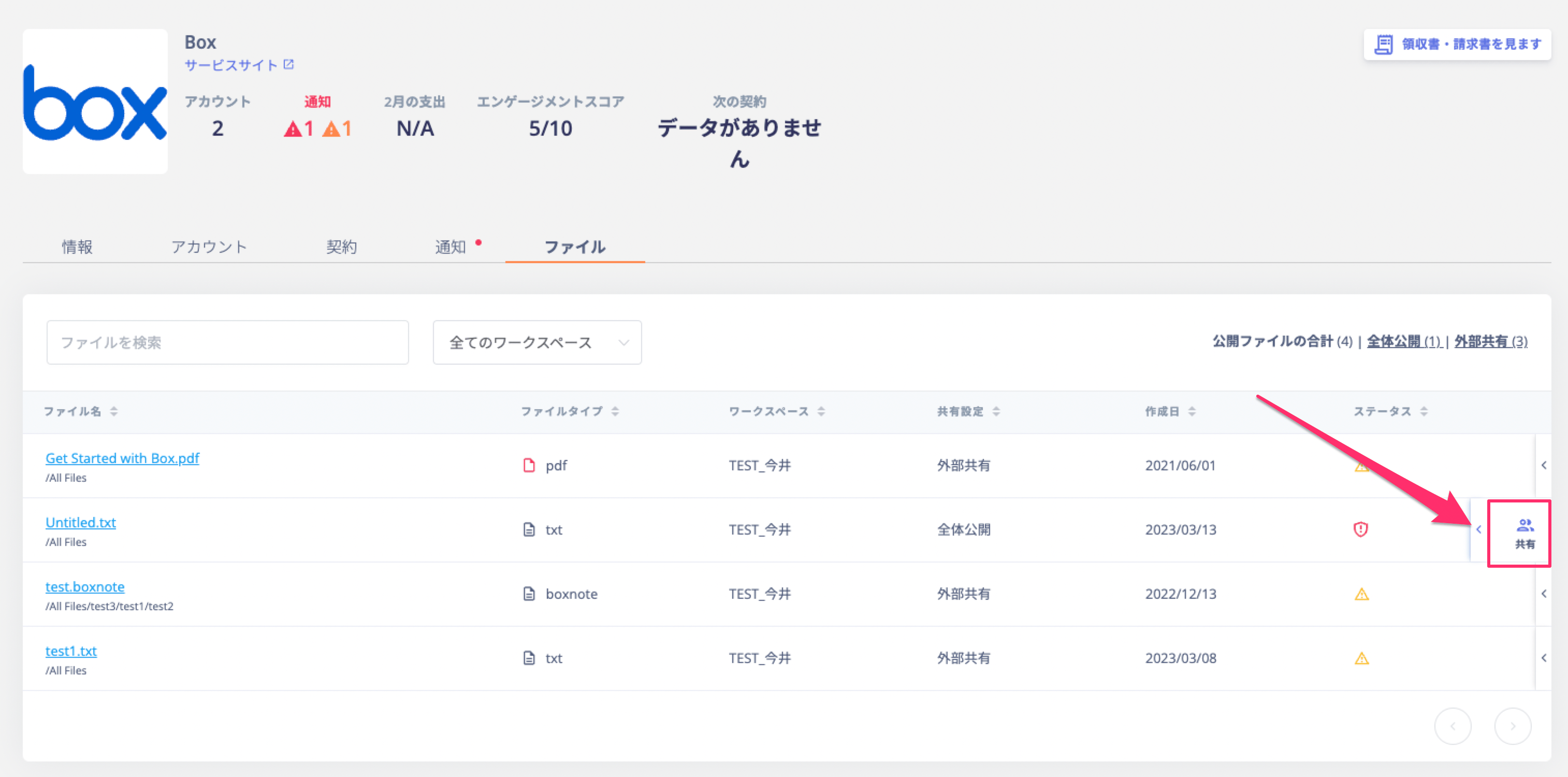
- A list of users the file is shared with will appear. For the user you want to stop sharing with, select [Stop Sharing] and click [Apply].

- A screen to update permissions will appear. Review the content and click [Close].