Supported Features

Account Deletion

Prerequisites

How to Log in to Site24x7

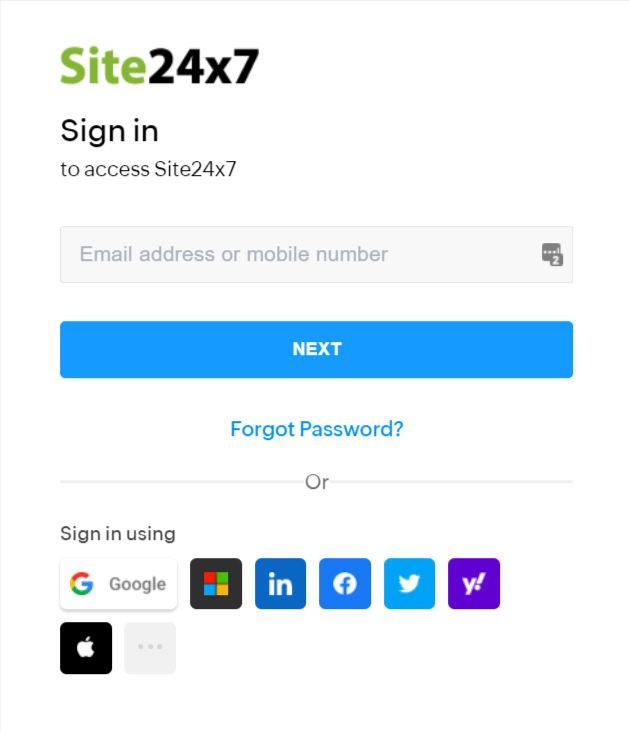
Go to the Site24x7 login page, use your preferred login method or enter your email address and password, and log in. Site24x7 login screen
Checking OAuth Credentials

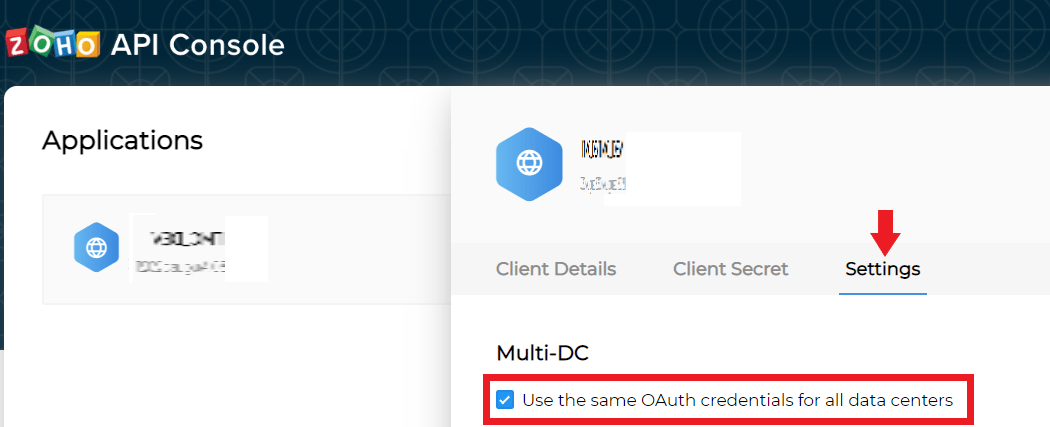
Access the ZOHO API Console and go to Select the Application you want to integrate > Settings. Confirm that “Use the same Oauth credentials for all data centers” is checked ✅. If the checkbox is not checked, enable it. ZOHO API Console settings screen If no Application exists, create one by going to + ADD CLIENT > Client-based Applications > CREATE NOW. After creating, confirm the Settings. ZOHO API Console new creation screen ZOHO API Console creation complete screen
Integration Setup

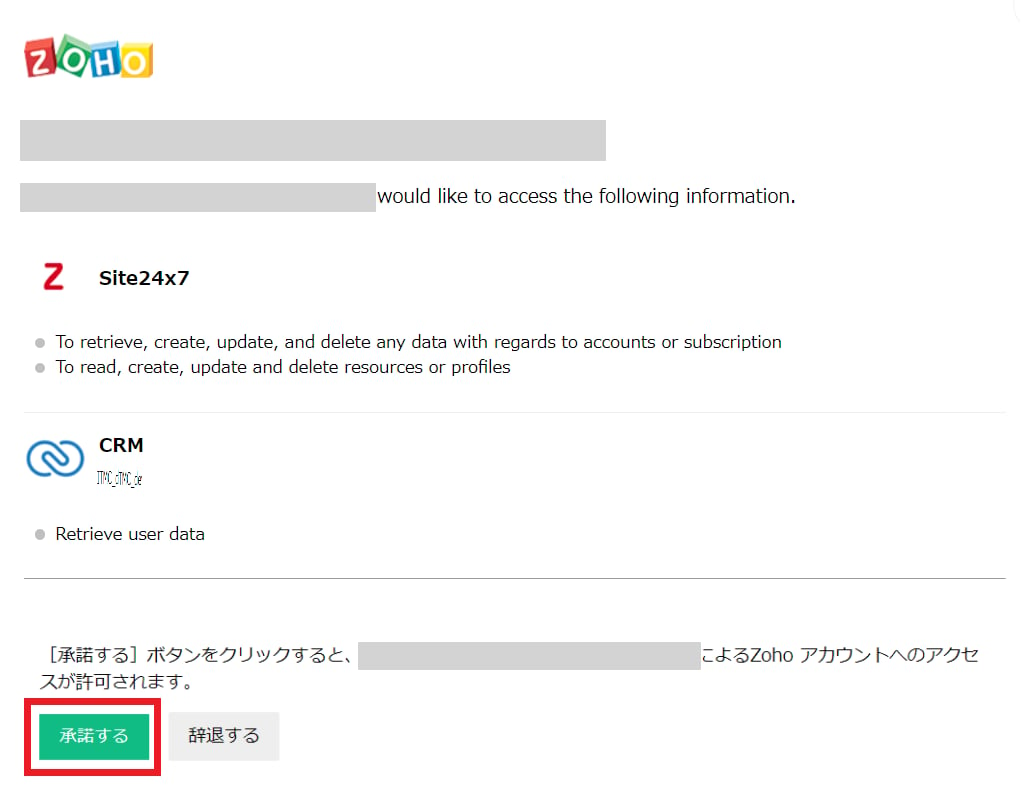
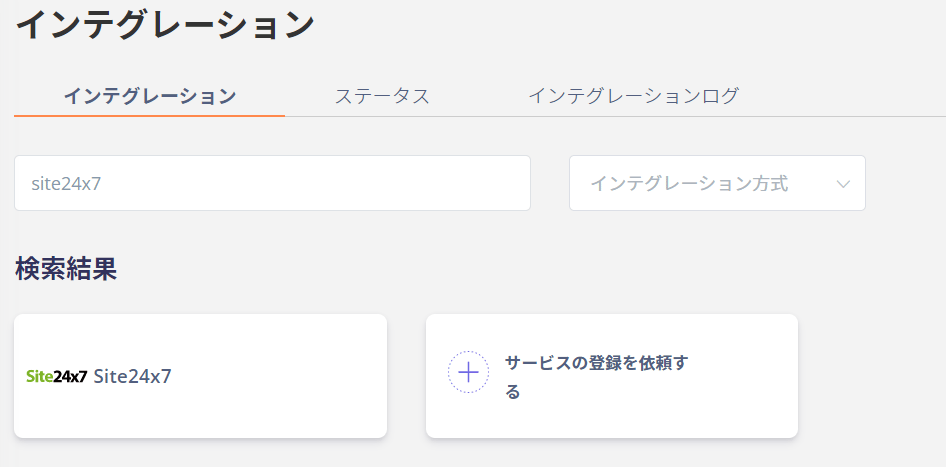
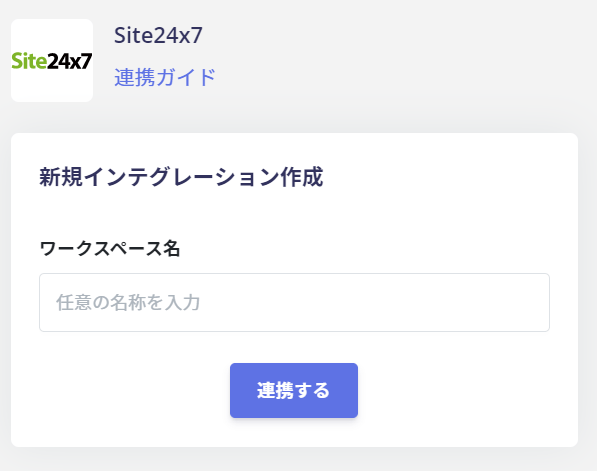
Search for Site24x7 on the MoneyForward Admina integration screen. Search for Site24x7 on Admina integration screen Enter a workspace name of your choice (e.g., company name) and click Connect. Site24x7 integration setup screen A consent screen will appear. Review the content and click Accept. Site24x7 consent screen Once the integration with Site24x7 is successful, the registered user information will appear in the account list. If the process does not complete successfully. Click Edit from the Status tab on the integration screen and try connecting again.
If the issue persists, please contact us via chat.
Last modified on June 26, 2026