Supported Features
Account Creation
Integration is available for Team Bundle and Enterprise Bundle plans only.
Prerequisites
How to Log In to Lucidchart
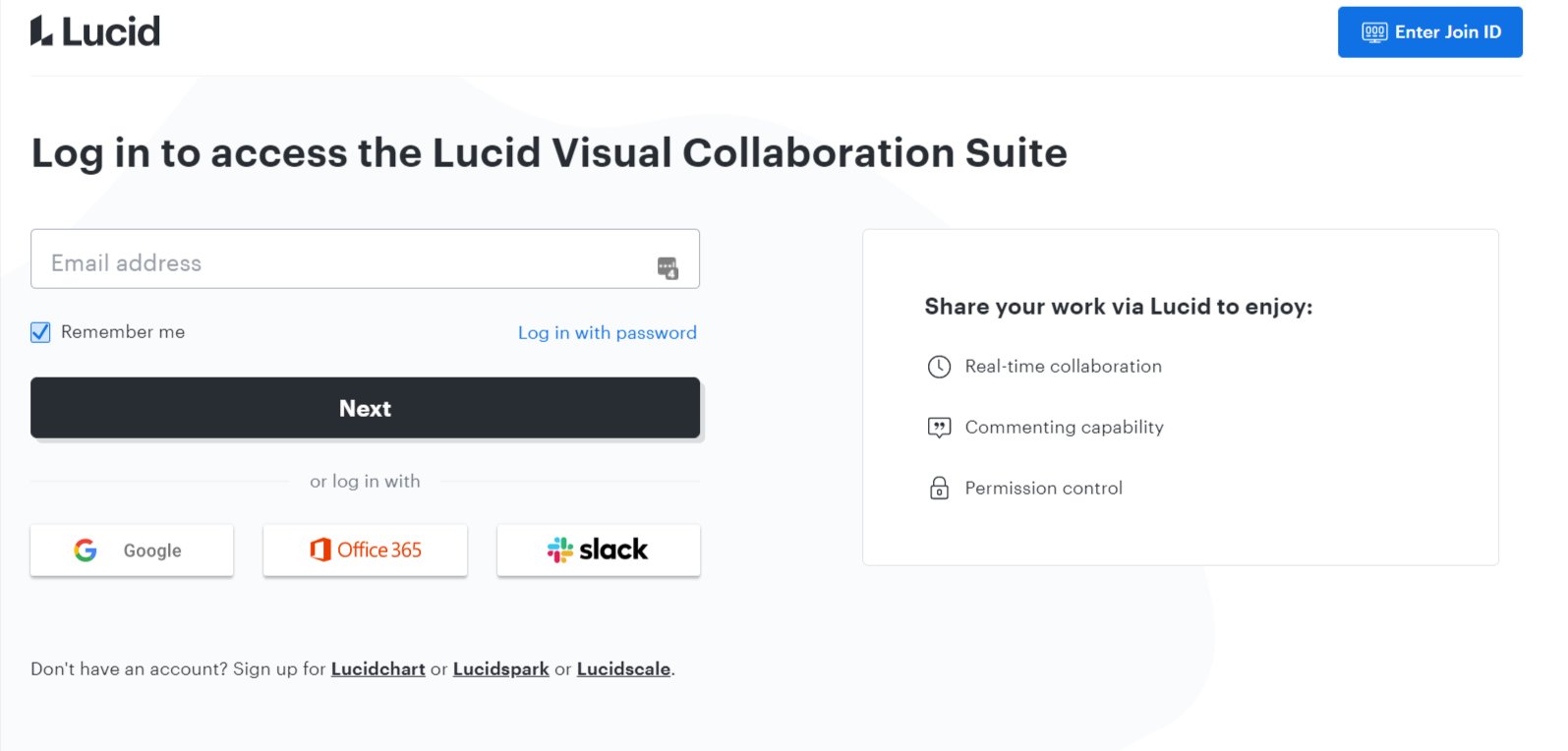
Go to the Lucidchart login page, select your preferred login method or enter your email address and password, and log in.
How to Obtain the Client ID and Client Secret
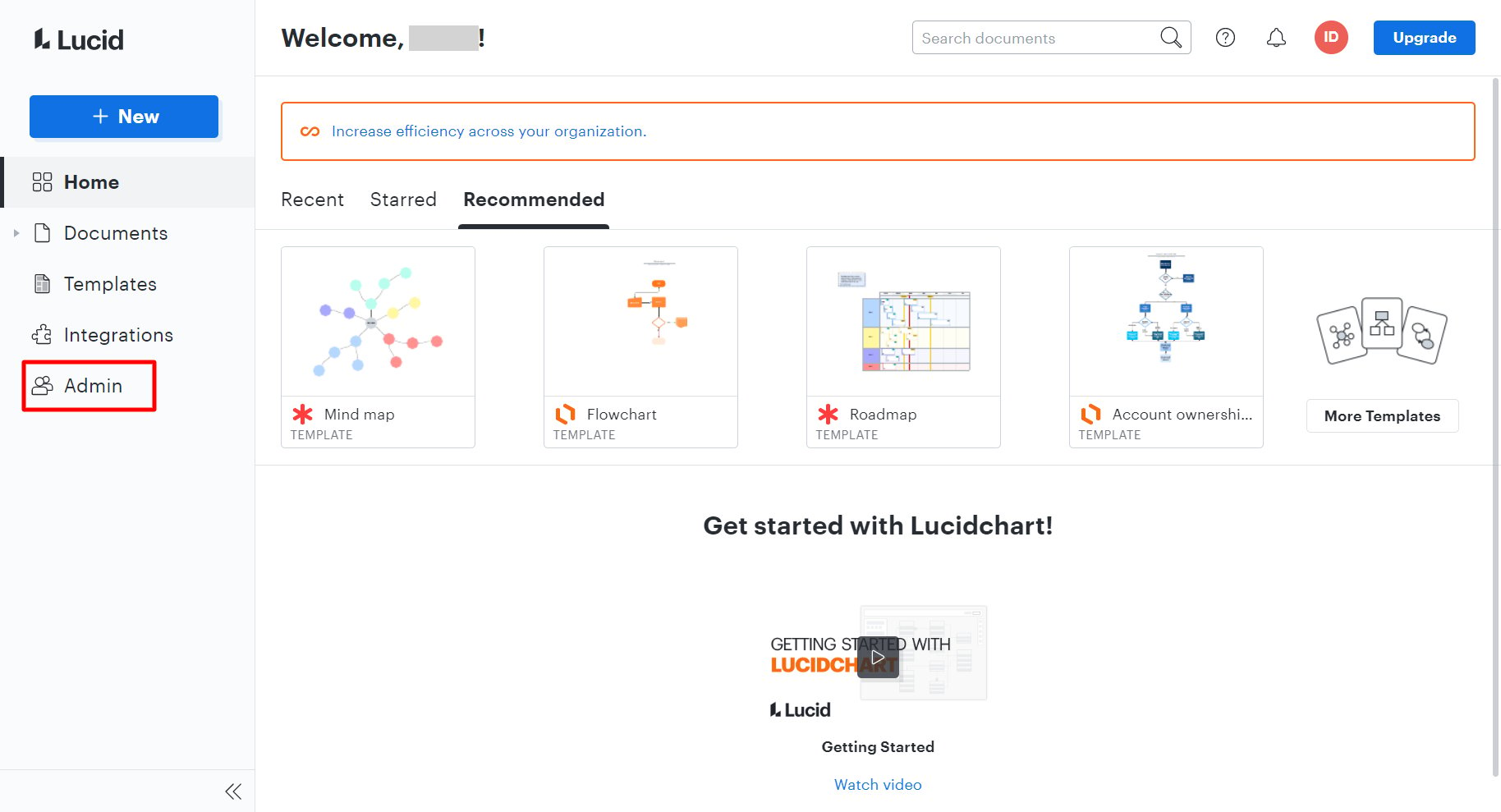
After logging in to Lucidchart, click Admin in the left menu.
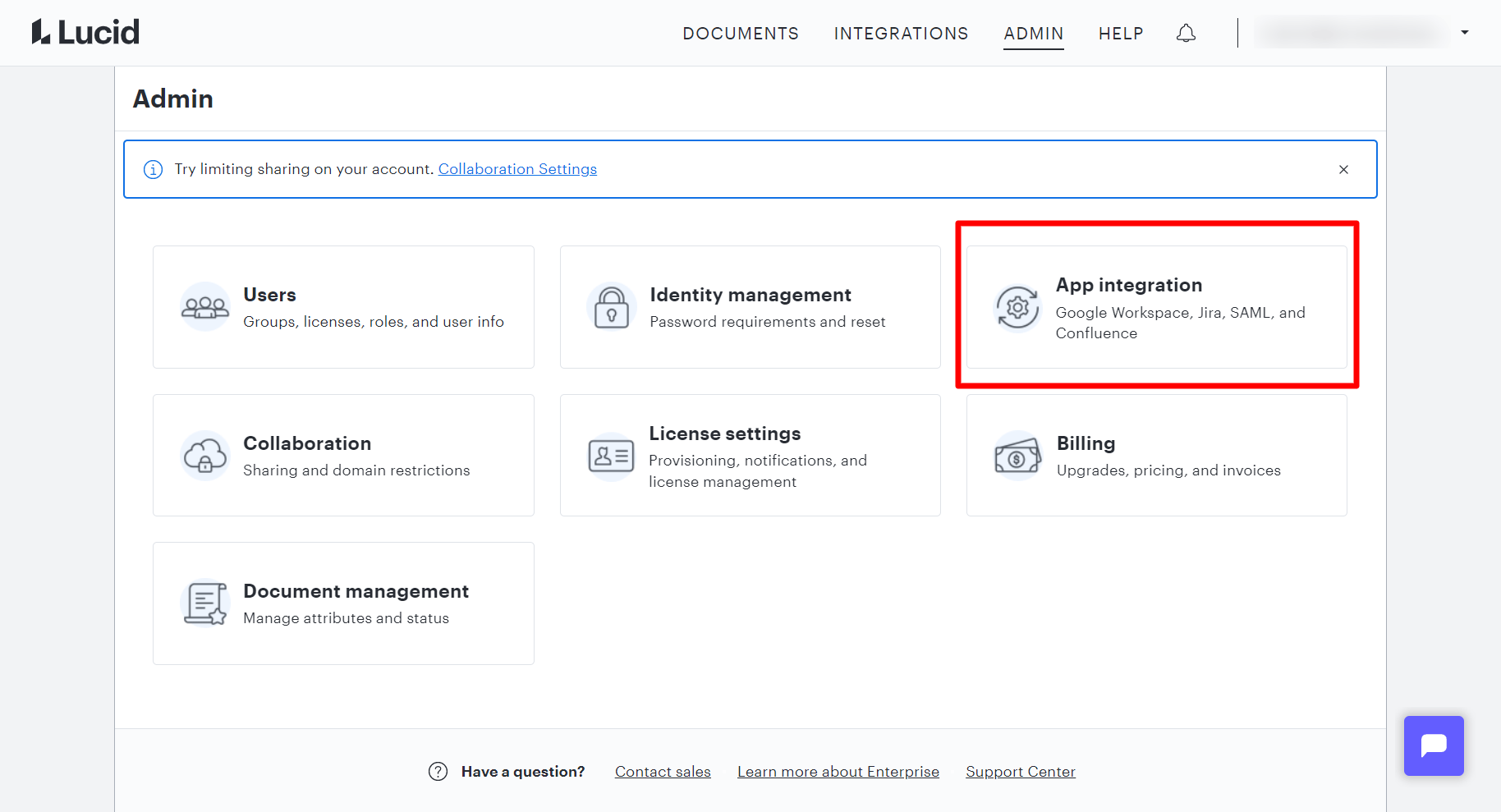
 From the Admin menu, click App integration.
 Click Settings under Custom OAuth.
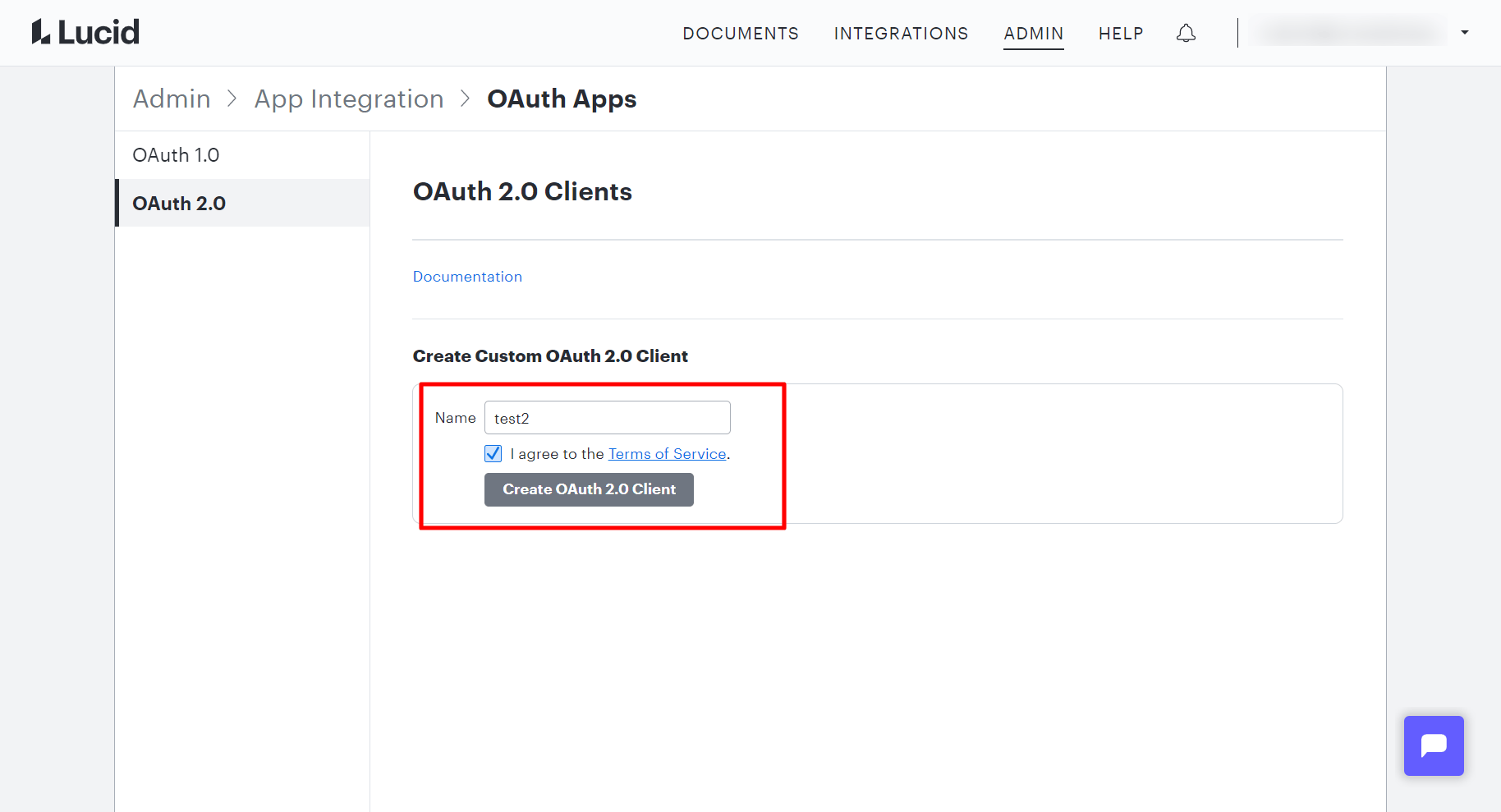
 Under Create Custom OAuth2.0 Client, enter any string (such as your company name) in the Name field, check I agree to Terms of Service., and click Create OAuth2.0 Client.
 The client will be created as shown below. Click Details.
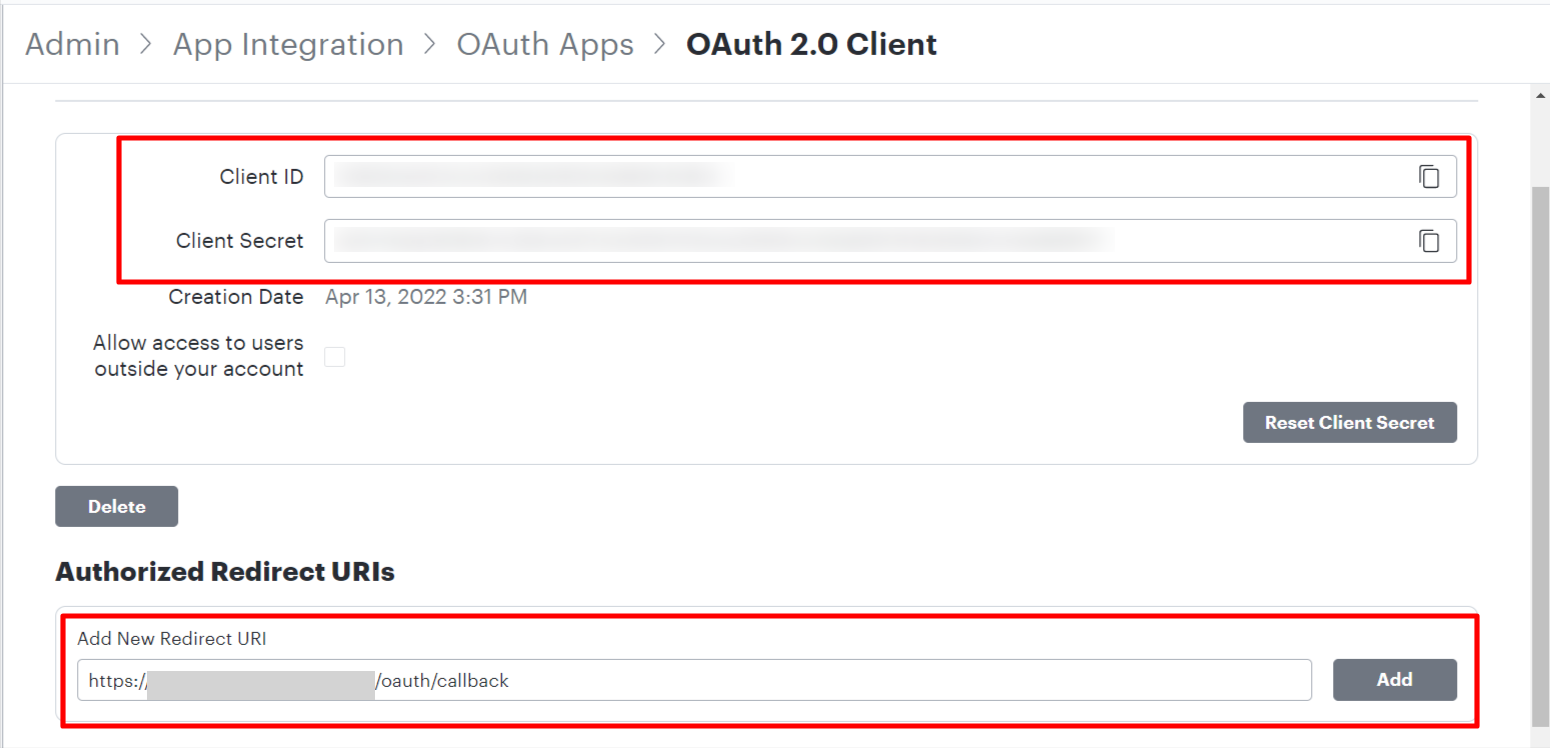
 Your Client ID and Client secret will be displayed. Save these values, as they are required for integration.
Next, on the same page (OAuth2.0 Client), enter the following address in Authorized Redirect URIs under Add New Redirect URI, then click Add.
https://itmc.i.moneyforward.com/oauth/callback
Your Client ID and Client secret will be displayed. Save these values, as they are required for integration.
Next, on the same page (OAuth2.0 Client), enter the following address in Authorized Redirect URIs under Add New Redirect URI, then click Add.
https://itmc.i.moneyforward.com/oauth/callback
Integration Setup
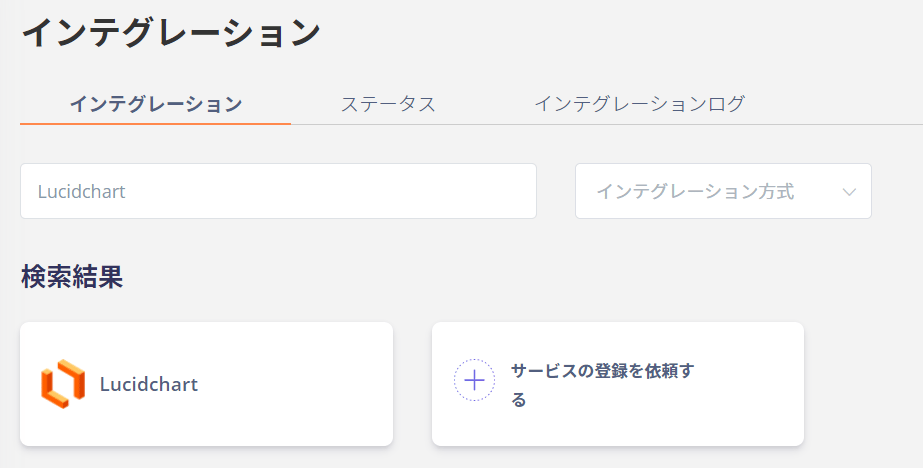
In the Moneyforward Admina integrations screen, search for Lucidchart.
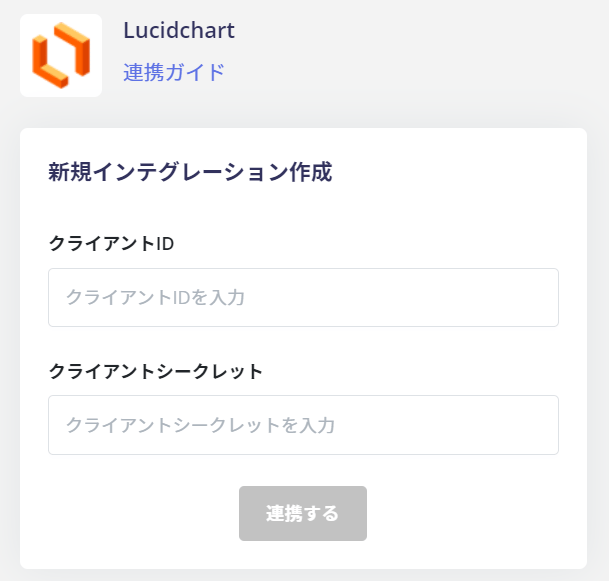
 Enter the Client ID and Client secret obtained in the previous step, then click Connect.
 Once the integration with Lucidchart is successful, the registered user information will appear in the account list.
If the process does not complete successfully, go to the Status tab on the integrations screen, click Edit, and try connecting again.
If the issue persists, please contact us via chat.
Once the integration with Lucidchart is successful, the registered user information will appear in the account list.
If the process does not complete successfully, go to the Status tab on the integrations screen, click Edit, and try connecting again.
If the issue persists, please contact us via chat.
